
The Truehost Reseller Panel lets you sell domains and hosting under your own brand. It connects several services: a domain reseller account, a hosting server, payment providers, and your own domain and branding.
Most setup problems come from one of two things: a missing key, or a key from the wrong account. You can avoid both by reading through everything in this guide before you start. Do this once, and every later setup goes smoothly.
Before you begin, ensure: #
- You have a welcome email from your provider (or the person who installed the panel).
- Access to the email address you use to log in to your Truehost account.
- About 30 to 60 minutes. Some items, such as payment go-live approval, can take longer, so start those early.
You do not need all sections below. Only gather what you plan to use. For example, if you will not move from WHMCS, skip that section.
Key terms #
| Term | Meaning |
| API key | A long, secret code that lets one system (your panel) talk to another (for example, Truehost) on your behalf. Treat it like a password. |
| Sandbox/test keys | Practice credentials that let you test without moving real money. |
| Live/production keys | Real credentials that process real payments. |
| A record | A DNS setting that points a domain name to a server’s IP address. |
| SSL certificate / HTTPS | The security layer that makes a web address start with https://. |
| SMTP | The system your panel uses to send emails such as invoices and password resets. |
| Nameserver | A server that tells the internet where your domain’s records live. |
| WHMCS | A billing and client management platform. You only need it if you are moving customers from an existing WHMCS setup. |
Here are the requirements that one should have to successfully connect to Truehost Reseller Panel:
1. Your Truehost Reseller Panel #
| What you need | Where to get it | Why you need it |
| Admin area address and login | Your welcome email from your provider, or whoever installed the panel. The admin area is at https://<your panel>/admin | Used in every guide |
| The address your customers will use, for example billing.yourbrand.com | A domain or subdomain you own. Point it at the panel server with an A record, then ask your technical contact to set it as the panel address (called APP_URL) and issue an SSL certificate | Needed for white labelling (showing your brand, not ours) |
| A working email account to send from (SMTP) | Your email provider. Collect the SMTP host, port, username and password. Example sender: [email protected] | Lets customers receive invoices and password resets |
HTTPS is required because Card gateways, M-PESA callbacks, and Paystack webhooks only work on an https:// address that the internet can reach. Do not skip the SSL certificate.
2. Domains: the Truehost Domains Reseller API #
You need this section if you want to sell domain names.
| What you need | Where to get it |
| Truehost Client Area Site | The Truehost website where your reseller account lives and where you log in. Examples: truehost.co.ke, truehost.com, truehost.cloud, truehost.co.za, truehost.com.ng |
| API Username | The email address you use to log in to that Truehost site |
| API Key | Log in to that site’s client area, open the Reseller Area section, then choose API settings. If you do not see this section, ask Truehost support to enable domain reselling on your account |
| Account balance | Top up your reseller balance on the same site. Every registration, transfer and renewal is paid from this balance |
Each Truehost site keeps its own reseller accounts, keys and balance. A key from truehost.co.ke does not work with truehost.com. Make sure the site, username, key, and balance all come from the same site.
You know which Truehost site your account is on, and you have the username, API key, and a funded balance.
3. Hosting server #
You need this section if you want hosting accounts to be created automatically when customers buy. Your hosting provider will give you one of the following server types.
| Server type | What you need | Where it comes from |
| cPanel/ WHM | Server hostname, WHM username, and an API token | In WHM, go to Development → Manage API Tokens |
| Panelica | Hostname, API Key (starts with pk_live_) and API Secret (starts with sk_live_) | In the Panelica panel, go to Settings → API Keys. The secret is shown only once, so copy it immediately |
| DirectAdmin | Hostname, admin username, and a password or login key | In DirectAdmin, go to Login Keys |
| Plesk | Hostname, admin username, and a password or API key | From the Plesk administrator account |
Also write down the packages (plans) that already exist on that server. A package in the Truehost Reseller Panel sells one of them, for example “Starter 5GB”.
4. Payments #
Collect details only for the payment methods you plan to offer.
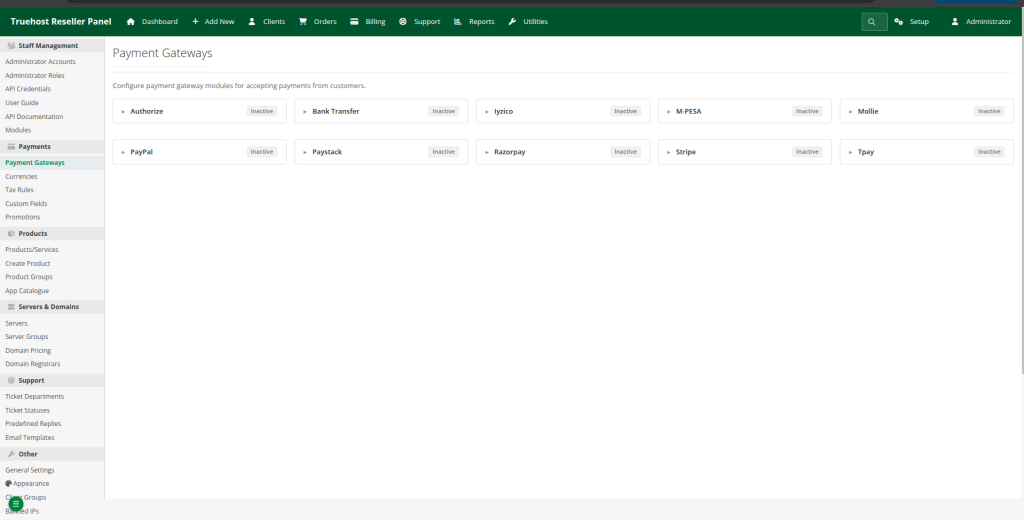
| Method | What you need | Where to get it |
| M-PESA (Safaricom Daraja) | Consumer key, consumer secret, passkey, and business short code (PayBill or Till number) | developer.safaricom.co.ke. Create an app for testing, then use Go Live to get production credentials. The production passkey arrives by email |
| M-PESA go-live extras | A Business Administrator on the M-PESA organisation portal, and an API operator (initiator) with its security credential. These are used for payment status checks and reversals | The M-PESA org portal (provided by Safaricom when your PayBill or Till was opened), then the Daraja portal for the credential |
| Paystack (cards, M-Pesa, bank) | Public key and secret key | dashboard.paystack.com → Settings → API Keys & Webhooks |
| Stripe (cards) | Publishable key, secret key, and webhook signing secret | dashboard.stripe.com → Developers → API keys / Webhooks |
| PayPal | Client ID and secret | developer.paypal.com → Apps & Credentials |
| Bank transfer | Bank name, account name and number, and branch or SWIFT code | Your bank |
Always start with test (sandbox) keys. Make a test payment, confirm it works, and only then switch to live keys.
M-PESA go-live needs approval and extra roles. Start this early so it does not delay your launch.
For each payment method you will offer, you have the full set of keys listed above.
5. Moving from WHMCS #
If you are importing existing customers and data from a WHMCS installation.
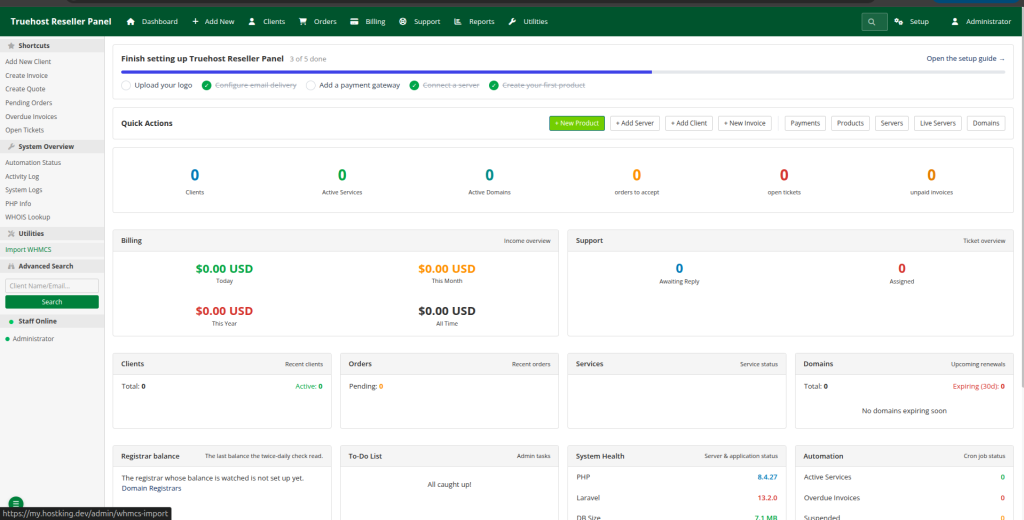
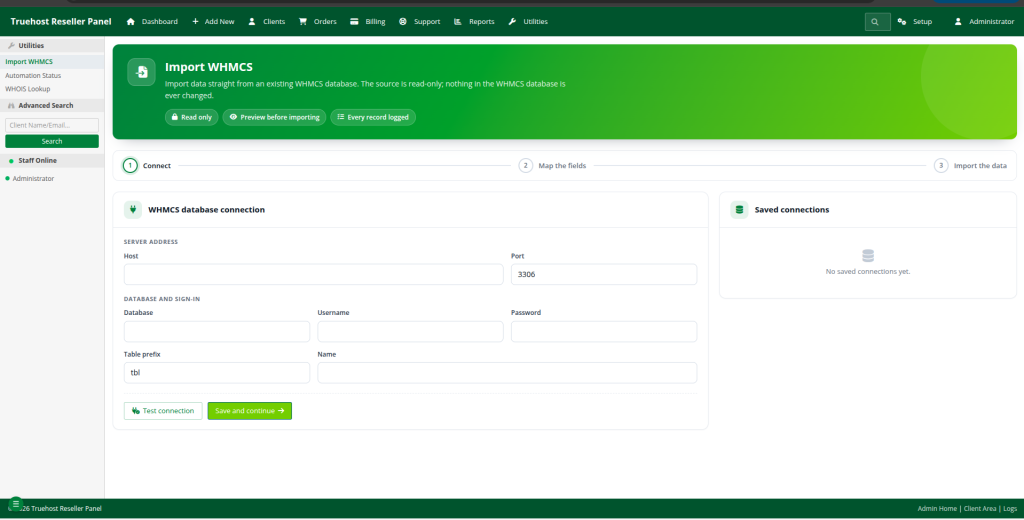
| What you need | Where to get it |
| WHMCS database host, name, username, password and table prefix | WHMCS’s configuration.php file (look for $db_host, $db_name, $db_username and $db_password), or your WHMCS host’s control panel. The prefix is tbl unless it was changed |
| Remote database access | The WHMCS database must accept connections from the Truehost Reseller Panel server’s IP address. In cPanel, open Remote MySQL and add the panel server’s IP. Better still, create a read-only database user just for the import |
An import only needs to read data. A read-only user cannot accidentally change or delete anything in your WHMCS database.
Checkpoint: you have the database details, and the panel server is allowed to connect to the WHMCS database.
6. Branded nameservers #
You need this section if you want customers to see nameservers such as ns1.yourbrand.com instead of generic ones.
| What you need | Where to get it |
| A domain you own for the nameservers, for example yourbrand.com | Your domain registrar |
| The IP addresses behind the nameservers your hosting uses | Ask your hosting provider (Truehost support) for the nameserver IPs to use for private nameservers |
Ensure you own the domain and have the nameserver IP addresses.
7. Brand assets #
These make the panel look like your business. They are used when you white label the panel.
- Logo: PNG, JPG, SVG or WebP, maximum 2 MB. A wide logo about 30 px tall works best in the header.
- Favicon: PNG, ICO or SVG, maximum 512 KB, and square. This is the small icon shown in browser tabs.
- Brand colours, your company’s legal name, address and support email.
Ensure all files are saved in one folder, within the size limits.
Troubleshooting #
| Problem | Likely cause | Fix |
| Domain API key is rejected | The key belongs to a different Truehost site | Use the key from the same site as your username and balance |
| Cannot find the API settings | Domain reselling is not enabled | Ask Truehost support to enable it on your account |
| Payment confirmations never arrive | The panel address is not on HTTPS or is not publicly reachable | Fix the SSL certificate and confirm the address opens from the internet |
| Panelica API secret is lost | The secret is shown only once | Generate a new API key pair in Settings → API Keys |
| WHMCS import cannot connect | The database does not allow your panel server’s IP | Add the IP under Remote MySQL in cPanel |
| Logo or favicon upload fails | The file is too large or in the wrong format | Check the size limits and supported formats in section 7 |
Security best practices #
- Keep all keys and passwords in a password manager.
- Never share keys over email, chat or screenshots.
- Use test keys first, and live keys only when you are ready.
- Use a read-only database user for imports.
- If a key is ever exposed, regenerate it straight away.