
A domain transfer moves a domain from its current registrar to another registrar. The registrar is the company that holds the domain’s registration. This guide explains how your clients can transfer a domain to you, and how you can offer domain transfer services to clients in Kenya and elsewhere, directly from your own website.
Here is how an inbound transfer works in the Truehost Reseller Panel:
- Your client has a domain registered with another provider.
- Your client places the transfer order on your website.
- Your client pays you.
- The Truehost registrar module starts the transfer at Truehost.
- When the transfer completes, you manage the domain through the panel.
Clients move their domains to you from your own site. Truehost does the transfer, and the client keeps the time they already paid for. The client keeps the time remaining on the existing registration, and one additional year is added under the transfer process described in this guide.
A transfer moves the domain’s registration management only. It does not necessarily move website files, email accounts, or hosting services. Clients must move those separately.
Before You Offer Transfers #
Check:
- Transfer Prices
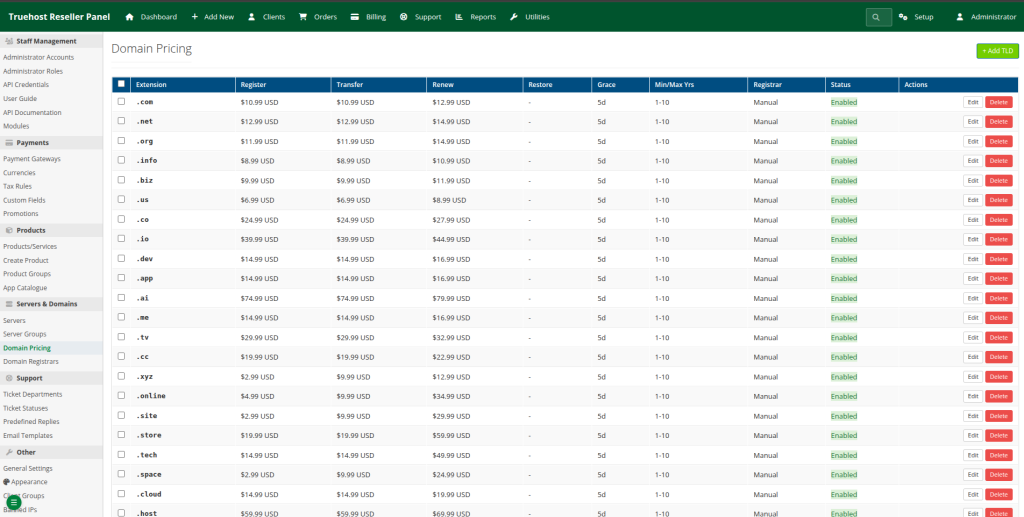
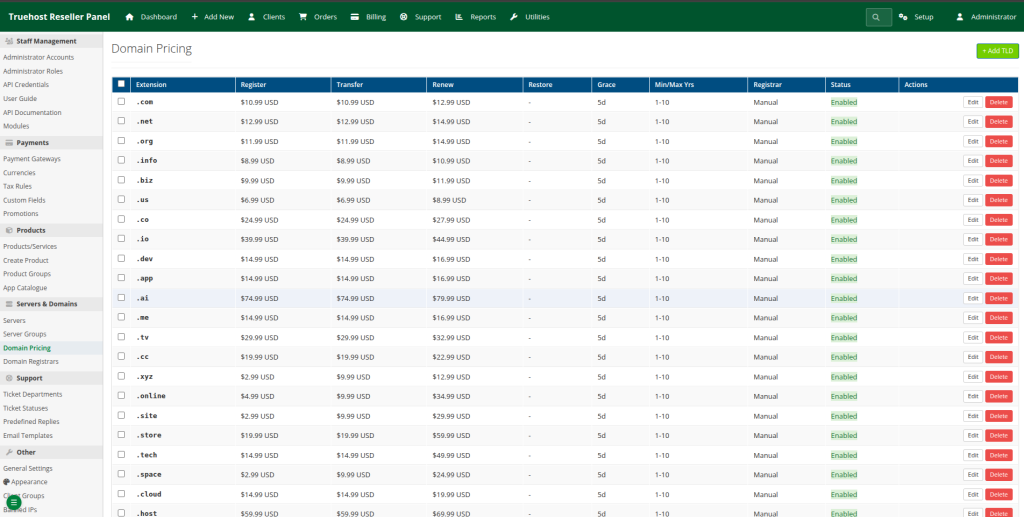
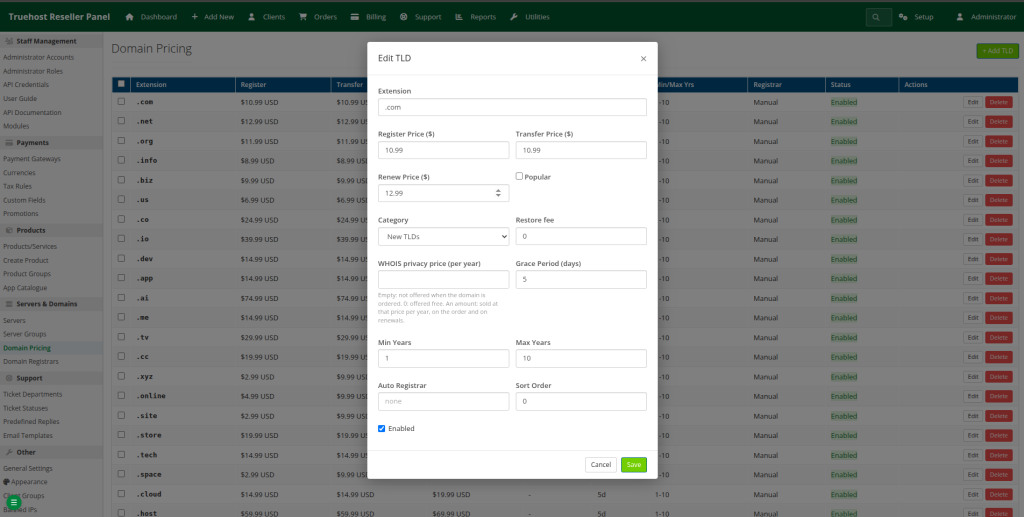
Each extension has its own Transfer Price. You set it under Setup → Domain Pricing.
For synced extensions, the panel uses Truehost’s transfer cost plus your markup. The price your client sees is the one you configure. Transfer costs can differ between extensions, so check each extension you offer.
- Truehost Reseller Balance
Your Truehost balance pays for domain transfers. If the balance is too low, a transfer may not start even though your client has paid you. Keep enough funds available before you accept transfer orders, and set up a low balance warning.
- Enable the Domain Extension
Switch on the extension in Domain Pricing before clients can order a transfer for it. Enabling an extension and setting its transfer price are separate tasks. Do both.
How Client Transfers a Domain to Truehost Reseller Panel #
Your client starts the process in the client area under My Domains → Transfer Domain. The page includes instructions for the client.
The client completes three steps:
- Unlock the domain – The client turns off the transfer lock at their current provider.
- Get the EPP/Auth code – The client requests the transfer authorization code from their current provider. The provider usually emails it to the domain owner.
- Submit the transfer order – The client enters the domain name and the code, clicks Add Transfer to Cart, and completes payment.
Terms one should know #
| Term | Meaning |
| Transfer lock | A security setting at the current provider that prevents unauthorized transfers. It must be off before a transfer. |
| EPP code | A transfer authorization code. It proves that the person requesting the transfer is allowed to move the domain. |
| Auth code | Another common name for the EPP code. |
Some providers use other names for this code. If your client cannot find an EPP code, ask them to look for an “authorization code” or “transfer key” in their provider’s settings.
The transfer lock, the EPP code, and an email approval are three separate things. Some old providers also wait for the domain owner to approve the transfer by email. That is covered in Troubleshooting.
Transfer Duration and Remaining Registration Time #
A transfer usually takes 5 to 7 days. This is an estimate, not a guaranteed completion time. The old registrar’s release time and the extension’s rules affect how long it takes.
The client keeps the time remaining on the domain, and one year is added. The existing expiry time is not discarded. Eligibility, timelines, and expiry-date rules can vary by extension, so do not assume every extension behaves the same way.
Three-Step Transfer Graphic #
Step 1: show a domain being unlocked at the old registrar.
Step 2: show the EPP/Auth code being requested.
Step 3: show the code being entered on the reseller’s Transfer Domain page.
Do not show a real authorization code. Keep it simple. No unnecessary icons, text, or decoration.
What Happens After Payment #
After your client pays, the transfer moves through the stages below.
Step 1: The Transfer Order Is Accepted #
- The order is accepted.
- The panel sends the transfer to Truehost with the EPP code.
- The domain appears as Active in the panel, with the type Transfer.
Important: Active here does not mean the transfer has finished. It shows that the order is accepted. The panel status and the registrar’s transfer status are different things.
Step 2: The Old Registrar Releases the Domain #
The previous registrar can take a few days to release the domain. During this time, the panel checks with Truehost every night and retrieves the current transfer progress. The panel does not check continuously or in real time.
Step 3: The Transfer Completes #
When the transfer completes:
- The panel receives the new expiry date from Truehost.
- You continue to manage the domain through the reseller panel.
- Future renewals go through you.
Step 4: The Transfer Fails #
If the transfer fails, you can see the registry’s reason:
- Open the domain’s page.
- Click Sync.
- Review the reported transfer failure.
You can find the same details under View module log. The reason from Truehost tells you what to correct.
EPP Code Handling #
The panel does not keep the EPP code once the transfer has started. You cannot retrieve it from the panel later. If a transfer needs another attempt, your client may need to get a fresh code from the old provider.
A Transfer That Didn’t Start #
A transfer can stay Pending after payment. Common causes are:
- Truehost refused the transfer because the authorization code was wrong.
- The domain is still locked.
- The Truehost balance is too low.
- The order was submitted without an EPP code.
Find and fix the cause first. Then start the transfer again:
- Open the domain under Domains.
- Click Start transfer.
The message that appears shows Truehost’s response.
Common Transfer Failure Reasons #
| Truehost Says | What the Client or Reseller Does |
| Invalid or wrong auth code | The client gets a fresh EPP code from the old provider. Codes can expire, and some providers issue a new code with each request. |
| Domain is locked | The client turns off the transfer lock at the old provider. |
| Registered or transferred recently | The client waits if a registry restriction applies. Many domains have a 60-day restriction after registration or a previous transfer, but eligibility depends on the extension and its rules. |
| Balance too low | You top up your Truehost balance. See Keeping your Truehost balance topped up. |
Note: Not every extension has a 60-day restriction. Check the rules for the extension involved.
Retry the transfer only after the problem is fixed.
When a Client Moves a Domain Away From You #
An outbound transfer moves a domain from your reseller account to another provider. It is different from a transfer into your account.
Getting the EPP Code From the Client Area #
- The client opens the domain’s page in the client area.
- The client clicks Unlock.
- The client clicks Get EPP Code.
- Both actions need a verification code sent to the client’s email address.
- After verification, the client gives the EPP code to the new provider.
The email verification is a security measure. It helps stop unauthorized domain transfers.
Getting the EPP Code From the Admin Area #
You can do the same from the domain’s admin page using:
- Unlock
- EPP Code
The client still has to give the code to the receiving provider.
What Happens After the Domain Transfers Away #
- The nightly synchronization detects the completed transfer.
- The domain is marked Transferred Away.
- The domain is no longer billed through the reseller panel.
Moving a Domain Between Your Own Clients #
Moving a domain between two clients in the same reseller panel is not a registrar transfer.
- The domain stays with the same registrar.
- No transfer takes place at the registry.
- Only the domain’s link to a client account changes.
See Moving a domain to another client.
Troubleshooting #
| Problem | Fix |
| The domain is Pending after payment | Check if a transfer that didn’t start. |
| The transfer has run more than 7 days | Click Sync on the domain. If Truehost still shows the transfer as in progress, the old provider may be waiting for the domain owner to approve it by email. |
| Get EPP Code says unavailable | The domain’s registrar is not Truehost. Check Registrar on the admin domain page. |
| A client never got the confirmation code | Check outgoing email using guide 16 and inspect Utilities → System Logs → Email Logs. |
Conclusion #
Offering transfers lets clients move their domains to your site while Truehost handles the registrar work. Before you start, make sure each extension is enabled, priced, and backed by enough Truehost balance.
Check your transfer prices under Setup → Domain Pricing before you offer domain transfers to your clients.