
Creating a package on the Truehost Reseller Panel allows you to define the hosting services you offer, set your pricing, and determine what customers receive when they place an order. Whether you are launching your hosting business or expanding your existing service catalogue, setting up packages is an important step towards making your services available to customers.
A package is anything customers can order: a hosting plan, a VPS, or an SSL certificate. Packages live in groups, which is how customers browse your shop.
Packages are referred to as products. You need a connected hosting server and the plan names on it if you want accounts created automatically. If you will set accounts up by hand, you can skip Step 1.
Step 1: Connect your hosting server #
Skip this if you create accounts by hand.
- Go to Setup → Servers → Add Server.
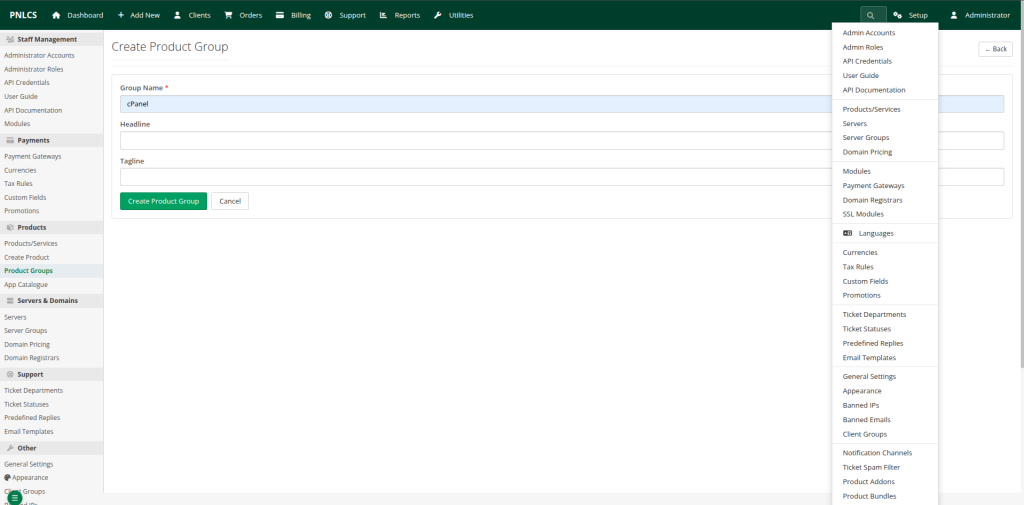
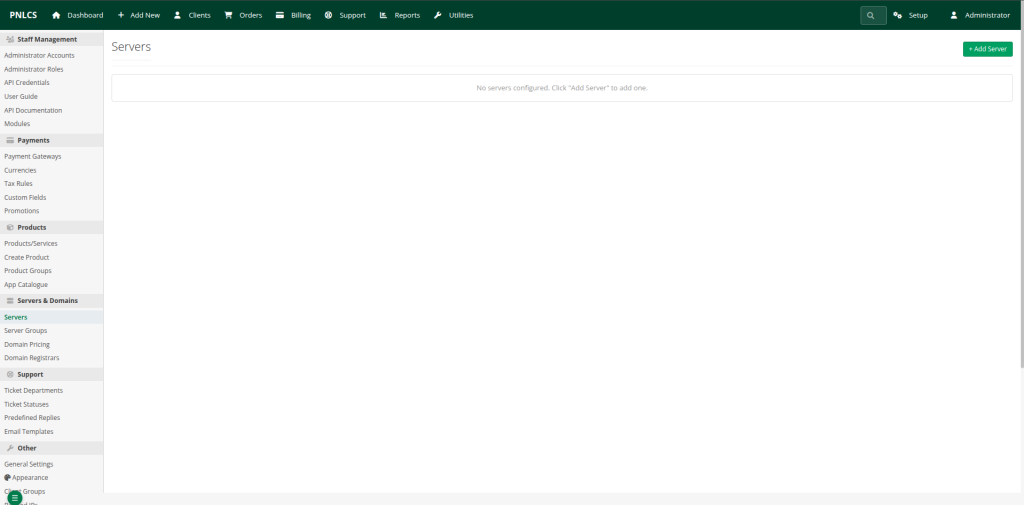
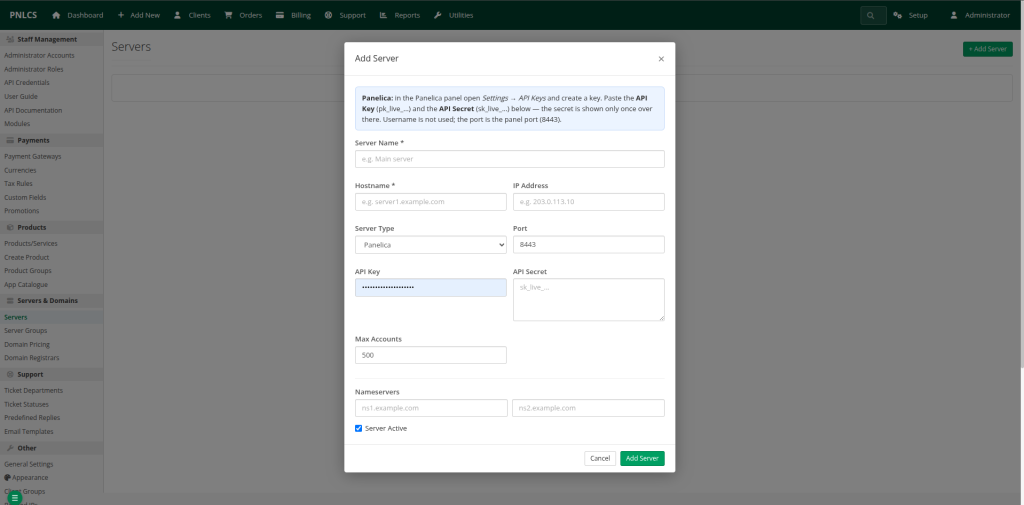
- Pick the Type (cPanel, Panelica, DirectAdmin, Plesk and so on). The form changes to ask for what that type needs. If you have a Truehost cPanel Reseller account, you can use the details shared in your reseller account information email and https://api.docs.cpanel.net/whm/tokens to generate an API token to connect with.
- Enter a name, the hostname, and the credentials from your hosting provider, which will be sent to you through your email.
- Optional but recommended: add the server’s Nameservers. Customers are told to point their domains at them.
- Save, then press Test next to the server in the list.
Fix a failing Test before going on. Most problems are a wrong token, or a firewall blocking the panel’s port (for example 2087 for cPanel/WHM or cphulk login ratelimiting).
Step 2: Create a group #
- Go to Setup → Products/Services → New Group.
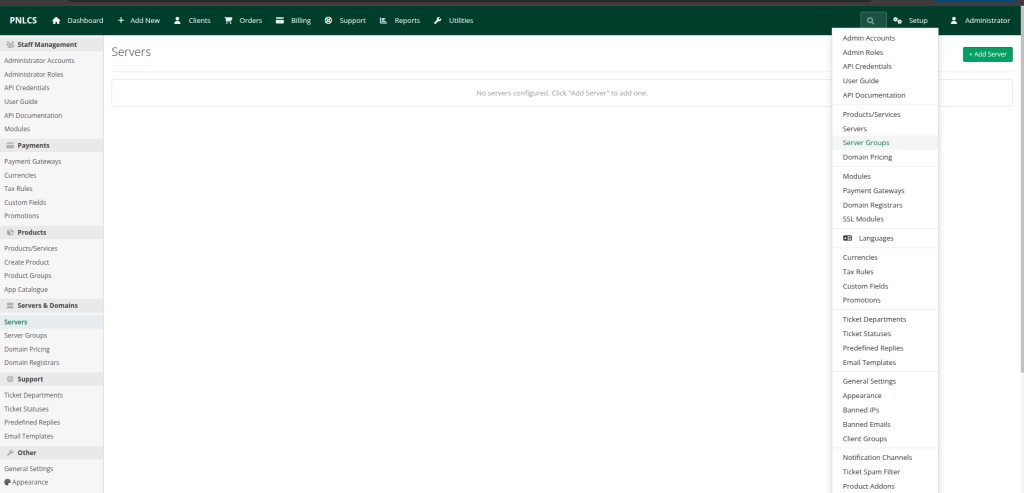
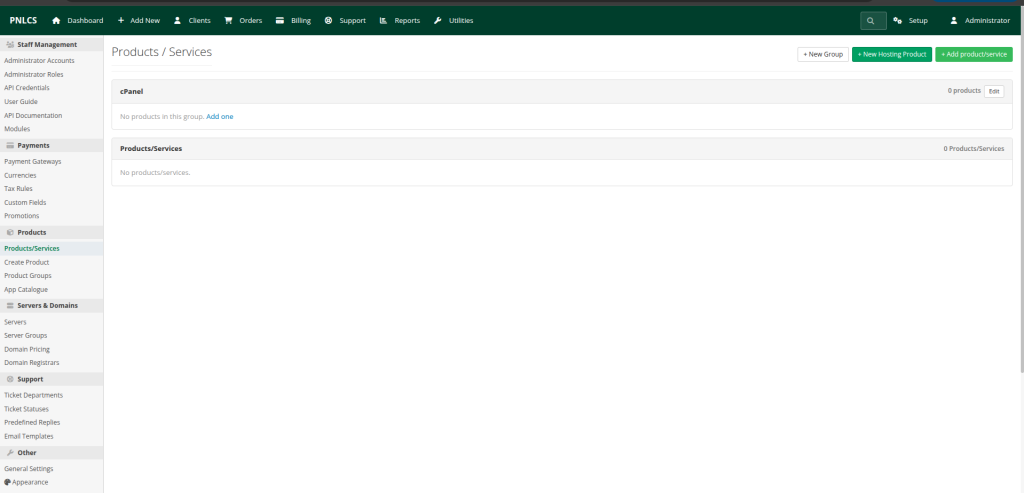
2. A group is a category that organizes your products, such as Shared Hosting, Business Hosting or VPS. It’s how customers browse your shop: they open a group and see the products inside it. Give it the name customers will see, for example Shared Hosting, and save.
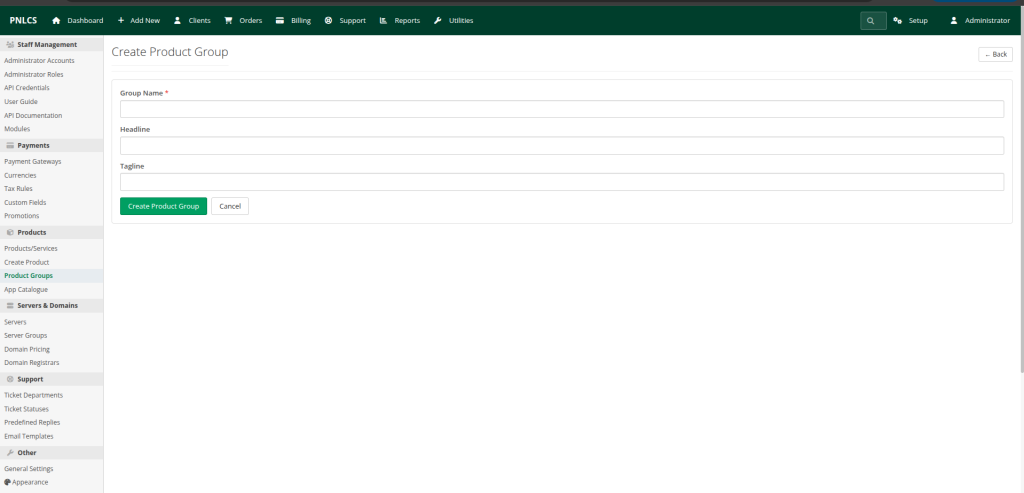
A group on its own sells nothing. You add packages to it in the next step.
Step 3: Create the package #
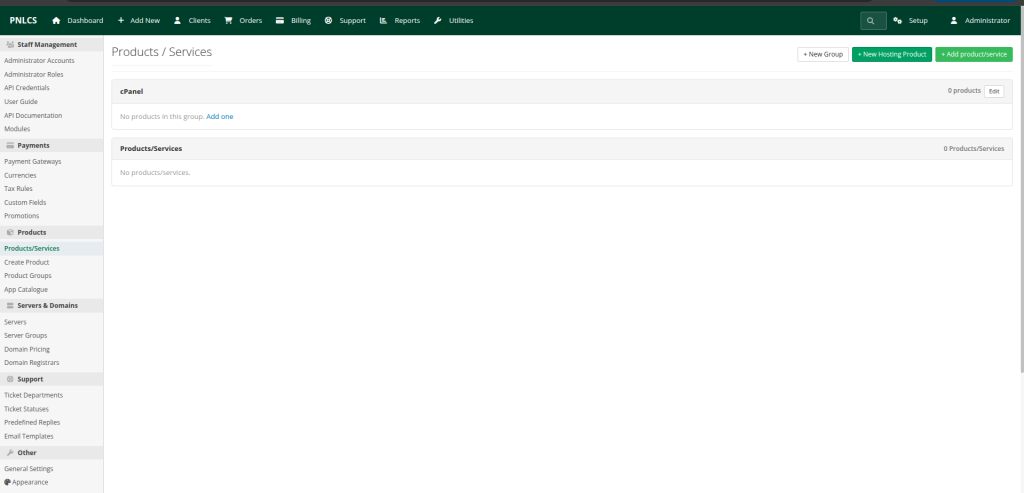
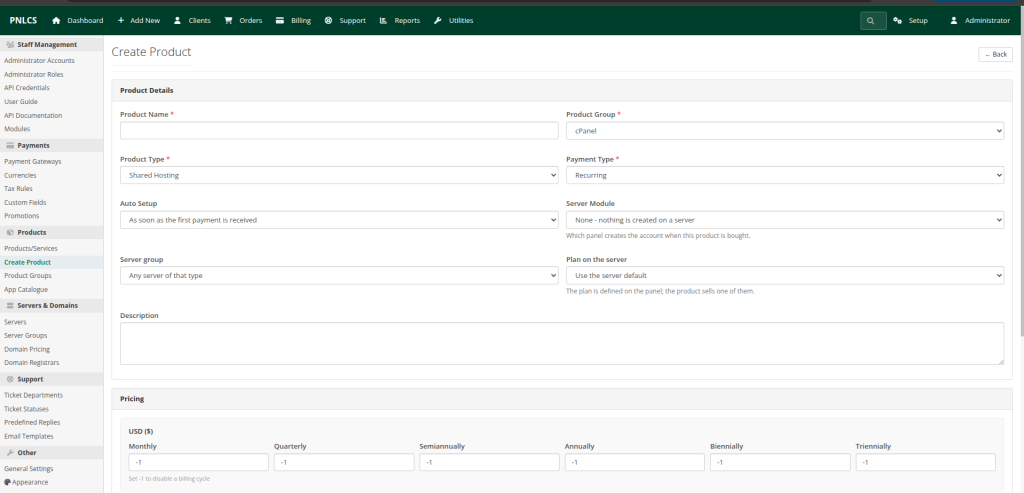
Go to Setup → Products/Services → New Hosting Product and fill in the form:
| Field | What to enter |
| Product Type | Shared Hosting, Reseller Hosting, VPS/Dedicated, SSL Certificate or Other |
| Product Group | The group from Step 2 |
| Product Name | What customers see, for example “Starter 5GB” |
| Description | What’s included: disk, bandwidth, email accounts and so on. Customers see it in the shop |
| Server module | Which panel creates the account; match the server type from Step 1. Choose none to set accounts up by hand |
| Server group | Leave Any server of that type unless you use server groups |
| Plan on the server | The plan on your server that this product sells, for example starter_5gb |
| Auto Setup | When the account is created. |
| Payment Type | Recurring for hosting; One Time or Free for other products |
| Pricing | A price per billing cycle, per currency |
Only describe what the plan on your server really includes. The description is text for customers; it does not create any limits itself.
Choosing Auto Setup #
- As soon as the first payment is received: recommended. Nobody gets a live account without paying.
- As soon as the order is placed: the account is created before payment. Use it only for trusted customers or free packages.
- Only when an admin accepts the order: you check every order first.
Setting the pricing #
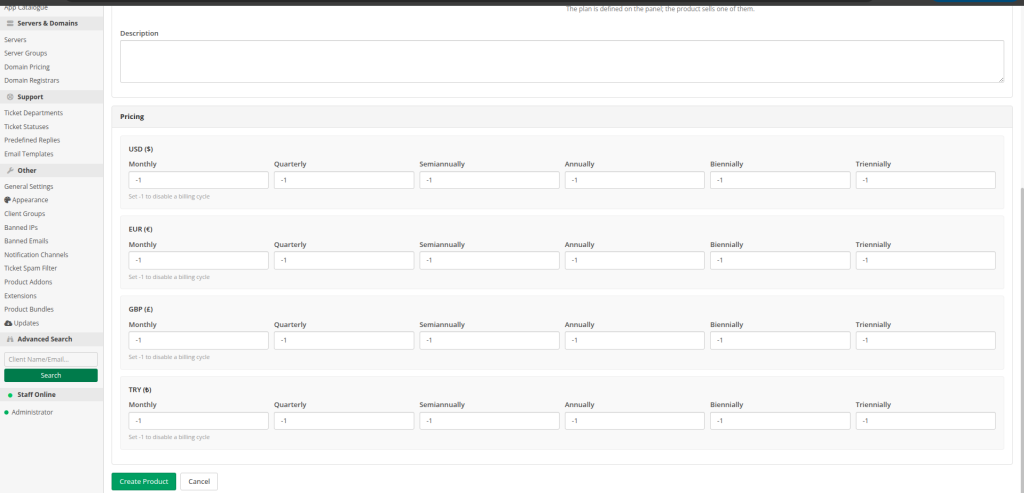
There is a price box for each billing cycle: monthly, quarterly, semi-annually, annually, biennially and triennially, for each currency you have.
Enter -1 to hide a cycle. To sell annual-only hosting, put the price in annually and -1 everywhere else.
For a package sold monthly and yearly, enter a monthly price and an annual price, and put -1 in quarterly, semi-annually, biennially and triennially.
Step 4: Fine-tune the package #
This step is optional.
Open the package again (Setup → Products/Services, then click its name) for more options:
| Option | What it does |
| Offer a domain on the order form | Customers register, transfer or use their own domain while ordering |
| Free domain with this product | The first year of a domain is free, for the billing cycles and extensions you tick. It renews at the normal price |
| Stock | Limits how many can be sold |
| Hidden | Not shown in the shop; you can still add it to a customer from the admin area |
| Featured | Highlighted in the shop |
| Retired | No new orders; existing customers keep it |
| Upgrade paths | Which packages a customer may upgrade or downgrade to |
| Custom fields | Extra questions on the order form, for example “Company KRA PIN” |
Step 5: Check it as a customer #
Saving a package in the admin area is not the same as it being orderable, so look at it the way a customer will.
- Open your shop in a private browser window: https://<your panel>/client/store.
- Find the group and the package, and check the price and each billing cycle.
- Place a test order and pay with a test payment method. When the invoice is paid, the account appears on your server.
Open the shop as a customer and see the package.
Troubleshooting #
| Problem | Fix |
| Package not in the shop | Is it Hidden or Retired? Is its group hidden? Does at least one cycle have a price other than -1? |
| Paid, but no account was created | Is Auto Setup set to manual approval? Test the server under Setup → Servers. The service page in the admin area shows the module’s error, and Utilities → System Logs has the details |
| “Package not found” from the server | Plan on the server must match the plan name on the server exactly |
| Product never creates accounts | If Server module is set to none, nothing is ever created automatically. Pick the matching module |
Frequently asked questions #
- Is a package the same as a product?
Yes. Truehost Reseller Panel calls it a product; “package” is the common hosting term.
- Can I sell a package without connecting a server?
Yes. Choose no server module and create each account by hand after the order.
- How do I sell annual-only hosting?
Enter the price under annually and -1 in every other cycle.
- How do I stop selling a package without hurting existing customers?
Mark it as Retired. New orders stop, and current customers keep it.
- Can I give a free domain with a package?
Yes, using the Free domain with this product. It covers the first year only and renews at the normal price.
Conclusion #
Connect a server, create a group, create the package with its plan, Auto Setup and pricing, then place a test order from a private browser window. Once the test account appears on your server, your first package is ready to sell.