
If you run a hosting reseller business, chasing unpaid invoices and suspending clients one by one quickly becomes a full-time job. Hosting billing automation removes most of that work. The Truehost Reseller Panel can auto-suspend unpaid hosting after a number of overdue days that you choose, and restore the service when the client pays.
This article explains how automatic suspension and termination work, how to configure them, and what to check when something does not behave as expected. It is written for resellers who understand basic hosting but are new to billing automation.
Before you start, make sure you understand these three terms:
- Suspension restricts access to an unpaid service. The service still exists and can be restored.
- Unsuspension restores a suspended service. Eligible services are restored automatically after payment.
- Termination permanently deletes the hosting account and its data from the server. It cannot be undone.
Automatic termination is optional. It stays disabled unless you explicitly enable it, and you should enable it with care.
When a client fails to pay, the panel automatically suspends their services after the number of overdue days you configure. When the client pays, eligible services are automatically restored. You control how long clients have to pay, while automatic termination remains disabled unless you enable it.
How Automatic Suspension and Termination Work #
The panel runs a set of scheduled tasks every day. Together, they handle the full life of an unpaid hosting invoice.
- Renewal invoice generation – Roughly 14 days before a service is due, the panel generates its renewal invoice.
- Payment reminders – Before the due date, and again after it, the panel sends Invoice Reminder emails (automated invoice reminders).
- Overdue status – After the due date passes, the invoice status changes to Overdue.
- Automatic suspension – Once the invoice has been overdue for longer than the number of days you configured, eligible active services are suspended.
- Automatic unsuspension – After payment, eligible services are restored automatically.
- Optional automatic termination – If you enable it, services that stay suspended past your configured limit are removed from the server.
Overdue, suspended and terminated #
| Term | What it means | Reversible? |
| Overdue invoice | The due date has passed, and the invoice is unpaid. This is a billing status only. | Yes, once the invoice is paid |
| Suspended service | The service has been blocked because of non-payment. A hosted website becomes unavailable. | Yes, services can be unsuspended |
| Terminated account | The hosting account and its data are deleted from the server. | No |
The Suspension and Termination Timeline #
| Event | Time or condition | Action |
| Renewal invoice generation | 06:00, approximately 14 days before the service is due | The panel generates renewal invoices |
| Pre-due reminders | 7, 3 and 1 days before the due date, at 08:00 | Invoice Reminder email is sent |
| Invoice becomes overdue | 06:30 the morning after the due date | Invoice status changes to Overdue |
| Overdue reminders | 1, 3, 7 and 30 days after the due date | Invoice Reminder email is sent |
| Service suspension | 07:00 after the configured overdue period is exceeded | Eligible active services are suspended |
| Payment received | Within 30 minutes | Eligible services are automatically unsuspended |
| Automatic termination | 08:00 after the configured suspension period is exceeded | Account is removed from the server, if termination is enabled |
Two different settings, two different clocks #
The panel uses two settings that measure two different periods. Suspend after days overdue counts days from the invoice due date. The default is 3 days. A value of 0 means the service can be suspended the morning after the invoice due date.
Terminate after (days suspended) counts days from the moment the service was suspended, not from the due date. The default is 30 days. It only applies if you enable automatic termination.
Example #
Suppose a client’s hosting invoice is due on Monday, and you keep the default Suspend after (days overdue) of 3.
- Before Monday: reminder emails go out 7, 3 and 1 days before the due date at 08:00.
- Tuesday, 06:30: the unpaid invoice becomes Overdue. A reminder is sent 1 day after the due date.
- Following days: the website stays online while the invoice is overdue but still within your 3-day allowance. Another reminder is sent 3 days after the due date.
- Suspension: at 07:00, once the invoice has been overdue for longer than 3 days, the client’s eligible active services are suspended, and their website goes offline.
- If the client pays: within about 30 minutes, eligible services are unsuspended.
- If the client never pays and termination is enabled: the 30-day termination clock starts from the day of suspension, and the account is removed at 08:00 once that period is exceeded.
If you set Suspend after (days overdue) to 0 instead, suspension can happen at 07:00 the morning after the due date, with no grace period.
Setting Up Automatic Suspension #
Follow these steps to choose how long clients have to pay before their services are suspended.
- Log in to the Truehost Reseller Panel – Use your reseller account.
- Go to Setup → General Settings – This is where billing automation is controlled.
- Find the Automation section – The full path is Setup → General Settings → Automation.
- Locate Suspend after (days overdue) – This is the grace period between the invoice due date and suspension.
- Enter your preferred number of days – A higher number gives clients more time; a lower number reduces how long unpaid services stay online.
- Understand the default – The default is 3 days, which gives clients a short grace period after the due date.
- Understand a value of 0 – Setting 0 allows suspension the morning after the due date, with no grace period.
- Leave automatic termination disabled unless you fully understand the consequences.
- Save the changes – Your new value applies to the daily suspension run at 07:00.
Understanding the Suspension Behaviour #
Suspension applies per client #
An overdue invoice can cause all of a client’s active services to be suspended, not only the service linked to the unpaid invoice.
This matters if a client has several hosting services or other billable services. One unpaid invoice, for example, a domain renewal, can qualify the whole client for suspension. Keep this in mind when explaining your payment terms to clients.
Suspension happens on the server #
Suspension is not just a label in the billing panel. Hosting accounts linked to a server are suspended on the server itself, which makes the website unavailable.
If the server cannot be reached, the panel retries every five minutes.
Domains are not suspended #
Unpaid domain renewals are not sent to Truehost for renewal. An unpaid domain can therefore expire instead of being suspended.
Treat domain renewals separately from hosting suspension. Do not assume that a domain behaves like a hosting account when its invoice is overdue, and check domain renewal invoices on their own.
Unsuspension depends on payment conditions #
When the relevant conditions are met, services are restored within 30 minutes after payment.
However, paying one invoice does not always restore a service. If other overdue invoices still qualify the client for suspension, the service will not be restored automatically. When a service stays suspended after payment, check the client’s invoice records first.
Giving a Client More Time Before Suspension #
Sometimes a client asks for extra time. You can delay suspension for one specific service using the Do not suspend until field.
- Open the relevant service from the client’s profile.
- Locate the Do not suspend until field on the service page.
- Enter the agreed date.
- Save the change.
Overdue invoices will not trigger suspension of that service until the end of the specified day. After that date passes, the normal suspension rules apply again.
Example: A client tells you they will pay on Friday. Set Do not suspend until that Friday. Their website stays online until the end of Friday even if the invoice is overdue. If payment still has not arrived after that, the service becomes eligible for suspension at the next daily run.
This is a service-level exception. It is not a permanent change to the client’s billing automation, and it does not change your General Settings.
Suspending and Unsuspending Services Manually #
You can manage service status yourself at any time.
On the service page, the Module Commands section offers:
- Suspend
- Unsuspend
- Terminate
These commands act on the server immediately.
Bulk actions #
- Open the Products/Services list.
- Select the relevant services.
- Use the bulk action bar.
- Choose the required command.
When manual actions are useful #
- Suspending a service immediately, for example after repeated non-payment, without waiting for the next automatic run.
- Unsuspending a client who has paid by another method and needs access now.
- Handling several services at once with bulk actions.
Warning: Manual termination has the same serious data-loss implications as automatic termination. It permanently deletes the hosting account and its data.
Configuring Automatic Termination #
Termination deletes the hosting account and its data from the server and cannot be undone. Automatic termination is disabled unless you enable it.
How to enable it #
- Go to Setup → General Settings → Automation.
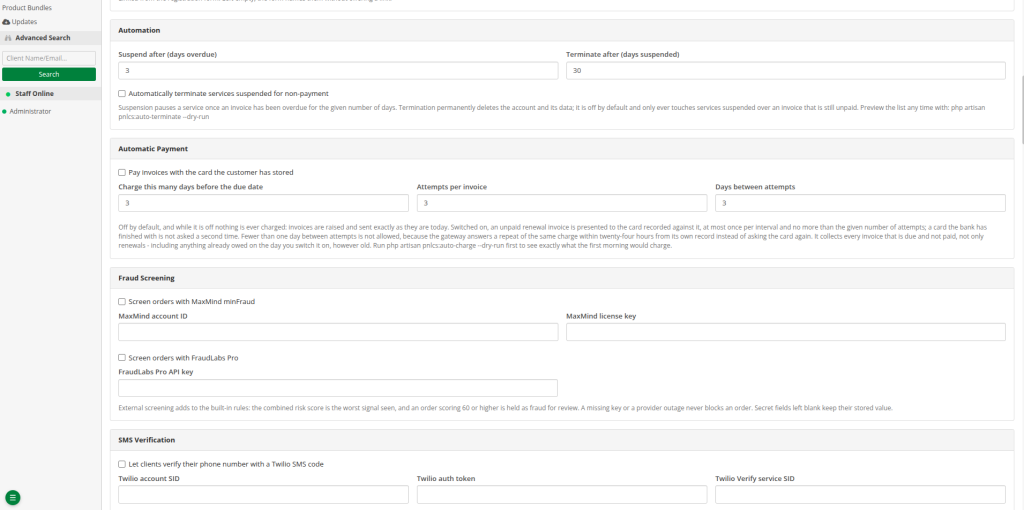
- Enable Automatically terminate services suspended for non-payment.
- Set Terminate after (days suspended).
- Note the default of 30 days. This counts days since the service was suspended, not days since the invoice was due.
- Save the settings.
Which services are affected #
Automatic termination only affects services that:
- were suspended because of an invoice that remains unpaid, and
- have no open cancellation request.
Safety precaution before enabling termination #
Before you turn this feature on, check which services it would remove. The panel provides this command:
php artisan pnlcs:auto-terminate –dry-run
This command is intended for the person responsible for running the panel’s server. It previews the services that would be terminated during the first run without actually terminating them.
Ask your server administrator to run this check before you enable automatic termination. Do not try to run it from your normal panel interface.
Late Fees and Automatic Card Payments #
These are optional features that work alongside suspension. Neither is mandatory.
Late fees #
- Configured under General Settings.
- Can be a fixed amount or a percentage.
- Added once to an invoice after it has been overdue for the configured period.
- The automation runs at 07:30.
Late fees can encourage clients to pay on time, but you do not have to use them.
Automatic payment #
- Configured under General Settings.
- Can charge a client’s stored card before the invoice due date.
- The automation runs at 06:45.
- Disabled by default.
When it works, automatic payment reduces overdue invoices and avoids unnecessary suspensions. Keep in mind that not every client has a stored card, and a card payment is not guaranteed to succeed.
Configuring Suspension and Termination Emails #
Clear communication helps clients pay before problems escalate. You can customise the automated emails under Setup → Email Templates.
| Template | Purpose |
| Invoice Reminder | Sent before and after the due date to remind the client to pay |
| Service Suspension | Tells the client their service has been suspended because of non-payment |
| Service Unsuspension | Tells the client their service has been restored |
| Service Termination | Tells the client their service has been terminated |
Make sure your wording tells clients what happened, what they need to do, and how to contact you.
For email delivery settings, see Setting up outgoing email.
Troubleshooting Automatic Suspension and Unsuspension #
| Problem | Possible cause and solution |
| A client’s hosting is suspended, but their hosting invoice is paid | Another invoice may still be overdue, often a domain renewal. Check the client’s Invoices tab. |
| A client has paid, but their service remains suspended after an hour | Another invoice may still be overdue, or the server may be unreachable. Check the service page and Utilities → System Logs → Module. |
| No services are being suspended automatically | Check Utilities → Automation Status and confirm that the scheduler is running. |
| A website remains accessible even though the panel shows Suspended | The service may not be linked to a server. Set the server on the service page. |
Frequently Asked Questions #
- What happens when a hosting invoice becomes overdue?
The invoice status changes to Overdue at 06:30 the morning after the due date. Reminder emails continue, and the service becomes eligible for suspension once your configured overdue period is exceeded.
- How many days does the panel wait before suspending a service?
That is set by Suspend after (days overdue). The default is 3 days. A value of 0 allows suspension the morning after the due date.
- Does paying an invoice automatically restore hosting?
Yes, within 30 minutes, when the relevant conditions are met. If other overdue invoices still qualify the client for suspension, the service will stay suspended.
- Will all of a client’s hosting services be suspended?
Possibly. Suspension applies per client, so an overdue invoice can suspend all of that client’s active services.
- Are domains suspended when their renewal invoices are unpaid?
No. Unpaid domain renewals are not sent to Truehost for renewal, so the domain can expire instead.
- Can I temporarily prevent a service from being suspended?
Yes. Use the Do not suspend until field on the service page. Suspension is held off until the end of the date you enter.
- What is the difference between suspension and termination?
Suspension blocks access and can be reversed. Termination permanently deletes the hosting account and its data.
- Does automatic termination delete hosting files?
Yes. Termination removes the hosting account and its data from the server, and it cannot be undone.
- Is automatic termination enabled by default?
No. You must enable it yourself. If you do, the default Terminate after (days suspended) is 30 days.
10. How can I check whether the automation scheduler is running? #
Open Utilities → Automation Status.
Conclusion #
Automatic suspension helps you manage overdue payments with far less manual work. The panel generates invoices, sends reminders, suspends overdue services, and restores eligible services after payment. Choose a suspension period that suits your clients, and keep automatic termination disabled unless you have reviewed its consequences and had your server administrator run the dry-run check.
Set your suspension days in Setup → General Settings → Automation.
After saving, test your configuration, review your email templates, and confirm in Utilities → Automation Status that the scheduler is running.