
If you resell domains and hosting, you are not really in business until customers can pay you. A well-configured payment gateway turns an unpaid invoice into a paid one, and can trigger service activation without you checking a phone or bank statement every hour.
Learn how to configure supported payment methods in the Truehost Reseller Panel, test customer payments, and verify that invoices update correctly. The methods available to you depend on your panel configuration, provider support and your account’s eligibility, so each section tells you what to confirm before you rely on it.
What Is a Payment Gateway? #
A payment gateway is the connection between your billing system and a payment provider. It lets the billing system ask for a payment, then receive a trusted confirmation that the money was collected.
Example: A customer orders hosting from you and receives an invoice. They choose M-PESA, approve the prompt on their phone, and Safaricom reports the result. Your billing system checks that report, marks the invoice as paid, and, if the integration supports it, starts the hosting provisioning workflow.
There are five separate events, and any one can fail on its own:
- Payment initiated: the customer clicked pay or an STK push was sent.
- Payment completed by the customer: they entered their PIN or card details.
- Gateway confirmation: the provider confirms the transaction.
- Invoice marked paid: your billing system accepts that confirmation.
- Service activated: the order is provisioned.
An STK push appearing on a phone does not prove the invoice is paid. A manual bank transfer is different. No gateway confirms it automatically, so you must check your bank account and approve the payment yourself.
Requirements Needed Before Setting Up Payment Methods #
- Administrator access to your Truehost Reseller Panel with permission to change billing settings.
- An active reseller billing environment, and a publicly reachable HTTPS address if the integration sends callbacks or webhooks (a callback or webhook is a message the payment provider sends to your system to report a payment result).
- An eligible merchant account with each provider you want to use.
- API credentials (keys, secrets, passkeys) from each provider.
- A settlement account: a PayBill, Till or bank account where money is paid out.
- Test credentials, where the provider offers a sandbox.
Test versus live credentials: Test (sandbox) credentials simulate payments and move no real money. Live (production) credentials process real transactions. Never mix them, and never paste secrets into public forums, screenshots, support chats, or AI tools.
Which Payment Methods Can You Offer? #
| Payment method | How customers pay | What you need | Best suited for | Important limitations |
| M-PESA via Safaricom Daraja | STK push prompt on their phone; PayBill or Till payment if the integration supports it | Daraja account, app credentials, PayBill or Till, production approval | Kenyan customers | Exact options depend on the Truehost integration |
| Paystack | Cards, M-PESA and Apple Pay in Kenya | Paystack merchant account and API keys | Cards plus M-PESA through one provider | M-PESA transactions capped at KES 150,000; channels depend on account |
| Stripe | Cards | Eligible Stripe account, supported integration | International card payers | Card-focused; no native M-PESA routing in Kenya per third-party sources |
| PayPal | PayPal balance or supported cards | PayPal business account, API credentials | International customers | Fees and availability vary by country |
| Bank transfer | Customer pays into your bank account | Bank details, a verification routine | Larger or corporate invoices | Manual: you confirm funds before approving |
Do not assume every method is available to every Kenyan reseller. Country, currency, merchant eligibility, and Truehost’s integration all matter.
Kenyan resellers should offer M-PESA first if the panel supports it, then add one card or multi-channel provider, and bank transfer for customers who prefer it.
Where to Configure Payment Gateways in the Truehost Reseller Panel #
- Find the payment gateway settings in your panel’s billing or setup area.
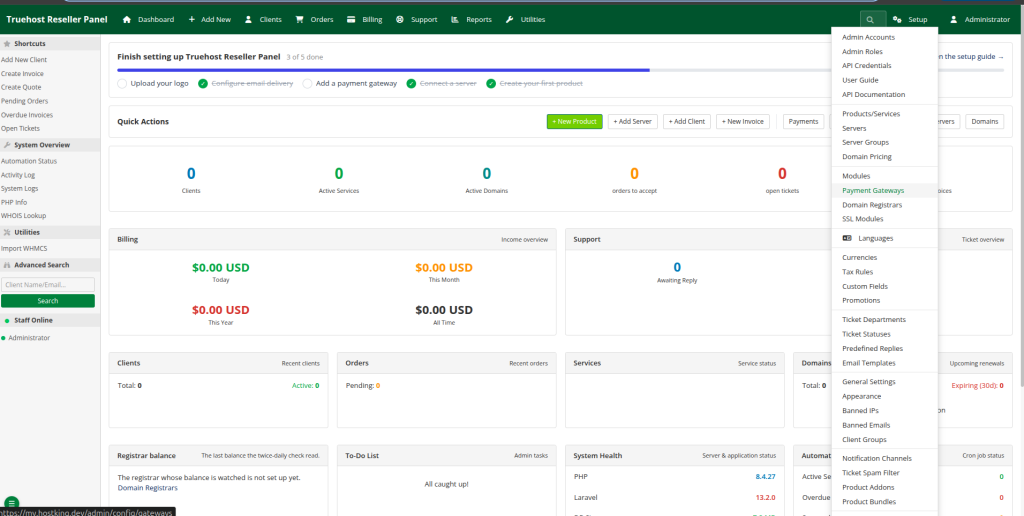
- Check whether the gateway must be enabled separately – Some modules need activating before they can be configured.
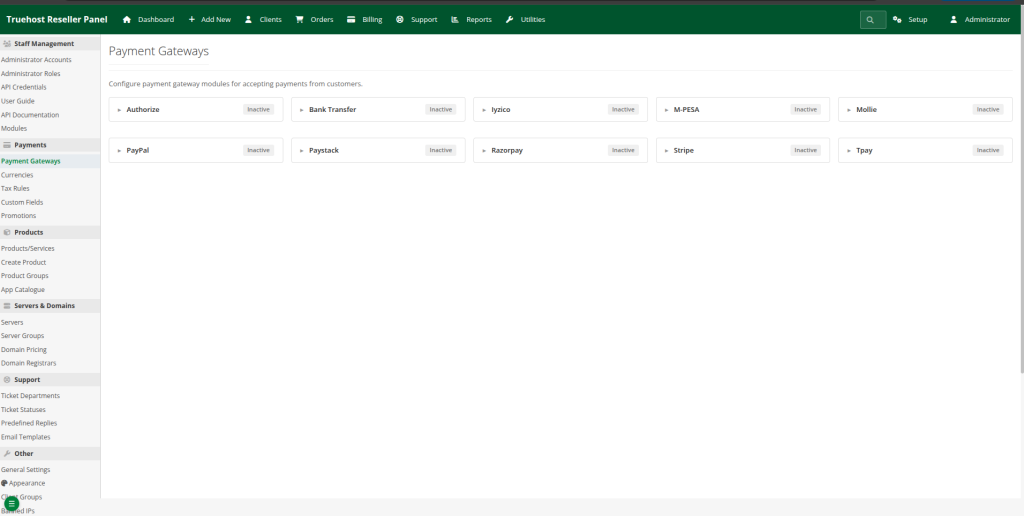
- Open the configuration page for the gateway you want.
- Enter the required details first – Enable the gateway only after credentials are in place, otherwise customers may see errors at checkout.
- Save and check for errors – Look for confirmation messages and re-open the page to confirm the values stuck.
How to Set Up M-PESA in the Truehost Reseller Panel #
Daraja versus the panel: Safaricom Daraja is the API that sends payment requests and reports results. The Truehost Reseller Panel’s integration connects those events to your invoices. You need both.
Truehost’s own public pages describe M-PESA mainly through Paybill with manual confirmation, with STK push in some flows. Check which of these your reseller integration supports before promising STK push to customers.
What You Need from Safaricom Daraja #
Register on the official portal: Depending on the operations your integration uses, you may need:
- A Daraja developer account and a registered app.
- A consumer key and consumer secret (the app’s username and password for the API).
- Sandbox credentials, including a passkey for STK push.
- Production access and live credentials.
- A registered PayBill or Till and the correct business short code.
- Initiator credentials and security credentials only if you will use transaction-status queries or reversals.
The exact list depends on what the Truehost integration does. Do not set up every Daraja API unless the integration requires it. Production access can need approval, so request it early.
Configure M-PESA in the Reseller Panel #
| Field (typical) | What it means | Where to get it | Environment | Needed for |
| Account type (PayBill or Till) | How you receive money | Your Safaricom business account | Both | All methods |
| Business short code | Your PayBill or store number | Safaricom / Daraja app | Sandbox and production differ | STK push, C2B |
| Till number | Till used for buying goods | Safaricom | Production | Till payments |
| Consumer key/secret | App API credentials | Daraja app page | Separate for each environment | All API calls |
| STK push passkey | Secret used to sign STK requests | Daraja (sandbox) or Safaricom (production) | Separate for each environment | STK push |
| Initiator name and security credential | Authorises status queries and reversals | Safaricom | Production | Status queries, reversals |
| STK push enabled | Offers the phone prompt | Panel setting | Both | STK push |
| Manual PayBill/Till enabled | Offers pay-then-confirm | Panel setting | Both | Manual payments |
| Show on invoices | Displays M-PESA to customers | Panel setting | Both | Customer visibility |
Keep configuration fields separate in your mind from customer-facing options, whether STK push or manual payment is shown.
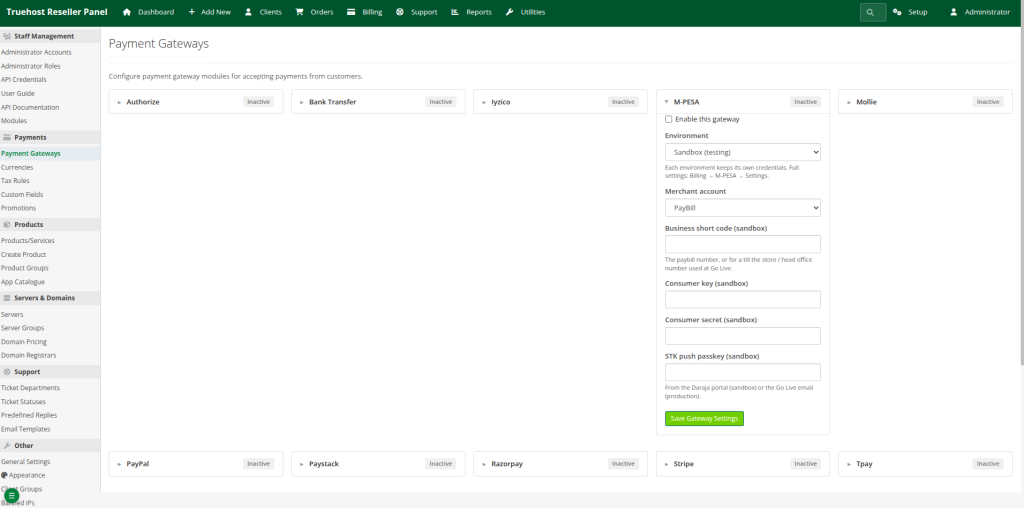
Test the M-PESA Credentials #
Validating credentials is not the same as completing a payment. A credential check usually confirms only that Safaricom accepts your key and secret. If the panel has a test function, run it and read the result as “authentication works”, not “money moves”. Do not assume a credential test moves money unless the panel says it does.
Register or Configure C2B Callback URLs #
Safaricom needs an address it can contact to report payments. There are two distinct mechanisms:
- STK push callback: sent for each prompt your system initiates.
- C2B confirmation and validation URLs: sent when customers pay your PayBill or Till directly.
Register only what your integration uses. Take the URL from the panel or official Truehost guidance, never from a generic billing platform.
Test an M-PESA Invoice #
- Use the sandbox environment with the test credentials and test numbers currently published in Safaricom’s official Daraja documentation.
- Open an unpaid test invoice.
- Select M-PESA.
- Follow the documented test-payment flow. Check whether it simulates a successful payment, a cancellation, or requires an approved test setup.
- Check the gateway response and the invoice status.
- If the invoice stays unpaid, review the transaction and gateway logs.
Do not use a random real phone number in place of a properly configured sandbox test.
Switch M-PESA to Production #
Live mode processes real money. Test credentials and production credentials are different, so never mix them.
- Obtain Daraja production access.
- Replace sandbox credentials with production credentials using the panel’s environment control.
- Confirm the correct short code, passkey and any initiator credentials.
- Register production callbacks where required.
- Run any health or diagnostic check the panel offers.
- Make a small, authorised real payment.
- Confirm that the transaction record, invoice status and service activation are all correct.
Manage M-PESA Payments After Launch #
Use the verified tools in your panel for each of these:
- Review successful and unmatched transactions.
- When a customer says they paid but the invoice is unpaid, ask for the M-PESA receipt code and search for it in the transaction records.
- Handle reversals only through the authorised process. Reversals depend on Safaricom’s rules and transaction eligibility, and are not guaranteed.
- Set up alerts for failed or unmatched transactions if the panel supports them.
- Confirm that any scheduled jobs (cron) the billing system needs are running.
How to Configure Paystack #
Paystack is live for businesses in Kenya and supports cards (Visa, Mastercard, American Express), M-PESA and Apple Pay, with settlement in KES and USD. Confirm each channel against your own account.
- Confirm Paystack is supported in your panel and enable the module if needed.
- Create or open your merchant account at dashboard.paystack.com.
- Find your API keys in the dashboard’s API settings.
- Start with test keys.
- Enter the keys in the gateway settings you have verified.
- Set currency and channels. To offer M-PESA, open the Preferences tab in the Paystack dashboard and tick Mobile Money.
- Set up the webhook if the integration requires one. Copy the endpoint from the panel or from Truehost guidance. Never guess it from another billing platform
- Pay a test invoice and confirm the invoice becomes Paid.
- Swap to live keys only after testing succeeds.
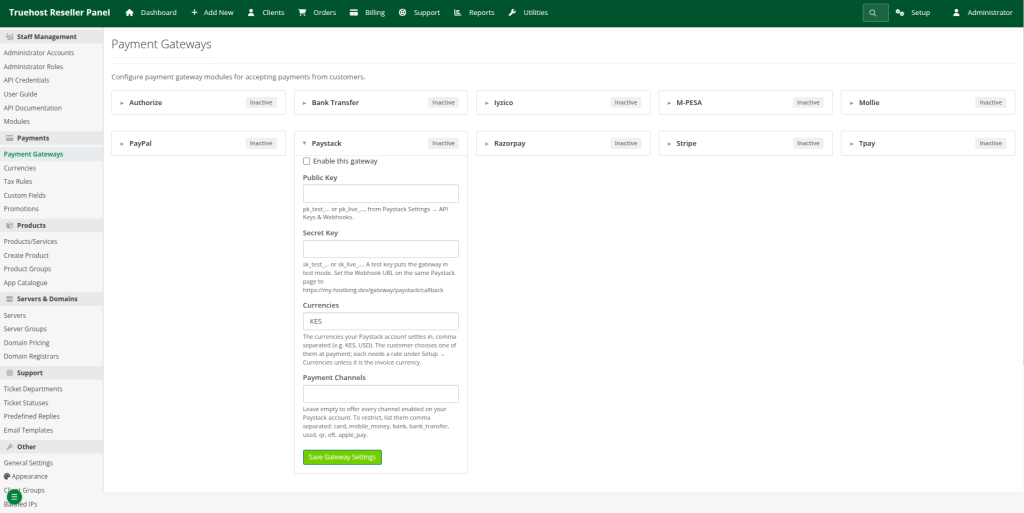
Public versus secret keys: The public key identifies your account and can appear in checkout pages. The secret key authorises actions on your account and must stay confidential. If it leaks, regenerate it immediately.
Limits to remember: the M-PESA channel cannot be used for recurring payments, and the maximum per transaction is KES 150,000, set by Safaricom’s limits.
How to Configure Stripe for Card Payments #
Include this section only if Stripe is available in your panel and you are eligible for a Stripe account. Third-party comparisons note that Stripe in Kenya is card-focused, with no native M-PESA, so check eligibility directly with Stripe.
- Get test API keys from dashboard.stripe.com.
- Enter the correct keys in the panel.
- Configure a webhook endpoint and signing secret if required.
- Run a test using Stripe’s current official test card details from its documentation.
- Confirm the invoice updates after the verified event.
- Switch to live credentials after successful testing.
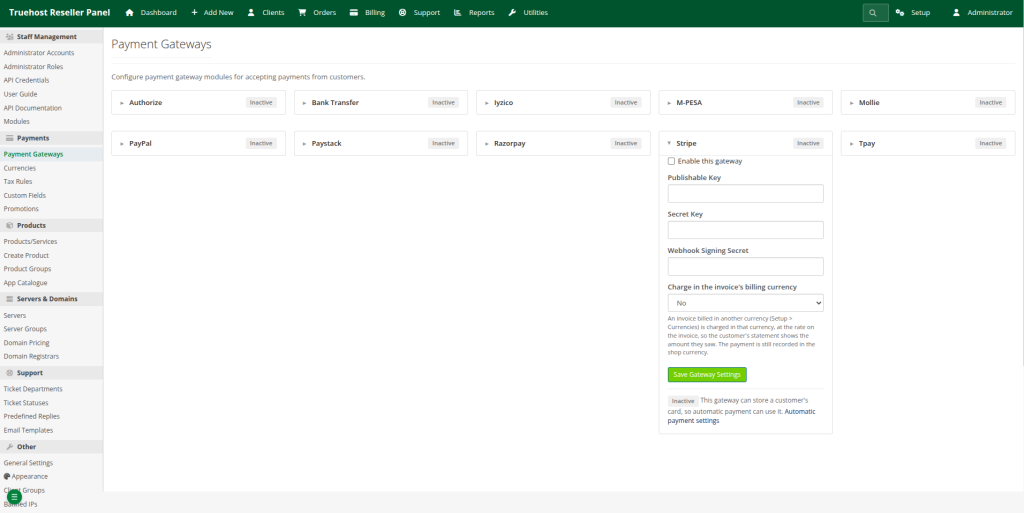
A successful checkout or redirect does not necessarily mean your billing system has received and verified the payment event, so always check the invoice and the logs.
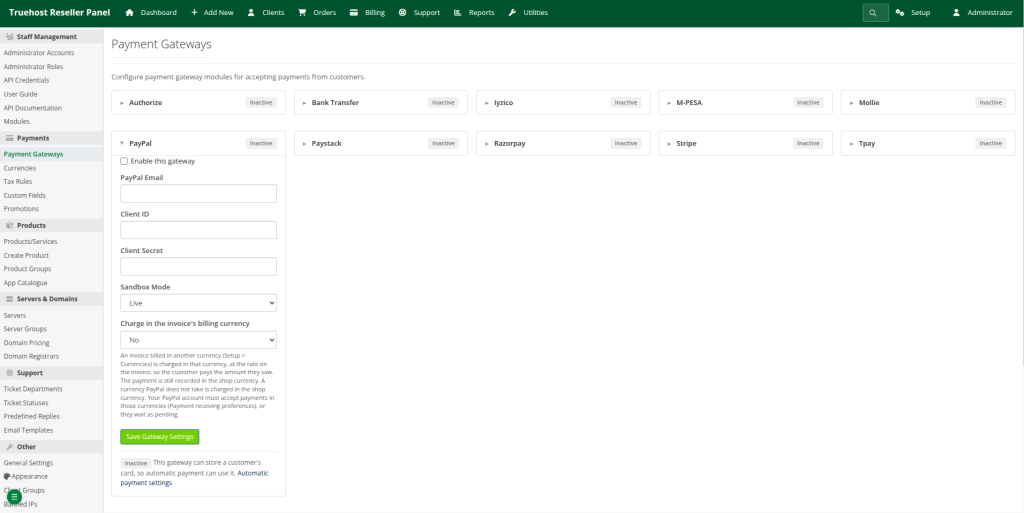
How to Configure PayPal #
If PayPal is supported in your panel:
- Create a PayPal developer app at developer.paypal.com.
- Get sandbox credentials.
- Enter the client ID and secret in the matching panel fields.
- Configure webhook events where the integration requires them. Do not assume it uses the same endpoint as another system.
- Test an invoice in the sandbox.
- Switch to live credentials after verification.
How to Set Up Bank Transfer #
If your panel supports manual bank transfers:
- Locate the bank transfer gateway settings.
- Enable the method.
- Enter your correct business bank details.
- Add clear reference instructions, such as “Quote your invoice number”.
- Explain how customers submit proof of payment, if the panel supports it.
- Check your actual bank account for the funds.
- Approve the payment notification only after you confirm receipt.
- Check that the invoice is marked Paid.
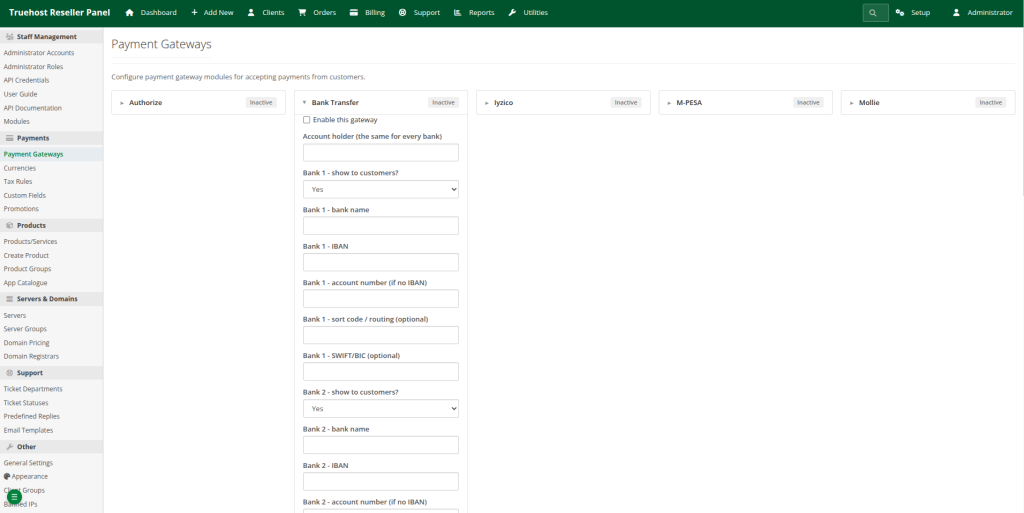
A receipt or screenshot alone is not proof the money arrived. A pending notification means the customer says they paid. A verified payment means you saw the funds.
Configure Currencies Correctly #
Write this section only after confirming how currencies work in your panel. Then cover:
- Choosing the default currency.
- Enabling any other currencies.
- Checking which currencies each gateway account can accept and settle.
- How the panel applies exchange rates.
- Re-checking hosting package and domain prices after any currency change.
- Avoiding mismatches between the invoice amount, the gateway charge and the settlement amount.
Test Every Payment Method Before Accepting Customers #
For each method, confirm that:
- It appears on the customer invoice.
- Test credentials work, where a sandbox exists.
- The customer can complete the test payment.
- The gateway reports the expected result.
- The billing system verifies the transaction.
- The invoice changes to Paid.
- Service activation or provisioning completes, if applicable.
- Failed and cancelled payments do not mark invoices as paid.
- Duplicate callbacks do not create duplicate payments or service actions, where the integration offers that protection.
- You can find transaction records and diagnose failures.
Switch to production only after these pass, then make a small real payment with every method you enable.
Troubleshooting Payment Gateway Problems #
| Problem | Likely cause | What to check |
| Method missing at checkout | Gateway not enabled, not configured, or unsupported currency | Gateway status, saved credentials, invoice currency |
| STK push does not arrive | Wrong environment, short code or passkey, or a phone issue | Environment, credentials, phone number format, gateway log |
| Customer paid but invoice unpaid | Callback not received or not matched to the invoice | Receipt code, transaction log, callback delivery, background jobs |
| Callback or webhook error | Wrong URL, no HTTPS, blocked request | Registered URL, SSL certificate, delivery status at the provider |
| M-PESA works in sandbox, fails live | Sandbox credentials still in use, production not approved | Environment, production approval, short code, passkey |
| Bank transfer pending | Awaiting your verification | Bank statement, then approve |
| Unexpected currency or amount | Currency or exchange-rate settings | Default currency, rates, price lists |
| Invalid API credential | Wrong key, wrong environment, stray spaces | Re-copy the key, confirm test versus live |
| Payment in provider dashboard, not in panel | Notification failed or reference mismatch | Provider transaction reference, webhook logs, invoice number |
Never mark an invoice paid just because a customer says they paid. Verify the transaction in the provider dashboard or your bank first. If you cannot resolve it, contact the payment provider for provider-side issues, or Truehost support for panel issues.
Frequently Asked Questions #
1. What is required to configure the Daraja API? #
A Daraja account and app, consumer key and secret, a passkey for STK push, a PayBill or Till, and production approval for live use. Extra credentials are needed only for status queries and reversals.
2. What is the difference between STK push and PayBill/Till payments? #
STK push sends a prompt to the customer’s phone. PayBill or Till requires the customer to initiate payment and quote a reference, and you or the system then match it to an invoice.
3. Can I accept card payments as a Truehost reseller? #
Truehost’s reseller marketing mentions cards, but availability in your panel depends on the gateways enabled for you. Paystack supports cards in Kenya.
4. Does Paystack support M-PESA in Kenya? #
Yes. Paystack lists an M-PESA channel for Kenyan businesses, capped at KES 150,000 per transaction.
5. Do I need a separate merchant account for every gateway? #
Generally, yes: each provider has its own account and credentials.
6. Why is an invoice still unpaid after a successful payment? #
Usually, the callback or webhook did not arrive or could not be matched. Check the receipt code and logs.
8. Do I need HTTPS for payment callbacks? #
Providers commonly require a secure, publicly reachable HTTPS endpoint. Confirm the requirement for each provider.
9. Can I test without charging real customers? #
Yes, where the provider offers a sandbox. Not every method has one, so test small live payments carefully.
10. When should I switch from sandbox to production? #
Only after every item on the testing checklist passes.
11. Can the panel activate services automatically after payment? #
Only if your integration supports provisioning for that product. Never assume it for every product.
Conclusion #
The path is straightforward: confirm which gateways your panel supports, prepare the right merchant accounts and credentials, configure each method, test it, verify that invoices and services update, and only then go live.
Before you accept your first customer, pay a test invoice with every method you enable and confirm the billing system records each payment correctly.