
You can sell domain names from your own branded storefront at prices you choose, while Truehost registers them behind the scenes. In the Truehost Reseller Panel you connect your Truehost reseller account once, and the panel can pull your Truehost price list everytime and add your own markup.
The setup has three parts:
- A connection between the panel and your Truehost Domain Reseller API account.
- Prices for each extension, either synced from Truehost with your markup or entered by hand.
- Funds in your Truehost reseller balance to pay for registrations, transfers and renewals.
Setting a price does not by itself get a domain registered. The connection, the extension settings, your balance, and the customer’s order details must all be right. This guide shows you how to check each one.
Truehost module #
Truehost module reads your Truehost price list and sells each extension at your cost plus your markup; it registers, transfers, and renews paid domains; and it keeps each domain’s expiry date, status, and nameservers in step with Truehost.
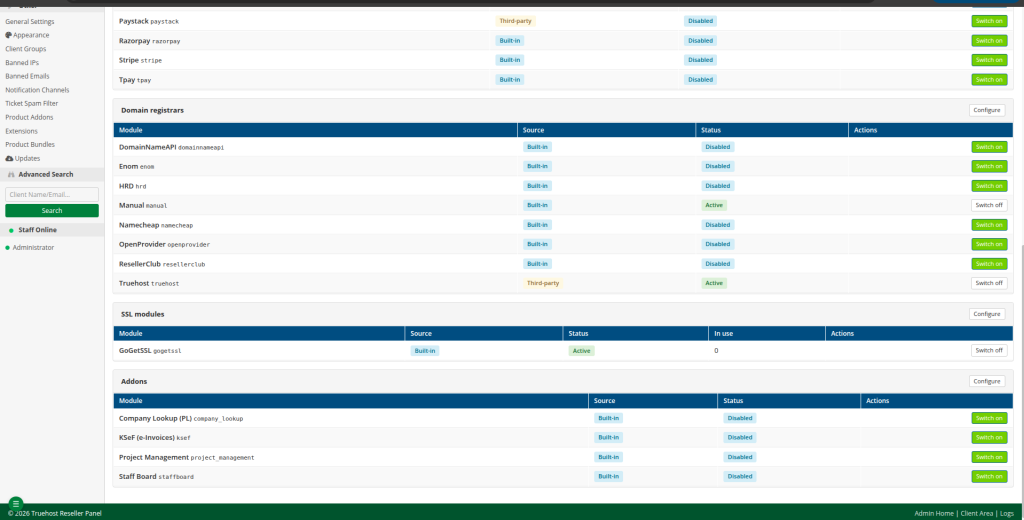
These steps apply to a panel where the Truehost module is installed. Open Setup → Modules and look for Truehost listed as a registrar.
What you need: #
- Access to the Truehost Reseller Panel administrator account – You need a staff login that can change settings and domain prices.
- An active Truehost Domains Reseller account on the correct regional site – Truehost runs separate sites. Your reseller account works only on the site where it was set up.
- Your Truehost login email and API key – The email is the one you use to sign in to that Truehost site. The API key is a secret code that lets the panel act on your account. Copy both from your own account; never use example values.
- A topped-up reseller balance – Truehost’s guide indicate low balance as a cause of failed registrations.
- Your shop’s default currency – Check it under Setup → Currencies before you price anything.
- A way to test – You will open your public site in a private browser window.
Truehost’s Domain Reseller API is free to use, but normal registration, transfer, and renewal fees still apply to every domain.
Step 1: Connect your Truehost account #
- Sign in to the administrator area.
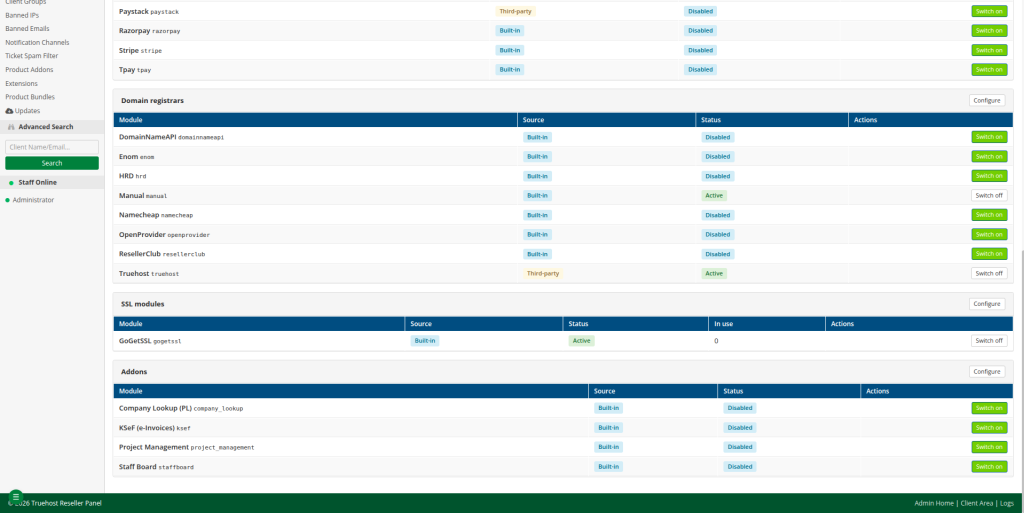
- Go to Setup → Modules and switch on Truehost .
- Go to Setup → Domain Registrars → Truehost, tick Enable registrar, and fill in the fields below.
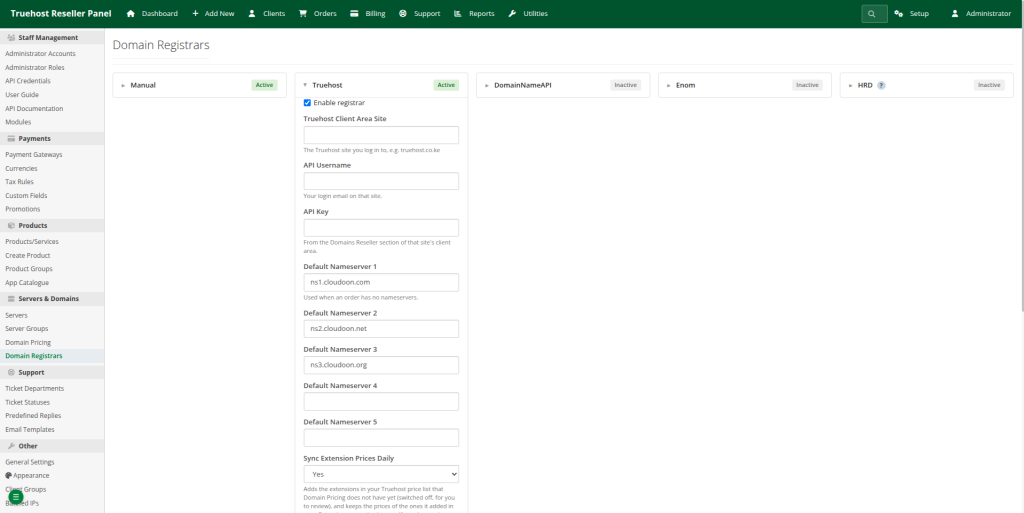
| Field | What to enter | Where to find it |
| Truehost Client Area Site | The Truehost site your reseller account is on, such as truehost.co.ke. The address alone is enough | The site where you sign in to manage your account |
| API Username | The email you log in to that site with | Your Truehost login |
| API Key | Your reseller API key | That site’s client area → Domains Reseller → API settings |
| Default Nameservers 1–5 | Nameservers new domains get when the customer gives none | Keep the pre-filled Truehost ones, or enter your own |
Nameservers are the servers that tell the internet where a domain’s website and email live.
- Press Save Settings – Saving tests the connection by reading your balance and tells you what is wrong if it fails. The Test button repeats the check at any time. A good result is the success message the panel shows; treat anything else as not connected.
Common errors when saving: #
| Message says | Meaning | What to do |
| “has no reseller account” | Your account is on a different Truehost site | Pick the site you log in to |
| “knows … but not this API key” | The key belongs to another Truehost site, or was regenerated | Copy the key again from the right site |
| A server error from the site | That site may not have domain reselling switched on yet | Ask Truehost support |
The panel server’s clock must be correct. The connection uses a token that changes every hour, so a wrong clock can make connections fail.
Step 2: Sync your extensions and prices from Truehost #
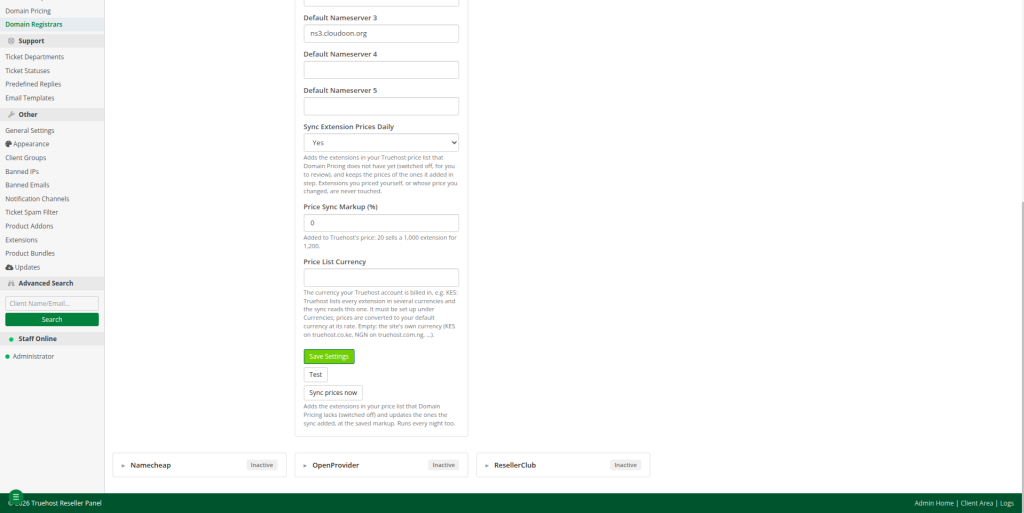
On the same Truehost settings card, set how your prices are worked out:
| Field | What to enter |
| Sync Extension Prices Daily | Yes keeps your prices in step with Truehost every night. No syncs only when you press Sync prices now |
| Price Sync Markup (%) | Your margin on top of Truehost’s price |
| Price List Currency | The currency your Truehost account is billed in (KES on truehost.co.ke). Leave empty to use the site’s own currency |
Then:
- Press Save Settings, then Sync prices now.
- Read the message. It reports how many extensions were added, updated, left unchanged, and left alone because you priced them yourself.
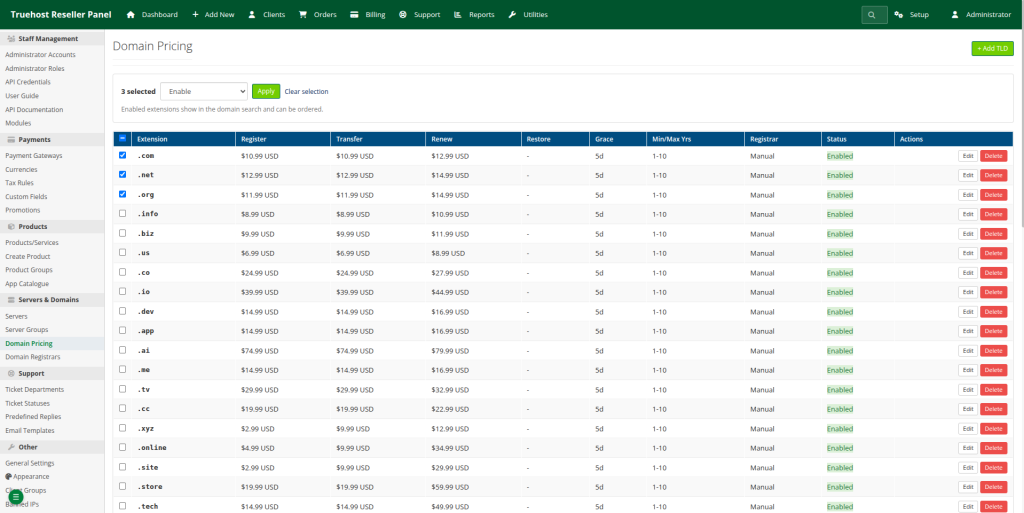
- Open Setup → Domain Pricing. Every extension you can sell is listed, switched off, with a Synced badge and Truehost as its registrar. Nothing is on sale until you switch it on in Step 3.
How a synced price is worked out #
Your Truehost cost for the extension, plus your markup. Register, transfer and renew are priced separately from their own costs, so a renewal that costs you more is sold for more.
Example if :
| Item | Illustrative amount |
| Truehost cost (register) | KES 1,000 |
| Markup | 20% |
| Customer price | KES 1,200 |
| Your gross difference | KES 200 |
Customer price = Truehost cost × (1 + markup)
Gross difference = Customer price − Truehost cost
The module guide’s own example is a .co.ke costing KES 999 with a 20% markup, sold at KES 1,198.80. Note the difference between markup (20% of your cost) and margin (your profit as a share of the selling price): here KES 200 ÷ KES 1,200 is about 17% margin. The difference is before payment-processing fees, taxes and your other costs. Always check your real current costs in your Truehost reseller price list.
What the sync does and does not touch #
| Extension | What happens |
| In your Truehost price list, not yet in Domain Pricing | Added switched off, with Truehost as its registrar |
| Added by the sync (Synced badge), on or off | Register, transfer and renew prices follow Truehost cost plus markup on every sync |
| A synced extension whose price you change by hand | Handed to you: the Synced badge goes and the sync stops updating it |
| Added by you | Never touched |
| No longer in your Truehost price list | Left as it is. Switch it off yourself if Truehost stops selling it |
The sync sets only register, transfer and renew prices. It never switches an extension on or off, and it leaves the Restore fee and WHOIS privacy price for you to set. Each sync is recorded in Utilities → System Logs → Module (module Truehost, action price sync) with the currency and markup it used.
Step 3: Review and switch on what you sell #
- On Setup → Domain Pricing, check the prices of the extensions you want to sell. A good first list is .com, .co.ke and .net; confirm each is in your Truehost price list.
- Tick them (the header box ticks all), choose Enable in the bar that appears, and press Apply. They stay synced.
The bar has more actions for long lists:
| Action | What it does |
| Enable / Disable | Puts extensions on sale or takes them off. Synced extensions stay synced |
| Set registrar | Truehost, or Manual to register paid domains yourself |
| Set category | The tab they show under on the public pricing page: Generic, Local, Country or New |
| Change prices by % | Raises register, transfer and renew prices by a percentage, or lowers them with a minus (-10). These become your own prices, so the sync stops updating them |
| Delete | Removes the extensions. Customers can no longer order them |
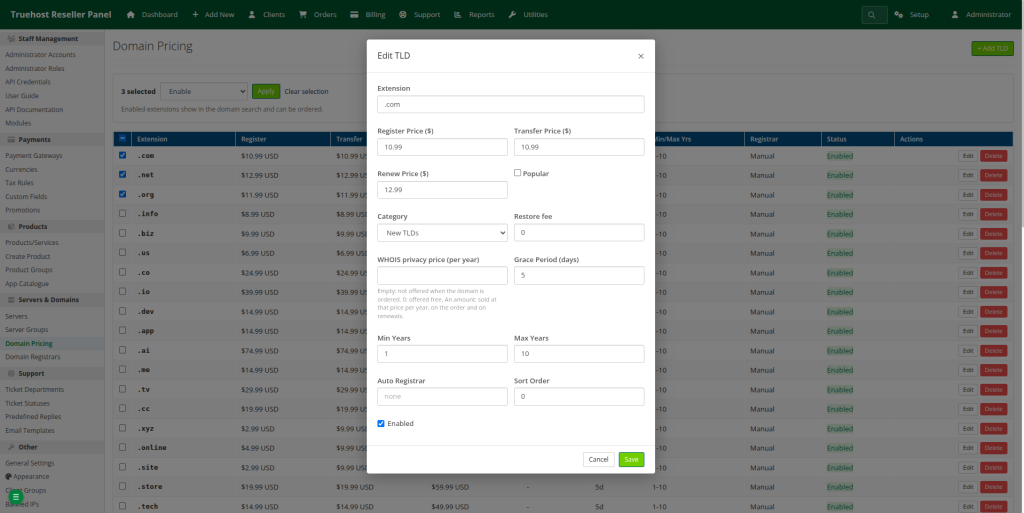
Price changes and deletes ask you to confirm first. To set your own price on one extension, press Edit and change its register, transfer or renew price; from then on the sync leaves it alone.
Your currency and Truehost’s #
Truehost prices vary in every extension in several currencies (on truehost.co.ke: KES, USD and NGN). The sync uses the one in Price List Currency, because that is what your account actually pays.
- Your shop sells in KES (your default currency under Setup → Currencies): nothing to set up. Truehost’s KES prices are used as they are.
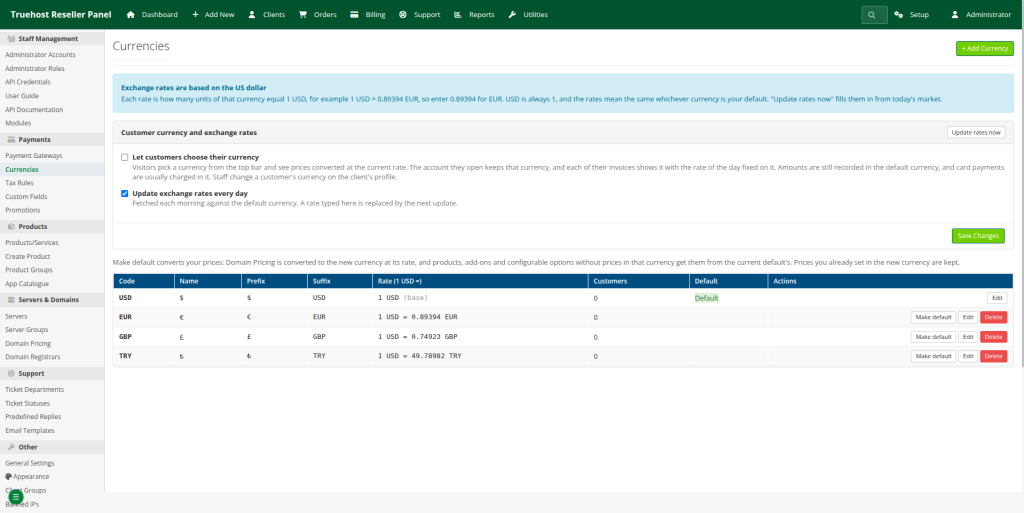
- Your shop sells in another currency, for example USD: add KES under Setup → Currencies with its rate, and the sync converts your costs with it. Without KES set up, the sync stops, tells you, and changes nothing.
Rates are based on the US dollar: each rate is how many units of that currency make 1 USD, for example 1 USD = 130 KES, so you enter 130 for KES. USD is always 1. Update rates now fills in today’s rates, and the panel updates them every morning.
Do not type a rate upside down. KES is 130, not 0.0077. An inverted rate makes every converted price wrong.
Pick your shop’s currency before you start selling. Make default on another currency converts every domain price to it at that day’s rate, so switching back and forth can shift prices by a cent through rounding.
Step 4: Add an extension by hand #
Use this for an extension the sync does not bring in, or one you want to set up yourself. A TLD (top-level domain) is the ending of a domain name, such as .com or .co.ke.
- Go to Setup → Domain Pricing → Add TLD.
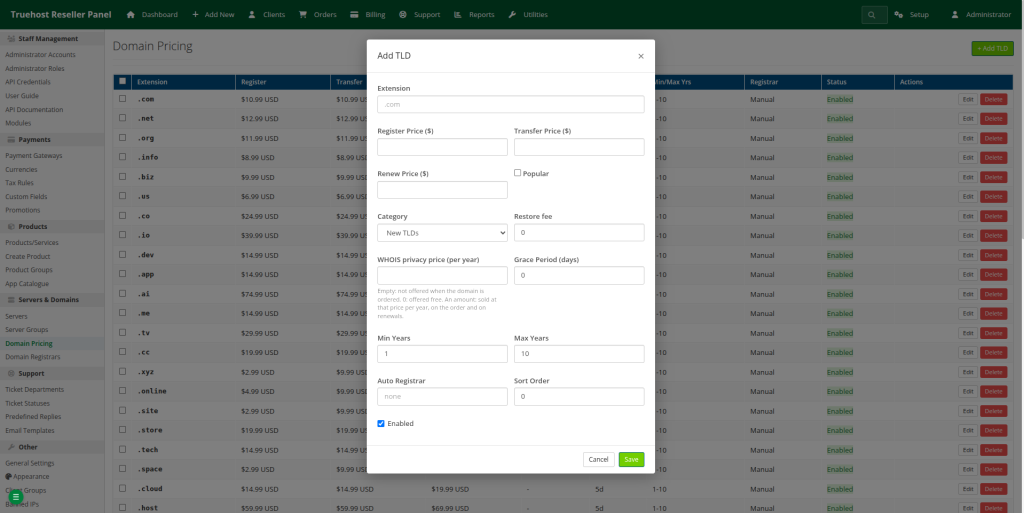
- Fill in the fields, using .co.ke as the example.
- Save. Prices are in your shop’s default currency.
| Field | What to enter |
| Extension | With the dot: .com, .co.ke, .africa |
| Register Price | What customers pay for the first year |
| Transfer Price | What customers pay to move a domain to you |
| Renew Price | What customers pay each year after |
| Popular | Lists it under the Popular filter on the search and pricing pages |
| Category | Generic (.com, .net), Local extensions or Country (.co.ke), for the pricing page tabs |
| Restore Fee | Charged to recover a domain after it expired |
| WHOIS Privacy Price (per year) | Empty: not offered. 0: free. An amount: sold at that price per year |
| Grace Period (days) | Days after expiry when it can still be renewed normally |
| Min Years / Max Years | How many years customers can register for at once (usually 1 to 10) |
| Auto Registrar | truehost. This is what makes paid orders register automatically |
| Sort Order | Lower numbers show first |
| Enabled | Ticked to sell it |
Price above your cost. For an extension you price by hand, check its register, transfer and renew cost in your Truehost reseller price list. Renewals often cost more than the first year, so do not reuse one price for all three.
Leave Auto Registrar empty only on purpose. An extension with no registrar is billed normally, but you have to register each paid domain yourself.
A price in your list does not prove Truehost can register that extension. Truehost’s API documentation names .com, .net, .org and .co.ke among supported extensions; confirm the others against your Truehost price list.
Step 5: Top up your balance #
Registrations, transfers and renewals are paid from your reseller balance on the Truehost site. With too little balance, a paid domain stays Pending and you get a “registration failed” notification showing your balance.
- Sign in to the Truehost client area for the same site your reseller account uses.
- Create an add-funds invoice and pay it. Truehost’s support site has a guide titled How to create add funds invoice from truehost client area; follow it, as the navigation can change.
- Confirm the new balance. Pressing Test on the Truehost registrar page reads your balance too.
To get a warning before it runs out, go to Setup → General Settings → Registrar balance watch. Keep enough balance for the registrations, transfers and renewals you expect, including renewals falling due.
Step 6: Try it as a customer #
- Open https://your-panel-domain/client/domain-search in a private window and search for a name.
- Check the price, and that the extensions you switched on appear.
- Open https://your-panel-domain/client/domain-pricing, where customers see all prices.
- Confirm the currency is the one you expect and that disabled extensions are not offered.
Replace your-panel-domain with your real hostname, and confirm the paths exist in your version. Do not place a real paid order just to test; only register a real domain when you are ready to pay its cost from your balance.
Step 7: What happens after an order, and what customers manage #
- Paid order – The domain is registered at Truehost, then marked Active once Truehost lists it in your reseller account.
- Registration failed – It stays Pending. Fix the cause (balance, contact details), then open it under Clients → Domains and use Register (or Retry registration). Every call to Truehost and its answer are in Utilities → System Logs → Module (module Truehost). Do not retry repeatedly: check the log, the payment, and whether the domain already exists at Truehost first.
- Renewals – The panel sends the renewal invoice before expiry and renews at Truehost when it is paid.
- Every night the panel reads each domain’s expiry date, status and nameservers from Truehost, and syncs your prices if Sync Extension Prices Daily is on.
Customers manage their own domains in the client area: nameservers, auto-renew, transfer lock, EPP code and contact details. Which controls work can still depend on the extension, so test with .co.ke before advertising them.
Common mistakes and troubleshooting #
| Issue | Symptom | Likely cause | Next action |
| Wrong Truehost site | “has no reseller account” | Account is on a different site | Pick the site you log in to |
| Wrong or old credentials | “knows … but not this API key” | Key regenerated or from another site | Copy it again |
| Module not enabled | Truehost missing, or orders stay pending | Module off in Setup → Modules or Domain Registrars, or not installed | Enable it, or ask for it to be installed |
| Reselling not switched on | Server error on save | The Truehost site has not enabled domain reselling for you | Ask Truehost support |
| Clock problems | Connection fails at times | Server clock is wrong (the token changes hourly) | Correct the server time |
| Extension not on sale | Customers cannot order it | Synced extensions start switched off | Enable it in Step 3 |
| Wrong prices | Unexpected amounts | Markup, price-list currency or exchange rate | Recheck markup, Price List Currency and rates |
| Sync stopped | Message says KES is missing | Shop currency is not KES and KES is not set up | Add KES under Setup → Currencies with its USD rate |
| Price stopped updating | Synced badge gone | You edited or bulk-changed its price | Expected; the price is now yours |
| Auto Registrar empty | Paid domains need manual registration | No registrar set | Set it to truehost |
| Low balance | Domain stays Pending, failure notice shows balance | Reseller balance too low | Top up, then retry once |
| Unsupported extension or action | “not supported” style errors | Truehost or module cannot do it | Check your Truehost price list; use Manual or do not sell it |
Frequently asked questions #
- What is domain pricing in the Truehost Reseller Panel?
It is the list under Setup → Domain Pricing holding each extension you sell, its register, transfer and renew prices, and which registrar handles it.
- Do I need a Truehost reseller account?
Yes. The panel registers domains through your Truehost Domains Reseller account and pays from its balance.
- Where do I find my API credentials?
The username is the email you log in to your Truehost site with. The API key is in that site’s client area under Domains Reseller → API settings.
- How do I add a .co.ke domain?
Run Sync prices now and enable .co.ke in Step 3, or add it by hand with Setup → Domain Pricing → Add TLD.
- What is the difference between registration, transfer and renewal prices?
Registration is a new domain, transfer is a domain moved in from another registrar, and renewal extends an existing one. Each has its own cost and price.
- How do I calculate my profit?
Customer price minus your Truehost cost, before fees and taxes, for each of the three prices. Markup is a percentage of your cost; margin is a percentage of the selling price.
- Why is my order still pending?
Usually registration failed, for example because of low balance or contact details. Check Utilities → System Logs → Module, fix it, then use Register once.
- What if my balance is too low?
The paid domain stays Pending and you get a failure notice showing your balance. Top up, then retry.
- Can I set my own prices?
Yes. Use a markup on synced prices, edit any extension by hand, or add your own with Add TLD.
- How do I check customers can see my prices?
Open the domain search and pricing pages in a private window (Step 6).
- Can I sell an extension Truehost does not support?
Only manually: set the registrar to Manual and register the domain yourself elsewhere.
- Can customers manage nameservers and renewals?
Yes: nameservers, auto-renew, transfer lock, EPP code and contact details, depending on the extension.
Conclusion #
Connect your Truehost account, sync your prices with a markup you have checked, switch on the extensions you want to sell, keep your reseller balance funded, and test the public storefront. Until you have done all of that and tested it, do not promise customers automatic registration or fixed profits.
Your next step is to open your own domain search in a private window, look up a name, and confirm the price is what you intended.