
In today’s digital world, passwords alone are no longer enough to keep your online accounts safe. Cyber threats are more sophisticated than ever, and protecting your data requires stronger security measures.
That’s why Truehost has added Two-Factor Authentication (2FA) to your Client Area — an extra layer of protection that keeps your account secure even if someone gets hold of your password.
? What is 2FA?
Two-Factor Authentication (2FA) adds an extra verification step when logging in to your account.
After entering your password, you’ll be asked to confirm your identity using a temporary code generated by an app on your phone (like Google Authenticator).
Even if your password is compromised, no one can log in without this code — keeping your account safe.
?️ How to Enable 2FA in Your Client Area
Follow these simple steps:
Log in to your Truehost Client Area.
Click the Account icon (?) at the top-right corner.
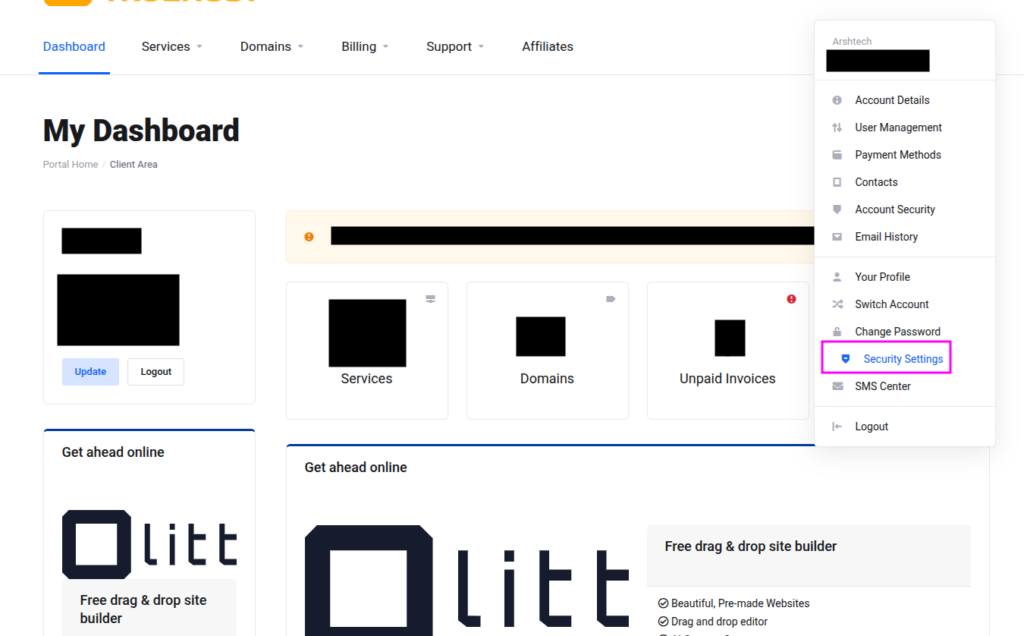
Select Security Settings from the dropdown menu.
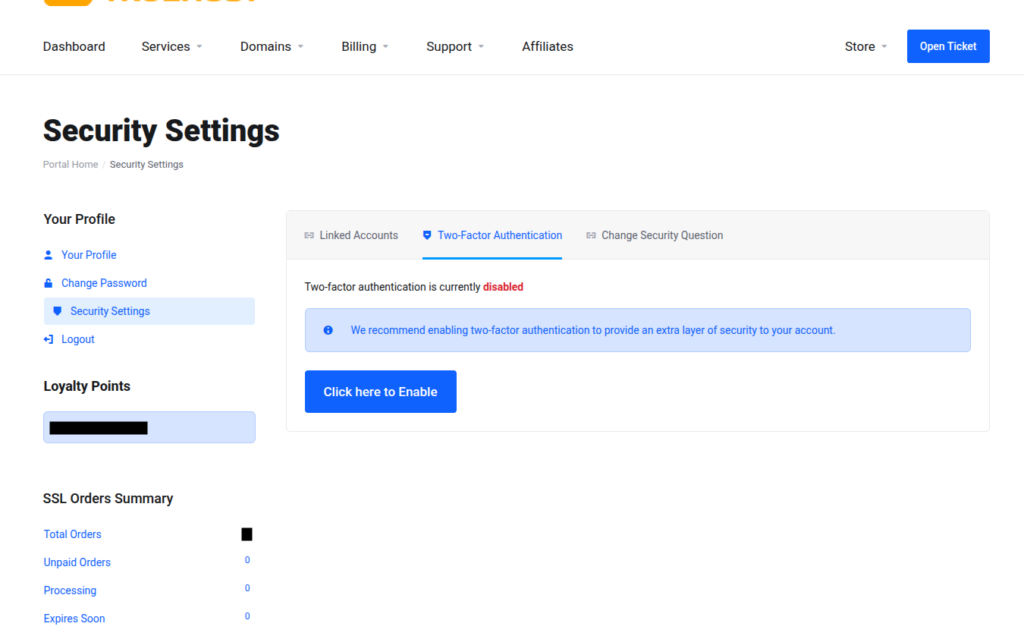
Under Two-Factor Authentication, click “Click to Enable.”
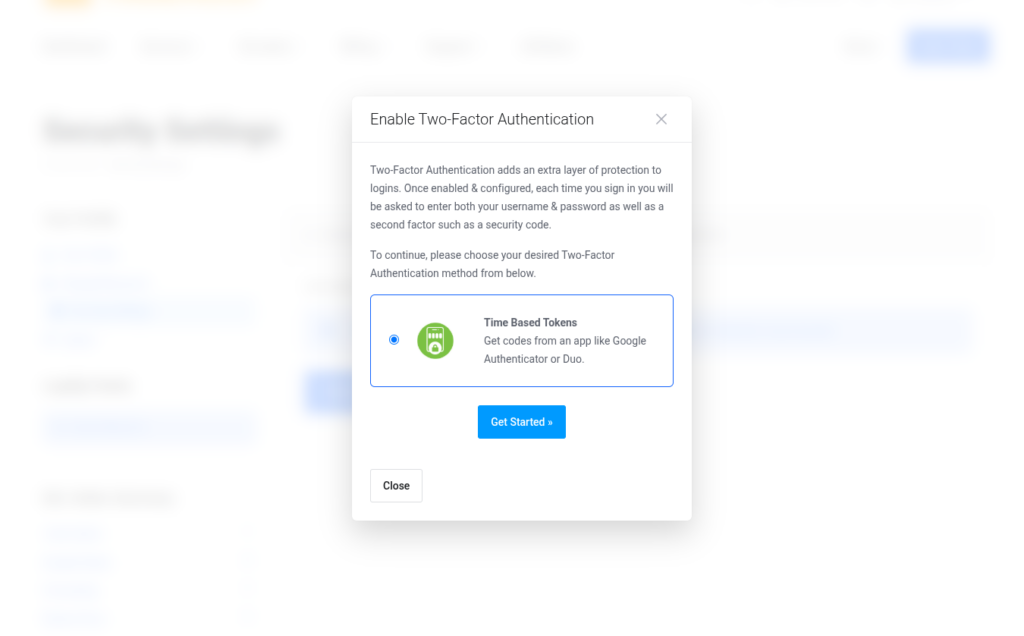
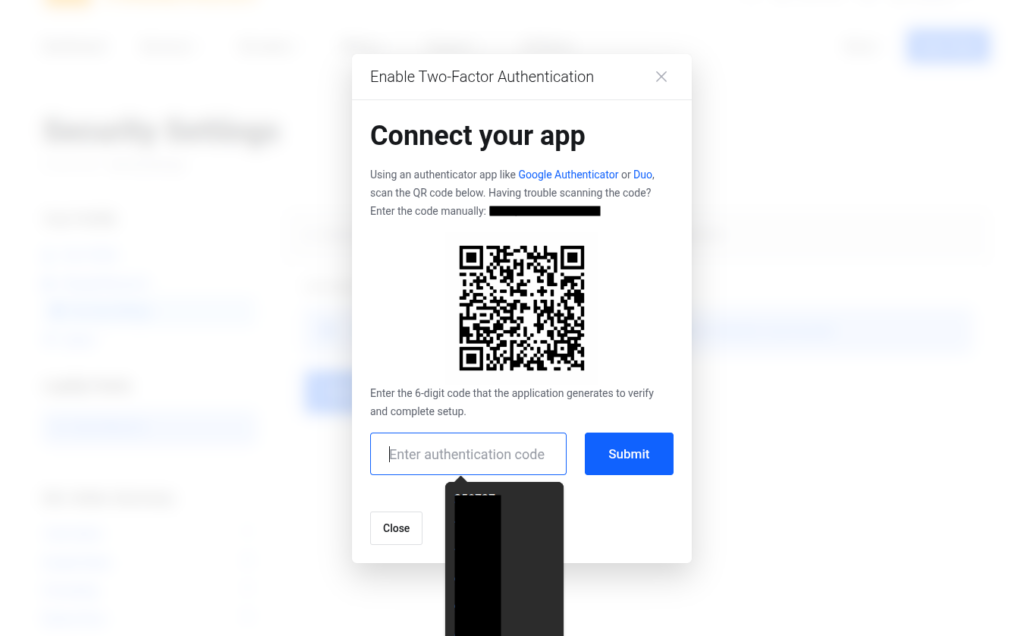
Follow the on-screen instructions to scan the QR code using your preferred authenticator app (e.g., Google Authenticator).
Enter the 6-digit code displayed in your app to verify and activate 2FA.
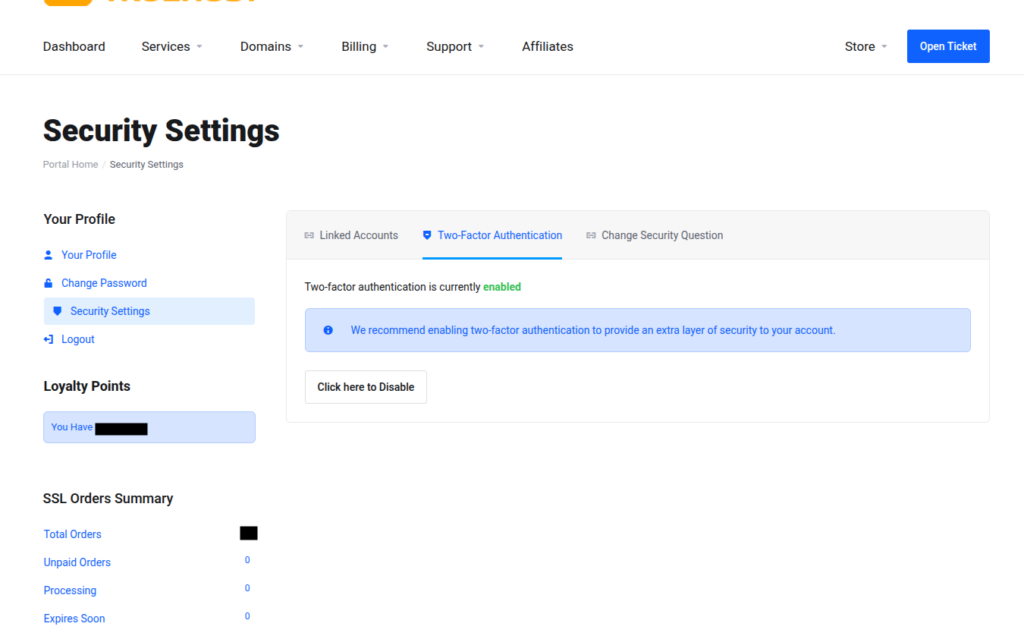
✅ That’s It!
Once enabled, you’ll be prompted for your 2FA code every time you log in — ensuring your account stays protected from unauthorized access.
Tip: Save your backup codes in a secure location. These will help you access your account if you lose your phone.
? Stay Secure with Truehost
At Truehost, your security is our top priority. Enabling 2FA takes less than a minute but adds powerful protection to your account.
Don’t wait — enable 2FA today and enjoy peace of mind knowing your data is safe.
Single Sign On