 Domain RegistrationFind and register the perfect domain for your website.
 .COM DomainChoose a widely recognized domain to build global credibility.
 Domain TransferSeamless domain transfers with zero downtime and complete control.
 All TLDsFind and register your perfect domain. Choose from local and global extensions.
 SSL CertificatesKeep your website safe with reliable SSL Certificates that protect customer data and build trust.
 whoisCheck domain ownership details, expiration dates, and registrar information.
 US DomainRegister a .US domain and build trust in the USA.
 Web HostingEverything your website needs to run smoothly
 WordPress HostingWordPress hosting that just works
 Windows HostingReliable hosting for Windows environments
 Reseller HostingTurn hosting into your business
 Email HostingEmail that looks professional and works anywhere
 cPanel HostingFull control of your hosting with cPanel
 Affiliate ProgramJoin as a partner and earn commissions on every referral you send our way.
 Vps HostingScalable virtual servers that expand as you need.
 Dedicated ServersGet complete access and full control over your dedicated physical server.
 Managed vpsNot tech-savvy? We will take care of everything with our fully managed VPS hosting for you.
 AI Website BuilderCreate stunning websites in seconds with AI.
 Online ShopSet up a professional online store. No coding required.
 Web design serviceGet a tailored website designed to match your brand and support your goals.
 BlogFind helpful guides on web hosting, online selling, digital marketing, and more.
 Contact USYou can reach us anytime, day or night, through chat or email.
 SupportBrowse helpful guides and answers for all of our services.

No, you can’t add VRAM to a GPU that is already installed in a dedicated server. The memory chips are soldered to the card, so the capacity is fixed from day one.
However, you can still end up with more GPU memory. You can swap in a card with more VRAM, add a second GPU, or move to a bigger plan. Each route carries different costs, wait times, and downtime.
This guide covers all three routes. It also gives you a simple sizing formula, so you pick the right VRAM before you pay for it.
Can You Upgrade GPU Memory on a Dedicated Server? The Short Answer
The short answer is no. Server RAM, storage, and bandwidth all have upgrade paths. GPU memory does not. Hosts sell upgrades for RAM, drives, and ports. For GPU memory, however, they replace the whole card or the whole server.
Why VRAM is soldered to the GPU board
VRAM is the memory a GPU uses for its own work. Manufacturers solder GDDR chips directly onto the board, right beside the GPU chip.
This layout keeps the data path short. As a result, the memory operates at extremely high speeds with fewer signal errors.
A removable slot would add distance and connectors so signal quality would suffer. Heat adds another barrier.
Modern VRAM runs hot and requires active cooling so a removable module would need its own cooling design.
This was not always true. In the 1990s, some cards had a slot for an extra memory module.
One ATi design shipped with 4 MB soldered on and took a 4 MB module to reach 8 MB. Modern cards dropped the idea for good.
Why HBM memory can’t be swapped at all
High Bandwidth Memory (HBM) goes one step further. HBM stacks sit inside the same package as the GPU chip. Nobody can remove them without destroying the processor.
Data center cards use this design. For example, the NVIDIA H100 ships with 80 GB of HBM, and AMD’s Instinct MI325X carries 288 GB.
Those capacities are fixed for the life of the card. Therefore, no host can change HBM capacity on an installed card.
GPU Memory vs Server RAM: What You Can Upgrade
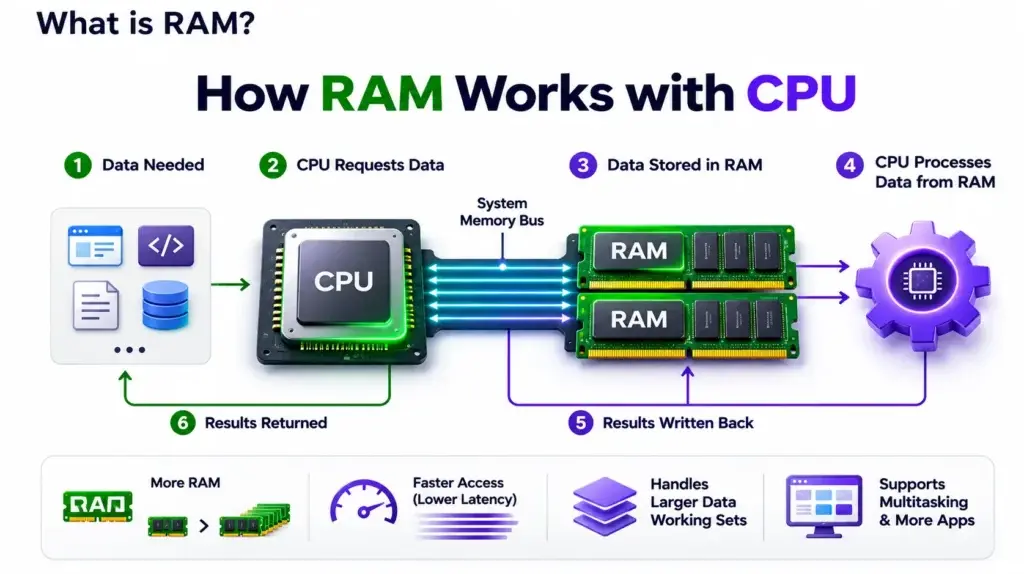
People often mix up these two memory types. That confusion leads to costly ordering mistakes. A dedicated server has both, and they work separately.
Server RAM sits on the motherboard in DIMM slots, and the CPU uses it. VRAM sits on the GPU, and only the GPU uses it.
| System RAM | Yes, if free DIMM slots exist | Host technician, after a support ticket |
| Storage drives | Yes, within the bay count | Host technician |
| Network ports and traffic | Yes | Host, often as a billing change |
| GPU VRAM | No | Nobody; replace the card or the plan |
| GPU count | Yes, within chassis limits | Host technician |
Gcore, for example, lists extra RAM, drives, RAID, and ports as standard upgrades for dedicated servers. GPU memory is missing from that list.
Extra system RAM does not give the GPU more memory. It only helps the CPU side, such as data loading.
Some tools can offload model layers to system RAM, but speed drops sharply. Therefore, treat RAM and VRAM as two separate shopping lists.
Can Modders Upgrade VRAM, and Will Your Host Do It?
Yes, skilled modders can upgrade VRAM on some consumer cards. One modding service has shown an RTX 2080 Ti going from 11 GB to 22 GB. A YouTuber also doubled the GTX 1650’s memory from 4 GB to 8 GB by swapping memory chips.
These mods need micro-soldering, compatible chips, and firmware that accepts the new capacity. A failed attempt can brick the card. Chip generations also change, so finding matching parts is hard.
Hosts do not sell this work as a supported upgrade. The hosts reviewed for this guide list card swaps and plan changes, not chip-level mods. Chip-level work also risks stability and warranty coverage. So, treat VRAM as fixed for your whole rental term.
Three Ways to Get More GPU Memory on a Dedicated Server

You can’t change the memory itself. You can, however, change what holds it. Each route below raises your total VRAM.
Swap to a GPU with more VRAM
The most direct route is a card swap. Some hosting companies handle this through a support ticket. Its listed GPU upgrade is a 24 GB enterprise card, and the exact model depends on inventory. The lead time is 2 to 4 weeks, and the price is the current plan plus $300 per month.
Those numbers are one provider’s terms, so check your host’s current page before you plan. Before you order, confirm four things:
- The PCIe slot generation and the physical space for the card
- PSU wattage and the extra connectors the card needs
- Chassis airflow, since passive data center cards rely on server fans
- Driver and CUDA support for the new card
Also, ask whether the host will reinstall your operating system after the swap.
Add more GPUs to the same server.
A second GPU adds VRAM without removing the first. Chassis limits cap how far this goes. For example, Hivelocity’s launch announcement described up to four GPUs in a single server.
Several limits apply. The motherboard needs enough PCIe slots and lanes. The PSU must carry the extra wattage. The case needs room and airflow. Therefore, the host’s published configurations decide what is possible.
More GPUs also change how you run your workload. The next section explains why.
Move to a different server plan.
Some hosts do not offer hardware add-ons at all. Hetzner’s GPU servers work this way. Its documentation says you cannot order additional hardware. Instead, you move to a different server model.
To read such a plan list, first find the vRAM column. Then match it to your model size with the formula later in this guide.
A safe migration follows this order:
- Order the new server and wait for provisioning to complete.
- Copy your data and configs with a tool like rsync.
- Test your workload on the new GPU.
- Switch traffic over, then cancel the old server.
Overlap both plans for a few days. That extra cost is small next to a failed cutover.
Comparing the three routes
| Route | VRAM gained | Lead time | Cost | Downtime | Best for |
|---|---|---|---|---|---|
| Swap the GPU | The new card’s full amount | Hosts list 2 to 4 weeks | Plan price plus an add-on fee | Scheduled outage during install | Single-GPU workloads that need a bigger card |
| Add a GPU | The new card’s amount, added to the total | Depends on chassis and stock | Add-on fee per card | Short outage during install | Workloads that split across GPUs |
| Change plan | Whatever the new model offers | Depends on stock and provisioning | Two plans overlap briefly | Near zero if you cut over after testing | Hosts with fixed configurations |
These figures vary by provider, so confirm them with your host.
Do Multiple GPUs Combine Their VRAM?
Not automatically. Two 24 GB cards do not behave like one 48 GB card. Your software must split the work across them.
NVIDIA’s deployment guidance gives a clear sizing rule. The weights, the KV cache, and the framework overhead must fit within the combined VRAM of the pooled GPUs.
weights + KV cache + overhead <= number of GPUs x VRAM per GPUThree parallelism methods change how the model sits on your GPUs:
- Tensor parallelism splits each layer across GPUs. It helps a model fit.
- Pipeline parallelism places groups of layers on different GPUs. It also helps a model fit.
- Data parallelism copies the full model onto every GPU. It increases throughput but never improves a model’s fit.
Therefore, four 24 GB cards running data parallelism still cap your model at 24 GB.
Splitting a model also adds GPU-to-GPU traffic. NVLink handles that traffic better than PCIe. Tensor parallelism works best with high-bandwidth links within a single server. The group size is usually 2, 4, or 8 GPUs. Some hosts, such as Atlantic.Net, offer NVLink configurations.
Rendering workloads behave differently. Many GPU renderers load the whole scene onto every card. In that case, extra cards add speed but not scene capacity. Check your renderer’s documentation before you buy more cards.
Here is a worked example with assumed numbers:
- A 13B-parameter model in FP16 requires about 26 GB of storage for weights.
- Add roughly 15 percent overhead, and you reach about 30 GB.
- Assume a 6 GB KV cache, which brings the total to about 36 GB.
- One 24 GB card cannot hold that total.
- Two 24 GB cards offer 48 GB, so the model fits with room to spare.
A 4-bit version of the same model requires only about 6.5 GB of storage for weights. It likely fits on a single 16 GB card.
What a GPU Upgrade Costs in Time, Money, and Downtime
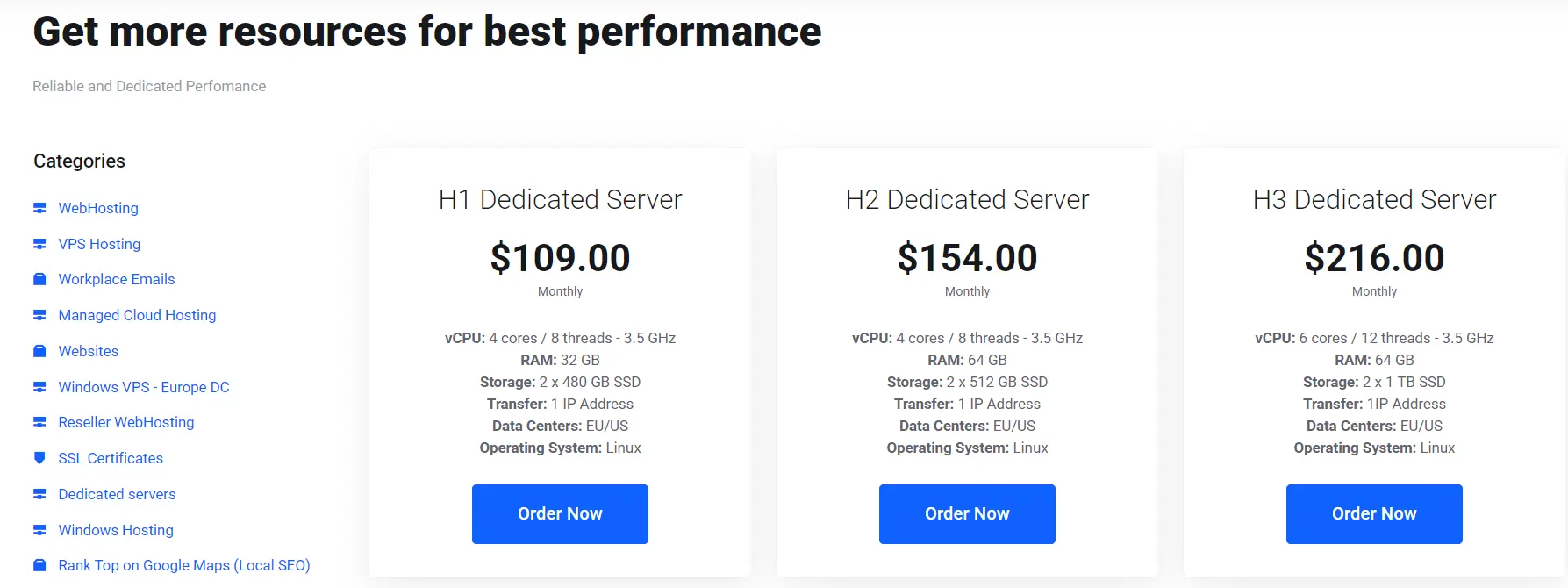
Every upgrade route costs more than just the hardware. Plan for these four items.
- Lead time. Most hosts list 2 to 4 weeks for their GPU add-on. Stock levels drive that wait, so ask your host for a current estimate.
- Price. Most hosts charge the base plan plus an add-on fee. Some hosts also limit upgraded servers to monthly billing.
- Downtime. The host must shut the server down to install a card. A host asks for your preferred time in the ticket so that you can pick a quiet window.
- Backups and IP. Gcore advises a backup before any drive change. Apply the same habit to GPU work. Gcore also says the IP address stays the same and an installation fee applies. Policies vary, so confirm yours.
Check Whether VRAM Is Your Real Bottleneck
Before you spend money, confirm that memory is the problem. Run this command while your workload is active:
nvidia-smi --query-gpu=memory.used,memory.total --format=csv -l 5Three signs point to a true VRAM shortage:
- Out-of-memory errors that stop your job
- Memory use sitting near the total at all times
- A sharp slowdown once layers spill over to the CPU
If you see those signs, try free fixes first. Quantization shrinks the weights. A smaller batch size or a shorter context length cuts KV cache use. KV cache offloading tools, such as LMCache, can also stretch your capacity. If none of these work, move on to a hardware route.
How much VRAM do I need to run large language models?
Multiply the parameter count by the bytes per parameter. FP16 uses 2 bytes, 8-bit uses 1, and 4-bit uses 0.5. Then add 10-15 percent overhead and room for the KV cache.
| Model size | FP16 weights | 8-bit weights | 4-bit weights |
|---|---|---|---|
| 7B | 14 GB | 7 GB | 3.5 GB |
| 13B | 26 GB | 13 GB | 6.5 GB |
| 70B | 140 GB | 70 GB | 35 GB |
These figures cover weights only. Training needs several times more memory than inference.
Is a cloud GPU easier to scale than a dedicated GPU server?
Cloud instances are easier to resize. You switch to a larger instance type when your needs grow. The VRAM per GPU stays fixed, though. You can still change the card by changing the instance type.
Dedicated servers suit steady workloads. ServerMania notes that monthly dedicated hosting can be easier to budget than hourly cloud GPUs for always-on jobs. Cloud suits bursts and short tests.
Pick the Right Path Before You Pay for the Wrong GPU
GPU memory is fixed once the card ships. Therefore, the best upgrade is the right choice on day one. Use these rules to pick your route:
- One large model that must fit on a single GPU: swap to a card with more VRAM, or move to a plan that already has one.
- A model you can split across GPUs: add cards, and use tensor or pipeline parallelism.
- A host with fixed configurations: change plans, and overlap the old and new servers.
Not sure how much VRAM your workload needs? Send Truehost your model size, precision, and expected traffic. The team will recommend a GPU-dedicated server with sufficient VRAM and headroom.
Explore Truehost dedicated servers.