 Domain RegistrationFind and register the perfect domain for your website.
 .COM DomainChoose a widely recognized domain to build global credibility.
 Domain TransferSeamless domain transfers with zero downtime and complete control.
 All TLDsFind and register your perfect domain. Choose from local and global extensions.
 SSL CertificatesKeep your website safe with reliable SSL Certificates that protect customer data and build trust.
 whoisCheck domain ownership details, expiration dates, and registrar information.
 US DomainRegister a .US domain and build trust in the USA.
 Web HostingEverything your website needs to run smoothly
 WordPress HostingWordPress hosting that just works
 Windows HostingReliable hosting for Windows environments
 Reseller HostingTurn hosting into your business
 Email HostingEmail that looks professional and works anywhere
 cPanel HostingFull control of your hosting with cPanel
 Affiliate ProgramJoin as a partner and earn commissions on every referral you send our way.
 Vps HostingScalable virtual servers that expand as you need.
 Dedicated ServersGet complete access and full control over your dedicated physical server.
 Managed vpsNot tech-savvy? We will take care of everything with our fully managed VPS hosting for you.
 AI Website BuilderCreate stunning websites in seconds with AI.
 Online ShopSet up a professional online store. No coding required.
 Web design serviceGet a tailored website designed to match your brand and support your goals.
 BlogFind helpful guides on web hosting, online selling, digital marketing, and more.
 Contact USYou can reach us anytime, day or night, through chat or email.
 SupportBrowse helpful guides and answers for all of our services.

Many bloggers outgrow Blogger sooner or later.
WordPress offers far greater control over design, plugins, monetization, functionality and hosting.
Which is why so many site owners decide to transfer Blogger to WordPress once their blog starts to grow.
The process to transfer Blogger to WordPress has several parts:
- moving your content,
- setting up WordPress,
- configuring your URLs
- and handling redirects.
Each part needs attention, and none of them is difficult when taken in order.
One concern deserves an honest answer early.
Moving a blog does not automatically preserve every existing URL or search ranking.
Blogger and WordPress build their links differently, so careful migration and thorough testing are what reduce the risk of losing traffic.
This guide walks through each step so you can transfer Blogger to WordPress with confidence.
What You Need Before Transferring Blogger to WordPress
Gather the following before you start to transfer Blogger to WordPress:
- A Blogger account with access to the blog. You need to be able to sign in and open the blog’s settings.
- A backup of your existing Blogger content. Step 1 shows you how to create one.
- A domain name. A free blogspot.com address belongs to Blogger and cannot be taken to another host. A custom domain, such as example.com, is registered through a domain registrar and can be pointed anywhere you choose.
- WordPress hosting that meets the site’s requirements. Your host should support current WordPress versions and offer enough storage for your media.
- A fresh WordPress installation. Start with a clean site so imported content does not mix with test posts or old data.
- Access to Google Search Console and Google Analytics, if you already use them.
One important distinction: this guide covers WordPress.org, the self-hosted version of WordPress.
The WordPress software is free, but your website still needs hosting and, if you want a custom web address, a domain.
Step 1: Back Up Your Blogger Blog
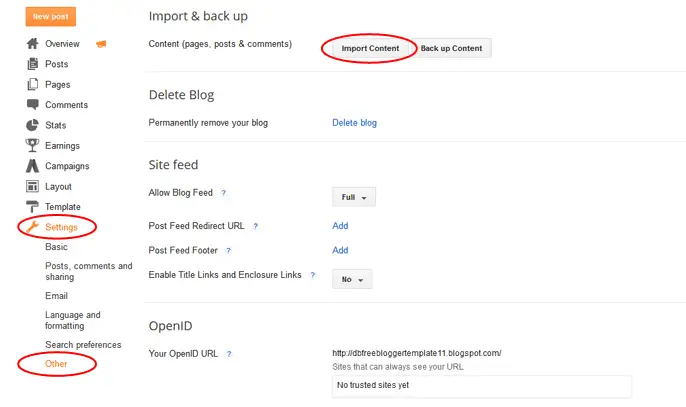
Before you transfer Blogger to WordPress, download a copy of your blog:
- Sign in to Blogger.
- Select the blog you are transferring.
- Open Settings.
- Find the backup option under the blog management section.
- Choose the option to back up your content and download the export file.
- Store the downloaded file somewhere safe, ideally in two places.
This backup gives you a copy of your original posts and pages. If the import fails or something needs to be recovered later, you will have the source material ready.
The export may be delivered through Google Takeout, and Blogger’s interface changes from time to time.
Follow the current on-screen options if they differ slightly from the steps above.
Step 2: Set Up WordPress on Your Hosting Account
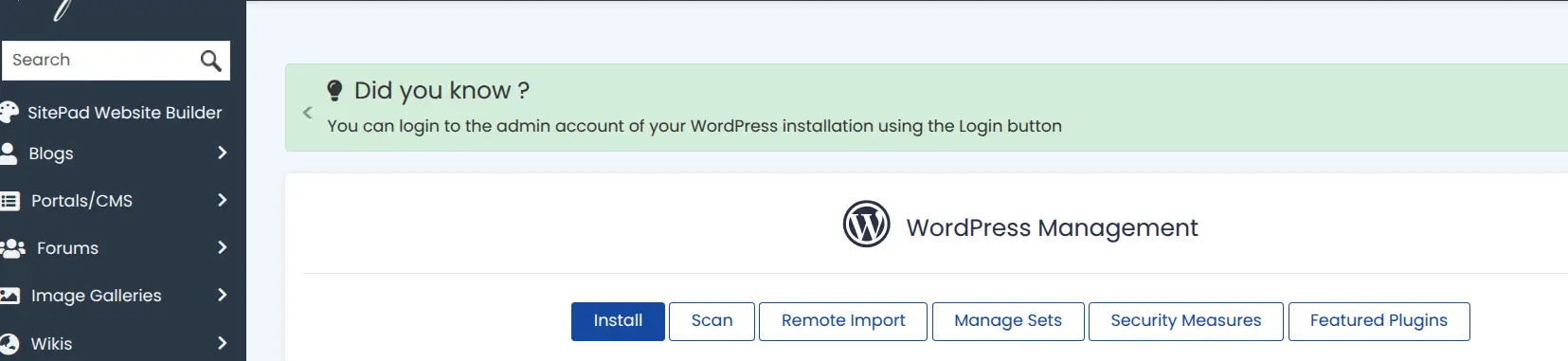
Prepare the destination website before importing a single post:
- Choose a WordPress-compatible hosting plan.
- Add or connect your domain name.
- Install WordPress through the hosting control panel or a one-click installer.
- Log in to the WordPress dashboard.
- Confirm that the new website loads and that SSL is active.
If your Blogger blog already runs on a custom domain, avoid changing its DNS records until WordPress is installed and your content import is complete.
Changing them too early can take your live blog offline while the new site is still empty.
Step 3: Import Blogger Content into WordPress
This step carries the most weight when you transfer Blogger to WordPress.
The right import method depends on the format of your Blogger export, so confirm that your chosen tool supports the file you downloaded.
a) Use a Blogger Importer Plugin
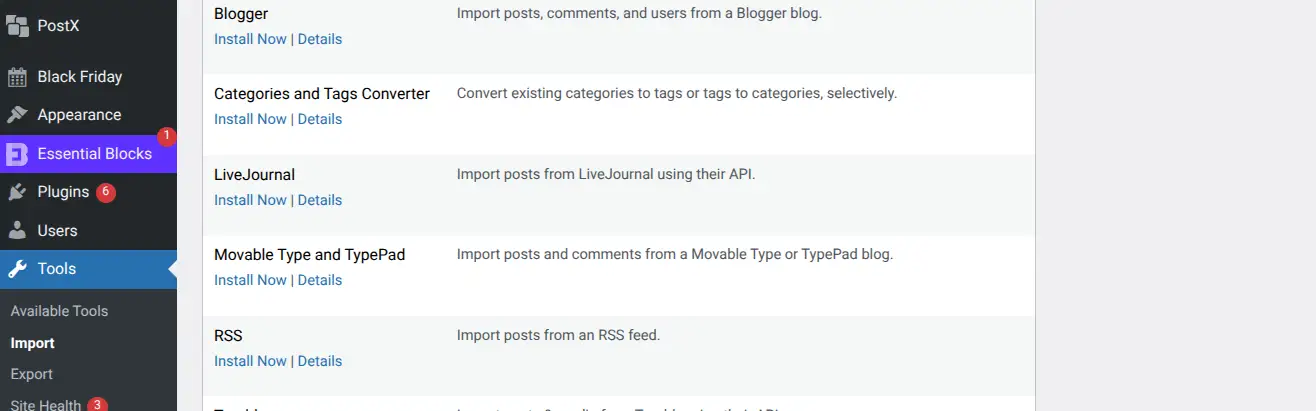
Follow this general workflow:
- Locate a suitable Blogger importer in the WordPress plugin directory.
- Install and activate the selected plugin.
- Upload your Blogger export file.
- Follow the on-screen import process.
- Assign the imported content to the correct WordPress author.
- Review the imported posts and pages.
Do not assume that the built-in WordPress importer works with every export format.
The official WordPress documentation describes the Blogger importer workflow, but recent migration guides report compatibility problems with the newer Google Takeout export format.
The BtW Importer plugin is one alternative that supports the .atom export file.
Before you start, check the plugin’s compatibility notes and current requirements, since plugin support can change.
b) Check Which Content Was Imported
Treat an import as unfinished until you have inspected it. Look closely at:
- Blog posts and pages
- Images and other media
- Categories and tags
- Authors
- Comments, if your selected importer supports them
- Original publication dates
- Internal links and embedded content
Keep in mind that themes, layouts, widgets and some Blogger-specific features do not transfer automatically.
Your new WordPress website needs its own theme and design configuration, which Step 7 covers.
Step 4: Set Up Your WordPress Permalinks
WordPress URLs usually look different from Blogger URLs. Here is a typical example:
| Platform | Example URL |
| Blogger | example.com/2025/06/blog-post.html |
| WordPress | example.com/blog-post/ |
To configure your structure:
- Open Settings → Permalinks in WordPress.
- Choose a suitable URL structure, such as Post name.
- Save your changes.
- Open several imported posts and confirm their new URLs load correctly.
Avoid changing your permalink structure repeatedly after migration, because every change creates a fresh set of URLs to manage.
Pick your structure with the old Blogger URLs and your redirect requirements in mind, so the mapping from old to new stays simple.
Step 5: Redirect Blogger URLs to WordPress
This is the most important step for protecting your SEO when you transfer Blogger to WordPress.
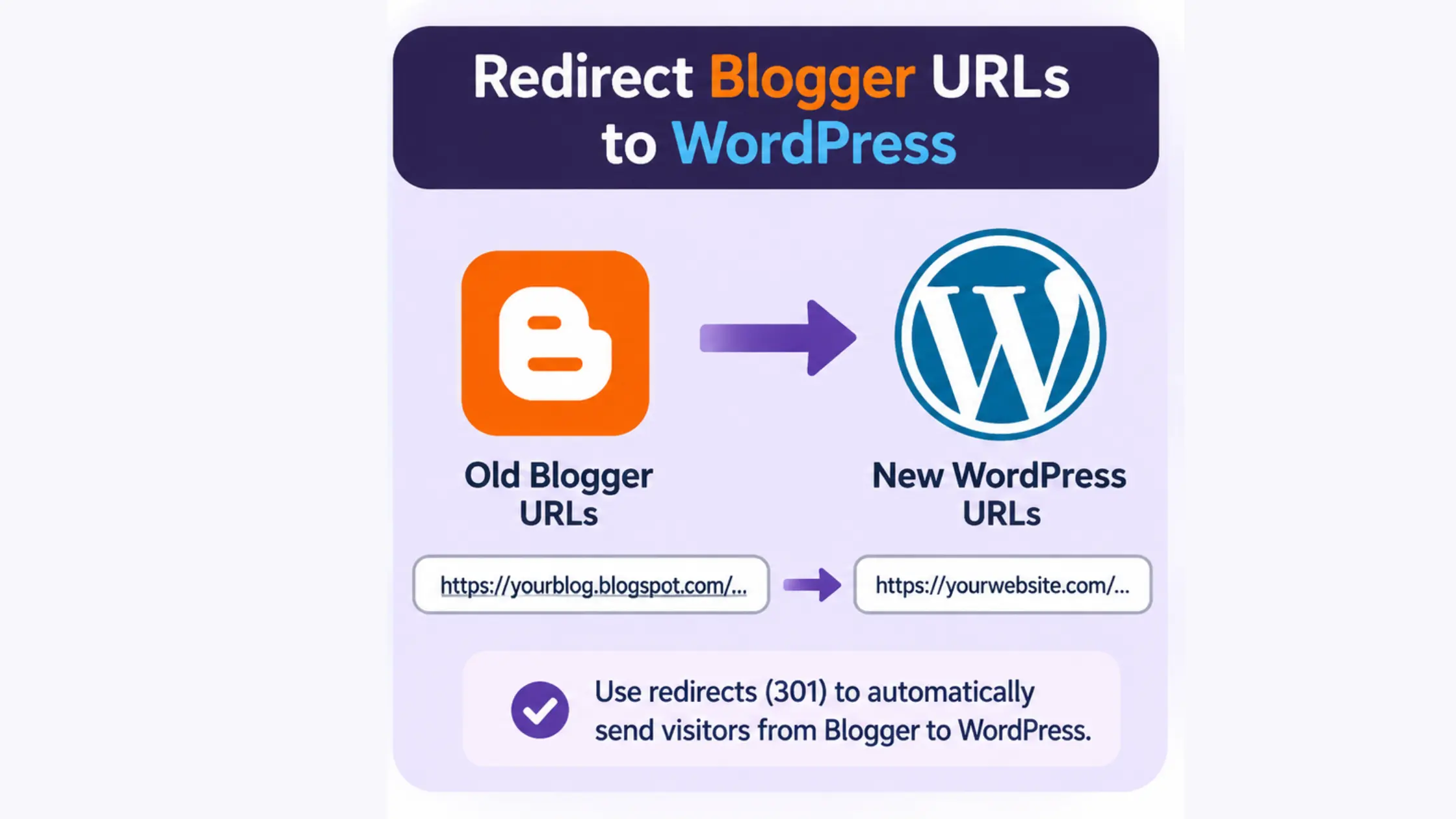
A redirect sends visitors and search engines from an old address to a new one, and you need them because your post URLs are changing.
a) Why You Need 301 Redirects
- Visitors may still reach old Blogger links through search results, social media and other websites.
- Search engines may keep the old URLs in their index for some time.
- A 301 redirect tells browsers and search engines that a page has moved permanently.
- Each old post URL should lead to its matching new WordPress post, not simply to the homepage.
b) How to Redirect Blogger Posts to WordPress
Start by checking whether your chosen importer creates redirects automatically.
If it does, review its redirect log, if one is available.
If it does not, you will need to set up a Blogger-to-WordPress redirect method yourself.
Then test old URLs one at a time, covering posts, pages and any important custom-domain URLs.
Blogger does not provide the same server-level redirect controls as a self-hosted WordPress website, so the right method depends on how your blog is addressed.
The two cases differ, and each deserves its own explanation.
If your blog uses a blogspot.com address. The old address stays under Blogger’s control, which limits what you can do.
You cannot add true server-level 301 redirects there.
Blogger offers only limited options, such as editing the theme to point visitors to the new site, and these are weaker signals than a real 301.
Because you cannot keep the Blogspot address pointing at your WordPress site, plan to update links you control, such as social profiles and email signatures, and submit your new sitemap promptly.
If your blog uses a custom domain. Once the domain points to your WordPress host, you control the server.
You can map each old Blogger path, such as /2025/06/blog-post.html, to its new WordPress address using a redirect plugin or server rules.
This gives you proper 301 redirects for every post and page.
Test a sample of old URLs after the DNS change, and look at both the www and non-www versions.
Step 6: Move Your Custom Domain from Blogger to WordPress
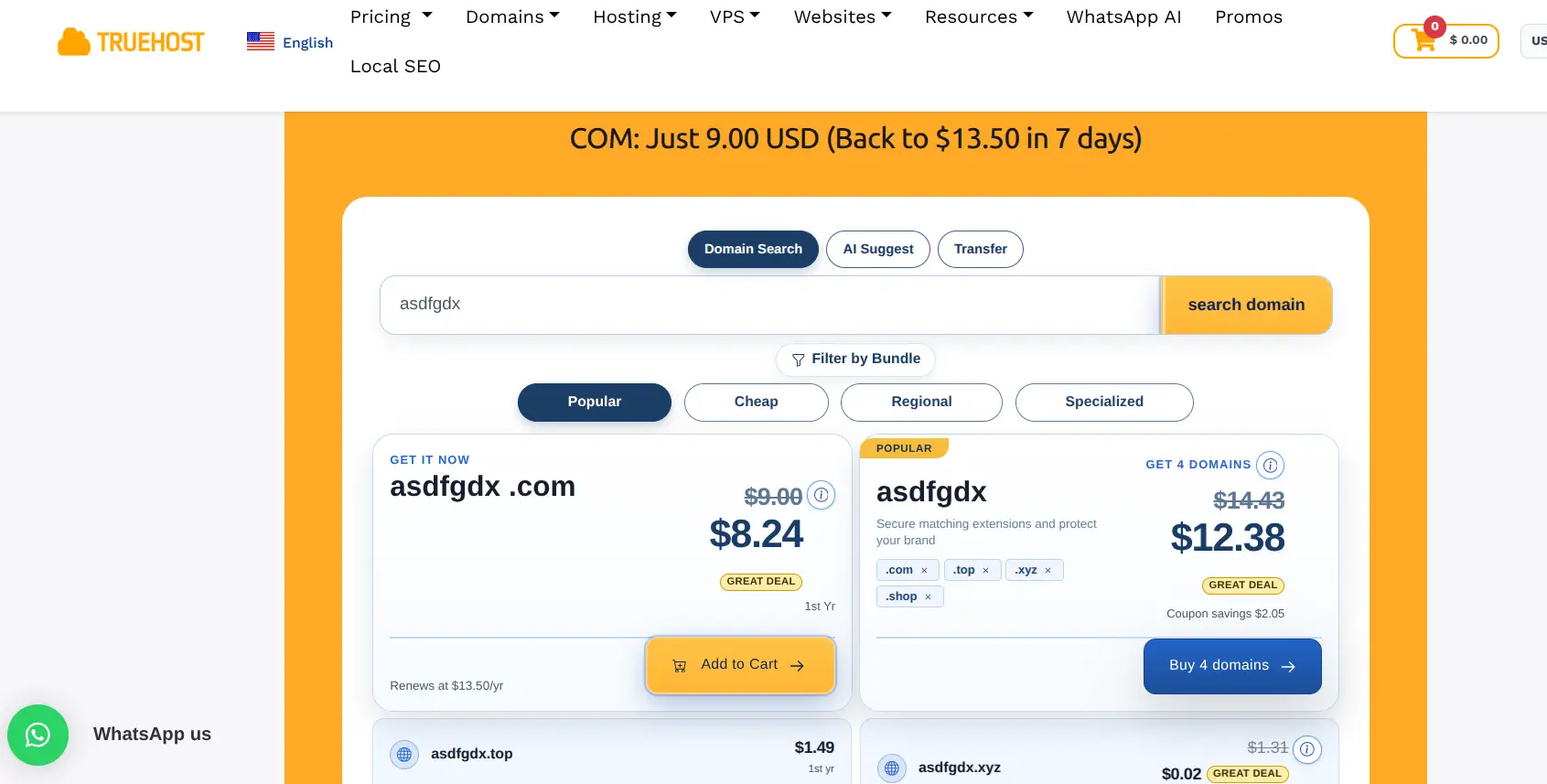
This section applies to readers who use a domain such as example.com rather than a Blogspot address.
Follow it when you transfer Blogger to WordPress with a custom domain.
You can keep the domain registration with your current registrar.
Moving a website does not necessarily require transferring domain ownership.
What you need to change is where the domain points:
- Update the domain’s DNS records or nameservers to point to your new hosting provider.
- Confirm that the domain resolves to the WordPress website.
- Enable SSL and check that the HTTPS version loads.
- Test the site with and without www, depending on which version you chose as your primary domain.
DNS changes can take time to propagate, so some visitors may see the old site while others see the new one.
Do not cancel or delete your Blogger setup until you have confirmed that the WordPress website works correctly.
Step 7: Recreate Your Blogger Design and Features in WordPress
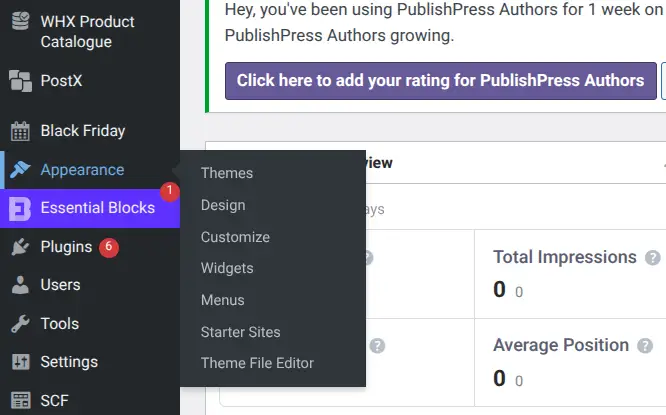
Importing content does not recreate your old Blogger theme, so you will need to rebuild the look and function of the site:
- Choose and install a WordPress theme.
- Recreate your header, navigation and footer.
- Set up menus and widgets.
- Rebuild key pages such as About, Contact and Privacy Policy.
- Replace Blogger-specific gadgets with suitable WordPress plugins or theme features.
- Check how every page looks on mobile devices.
Focus on matching the features your readers rely on. You can refine the finer design details after the migration is stable.
Step 8: Check Your Website After the Migration
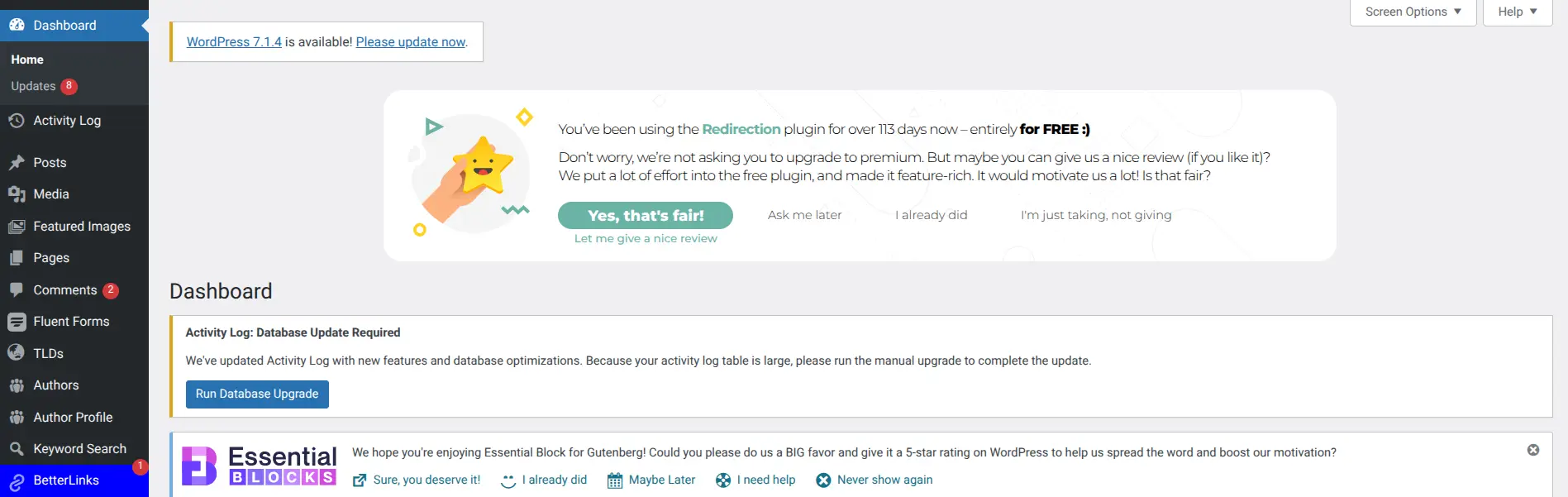
Work through this checklist before you treat your effort to transfer Blogger to WordPress as finished:
| What to check | What to confirm |
| Posts and pages | Important content is present |
| Images | Images load correctly |
| Internal links | Links point to the correct pages |
| Redirects | Old URLs reach matching new URLs |
| Permalinks | New URLs load without errors |
| SSL | HTTPS works correctly |
| Mobile layout | Pages display properly on smaller screens |
| Forms | Contact and subscription forms work |
| Search Console | New website can be monitored |
| Sitemap | WordPress sitemap is accessible and submitted |
Monitor Search Performance After Moving
The weeks after launch are the time to watch your results closely:
- Verify the WordPress website in Google Search Console.
- Submit the new XML sitemap.
- Monitor indexing and crawl errors.
- Check for unexpected 404 errors.
- Track organic clicks, impressions and rankings.
- Keep your Blogger backup and old setup available until the new website has been fully checked.
No one can promise that rankings will stay exactly as they were.
A technically correct migration reduces risk, but search performance can fluctuate while Google processes the new URLs.
Common Problems When Transferring Blogger to WordPress
| Problem | What to check |
| Posts are missing | Check the export file and import logs |
| Images are broken | Check media imports and image URLs |
| Duplicate posts appear | Confirm the import was not run more than once |
| Old links return 404 errors | Review redirect rules |
| Website shows an SSL warning | Check the SSL certificate and HTTPS configuration |
| Domain still opens Blogger | Review DNS records and propagation |
| Search traffic drops | Check redirects, indexing and crawl errors |
How Long Does It Take to Transfer Blogger to WordPress?
There is no fixed timeline to transfer Blogger to WordPress, because several factors change the workload:
- The size of your Blogger archive.
- The number of posts, pages and images.
- Whether the blog uses a custom domain.
- Whether the migration needs manual image or URL corrections.
- The time required to rebuild your design and test redirects.
A small blog may be transferred relatively quickly, while a large archive or a custom-domain migration can take longer.
Plan for testing time rather than rushing to switch the domain.
Get WordPress Hosting for Your New Website With Truehost
Once you transfer Blogger to WordPress, your new website needs a home.
Hosting stores your WordPress files, database, themes and media, and it keeps the site online for visitors.
Truehost offers WordPress hosting for readers who want to run a self-hosted WordPress website.
Check the plan details for WordPress installation options, control panel access, SSL and available support.
When you compare plans, look at storage, website limits, backups and renewal pricing, since the price after the first term can differ from the introductory offer.
Ready to move your blog from Blogger?
Explore Truehost WordPress hosting and choose a hosting plan for your new WordPress website.
Frequently Asked Questions
Can I transfer my Blogger blog to WordPress for free?
The WordPress software and some migration plugins are free. However, self-hosted WordPress requires hosting, and a custom domain may involve registration or renewal costs. The transfer itself can be inexpensive, but the website’s ongoing home is not free.
Will I lose my Blogger posts when I move to WordPress?
Not if you export and import carefully. You download your content from Blogger, then import it into WordPress with a compatible importer. Keep the backup file safe so you can recover your posts if anything goes wrong.
Can I transfer my Blogger domain to WordPress?
Yes, in the sense that you can point your domain to a new hosting provider. You do not necessarily need to move the registration to another registrar. Updating DNS records or nameservers is usually what connects the domain to the new site.
Will transferring Blogger to WordPress affect SEO?
It can, because your URLs change. You reduce the risk with 301 redirects, correct internal links, sitemap submission and regular Search Console monitoring. Rankings may fluctuate for a while even when everything is done properly.
Can I keep my Blogger URL after moving to WordPress?
It depends on the address. A custom domain can stay the same, since you only change where it points. A free Blogspot subdomain cannot be moved to WordPress, so you will need a new domain and a plan for guiding visitors to it.
Do Blogger comments transfer to WordPress?
That depends on the importer you use. Some tools bring comments across, while others skip them. Review the plugin’s supported content types before you begin.
Can I transfer Blogger images to WordPress?
Image handling varies by importer. Some tools download images into the WordPress media library, while others leave externally hosted images embedded in your posts. Check a few posts after the import to see which applies.
Should I delete Blogger after transferring to WordPress?
Not right away. Keep the old blog and your backup until the new website, its content and its redirects have all been tested.