 Domain RegistrationFind and register the perfect domain for your website.
 .COM DomainChoose a widely recognized domain to build global credibility.
 Domain TransferSeamless domain transfers with zero downtime and complete control.
 All TLDsFind and register your perfect domain. Choose from local and global extensions.
 SSL CertificatesKeep your website safe with reliable SSL Certificates that protect customer data and build trust.
 whoisCheck domain ownership details, expiration dates, and registrar information.
 US DomainRegister a .US domain and build trust in the USA.
 Web HostingEverything your website needs to run smoothly
 WordPress HostingWordPress hosting that just works
 Windows HostingReliable hosting for Windows environments
 Reseller HostingTurn hosting into your business
 Email HostingEmail that looks professional and works anywhere
 cPanel HostingFull control of your hosting with cPanel
 Affiliate ProgramJoin as a partner and earn commissions on every referral you send our way.
 Vps HostingScalable virtual servers that expand as you need.
 Dedicated ServersGet complete access and full control over your dedicated physical server.
 Managed vpsNot tech-savvy? We will take care of everything with our fully managed VPS hosting for you.
 AI Website BuilderCreate stunning websites in seconds with AI.
 Online ShopSet up a professional online store. No coding required.
 Web design serviceGet a tailored website designed to match your brand and support your goals.
 BlogFind helpful guides on web hosting, online selling, digital marketing, and more.
 Contact USYou can reach us anytime, day or night, through chat or email.
 SupportBrowse helpful guides and answers for all of our services.
You change a page URL. Or you delete an old page. Or you move content to a new address, or even switch domains.
The problem is that people and search engines may still visit the old address.
Without a fix, they land on a 404 error.
A WordPress redirect solves that. It sends the visitor from the old URL to the new one automatically.
This guide covers the main ways to set one up:
- 301 redirects
- 302 redirects
- Redirects through a WordPress plugin
- Redirects through the .htaccess file
- Redirects using WordPress code
You will also find fixes for common problems, a simple testing process and answers to frequent questions.
WordPress Redirect Types
Not every redirect works the same way.
The status code tells browsers and search engines what kind of move happened.
| Redirect | Main Use | Permanent? |
|---|---|---|
| 301 | Permanent URL change | Yes |
| 302 | Temporary redirect | No |
| 307 | Temporary redirect while preserving the request method | No |
| 308 | Permanent redirect while preserving the request method | Yes |
Most readers only need two of these. A 301 is for permanent moves. A 302 is for temporary ones.
- Use a 301 when a page has moved for good. Examples include a new permalink, a merged article or a new domain. Search engines treat it as a signal to pass the old page’s standing to the new one.
- Use a 302 when the move is short term. Examples include a seasonal landing page, a maintenance page or a test. Search engines keep the original URL in mind, because you plan to bring it back.
- The 307 and 308 codes are stricter versions. They keep the original request method, such as POST. This is useful for forms and APIs. Most WordPress site owners will never need them directly.
There is one more reason to pick the right code. Browsers cache 301 redirects hard.
If you set a 301 by mistake, some visitors may keep getting sent to the new page even after you remove the rule. A 302 is easier to undo. When you are testing, a 302 is the safer starting point.
How to Redirect a URL in WordPress With a Plugin
A plugin is the easiest WordPress redirect method. You don’t edit any files. You fill in a form and save.
This walkthrough uses the free Redirection plugin. It supports 301, 302, 303, 307 and 308 redirects.
It also includes redirect logs and 404 monitoring, which helps you spot broken links.
1) Install the Redirection Plugin
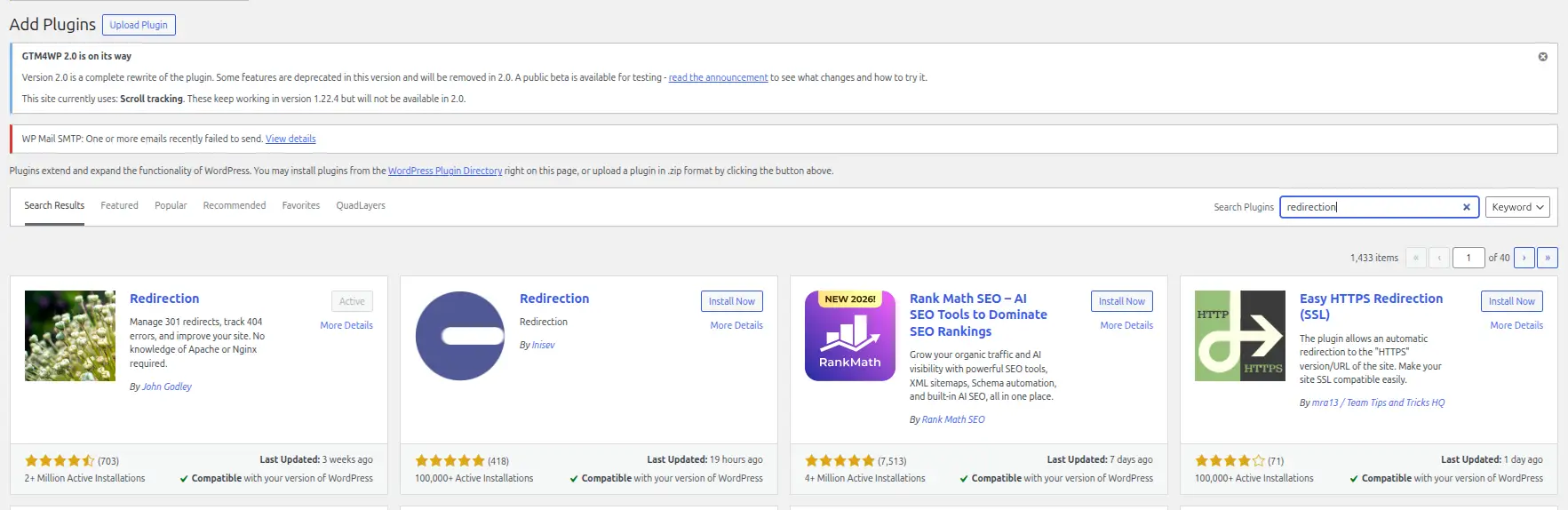
In your dashboard, go to Plugins → Add New. Search for “Redirection.” Click Install Now next to the plugin by John Godley.
2) Activate the Plugin
Click Activate once the install finishes. The plugin may show a short setup screen. Follow the prompts. The basic setup is quick.
3) Open Tools → Redirection
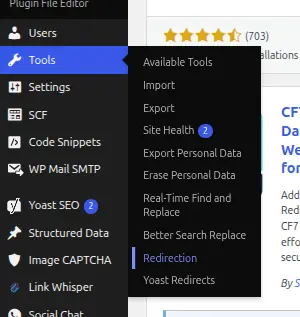
Go to Tools → Redirection in the left menu. This is where all your rules live. You can add, edit and delete redirects from here.
4) Enter the Source URL
The source URL is the old address. Enter only the path, such as /old-page/. You don’t need the full domain for internal pages.
Copy it exactly. A missing slash or a typo is a common reason a redirect fails.
5) Enter the Target URL

The target is the new address. Use the full URL, such as https://example.com/new-page/. Make sure the page exists and loads. Include https if your site uses it.
6) Select the Appropriate Redirect
Pick the status code from the dropdown. Choose 301 for permanent moves. Choose 302 for temporary ones.
If you are not sure, think about the future. Will the old URL ever come back? If not, use 301.
7) Save the Redirect
Click Add Redirect. The rule appears in your list right away. It starts working immediately.
8) Test the Old URL
Open the old URL in a private window. It should take you to the new page. We cover testing in more detail below.
What a Successful Redirect Should Do
A good redirect is quick and quiet. The visitor types or clicks the old URL. The browser lands on the new page.
The address bar shows the new URL. There is no error and no long delay.
Behind the scenes, the server sends the right status code first. Then the browser follows to the destination. If you see a 404, a loop or a blank page, something needs fixing.
The Redirection plugin offers a few extras worth using. The 404 log shows which missing URLs visitors are hitting.
You can turn a logged 404 into a redirect with one click. The redirect log shows which rules get used and how often. That tells you which old links still bring traffic.
You can also group redirects into modules and import or export them as a file.
That helps when you move many pages at once, such as after a site redesign. Instead of adding rules one by one, you upload a list.
One tip for site moves.
Make a spreadsheet of old URLs and new URLs before you start. Map each old page to the most relevant new page.
Avoid sending everything to the homepage. Visitors and search engines prefer a close match.
How to Redirect a WordPress URL Without a Plugin
You can also set up a redirect at the server level.
This avoids adding another plugin. It also means the redirect runs before WordPress even loads.
i) Using the .htaccess File
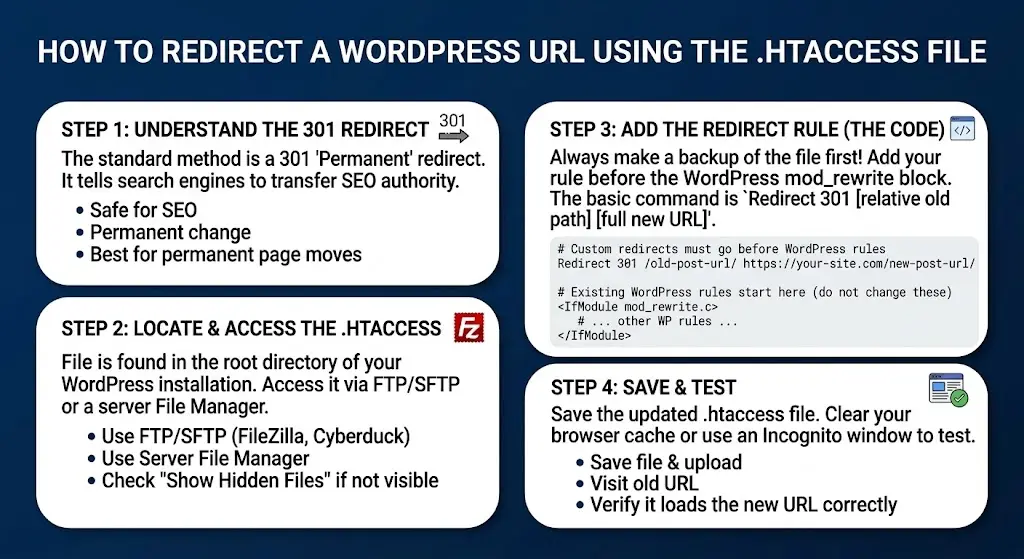
This method mainly applies to WordPress sites running on Apache.
Many shared hosting plans use Apache. Sites on NGINX handle redirects differently, in the server configuration.
Here is a basic example:
Redirect 301 /old-page/ https://example.com/new-page/
That single line sends /old-page/ to the new URL with a 301 status.
Some points worth knowing about the file:
- Where it lives. The .htaccess file sits in your site’s root folder, usually public_html. It is a hidden file. You may need to turn on “show hidden files” in File Manager.
- Back it up first. Download a copy before you edit anything. If something breaks, you can restore the original in seconds.
- Syntax mistakes cause trouble. One wrong character can take your whole site offline with a 500 error. Edit carefully.
- Place custom rules carefully. Put your redirect lines above the WordPress block that starts with “# BEGIN WordPress.” WordPress can overwrite its own block.
- Test afterward. Open the old URL right away. Then open a few other pages to confirm the site still works.
This method is not the best choice for complete beginners.
If you are new to WordPress, use the plugin method first. Come back to .htaccess once you feel comfortable with files and backups.
ii) Using WordPress Code
Developers can also write a redirect in PHP.
WordPress provides the wp_redirect function for this. It usually goes inside a theme function or a small custom plugin.
The code checks the requested URL.
If it matches, it sends the visitor to the new address with a status code.
Always add an exit call right after the redirect. Without it, the rest of the page may keep running.
Avoid editing theme files directly. A theme update can wipe your changes. A custom plugin is the safer home for this kind of code.
Common WordPress Redirect Problems
a) Redirect Loop
A loop happens when URL A sends visitors to URL B, and B sends them straight back to A. The browser gives up and shows an error.
Common causes include:
- Conflicting HTTPS settings
- Mismatched WordPress Address and Site Address settings
- Proxy or CDN settings that force a different protocol
- A redirect rule that points to itself
WordPress documentation lists conflicting URL and HTTPS configuration among the usual causes of “too many redirects.”
Check Settings → General first. Make sure both addresses match and use the same protocol.
b) Too Many Redirects
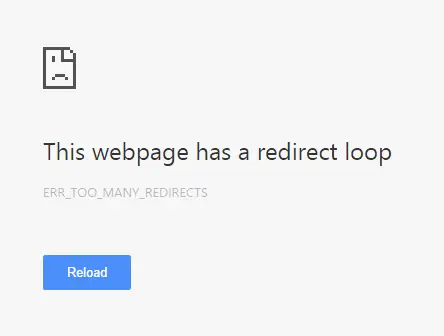
This error also appears when you build a chain. A chain looks like this: A → B → C → D.
Each hop adds delay. Browsers and search engines may stop following after a few steps. Instead of a chain, redirect A straight to D where appropriate.
Review old rules from time to time. Over the years, pages move more than once. Old redirects can pile up into long chains without anyone noticing.
c) Redirect Isn’t Working
Work through this checklist:
- The redirect rule. Check the source and target for typos.
- Plugin settings. Make sure the rule is enabled, not paused.
- .htaccess. Look for conflicting rules or errors.
- Cache. Clear your caching plugin and any server cache.
- CDN. Purge the CDN cache if you use one.
- Browser cache. Browsers remember 301 redirects. Test in a private window.
Cache is the most common culprit. The redirect may be working, but an old cached page is still being shown.
d) Redirect Goes to the Wrong Page
Check the source and destination URLs.
A small mistake in the target sends visitors somewhere unexpected. Look for extra characters, wrong slugs and old paths.
Also check for pattern or regex rules. A broad rule can catch more URLs than you intended.
e) Redirect Creates a 404
Check whether the destination actually exists. Open the target URL in a browser.
If it shows a 404, the redirect works but the page is missing. Fix the target, or restore the page.
How to Test a WordPress Redirect
Testing takes a minute. Do it after every change.
- Open the old URL in a private window. This skips browser cache.
- Check where it lands. It should reach the intended page.
- Check the HTTP status code. Use a browser developer tool or an online header checker. You should see 301 or 302, as intended.
- Test from another browser or device. Try your phone on mobile data.
- Check for redirect chains. A header checker shows each hop. Aim for one step.
- Check that HTTPS is used correctly. The final URL should load securely, with no warnings.
If all six checks pass, the redirect is healthy.
FAQs
Does WordPress automatically redirect changed URLs?
Partly. WordPress can redirect an old post URL if you change only the slug. It looks for a matching post name. This does not cover every case. Changes to categories, permalink structure, deleted pages or new domains usually need a manual redirect.
Is a 301 or 302 redirect better?
It depends on the goal. Use a 301 for permanent moves. Use a 302 for temporary ones. Picking the wrong code can confuse search engines. When in doubt, ask whether the old URL is coming back.
Do WordPress redirects affect SEO?
Yes, in a good way when done right. A proper 301 helps pass the old page’s standing to the new one. Bad redirects can hurt. Long chains, loops and redirects to unrelated pages all cause trouble. Keep redirects direct and relevant.
Why is my WordPress redirect not working?
The usual causes are caching, typos, conflicting rules and disabled plugin settings. Clear all caches. Test in a private window. Review your plugin rules and your .htaccess file.
How do I fix too many redirects in WordPress?
Check Settings → General for mismatched URLs. Review HTTPS and CDN settings. Look for rules that loop back on themselves. Replace long chains with one direct redirect. Clear cookies and cache, then test again.
Host Your WordPress Site With Truehost
URLs change. Pages move. Domains get replaced. When that happens, you need a hosting setup that gives you easy access to the right tools.
Truehost WordPress hosting runs on cPanel. That means you can manage your website files, domains and .htaccess in one place.
You can install WordPress in one click. Daily backups are included, which is a useful safety net before you edit server files.
If you are building or moving a WordPress site, explore Truehost WordPress hosting and pick a plan that fits.
You will have what you need to set up a clean WordPress redirect whenever your URLs change.