 Domain RegistrationFind and register the perfect domain for your website.
 .COM DomainChoose a widely recognized domain to build global credibility.
 Domain TransferSeamless domain transfers with zero downtime and complete control.
 All TLDsFind and register your perfect domain. Choose from local and global extensions.
 SSL CertificatesKeep your website safe with reliable SSL Certificates that protect customer data and build trust.
 whoisCheck domain ownership details, expiration dates, and registrar information.
 US DomainRegister a .US domain and build trust in the USA.
 Web HostingEverything your website needs to run smoothly
 WordPress HostingWordPress hosting that just works
 Windows HostingReliable hosting for Windows environments
 Reseller HostingTurn hosting into your business
 Email HostingEmail that looks professional and works anywhere
 cPanel HostingFull control of your hosting with cPanel
 Affiliate ProgramJoin as a partner and earn commissions on every referral you send our way.
 Vps HostingScalable virtual servers that expand as you need.
 Dedicated ServersGet complete access and full control over your dedicated physical server.
 Managed vpsNot tech-savvy? We will take care of everything with our fully managed VPS hosting for you.
 AI Website BuilderCreate stunning websites in seconds with AI.
 Online ShopSet up a professional online store. No coding required.
 Web design serviceGet a tailored website designed to match your brand and support your goals.
 BlogFind helpful guides on web hosting, online selling, digital marketing, and more.
 Contact USYou can reach us anytime, day or night, through chat or email.
 SupportBrowse helpful guides and answers for all of our services.
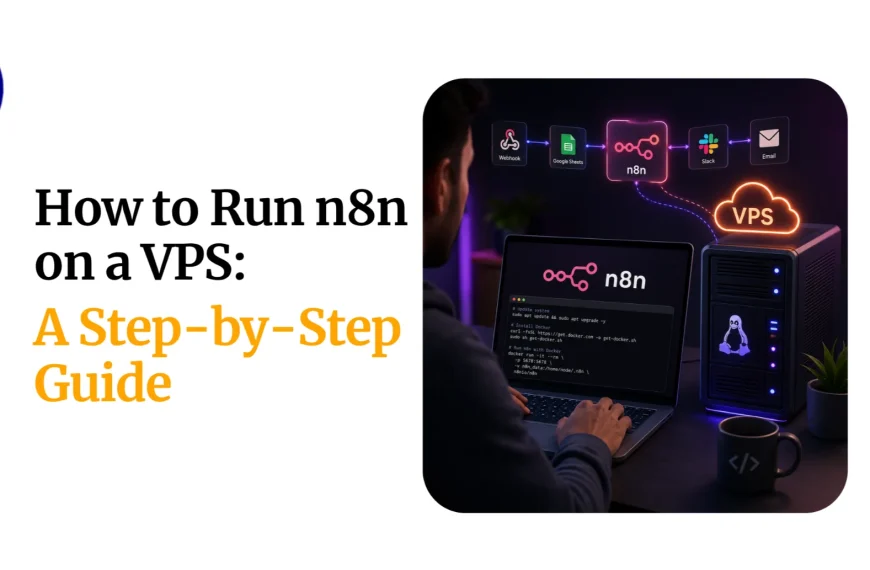
Hosting n8n on your own VPS gives you full control over your workflows, data, and resources. You can run unlimited automations, build AI-powered workflows, and scale as your needs grow without worrying about platform usage limits.
Before you begin, make sure you have:
- A VPS with at least 2 vCPUs and 4GB RAM for most workflows.
- A deployment method, such as Docker, Coolify, or a managed one-click installation.
- A production-ready setup with HTTPS enabled, PostgreSQL as the database, and regular backups.
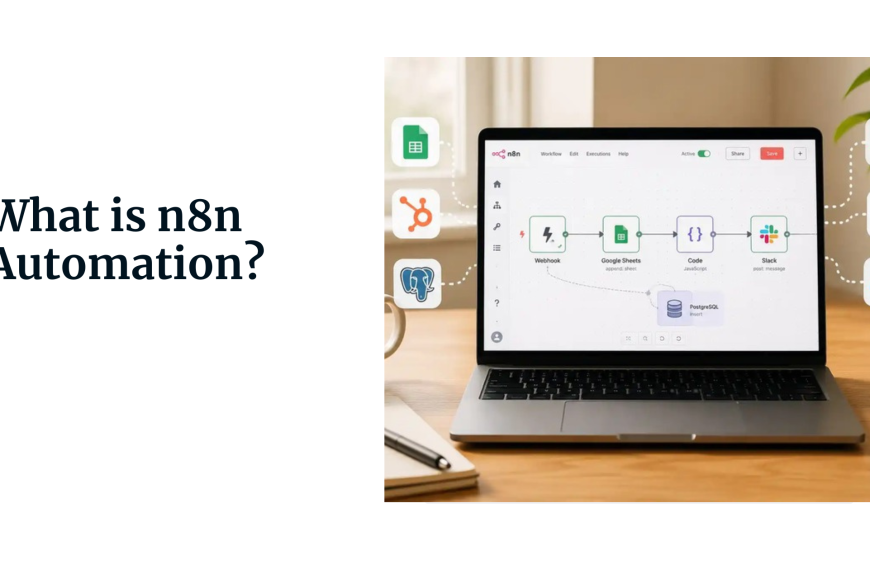
Here are 13 practical n8n automation ideas you can build on your VPS, complete with example workflows, key n8n nodes, and estimated setup times.
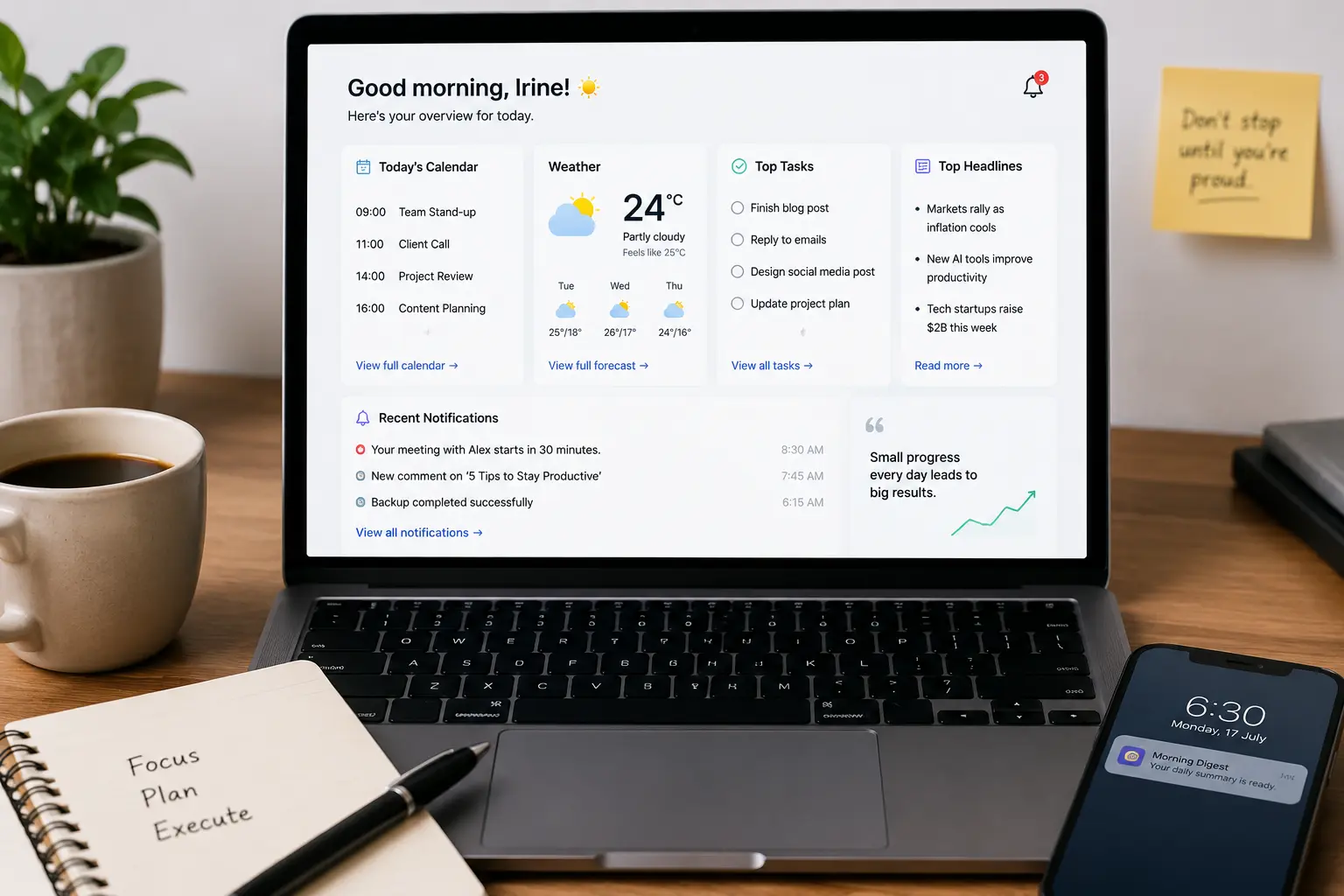
1) Daily Personal Productivity Assistant
What it does: Every morning, you get a single message- email, Telegram, or Slack, that bundles your calendar for the day, open tasks, the weather forecast, and a few headlines you care about, so you’re not opening five different apps before coffee.
Example workflow:
- Schedule Trigger node fires at 6:30 AM daily.
- Google Calendar node pulls today’s events.
- Notion or Todoist node fetches open tasks (use whichever tool you already track tasks in).
- HTTP Request node calls a weather API (OpenWeatherMap or similar) for your location.
- RSS Read node grabs headlines from 2–3 feeds you subscribe to.
- Code node merges all of this into one formatted block of text (this is where you decide the layout of your digest).
- Gmail or Telegram node sends the final digest.
Estimated setup time: 1–2 hours the first time, since you’re wiring up several credentials (Calendar, task app, weather API). Once built, it runs unattended.
2) AI Email Inbox Triage & Auto-Replies
What it does: Incoming emails get automatically sorted, urgent messages get flagged, and routine replies get drafted for you instead of being written from scratch.
Example workflow:
- Gmail Trigger (or Email Trigger (IMAP) if you’re on another provider) watches your inbox for new messages.
- AI Agent node (backed by an OpenAI, Anthropic, or self-hosted model) reads the email and classifies it, returning structured output like {“priority”: “urgent”, “category”: “support”, “suggested_reply”: “…”}.
- IF or Switch node branches based on that classification.
- For urgent messages: a Telegram or Slack node pings you immediately.
- For routine messages: a Gmail node drafts (not sends, keep a human in the loop at first) a reply using the AI’s suggested text.
- A Gmail “label” or “move” action files the email into the right folder.
Estimated setup time: 2–4 hours, mostly spent tuning the AI Agent’s system prompt so classifications are reliable. Start with draft-only replies until you trust the output, then automate sending for low-risk categories.
3) VPS & Server Health Monitoring
What it does: Keeps an eye on CPU, memory, disk space, and uptime for your servers, and pings you the moment something looks wrong, before your users notice.
Example workflow:
- Schedule Trigger runs every 5–15 minutes.
- SSH node runs a quick check command (e.g., df -h, free -m, uptime) on the target server, or an HTTP Request node hits a monitoring agent’s API if you’re using something like Netdata or a custom health endpoint.
- Code node parses the output and compares it against thresholds you set (e.g., disk > 85% used).
- IF node only continues down the “alert” branch when a threshold is breached.
- Telegram or Slack node sends the alert, including the specific metric and value.
- Optional: an Execute Workflow node triggers a recovery action, like restarting a service via SSH.
Estimated setup time: 1–3 hours per server, plus time to decide sensible alert thresholds so you’re not getting paged for noise.
4) Social Media Content Repurposing
What it does: Takes one piece of long-form content (a blog post, video transcript, or newsletter) and turns it into platform-specific posts, then schedules them for publishing.
Example workflow:
- Webhook node (or an RSS trigger) fires when a new blog post is published.
- HTTP Request node fetches the full article content.
- AI Agent or Basic LLM Chain node generates 2–3 variations per platform: a punchy X/Twitter thread, a longer LinkedIn post, and a short Instagram caption.
- Set node formats for each variant with platform-specific constraints (character limits, hashtags).
- Platform-specific nodes (LinkedIn or HTTP Request calls to Buffer/Later’s API) queue the posts, or a Google Sheets node logs them for manual review and scheduling.
Estimated setup time: 3–5 hours, since prompt-tuning for each platform’s tone takes a few iterations to get right.
5) Lead Generation & CRM Automation
What it does: Captures leads from forms or scraped sources, cleans and enriches the data, removes duplicates, and pushes clean records into your CRM, no manual copy-pasting.
Example workflow:
- Webhook node receives form submissions (Typeform, custom site form, etc.), or a Schedule Trigger + HTTP Request combo handles periodic scraping.
- Code or Set node normalizes fields (name casing, phone formatting).
- HTTP Request node calls an enrichment API (e.g., Clearbit-style lookup) to add company size, industry, etc.
- Postgres or Google Sheets node checks for existing records to catch duplicates before insert.
- HubSpot, Pipedrive, or a generic HTTP Request node writes the lead into your CRM.
- Slack node notifies your sales team of new high-value leads.
Estimated setup time: 3–6 hours, largely dependent on how many data sources and CRM fields you’re mapping.
6) Automated Backups & Data Sync
What it does: Regularly backs up your files, databases, and even your n8n workflows themselves, storing everything securely off-server.
Example workflow:
- Schedule Trigger runs nightly.
- Execute Command or SSH node runs a pg_dump (for Postgres) or mysqldump (for MySQL) to export your database.
- Compress Files node (or a shell command via Execute Command) zips the backup along with any file directories you want included.
- Google Drive, Dropbox, or S3 node uploads the archive to off-site storage.
- n8n’s built-in workflow export (via the n8n API/CLI) can be scripted into the same flow so your automations are backed up alongside your data.
- Telegram node confirms success or failure, so backup jobs don’t fail silently.
Estimated setup time: 2–3 hours, plus a bit of testing to confirm restores actually work; a backup you haven’t tested isn’t a backup yet.
7) WhatsApp & Telegram Customer Support
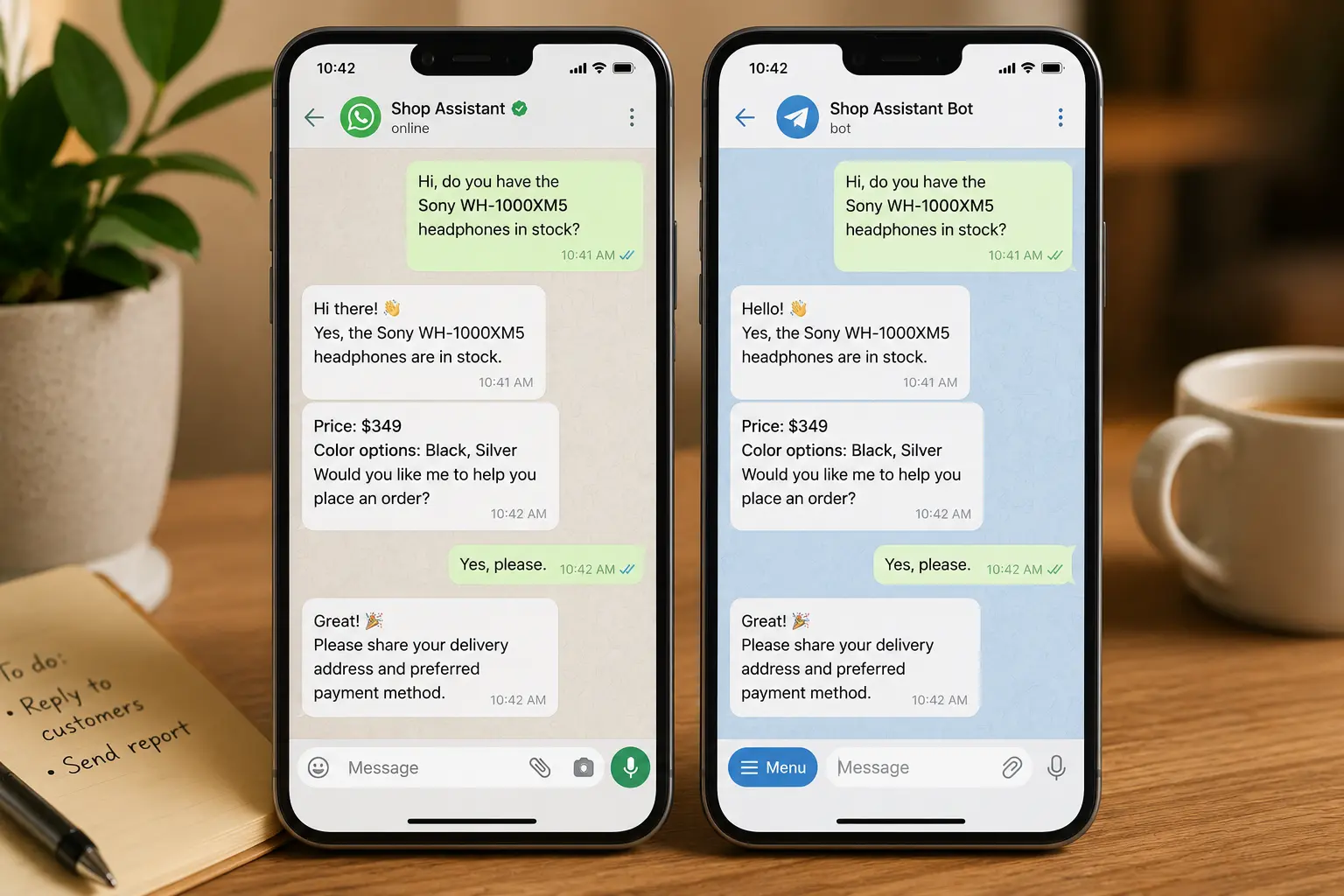
What it does: Answers customer questions automatically through chat apps, sends order or status notifications, and escalates anything the bot can’t handle to a real person.
Example workflow:
- Telegram Trigger (or WhatsApp Business Cloud node) listens for incoming messages.
- AI Agent node, connected to a vector store of your FAQ/docs (via a Postgres or Pinecone vector node as a tool), answers common questions.
- IF node checks the AI’s confidence or looks for keywords like “refund” or “human” to decide whether to escalate.
- Escalated conversations get forwarded to a Slack channel where a human takes over, with the Telegram chat ID preserved so the reply can be routed back.
- Telegram node sends the AI’s response back to the customer for resolved queries.
Estimated setup time: 4–8 hours, mostly for setting up the knowledge base the AI Agent references and testing edge cases.
8) AI Content Creation & Publishing
What it does: Researches a topic, drafts a blog post or newsletter with AI, and publishes it automatically, turning “I should write about this” into a finished, scheduled post.
Example workflow:
- Schedule Trigger or Webhook (triggered by a topic list in a Google Sheet) starts the job.
- HTTP Request or a search-enabled AI Agent node researches the topic (pulling recent sources).
- A second AI Agent or Basic LLM Chain node drafts the article based on that research and your style guidelines (feed it a system prompt with your tone/voice preferences).
- HTML or Markdown node formats the output for your CMS.
- HTTP Request node posts the draft to your CMS API (WordPress, Ghost, Webflow) as a draft, not published, for a final human review.
- Slack or Email node notifies you that a new draft is ready.
Estimated setup time: 4–6 hours. Keep a “draft, don’t publish” step until you’re confident in output quality.
9) Home Lab & Self-Hosted Automation
What it does: Automates the small chores of running your own self-hosted stack, sorting downloaded files, organizing media libraries, or reacting to events from other self-hosted apps.
Example workflow:
- Webhook node receives events from apps like Sonarr/Radarr, or a Schedule Trigger watches a folder via SSH/Execute Command for new files.
- Code node parses filenames to extract metadata (show name, season, episode, or document type).
- Move Binary Data or Execute Command (using mv/rsync) relocates files into the correct folders.
- HTTP Request node can trigger a library rescan on Plex/Jellyfin once files are moved.
- Telegram node sends a “new episode organized” style notification.
Estimated setup time: 2–4 hours, depending on how many self-hosted services you’re wiring together.
10) Subscription & Billing Automation
What it does: Sends invoices, manages renewals, and follows up automatically on failed payments, the unglamorous but essential plumbing of running a subscription business.
Example workflow:
- Webhook node receives events from your payment processor (Stripe, Paddle, etc.): new subscription, renewal, or failed charge.
- Switch node routes based on event type.
- For successful payments, a PDF node generates an invoice, and a Gmail node emails it to the customer.
- For failed payments: a Code node checks retry count, and a Gmail/Telegram node sends a payment-reminder email, escalating in tone after repeated failures.
- Postgres or Airtable node logs every billing event for your own records and reporting.
Estimated setup time: 3–5 hours, plus time to map out your exact retry/reminder cadence.
11) GitHub & DevOps Automation
What it does: Automatically deploys applications, updates documentation, and notifies your team whenever code changes, so releases stop depending on someone remembering to run a script.
Example workflow:
- GitHub Trigger node listens for events like a push to main or a new release tag.
- IF node checks which branch or files changed (e.g., only deploy if changes touch /src).
- SSH node connects to your target server and runs your deploy script (git pull && npm install && pm2 restart app, or a Docker redeploy command).
- HTTP Request node hits a health-check endpoint post-deploy to confirm the app came back up.
- Slack or Discord node posts a deploy summary, who pushed, what changed, and whether the health check passed.
Estimated setup time: 2–4 hours if your deploy process is already scripted; longer if you need to write that script first.
12) Marketing & Newsletter Automation
What it does: Segments your audience, generates personalized campaigns with AI, and sends newsletters, without you manually building every send.
Example workflow:
- Schedule Trigger (weekly) or a Webhook (new signup) starts the flow.
- Postgres or Google Sheets node pulls your subscriber list and segments it by tags (e.g., “trial user,” “active customer”).
- AI Agent node drafts subject lines and body copy per segment, referencing recent product updates or content you feed it.
- Set node merges personalization fields (first name, plan type) into the template.
- SMTP/Gmail node or an ESP’s HTTP Request API (Mailgun, SendGrid, Postmark) sends the campaign in batches, using a SplitInBatches node to respect sending-rate limits.
- Google Sheets node logs opens/clicks if your ESP provides webhook data back into n8n.
Estimated setup time: 4–6 hours, mostly around building segment logic and getting AI-generated copy to match your brand voice.
13) Build an Advanced AI Agent Hub
What it does: A general-purpose AI assistant that can search, reason, use tools, and complete multi-step tasks on your behalf; the most flexible entry on this list, since it becomes whatever you configure it to be.
Example workflow:
- Chat Trigger (n8n’s built-in chat interface) or Telegram Trigger starts a conversation.
- AI Agent node is the core: give it a system prompt defining its role, connect a chat model (OpenAI, Anthropic, or a self-hosted model via Ollama), and attach memory (Postgres Chat Memory or Window Buffer Memory) so it remembers context across turns.
- Attach tools to the agent: an HTTP Request Tool for calling APIs, a Code Tool for calculations, a Google Calendar Tool for scheduling, or even other workflows via the Execute Workflow Tool, so the agent can delegate to specialized sub-agents.
- IF/Switch nodes downstream can route based on what action the agent decided to take.
- Response flows back through the same Chat Trigger or Telegram node the conversation started in.
Estimated setup time: A weekend project (6–10+ hours) if you’re building out multiple tools and testing the agent’s reliability across different requests. Start with 2–3 tools and expand once you trust their behavior.
Here’s a cleaner version without “Whether you’re”:
Start Building Smarter Automations Today
n8n makes it easy to automate repetitive tasks, connect your favorite apps, and build powerful AI-driven workflows. Running n8n on your own VPS gives you reliable performance, full control over your data, and the freedom to create as many workflows as you need without platform limits.
Start with a simple workflow, then expand as your automation needs grow. With the right VPS, you can confidently run everything from basic scheduled tasks to advanced AI automations.
Ready to get started? Deploy n8n on a reliable VPS from Truehost and start building powerful automations today.
n8n Automation Ideas FAQs
Is n8n free to use on a VPS?
Yes. The self-hosted Community Edition is free to use. You only pay for your VPS and any third-party services (such as AI APIs) that your workflows use.
Which VPS is best for n8n?
A VPS with 2 vCPUs and 4GB RAM is enough for most personal and small business workflows. If you run AI automations or many workflows at once, consider 4 vCPUs and 8GB RAM or more.
Is n8n the best automation tool?
It depends on your needs. n8n is ideal if you want full control, self-hosting, unlimited workflow executions, and AI automation. Simpler tools like Zapier or Make may be easier for basic automations but usually have usage limits or per-task pricing.
What happens if my VPS crashes?
If you regularly back up your database and workflows, you can restore everything on a new server. That’s why automated backups are highly recommended
Do I need coding skills to use n8n?
No. Most workflows can be built using n8n’s drag-and-drop interface. Basic coding is only helpful for more advanced customizations.
Can I run all 13 automations on one VPS?
Yes, as long as your VPS has enough CPU and RAM. If your workflows become resource-intensive, you can simply upgrade your VPS.