 Domain RegistrationFind and register the perfect domain for your website.
 .COM DomainChoose a widely recognized domain to build global credibility.
 Domain TransferSeamless domain transfers with zero downtime and complete control.
 All TLDsFind and register your perfect domain. Choose from local and global extensions.
 SSL CertificatesKeep your website safe with reliable SSL Certificates that protect customer data and build trust.
 whoisCheck domain ownership details, expiration dates, and registrar information.
 US DomainRegister a .US domain and build trust in the USA.
 Web HostingEverything your website needs to run smoothly
 WordPress HostingWordPress hosting that just works
 Windows HostingReliable hosting for Windows environments
 Reseller HostingTurn hosting into your business
 Email HostingEmail that looks professional and works anywhere
 cPanel HostingFull control of your hosting with cPanel
 Affiliate ProgramJoin as a partner and earn commissions on every referral you send our way.
 Vps HostingScalable virtual servers that expand as you need.
 Dedicated ServersGet complete access and full control over your dedicated physical server.
 Managed vpsNot tech-savvy? We will take care of everything with our fully managed VPS hosting for you.
 AI Website BuilderCreate stunning websites in seconds with AI.
 Online ShopSet up a professional online store. No coding required.
 Web design serviceGet a tailored website designed to match your brand and support your goals.
 BlogFind helpful guides on web hosting, online selling, digital marketing, and more.
 Contact USYou can reach us anytime, day or night, through chat or email.
 SupportBrowse helpful guides and answers for all of our services.
If you have ever typed the same WhatsApp reply for the tenth time in one day, you already know the problem. Manual replies eat up your time, and manual order updates get missed the moment you step away from your phone. A single missed lead message can cost you a sale, and a slow reply can cost you a customer.
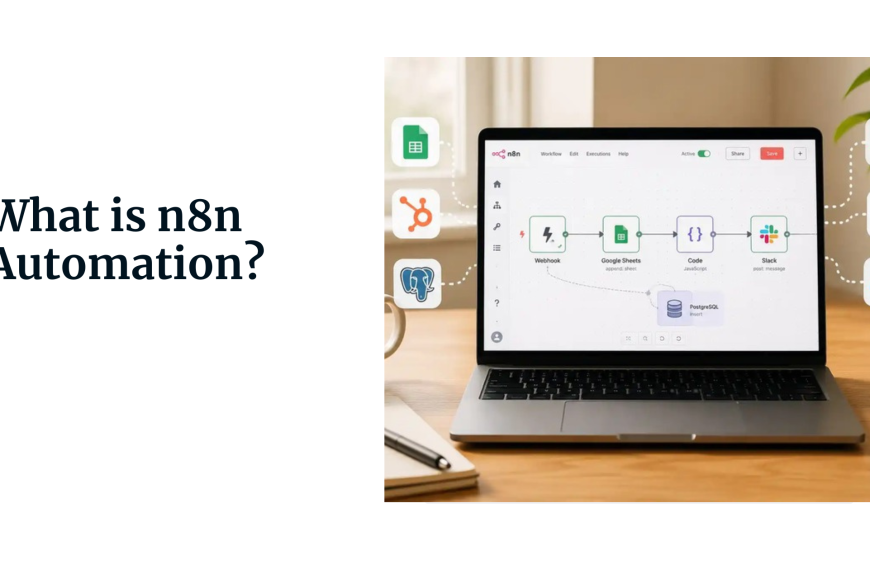
This is exactly what an n8n workflow for WhatsApp automation is built to fix. Instead of you typing the same thing over and over, n8n watches for incoming messages and handles the reply, the lookup, or the alert on its own.
n8n is a workflow tool. Think of it as a set of building blocks you connect with lines, where each block does one small job.
- One block waits for a WhatsApp message to arrive.
- Another block checks what the message says.
- Another block sends a reply, saves the message to a sheet, or pings your team on Slack.
When you connect these blocks together, you get a full n8n workflow for WhatsApp automation that runs on its own, day and night, without you touching your phone.
An n8n workflow for WhatsApp automation is not just for one job. Here are a few ways people use it every day:
- Auto replies that answer common questions the second a message lands
- Order updates that ping a customer the moment a package ships
- Lead capture that saves a new contact into a CRM or a sheet
- Support routing that sends hard messages to a human, while easy ones go to the bot
What You Need Before You Start
Before you build your first n8n workflow for WhatsApp automation, you need a few things in place. Getting these ready first will save you from having to stop halfway through setup.
-
An n8n instance. This can be n8n Cloud, which is hosted for you, or a self-hosted copy running on your own server. Both work fine for WhatsApp automation, though a self-hosted copy gives you more control over your data.
-
A WhatsApp connection method. You need a way for n8n to actually send and receive WhatsApp messages. The three common paths are the official WhatsApp Business Cloud API from Meta, the Twilio WhatsApp API, or an unofficial option like Evolution API, which uses a library called Baileys.
-
API credentials or tokens. Whichever connection method you pick, you will need a set of keys that prove to WhatsApp or Twilio that your workflow is allowed to send and receive messages on your behalf.
-
A webhook-capable n8n setup. A webhook is simply a web address that WhatsApp can send data to the moment a message arrives. If you use n8n’s dedicated WhatsApp Trigger node instead of a generic webhook node, it handles Meta’s verification step for you automatically once you supply the verify token, so you skip having to build that handshake yourself. If your n8n instance runs on your own computer, you will need a public address or a tunnel tool so WhatsApp can actually reach it.
One limitation worth planning around: WhatsApp only lets you register a single webhook per app, so you cannot run a separate test webhook and production webhook at the same time.
Switching between them makes WhatsApp overwrite the registered address (URL), and whichever one you are not using stops receiving events entirely. The usual workaround is to temporarily unpublish your production workflow while you test, then republish it once you are done.
Step 1: Set Up n8n
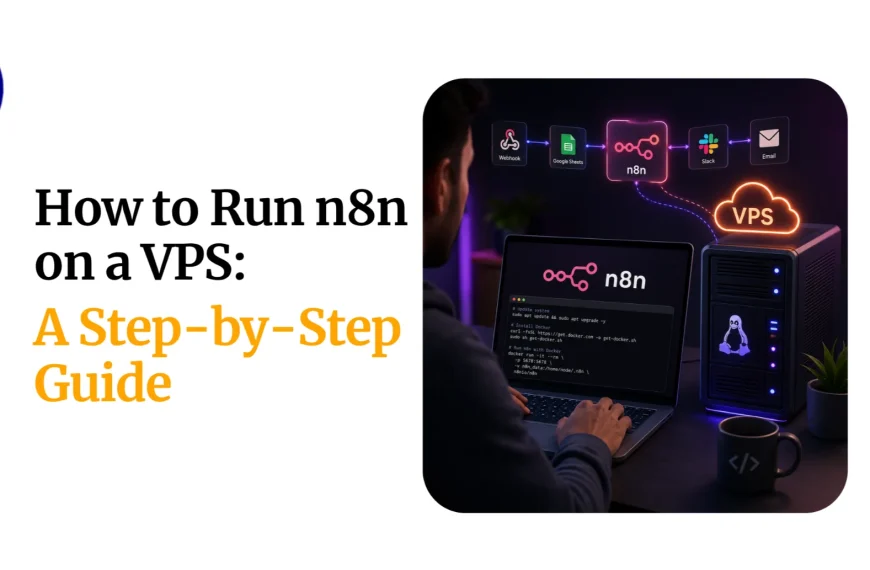
Your first real step is getting n8n running somewhere that stays online. If you are using n8n Cloud, this step is already done for you, since the platform handles the server-side of things. If you are self-hosting, the fastest way to get started is with Docker, a tool that packages an app so it runs the same way on any server.
docker run -d --restart unless-stopped --name n8n -p 5678:5678 -v n8n_data:/home/node/.n8n n8nio/n8n
This command pulls the n8n image and starts it in the background, so it keeps running even after you close your terminal. The --restart unless-stopped flag also brings it back up automatically if your server reboots or the container crashes, which matters if you want this running long term rather than just for testing.
Once it is running, you can open it in your browser and start building. If you plan to run this long term, it is worth putting n8n behind a proper domain with SSL, so your webhook address stays stable and secure.
Step 2: Choose Your WhatsApp Connection Method
With n8n running, your next choice is how it will talk to WhatsApp. This is one of the biggest calls in your n8n workflow for WhatsApp automation. It affects cost, setup time, and how safe your number stays.
- WhatsApp Business Cloud API (Meta): This is the official route straight from Meta. It requires a Facebook Business account and app approval, but it is the most stable long-term option, and it will not get your number banned.
- Twilio WhatsApp API: Twilio wraps the WhatsApp Business API in a simpler setup process. It costs a bit more per message, but it is faster to get approved and easier to test in a sandbox before going live.
- Evolution API or Baileys-based options: These connect through an unofficial method that mimics the WhatsApp web app. They are free and fast to set up, but they carry a real risk of your number getting flagged, so they suit testing more than a serious business setup.
Connecting your chosen provider means creating a set of keys inside n8n. For the Cloud API, you add your access token and phone number ID under n8n’s credentials menu. Every node in your workflow can then reuse these keys, so you never have to type them twice.
Step 3: Set Up the WhatsApp Trigger Node
A trigger node is the block that starts your entire workflow. For WhatsApp automation, this node listens for a webhook call from WhatsApp or Twilio every time a new message comes in.
Here is what a webhook node setup can look like inside n8n. This one uses the Webhook node in GET mode. GET mode handles Meta’s first check before real messages start to arrive.
{

  "httpMethod": "GET",

  "path": "whatsapp-webhook",

  "responseMode": "lastNode",

  "options": {}

}
Meta will send a GET request first to confirm you own the webhook. It sends a challenge code that your workflow needs to echo straight back. A small Function node can handle this in a few lines:
const query = $input.first().json.query;

if (query['hub.verify_token'] === 'your_verify_token') {

  return [{ json: { challenge: query['hub.challenge'] } }];

}

return [{ json: { error: 'Invalid token' } }];
Once verification passes, every real message arrives as a POST request. Here is what a typical payload looks like from the Cloud API:
{

  "entry": [{

    "changes": [{

      "value": {

        "messages": [{

          "from": "15551234567",

          "type": "text",

          "text": { "body": "Hi, is my order ready?" }

        }]

      }

    }]

  }]

}
This is the exact data your n8n workflow for WhatsApp automation reads on every trigger. You can pull the sender number and the message text with a simple expression. Use {{$json.entry[0].changes[0].value.messages[0].text.body}} in any node further down the chain.
Step 4: Build the Core Automation Logic
Once messages are landing in your workflow, you need logic to decide what happens next. This is where the IF node and the Switch node come in. An IF node checks one condition and sends the flow down one of two paths. A Switch node checks several conditions at once and can send the flow down many paths.
Here is a simple IF node condition that checks if a message contains the word order:
{

  "conditions": {

    "string": [

      {

        "value1": "={{$json.text.body.toLowerCase()}}",

        "operation": "contains",

        "value2": "order"

      }

    ]

  }

}
You will also want to handle more than plain text. WhatsApp messages can be images, files, or button replies too. Always check the type field first, so you never assume every message is plain text.
const type = $json.entry[0].changes[0].value.messages[0].type;

if (type === 'text') {

  return [{ json: { kind: 'text' } }];

} else if (type === 'button') {

  return [{ json: { kind: 'button' } }];

} else {

  return [{ json: { kind: 'other' } }];

}
You may only want your bot to reply during work hours. To do this, add a small check using the current time. Send anything outside those hours to a short away message instead of a full reply.
Step 5: Connect to External Data or Services
A good n8n workflow for WhatsApp automation rarely stands alone. Most setups pull in outside data. You may check if a phone number belongs to an existing customer. You may also push data out, like saving a new lead the second it comes in.
To look up a customer before replying, you might query a Google Sheet using the sender’s number as a key:
{

  "operation": "lookup",

  "sheetId": "your_sheet_id",

  "lookupColumn": "phone",

  "lookupValue": "={{$json.entry[0].changes[0].value.messages[0].from}}"

}
A CRM works the same way as a sheet. You send the phone number as a search value. The CRM node then returns any matching record. You can use this record to add the customer’s name or order status to your reply.
Step 6: Send the Automated Response
Once your workflow knows what to say, it needs a way to send the message back. Sending the reply is the step that turns your n8n workflow for WhatsApp automation from silent logic into something a customer actually sees. This usually happens through the HTTP Request node, calling the WhatsApp Cloud API directly, or through a dedicated WhatsApp node if your n8n version has one.
Here is an example HTTP Request node body for sending a plain text reply through the Cloud API:
{

  "method": "POST",

  "url": "https://graph.facebook.com/v19.0/YOUR_PHONE_NUMBER_ID/messages",

  "headers": {

    "Authorization": "Bearer YOUR_ACCESS_TOKEN",

    "Content-Type": "application/json"

  },

  "body": {

    "messaging_product": "whatsapp",

    "to": "={{$json.entry[0].changes[0].value.messages[0].from}}",

    "type": "text",

    "text": { "body": "Thanks for reaching out! Your order is on the way." }

  }

}
Sometimes you message someone outside of a live chat window. WhatsApp then requires an approved template instead of free text. A template call swaps the text field for a template object. This object holds the template name and the language, both already approved in your Meta account.
The key thing that decides which one you need is the 24-hour customer service window. Every time a customer messages you, it opens a 24-hour window during which you can send free text replies like the example above at no extra charge.
Once 24 hours pass since their last message, WhatsApp blocks plain text, and you have to fall back on an approved template to reach them again. Sending a new template message restarts that 24-hour window if the customer replies.
Step 7: Test the Workflow End to End
Before you trust your n8n workflow for WhatsApp automation with real customers, test it from start to finish. Send a message from your own phone and watch it move through each node in n8n’s execution view. This view shows you exactly what data entered and left every single block, which makes spotting a broken step simple.
Check the execution log after each test run. It shows the raw payload, any errors, and how long each node took to run.
Common failure points during testing include a webhook that never fires, a token that has already expired, or an expression pointing to the wrong field because the payload shape changed a bit.
Common n8n Workflow for WhatsApp Automation Errors and How to Fix Them
Even a well-built n8n workflow for WhatsApp automation runs into a few common snags. Here is what usually goes wrong and how to fix it.
| Issue | What Happens | How to Fix It |
|---|---|---|
| Webhook verification failures | The webhook fails to connect or verify with Meta | Make sure the verify token in n8n exactly matches the one in your Meta app settings (check letter for letter) |
| Token expiration | The connection suddenly stops working due to expired access tokens | Use a long-lived token or add a step in your workflow to automatically refresh the token before it expires |
| Rate limits & template rejections | Messages fail to send or templates get rejected | Stay within WhatsApp’s daily messaging limits and only use pre-approved templates; test templates in the sandbox before going live |
n8n Workflow for WhatsApp Automation FAQs
You do not need to know how to code to build this workflow, since n8n uses drag-and-drop nodes for most steps, though a little bit of JavaScript helps for advanced logic.
You can use this kind of automation with a personal number only through unofficial tools like Baileys, since the official Cloud API and Twilio both require a WhatsApp Business account.
Setting up WhatsApp automation in n8n usually takes a few hours for a basic auto-reply flow, though full approval for the Cloud API can take a few days depending on Meta’s review process.
It is safe to store customer phone numbers inside n8n workflows as long as your instance is secured with a strong password, SSL, and limited access, since this data still counts as personal information.
Keep Your n8n Workflow for WhatsApp Automation Going
Automating WhatsApp with n8n lets you turn incoming messages into instant actions without manual effort. Once connected to a WhatsApp API, messages flow into n8n through webhooks, where workflows decide how to respond, whether that’s sending replies, updating data, or passing conversations along when needed. With the right setup, this creates a system that runs continuously, handling communication in real time and reducing the need for constant human involvement.
Building your n8n workflow for WhatsApp automation is only half the job. Keeping it live is the other half. If your server goes down, every webhook call fails on its own. Messages stop getting a reply, and no one even sees it happen. This is why a stable server counts for so much once you move past testing and into real traffic.
Truehost gives you a simple place to self-host n8n. It comes with the uptime and support you need to keep webhooks firing all day and all night.