 Domain RegistrationFind and register the perfect domain for your website.
 .COM DomainChoose a widely recognized domain to build global credibility.
 Domain TransferSeamless domain transfers with zero downtime and complete control.
 All TLDsFind and register your perfect domain. Choose from local and global extensions.
 SSL CertificatesKeep your website safe with reliable SSL Certificates that protect customer data and build trust.
 whoisCheck domain ownership details, expiration dates, and registrar information.
 US DomainRegister a .US domain and build trust in the USA.
 Web HostingEverything your website needs to run smoothly
 WordPress HostingWordPress hosting that just works
 Windows HostingReliable hosting for Windows environments
 Reseller HostingTurn hosting into your business
 Email HostingEmail that looks professional and works anywhere
 cPanel HostingFull control of your hosting with cPanel
 Affiliate ProgramJoin as a partner and earn commissions on every referral you send our way.
 Vps HostingScalable virtual servers that expand as you need.
 Dedicated ServersGet complete access and full control over your dedicated physical server.
 Managed vpsNot tech-savvy? We will take care of everything with our fully managed VPS hosting for you.
 AI Website BuilderCreate stunning websites in seconds with AI.
 Online ShopSet up a professional online store. No coding required.
 Web design serviceGet a tailored website designed to match your brand and support your goals.
 BlogFind helpful guides on web hosting, online selling, digital marketing, and more.
 Contact USYou can reach us anytime, day or night, through chat or email.
 SupportBrowse helpful guides and answers for all of our services.
Yes, you can host multiple websites on one hosting account if your hosting plan supports multiple websites or domains.
Many hosting plans allow you to run multiple websites from a single hosting account.
Instead of paying for separate hosting for every domain, you can add multiple domains to one account and give each website its own files, database, and configuration.
However, there is an important catch: not every hosting plan supports multiple websites, and the number of websites you can host depends on your plan and provider.
There is also more to consider than simply counting websites.
Multiple sites share the resources allocated to the hosting account, so storage, CPU, RAM, security, backups, and traffic can all affect how well your websites perform.
This article covers how running multiple websites on one hosting account actually works, how to set it up, the advantages and limitations involved, and when separate hosting accounts make more sense instead.
How Does Hosting Multiple Websites on One Account Work?
The basic setup is relatively simple:
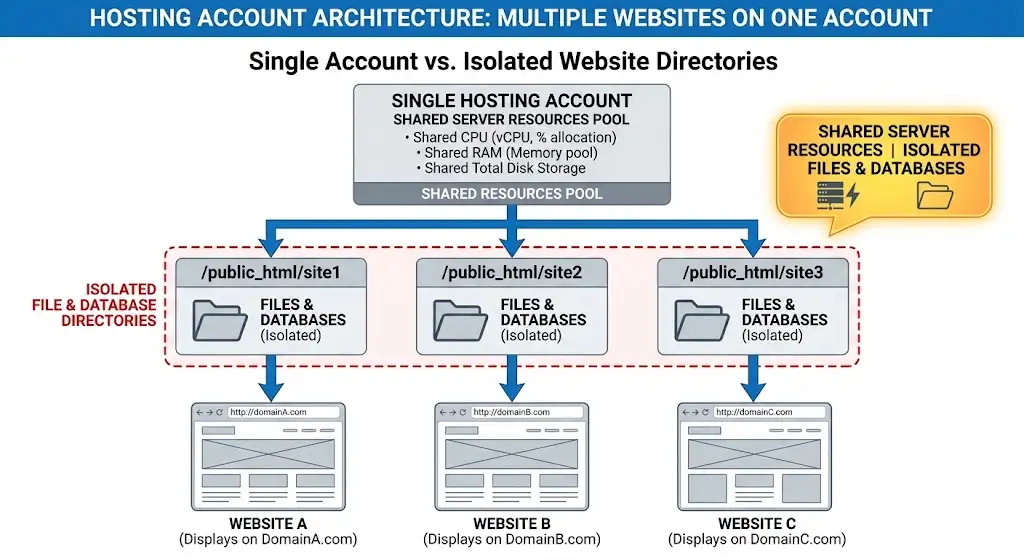
One hosting account → multiple domains → separate website directories
When you add another domain to a hosting account, the hosting panel creates or lets you choose a separate directory for that website.
For example, one account could look something like this:
example.com→ /public_html/examplebusiness.com→ /public_html/businessmyblog.com→ /public_html/myblog
Each website has its own folder, so the files for example.com aren’t mixed with the files for business.com.
This is what allows several websites to operate independently while still sharing the same hosting account.
Depending on your provider and hosting plan, each website can also have its own:
- Website files
- Database
- SSL certificate
- Email addresses
- WordPress installation
- DNS configuration
The exact features available for each additional website depend on your hosting environment.
For example, some providers may let you create separate email accounts and databases for every domain, while others may place restrictions on these features.
There is another important point here: the websites may be separate, but the hosting resources are still shared.
If your hosting account has a certain amount of CPU, RAM, storage, or other resources, all the websites on that account draw from those resources.
That means adding five small websites may work perfectly well, while adding five busy ecommerce stores could create performance problems.
How to Run Multiple Websites on One Hosting Account
Once you’ve confirmed that your plan supports multiple websites, setting them up is fairly straightforward.
Step 1: Choose a Hosting Plan That Supports Multiple Websites
Start by checking the plan’s website or domain limit.
This should be one of the first things you look at before purchasing hosting.
If you plan to run three websites, for example, a plan limited to one website won’t work regardless of how much storage it includes.
Also check the resources included with the plan.
A website limit tells you how many sites you can host, but it doesn’t necessarily tell you how well those sites will perform.
Look at factors such as:
- Storage
- CPU resources
- RAM
- Bandwidth
- Number of databases
- Number of email accounts
- Backup options
- SSL support
If you expect your websites to grow, leave yourself some room rather than choosing a plan that reaches its limits immediately.
Step 2: Register or Connect Your Domains
Next, get the domains you want to use.
You can register your domains through the same company providing your hosting, which can make management easier because everything is in one account.
You can also register your domains with another domain registrar and connect them to your hosting provider.
The important thing is that each domain needs to be configured to point to the hosting server where its website is located.
Step 3: Add the Domain to Your Hosting Account
Log into your hosting control panel and look for an option such as Add Domain, Domains, or Addon Domains.
The exact wording depends on your hosting provider and control panel.
When adding the domain, you may be asked to specify the directory where its website files will be stored.
For example:
business.com → /public_html/business
This tells the server which website files should be served when someone visits that domain.
Step 4: Create a Separate Website Directory
Give every website its own directory.
Keeping sites separated makes them easier to manage and reduces the chance of accidentally modifying files belonging to another website.
A simple structure might look like:
- /public_html/site-one
- /public_html/site-two
- /public_html/site-three
You can then install or upload the appropriate website into each directory.
If you’re running WordPress websites, for example, each WordPress installation can have its own files and database.
Step 5: Upload or Install the Website
Now you can add the actual website.
Depending on the type of site you’re running, this could involve:
- Uploading HTML, CSS, JavaScript, and other website files
- Installing WordPress
- Uploading an existing WordPress website
- Creating and connecting a database
- Configuring a content management system
For WordPress, many hosting providers offer an automated installation process that makes this considerably easier.
The important thing is to make sure the installation goes into the correct directory for the domain.
Step 6: Configure DNS
Your domain also needs to know where its website is hosted.
This is handled through DNS, which connects the domain name with the appropriate hosting server.
If your domain and hosting are with the same provider, much of this configuration may happen automatically.
If your domain is registered elsewhere, you’ll usually need to update the domain’s nameservers or relevant DNS records according to your hosting provider’s instructions.
DNS changes can take some time to propagate, so don’t panic if the website doesn’t appear immediately after making the change.
Step 7: Enable SSL
Every website should use HTTPS.
Don’t assume that securing your primary domain automatically means every additional domain is protected.
Check each website and make sure its SSL certificate is active.
Once SSL is configured, visiting the site should use an https:// address rather than http://.
This protects information exchanged between the visitor and website and prevents browsers from displaying avoidable security warnings.
Step 8: Test Each Website
Before calling the setup complete, test every website individually.
Check that:
- The domain opens correctly
- HTTPS works
- Pages load properly
- Images display correctly
- Forms work
- Email works if configured
- Databases connect correctly
- WordPress dashboards are accessible
- Links point to the correct domain
Testing each site separately is important because one website working doesn’t necessarily mean the others have been configured correctly.
Should Each Website Have Its Own Hosting Account?
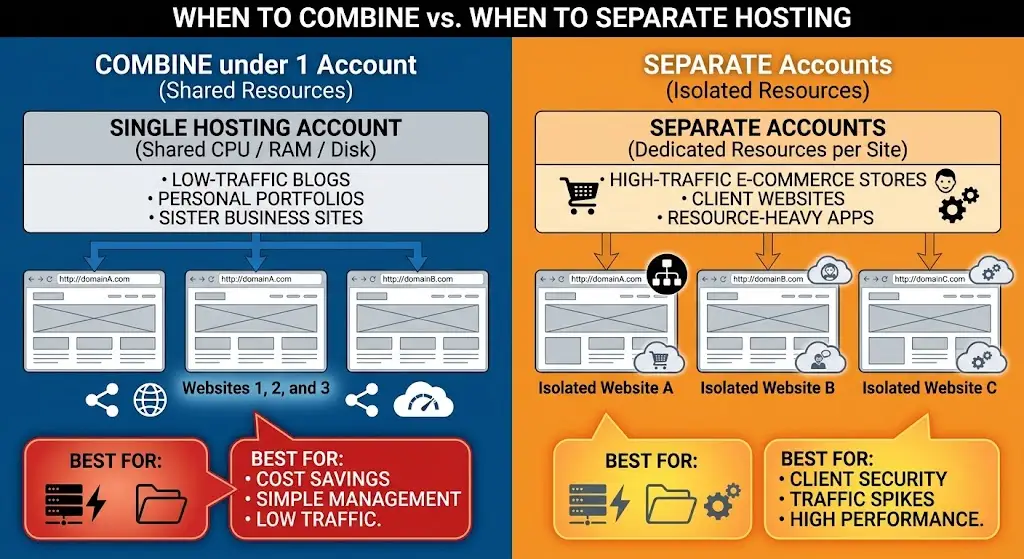
Not necessarily.
For many small websites, keeping everything under one hosting account can be cheaper and easier to manage.
For example, imagine you run a personal blog, a small portfolio, and a simple business website. None receives huge amounts of traffic, and none requires unusual server resources.
Putting all three on a suitable multi-website hosting plan could be perfectly reasonable.
One hosting account makes sense when:
- Your websites are relatively small
- Traffic is moderate
- You want to reduce hosting costs
- You manage several related websites
- Your hosting plan supports the required number of websites
- The sites have similar resource requirements
- You prefer managing everything from one dashboard
There is less administration involved, and you only have one hosting subscription to manage.
However, there are situations where separating websites is the better option.
Separate hosting accounts make more sense when:
- Websites receive high levels of traffic
- Sites belong to different businesses or clients
- One website uses significantly more resources than the others
- Websites have different security requirements
- You need stronger isolation between projects
- One website requires a different hosting environment
- A site has outgrown shared hosting
For client websites, separate accounts can also make management easier when clients need independent access, billing, backups, or control over their own hosting environment.
The biggest consideration is resource sharing.
If one website suddenly experiences a traffic spike and consumes a large portion of your account’s resources, the other websites on that account can potentially be affected.
That’s one of the main trade-offs of putting everything under one hosting account.
How to Keep Multiple Websites Running Smoothly
Hosting several websites together doesn’t have to be difficult, but you need to keep an eye on the account as a whole.
1) Monitor Resource Usage
Keep track of your account’s CPU, RAM, storage, bandwidth, and other resource limits.
Don’t wait until a website starts returning errors or loading slowly before checking what is happening.
If one site consistently consumes far more resources than the others, it may be time to optimize it or move it to a more suitable hosting environment.
2) Keep Each Website Updated
Keep your website software, themes, plugins, and other components updated.
This is particularly important when you’re running multiple WordPress websites.
An outdated plugin or theme on one site can introduce security problems or compatibility issues.
Regular updates also reduce the likelihood of avoidable bugs.
3) Use Separate Databases
Where possible, give each website its own database.
This keeps your installations organized and makes maintenance easier.
If you ever need to migrate or restore one website, having its database separated from the others simplifies the process.
You should also use unique database credentials rather than reusing the same credentials across multiple websites.
4) Maintain Regular Backups
Every website on your hosting account should have a backup.
Don’t assume that backing up one website protects all the others.
Ideally, maintain regular backups that you can restore if a website is accidentally deleted, compromised, or damaged during an update.
It’s also wise to keep important backups somewhere outside the hosting account.
If something affects the entire hosting account, a backup stored on the same server may not be much help.
5) Keep Plugins and Themes Under Control
If you’re running WordPress, don’t install plugins simply because they look useful.
Every additional plugin adds another component that needs to be maintained.
Remove plugins and themes you’re no longer using, and keep the ones you do use updated.
This can help reduce unnecessary resource usage and potential security issues across your websites.
6) Use SSL on Every Domain
Every domain should have HTTPS enabled.
It’s easy to focus on your primary website and forget about a smaller secondary site, but visitors should be able to access all your websites securely.
Check your additional domains periodically to make sure their SSL certificates are active and renewing correctly.
7) Monitor Website Performance
Don’t only monitor whether your websites are online.
Pay attention to how quickly they load.
A website can technically be available while still providing a poor experience because of slow server response times, oversized images, inefficient plugins, or excessive resource usage.
If one website becomes significantly slower, investigate whether the issue is coming from the website itself or from the hosting resources shared across your account.
8) Remove Unused Files and Websites
Old websites, unused files, abandoned installations, and unnecessary backups can take up storage and server resources.
If you no longer need a website, remove it properly rather than leaving an unused installation sitting on the account indefinitely.
Before deleting anything, make sure you have a backup if you might need the files later.
A cleaner hosting account is easier to manage and makes it easier to see what resources your active websites are actually using.
Is One Hosting Account Enough for Your Websites?
For several small, relatively low-traffic websites, one hosting account can be a cost-effective and convenient option.
You can manage multiple domains from one place, share the cost of hosting, and avoid maintaining several separate hosting subscriptions.
But the number of websites you can technically add isn’t the only thing that matters.
A hosting plan might allow ten websites, for example, but that doesn’t mean ten busy websites will perform well on it.
All those websites still share the resources allocated to the hosting account.
Before choosing a plan, look beyond the website limit.
Consider the amount of storage, processing resources, bandwidth, databases, security features, backups, and support available.
Most importantly, think about how much your websites are likely to grow.
If your websites are small and have similar requirements, hosting them together can make sense.
If one site becomes resource-intensive, belongs to a separate client, or needs stronger isolation, moving it to its own hosting account may be the better choice.
If you’re looking for hosting that can support multiple websites from one account, explore Truehost’s hosting plans and compare the website limits and resources available on each plan.
Choose a plan based not only on how many websites you can add, but also on the resources you’ll need to keep them running reliably as they grow.