 Domain RegistrationFind and register the perfect domain for your website.
 .COM DomainChoose a widely recognized domain to build global credibility.
 Domain TransferSeamless domain transfers with zero downtime and complete control.
 All TLDsFind and register your perfect domain. Choose from local and global extensions.
 SSL CertificatesKeep your website safe with reliable SSL Certificates that protect customer data and build trust.
 whoisCheck domain ownership details, expiration dates, and registrar information.
 US DomainRegister a .US domain and build trust in the USA.
 Web HostingEverything your website needs to run smoothly
 WordPress HostingWordPress hosting that just works
 Windows HostingReliable hosting for Windows environments
 Reseller HostingTurn hosting into your business
 Email HostingEmail that looks professional and works anywhere
 cPanel HostingFull control of your hosting with cPanel
 Affiliate ProgramJoin as a partner and earn commissions on every referral you send our way.
 Vps HostingScalable virtual servers that expand as you need.
 Dedicated ServersGet complete access and full control over your dedicated physical server.
 Managed vpsNot tech-savvy? We will take care of everything with our fully managed VPS hosting for you.
 AI Website BuilderCreate stunning websites in seconds with AI.
 Online ShopSet up a professional online store. No coding required.
 Web design serviceGet a tailored website designed to match your brand and support your goals.
 BlogFind helpful guides on web hosting, online selling, digital marketing, and more.
 Contact USYou can reach us anytime, day or night, through chat or email.
 SupportBrowse helpful guides and answers for all of our services.
Google gets all the online attention, and that makes sense because it handles the vast majority of searches worldwide. But ignoring Bing is a real mistake, and you might be quietly losing traffic because of it.
Bing is the world’s second-largest search engine. It holds around 4% of the global search market in 2025, and on desktop computers specifically, that number jumps to over 12%. That means millions of people who use Windows laptops, Microsoft Edge, or Xbox are searching on Bing every single day.
And if your site is not submitted there, those people will never find you.
There is also something really useful about submitting to Bing that most beginners do not know. When you submit your sitemap to Bing Webmaster Tools, it also shares that data with Yahoo Search. So one submission actually gets your pages in front of two search engines at once.
Now, before we get into the steps, let us quickly explain what a sitemap is.
A sitemap is a file on your website that lists all your important pages. It is like a map you hand directly to search engines so they know exactly where everything is. Instead of waiting for Google or Bing to wander around your site following links, your sitemap tells them up front: here are my pages; please visit them.
That gets your content indexed faster and more reliably.
So let us go through how to submit your sitemap to Bing, step by step.
Step 1: Open Bing Webmaster Tools
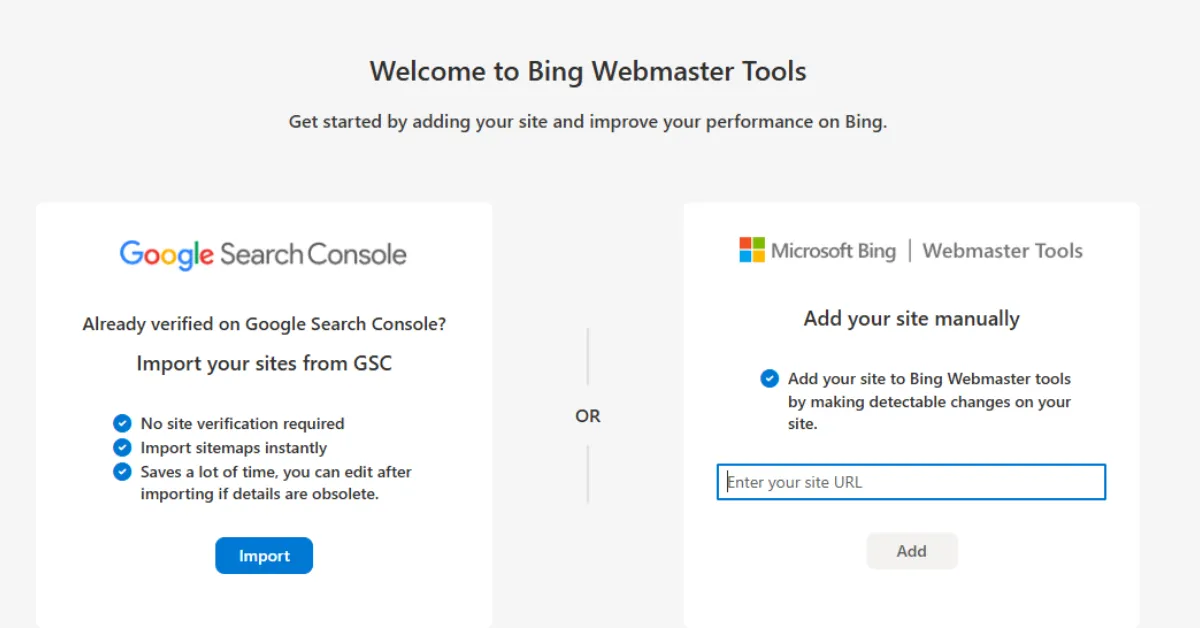
The first thing you need to do is go to Bing Webmaster Tools. You can find it at bing.com/webmasters. This is the free tool that Microsoft provides to manage how your website appears in Bing search results. It works a lot like Google Search Console, just for Bing instead.
To sign in, you need a Microsoft account. If you already have an Outlook email, a Hotmail address, or any Microsoft service, you already have an account. If you do not, you can create one for free in about two minutes.
Just click Sign In on the Bing Webmaster Tools page and follow the prompts.
Once you are signed in, you will land on the dashboard, where you can manage all the websites you add. So go ahead and sign in before moving to the next step.
Step 2: Add your website
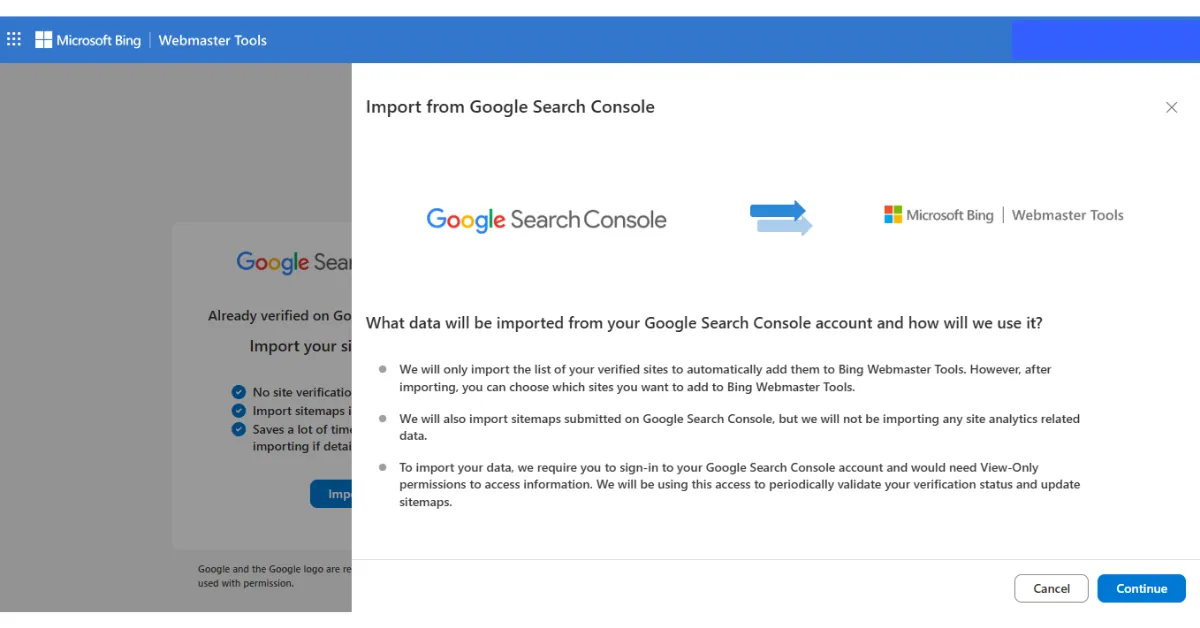
If you have never used Bing Webmaster Tools before, your website will not be in there yet. You need to add your website first so Bing knows you are the owner.
Here is how to do it:
- Click the Add Site button on the dashboard
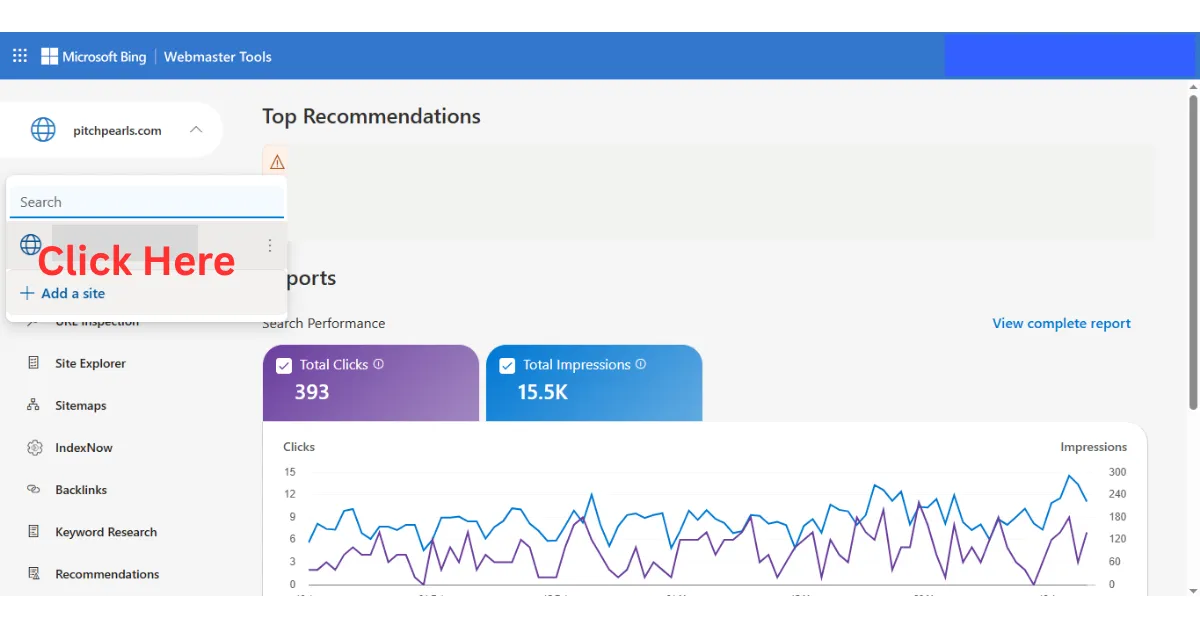
- Verify that you own the website. This just means proving to Bing that you are the actual owner and not someone randomly submitting a site that does not belong to you.
The fastest way to verify is to import from Google Search Console if you are already verified there. Bing lets you do this with one click, skipping all manual verification steps.
If you are not yet on Google Search Console, you can also verify by adding a small piece of code to your site or uploading a file, and Bing walks you through that process clearly.
Once your site is verified, you are ready to submit your sitemap to Bing.
Step 3: Submit sitemap
This is the main step. Once your site is added and verified, submitting your sitemap to Bing takes less than two minutes. Here is exactly what to do:
- Click on Sitemaps in the left menu of Bing Webmaster Tools
- Click the Submit Sitemap button
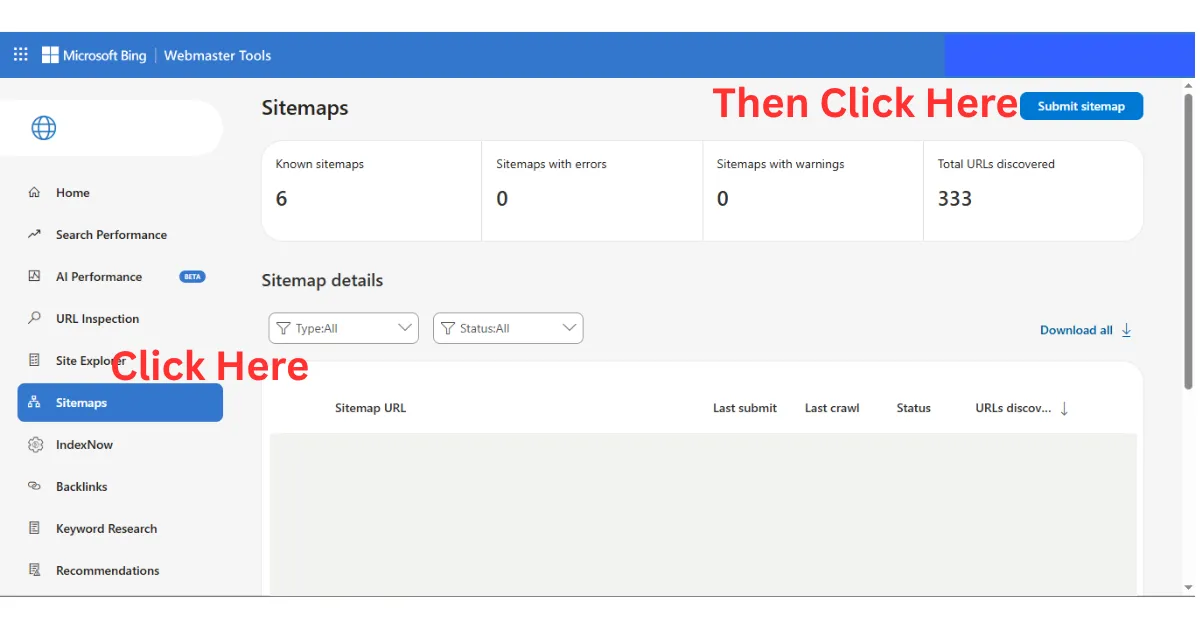
- Paste your sitemap URL into the box. It will usually look like this: https://yourdomain.com/sitemap_index.xml
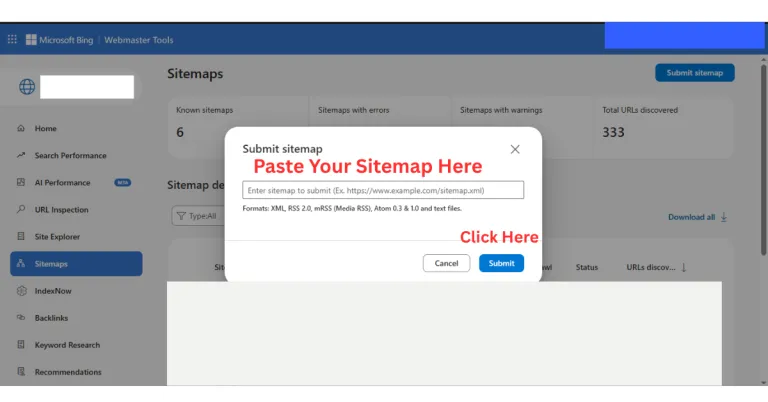
- Click Submit
That is it. You have just told Bing where all your important pages are. Your sitemap URL is the address of the file that lists all your pages.
If you use a WordPress SEO plugin like Yoast SEO or Rank Math, your sitemap is almost certainly already generated and sitting at that /sitemap_index.xml address. You can confirm by typing that URL into your browser before submitting it. If the page loads and shows a list of links, you are good to go.
Also worth knowing:
Bing also automatically shares this sitemap data with Yahoo search. So, submitting your sitemap to Bing also covers Yahoo without any extra steps.
Step 4: Confirm it’s working
After you submit, Bing will process your sitemap and display the results right in the dashboard. You do not have to wait long. Within a short time, you will see the following information appear:
- Status, which will say either Success or Error
- The number of submitted URLs, which tells you how many pages Bing found in your sitemap
If it says Success, you are done. Bing has your sitemap and will start crawling your pages. Your content will begin appearing in Bing search results over the next few days.
If it shows an Error, do not panic. It usually means the URL you pasted is wrong, or the sitemap file cannot be accessed for some reason.
Double-check the URL in your browser first. If the page loads correctly, it is likely a plugin or server setting blocking Bing from reading it.
Most WordPress SEO plugins have a setting to make the sitemap publicly accessible, so check that it is turned on.
Quick Tip (important)
A few things to keep in mind that will save you time and frustration:
- Always submit the main sitemap index file, not individual page URLs. The sitemap index is the file ending in /sitemap_index.xml that links to all your smaller sitemaps. Submitting individual URLs manually is much slower and far less effective.
- Make sure your sitemap actually opens in a browser before you submit it. Just paste the URL into your browser and hit enter. If it loads and shows content, it is ready. If the page gives a 404 error or loads nothing, something is wrong with your sitemap setup, and you need to fix that first.
- If your submission returns an error, check that your sitemap URL is correct and that no plugin or server setting is blocking access to it. This is the most common reason submissions fail, and it is usually easy to fix once you know what to look for.
Make Your Site Easier to Find With Truehost
Submitting your sitemap to Bing is a great step. But search engines also judge your site by how fast it loads and how reliably it stays online. A slow site or one that goes down often sends a bad signal to Bing and Google alike.
Truehost gives you fast servers that load your pages quickly when Bing’s crawlers arrive, strong uptime that keeps your site accessible around the clock, and a setup built for WordPress performance from the ground up.
When your hosting is solid, every sitemap submission you make actually pays off.
Start with Truehost today and give your site the reliable foundation it needs to rank on Bing, Google, and everywhere else.