 Domain RegistrationFind and register the perfect domain for your website.
 .COM DomainChoose a widely recognized domain to build global credibility.
 Domain TransferSeamless domain transfers with zero downtime and complete control.
 All TLDsFind and register your perfect domain. Choose from local and global extensions.
 SSL CertificatesKeep your website safe with reliable SSL Certificates that protect customer data and build trust.
 whoisCheck domain ownership details, expiration dates, and registrar information.
 US DomainRegister a .US domain and build trust in the USA.
 Web HostingEverything your website needs to run smoothly
 WordPress HostingWordPress hosting that just works
 Windows HostingReliable hosting for Windows environments
 Reseller HostingTurn hosting into your business
 Email HostingEmail that looks professional and works anywhere
 cPanel HostingFull control of your hosting with cPanel
 Affiliate ProgramJoin as a partner and earn commissions on every referral you send our way.
 Vps HostingScalable virtual servers that expand as you need.
 Dedicated ServersGet complete access and full control over your dedicated physical server.
 Managed vpsNot tech-savvy? We will take care of everything with our fully managed VPS hosting for you.
 AI Website BuilderCreate stunning websites in seconds with AI.
 Online ShopSet up a professional online store. No coding required.
 Web design serviceGet a tailored website designed to match your brand and support your goals.
 BlogFind helpful guides on web hosting, online selling, digital marketing, and more.
 Contact USYou can reach us anytime, day or night, through chat or email.
 SupportBrowse helpful guides and answers for all of our services.
OpenClaw reads the files in your project folder. It writes code into the right place. It runs your tests and reports back all without you opening a new IDE.
By this point, you’ve either installed OpenClaw already, or you’re weighing it up.
Either way, this guide shows you how to use OpenClaw as your coding assistant from your first prompt to running it 24/7 on a server.
Before you start, you’ll need:
- A model provider connected (Anthropic, OpenAI, Gemini, or Ollama for local, offline work)
- A messaging channel set up (Telegram, WhatsApp, Discord, or Slack)
- A project folder that OpenClaw has read/write access to
Got those three? Let’s get into it.
How to Generate Code with OpenClaw
Start simple. Write your first prompt in plain language.
“Build a login form component in React with email/password validation.”
That’s enough for OpenClaw to get moving. But you’ll get better results if you treat it like a junior developer on your team.
Be specific about:
- File paths (where should the component live?)
- Naming conventions (camelCase or snake_case?)
- Framework versions (React 18? React 19?)
The more context you give, the less back-and-forth you’ll need.
You can also chain instructions into one message. For example:
“Create the component, write a test for it, then run the test suite.”
OpenClaw handles each step in order. It doesn’t stop after step one and wait for you to ask for step two.
Good prompt vs vague prompt
| Vague | Good |
|---|---|
| “Fix the login page” | “The login form in src/components/Login.jsx throws a validation error on empty email. Fix the validation logic and add a test case.” |
| “Make it faster” | “The /api/products endpoint in routes/products.js takes 3s+ to respond. Profile it and optimize the database query.” |
Specificity is the difference between one clean pass and five rounds of corrections.
How to Debug Code with OpenClaw
Debugging is where OpenClaw earns its keep.
Paste a stack trace. Or just describe the symptom in your own words: ‘the checkout page crashes when the cart is empty.’ Both work.
OpenClaw can go further than reading your description. It can read your logs directly and try to reproduce the bug itself, running the app, triggering the failure path, and comparing what it sees against what you reported.
Once it has a fix, don’t apply it blindly.
Review the diff first. This is more important on production code than anywhere else.
OpenClaw’s permission modes control this. In a review-first (ask) mode, every file change and command needs your sign-off before it runs.
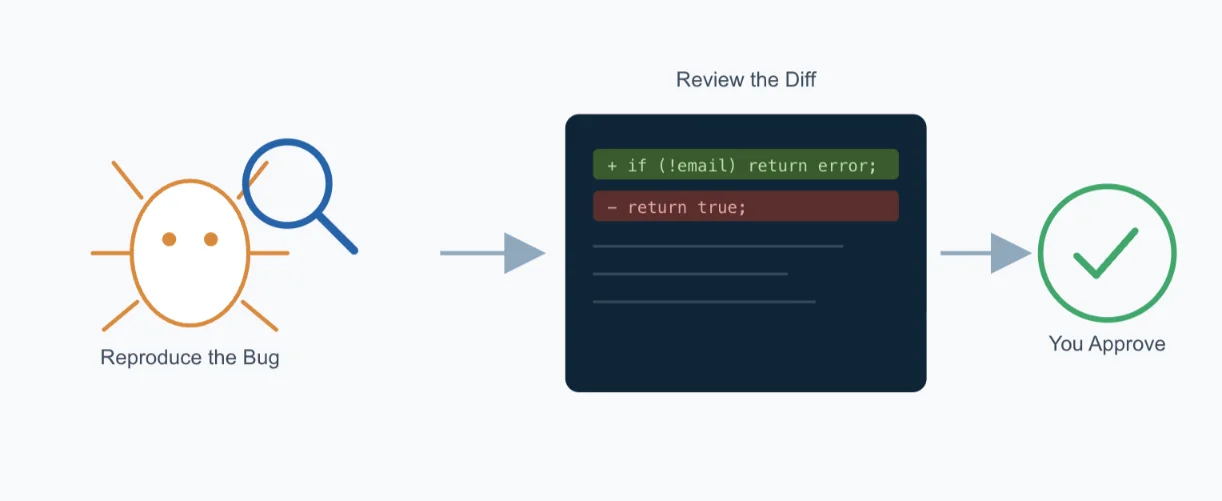
In an auto mode, low-risk actions go through, and anything uncertain still gets escalated to you for a human decision. Full auto-apply skips that check entirely.
For anything touching a live system, keep review-first on. A five-second glance at a diff is cheap. A bad auto-applied fix in production is not.
How to Handle Project-Wide Maintenance Tasks
OpenClaw isn’t limited to one file at a time. You can ask it to work across your whole codebase.
“Apply this change to every file in /src.”
That one line can trigger a bulk refactor, clean up dead code, or standardize your imports across dozens of files.
This is also where things can go wrong if you’re not careful.
Always specify scope. Name the exact folder. Don’t assume OpenClaw will guess which directories you meant.
Practical tip: Treat scope instructions the way you’d brief a junior developer: explicit, not assumed. ‘Update all files in /src/components’ is safe. ‘Update the components’ is not, especially if you have shared or nested directories with similar file names.
An unscoped instruction can touch a shared utility file used by five other features. Scope it tight, and review the diff before confirming.
How to Automate Code Reviews and PR Workflows
Connect OpenClaw to GitHub, and it can start handling the repetitive parts of your review process.
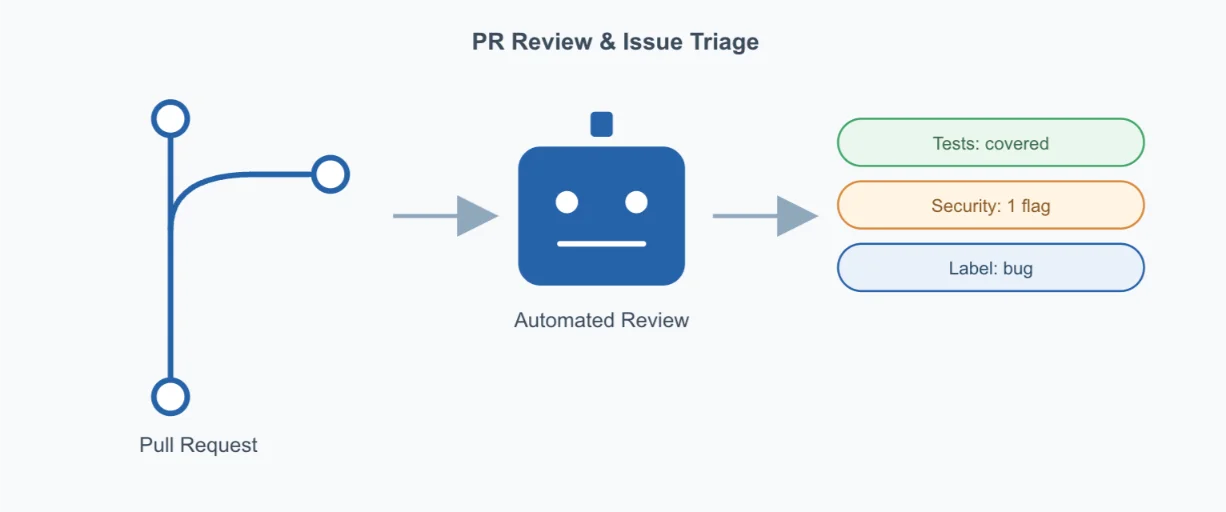
This isn’t a built-in feature out of the box; it runs through a community skill built specifically for GitHub workflows. Once installed, you can ask OpenClaw to:
- Review an open pull request and flag security issues
- Check test coverage on new code
- Triage incoming issues and apply labels automatically
- Draft an auto-response for common issue types
A 2026 GitLab DevSecOps survey found developers spend around 18% of their working day on code review, reading and commenting, not writing code.
The same research pointed to pull requests waiting roughly 20 hours on average before getting a first look.
That’s the gap this workflow closes. One team using OpenClaw for first-pass PR reviews reported a 40% cut in review turnaround time, according to a case study from AI automation firm Dextralabs.
OpenClaw won’t replace your senior reviewer’s judgment on architecture. But it clears the routine stuff, missing tests, obvious security gaps, stale issues- before a human even opens the PR.
How to Run Multi-Step Dev Pipelines
Some tasks aren’t one step. They’re a loop: pull the latest code, install dependencies, run tests, restart the service.
You can hand OpenClaw the whole sequence in one message:
“1. Pull the latest changes from main. 2. Run npm install. 3. Run the test suite. 4. Restart the app only if all tests pass.”
Numbered steps work better than one long sentence. OpenClaw processes them in order, and you can see where it is in the sequence if something stalls.
That last step also shows conditional logic in action: ‘restart only if all tests pass’ stops a broken build from going live automatically.
This is the same discipline you’d want in any CI/CD pipeline, just running through chat instead of a dashboard.
Data and Privacy: Cloud Models vs Local (Ollama)
Before you connect a model provider, know what happens to your code.
With cloud providers like Anthropic, OpenAI, and Gemini, your prompts and files get sent to that provider’s servers for processing.
For most teams, this is fine. For proprietary or client-sensitive codebases, it’s worth a second thought.
Running OpenClaw fully local with Ollama keeps everything on your machine. Nothing leaves.
This is the setup to choose if you’re working with an NDA-covered codebase, regulated client data, or anything your legal team would flag.
Choosing the right setup for your team:
- Small team, general web app code → cloud provider is fine, and you’ll get faster, more capable models
- Regulated industry, client-owned IP, or air-gapped requirements → run local with Ollama
- Mixed team → cloud for general work, local for the sensitive repos
Model selection for coding tasks specifically: not every model is equally good at code.
Reasoning-focused models tend to handle multi-step refactors and debugging better than lighter, faster models built for quick chat replies.
If a task involves tracing a bug across several files, use your strongest available model.
For quick, low-risk edits, renaming a variable or formatting a file, a smaller, faster model saves you time and cost.
Extending OpenClaw with Coding Skills (Optional)
Skills add capabilities OpenClaw doesn’t ship with by default.
For developers, one of the most useful is the coding-agent skill. It lets OpenClaw delegate work to background coding agent tools like Codex, Claude Code, or OpenCode and run them as workers while you keep chatting normally.
Installing a skill is usually a short command that pulls the skill from a registry and restarts your agent so it loads on startup.
Security warning: read this before you install anything.
Community skills aren’t reviewed by a central authority before they land in the registry. A skill can request shell access, file access, or API keys.
Vet it first, check who published it, when it was last updated, and what permissions it asks for. An unvetted or malicious skill has the same access your agent has.
Don’t skip this step because a skill looks convenient.
Keeping OpenClaw Running 24/7 for Coding Work
A laptop isn’t built for this.
It sleeps. It restarts for updates. Wi-Fi drops. Every one of those kills your connection to OpenClaw mid-task.
If you want OpenClaw watching your repo overnight, reviewing PRs at 2am, triaging issues while you sleep, it needs a machine that doesn’t sleep either.
The standard fix is running OpenClaw on a VPS, set up as a systemd service. That gives you automatic restarts if the process crashes, and uptime that doesn’t depend on you leaving your laptop open.
This is what we built our OpenClaw Hosting plans for.
Our OpenClaw Starter plan gives you 1 vCPU core, 2 GB RAM, and 50 GB of NVMe storage, pre-configured with OpenClaw already installed and one-click updates, no manual server setup needed.
If you’re running heavier workloads or chaining multiple skills, our OpenClaw Pro and OpenClaw Business plans scale up from there.
You can self-configure a plain VPS and install OpenClaw yourself if you want full control.
Or you can go with a plan where OpenClaw is already installed and ready, and we handle the server side.
Either way, once you’ve decided how to use OpenClaw as your coding assistant long-term, a persistent server is what makes “24/7” true.
Troubleshooting Table
| Symptom | Likely Cause | Fix |
|---|---|---|
| Bot doesn’t respond to messages | Gateway isn’t running, or channel isn’t linked correctly | Run openclaw status to check gateway health. Restart with openclaw dashboard and re-scan the channel’s QR/link code if needed |
| “Model provider authentication failed” error | API key missing, expired, or not saved to the right provider field | Check ~/.openclaw/openclaw.json for the correct key under models.providers. Regenerate the key from your provider’s dashboard if it’s expired |
| OpenClaw can’t read or write project files | Workspace path is wrong, or file permissions are too restrictive | Confirm the workspace path in your config matches your actual project folder. Run chmod to grant read/write access if needed |
| Skill fails to install | Skill has unmet dependencies, or the registry source is unreachable | Run openclaw doctor to surface the specific dependency error. Check your internet connection to the skill registry |
| Changes applied to the wrong files or unintended directories | Prompt didn’t specify scope clearly enough | Always name the exact folder path (e.g. “all files in /src only”). Review the diff before confirming apply, especially on shared or nested directories |
| Tests don’t run as part of a chained instruction | Test command isn’t defined in the project, or OpenClaw doesn’t have shell exec permission | Confirm your project has a working test script (e.g. npm test) and that OpenClaw’s permission mode allows command execution |
| Connection drops when laptop sleeps or restarts | Running OpenClaw locally instead of on a persistent server | Move OpenClaw to a VPS and run it as a systemd service for 24/7 uptime |
| GitHub PR review or issue triage isn’t triggering | GitHub integration isn’t authenticated, or webhook isn’t configured | Re-authenticate the GitHub connection in your config, and confirm webhook URLs are correctly set on the repo side |
| Responses are slow or time out on complex tasks | Model provider rate limits, or task is too large for one prompt | Break large tasks into smaller chained steps, or switch to a provider/model with higher rate limits for heavy workloads |
| OpenClaw applies a fix without asking for approval | Permission mode is set to auto-apply instead of review-first | Change the permission setting to require confirmation before file changes are applied, especially in production repos |
OpenClaw as Your Coding Assistant FAQs
Can OpenClaw replace GitHub Copilot?
Not entirely, and it isn’t really built to. Copilot lives inside your IDE and autocompletes as you type. OpenClaw works more like a teammate you message; it can generate whole components, debug across files, run your tests, and manage GitHub workflows without you sitting in front of an editor. Many developers use both: Copilot for in-line suggestions, OpenClaw for bigger, multi-step tasks.
What programming languages does OpenClaw support?
OpenClaw itself doesn’t limit you to a language; it works through whatever model provider you connect, and modern coding-capable models handle most mainstream languages: JavaScript, TypeScript, Python, Go, Ruby, PHP, and more. Support depends more on your chosen model’s coding ability than on OpenClaw as the tool.
Is my code safe with OpenClaw?
It depends on your setup. With a cloud provider, your code and prompts are sent to that provider’s servers, the same way they would be with any cloud-based AI coding tool. If you need your code to never leave your machine, run OpenClaw locally with Ollama instead.
Can OpenClaw work without an internet connection?
Yes, if you pair it with Ollama and a local model. You lose access to the strongest cloud models, but your prompts, files, and code stay entirely on your device.
Get Started with Truehost OpenClaw Hosting
Learning how to use OpenClaw as your coding assistant is one thing. Keeping it running reliably is another.
If you’re ready to move off your laptop and onto a server that doesn’t sleep, restart, or drop connections mid-task, check out our OpenClaw Hosting plans.
Plans start at pre-configured, ready-to-use setups with one-click updates, so you spend your time coding, not configuring servers.