 Domain RegistrationFind and register the perfect domain for your website.
 .COM DomainChoose a widely recognized domain to build global credibility.
 Domain TransferSeamless domain transfers with zero downtime and complete control.
 All TLDsFind and register your perfect domain. Choose from local and global extensions.
 SSL CertificatesKeep your website safe with reliable SSL Certificates that protect customer data and build trust.
 whoisCheck domain ownership details, expiration dates, and registrar information.
 US DomainRegister a .US domain and build trust in the USA.
 Web HostingEverything your website needs to run smoothly
 WordPress HostingWordPress hosting that just works
 Windows HostingReliable hosting for Windows environments
 Reseller HostingTurn hosting into your business
 Email HostingEmail that looks professional and works anywhere
 cPanel HostingFull control of your hosting with cPanel
 Affiliate ProgramJoin as a partner and earn commissions on every referral you send our way.
 Vps HostingScalable virtual servers that expand as you need.
 Dedicated ServersGet complete access and full control over your dedicated physical server.
 Managed vpsNot tech-savvy? We will take care of everything with our fully managed VPS hosting for you.
 AI Website BuilderCreate stunning websites in seconds with AI.
 Online ShopSet up a professional online store. No coding required.
 Web design serviceGet a tailored website designed to match your brand and support your goals.
 BlogFind helpful guides on web hosting, online selling, digital marketing, and more.
 Contact USYou can reach us anytime, day or night, through chat or email.
 SupportBrowse helpful guides and answers for all of our services.
Running more than one domain out of a single cPanel account?
Maybe you’re wondering, “Can I even give my addon domain its own email address? Or is that just for the primary domain?”
Good news. You can absolutely do it, and it’s easier than you think.
This article breaks down exactly how to create an email account for an addon domain in cPanel. No jargon, no wasted steps, just a clear path from login to inbox.
A separate, branded inbox for each domain makes your business look more professional and keeps different projects organized. It also means you are not stuck sharing one crowded inbox across every site you run.
Let’s get your addon domain sending and receiving mail like a pro.
Why Truehost Makes Addon Domain Email Easy
Before we get into the steps, here’s a shortcut worth knowing.
Reliable email for an addon domain starts with reliable hosting. Truehost’s cPanel hosting is built with addon domains and multiple mailboxes in mind, so you’re not fighting your host just to get a basic setup working.
Need a domain for that addon site first? Truehost’s domain registration makes it fast and affordable to lock one down before you build anything else.
Get the foundation right, and everything in this article becomes a lot easier.
What Is an Addon Domain in cPanel?
Before you touch a single setting, let’s get the basics straight.
Definition of an Addon Domain
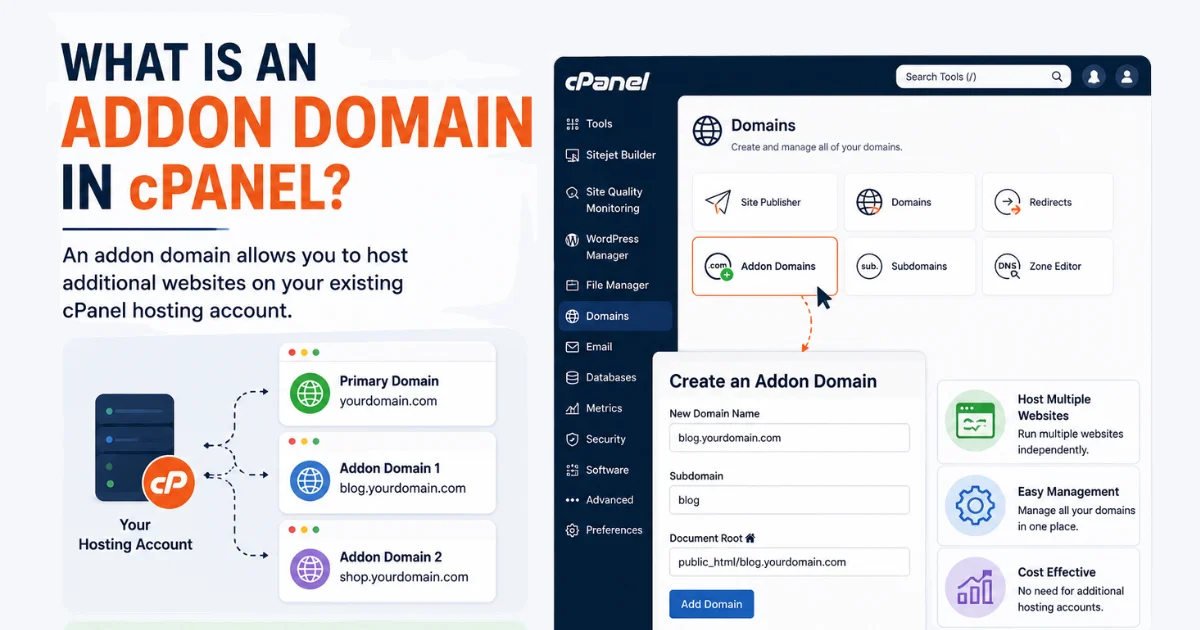
An addon domain is a full, independent website living inside your main cPanel account. It gets its own domain name, its own files, and its own settings, all under one hosting plan.
How Addon Domains Differ From Primary Domains
Your primary domain is the anchor of your hosting account. An addon domain rides alongside it, but cPanel treats it like its own separate site, complete with its own folder and its own email setup.
Why Businesses Use Addon Domains
Smart business owners use addon domains to run multiple brands or side projects without paying for extra hosting. One plan, several fully working sites, each with its own business email addresses attached.
Requirements Before You Begin
Here’s your checklist before you dive in.
- A working cPanel hosting account (most Truehost plans include this by default)
- An addon domain already added inside cPanel
- Access to the Email Accounts section
- Correct DNS and MX records pointing to your hosting server
Got all that? Then you’re ready to build your new mailbox.
How to Create an Email Account for an Addon Domain in cPanel
Here’s the play-by-play to create email in cPanel for your addon domain. Want to go deeper later? cPanel’s own Email Accounts documentation covers extra settings worth exploring.
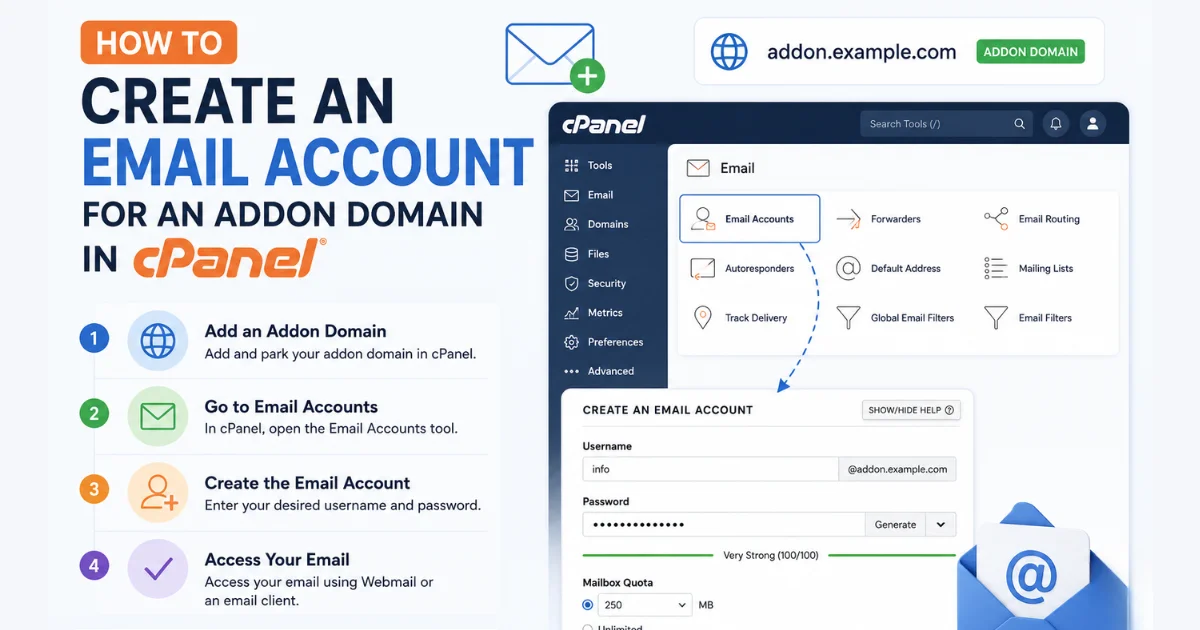
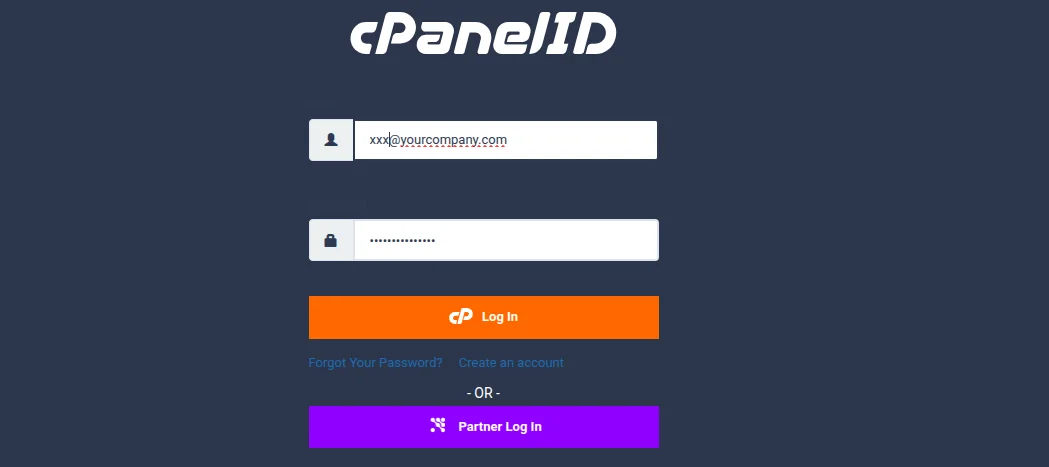
1) Log in to cPanel. Grab the login link and credentials from your hosting provider and sign in.
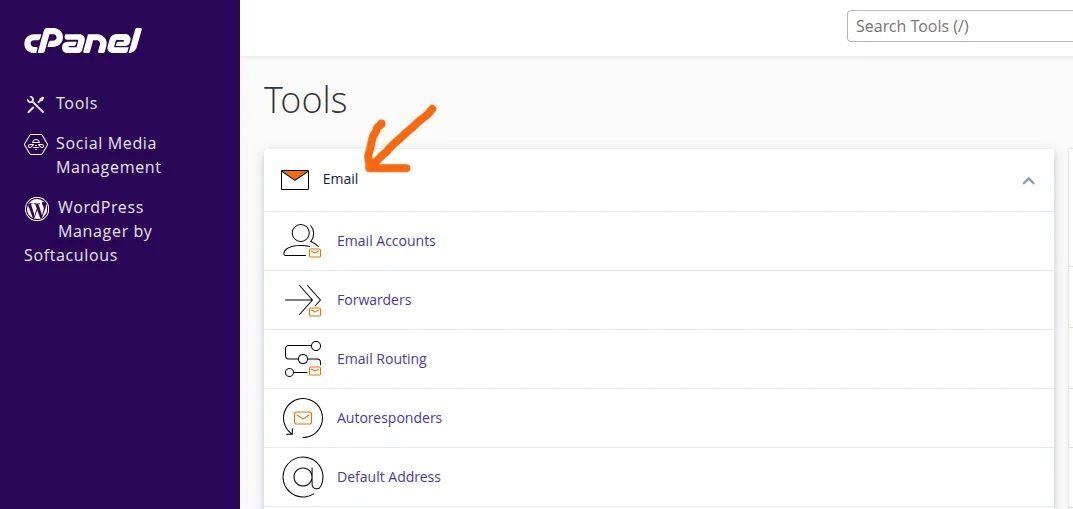
2) Open the Email Accounts section. Find “Email Accounts” under the Email section of your dashboard.
3) Select the addon domain. Use the domain dropdown and pick your addon domain, not your primary one.
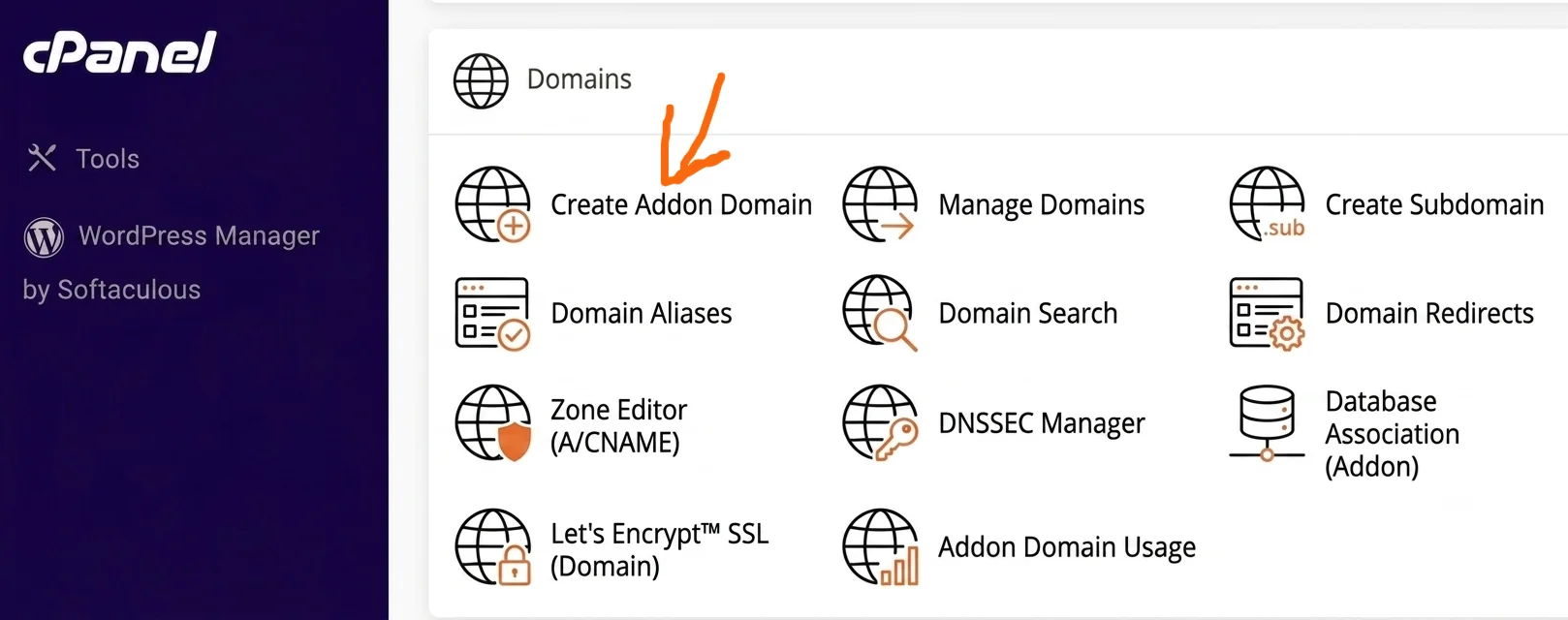
4) Enter the email username. This is whatever goes before the @ symbol, like “info” or “support.”
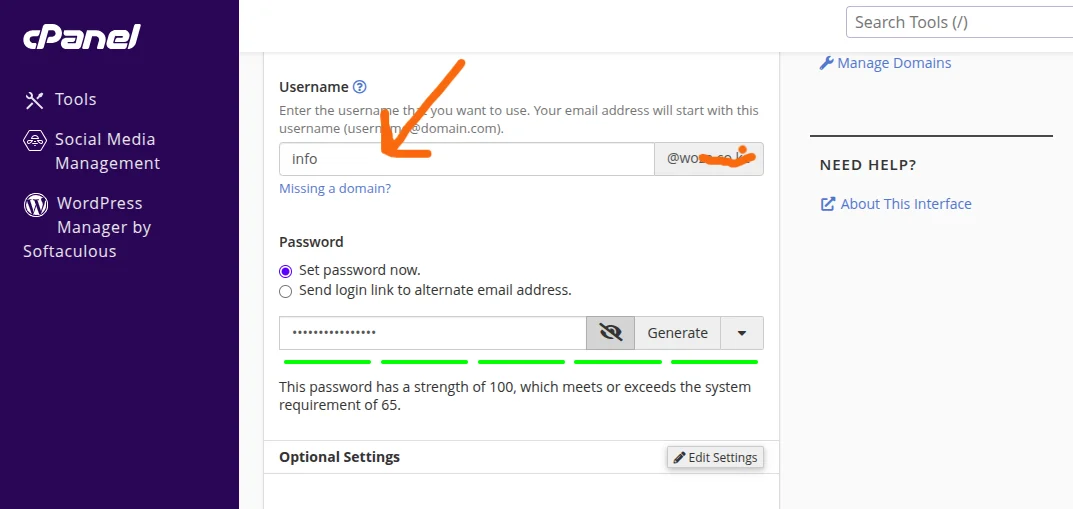
5) Create a strong password. Use cPanel’s built-in password generator, or build your own with letters, numbers, and symbols.
6) Set mailbox storage (optional). Pick a storage cap, or go unlimited if your plan supports it.
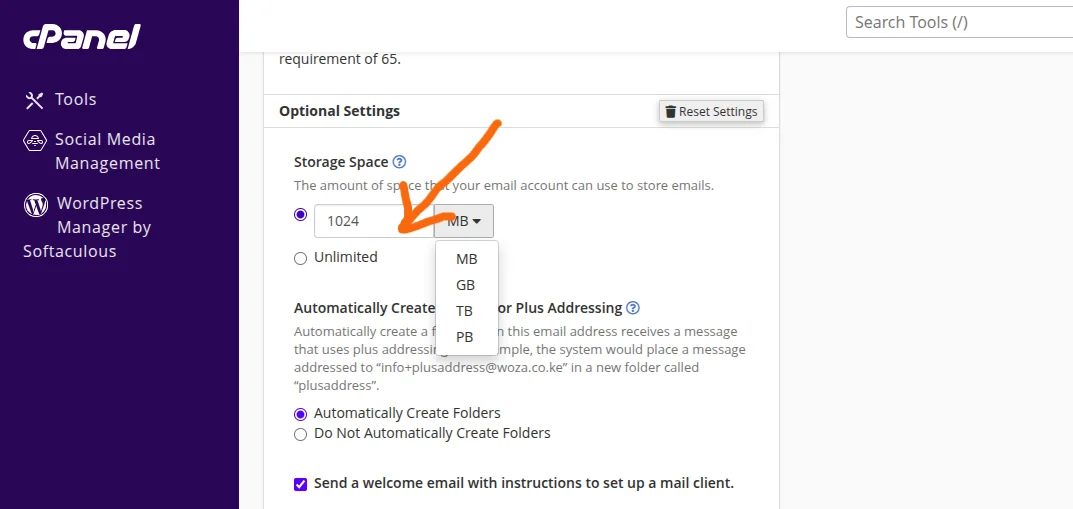
7) Click Create. cPanel takes it from here and spins up your new mailbox.
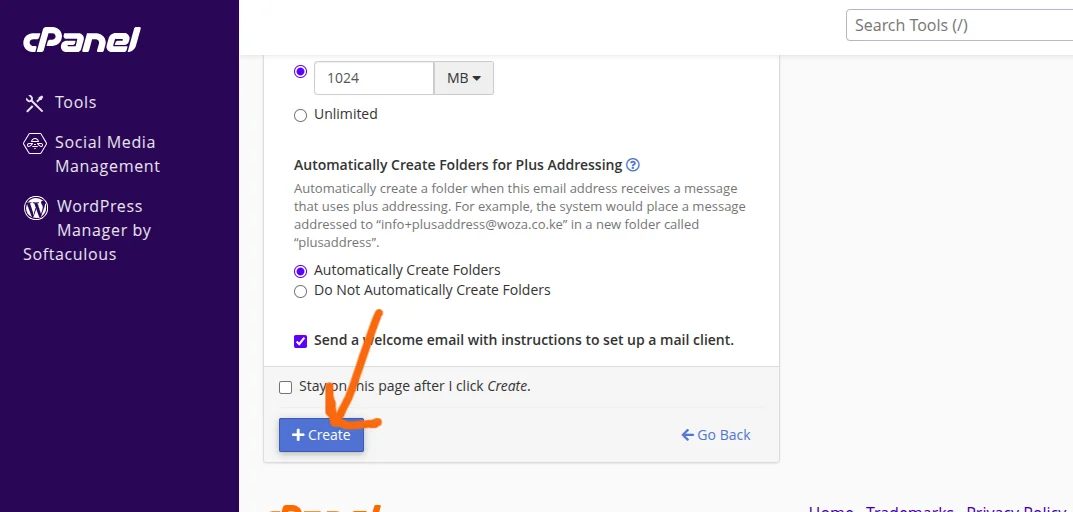
8) Verify the email account has been created. Head back to the Email Accounts list and confirm your new address shows up and is active.
Done. Your addon domain now has its own working email account, ready to roll once DNS is fully configured.
Setup only goes this smoothly on hosting built to support it. If your current host makes this harder than it should be, Truehost’s business email hosting is built specifically for addon domains like yours.
How to Access Your New Email Account
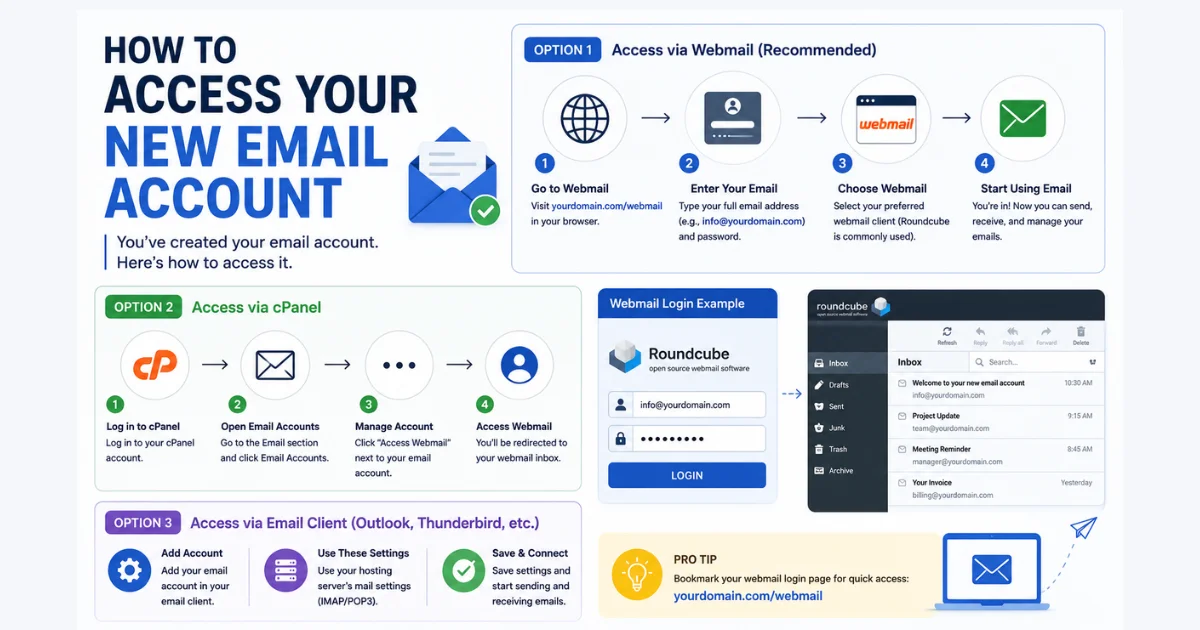
Your new inbox isn’t locked to one platform. Here’s where you can check it.
Webmail
Webmail is the quickest way in. Just log in through your host’s webmail portal with your new address and password.
Outlook
Add your new address to Outlook through IMAP or POP3 settings pulled from cPanel. Perfect if you’re already living in Outlook for everything else.
Gmail
Link your custom address inside Gmail and send or receive right from there. Great if you’d rather skip webmail altogether.
Apple Mail
Apple Mail plays nicely with custom domain email through a simple IMAP setup. Solid choice for anyone deep in the Apple ecosystem.
Mobile Devices
Most mail apps let you add a custom email address with nothing more than your login details. Now your inbox travels with you, not just your desk.
How to Configure Email for an Addon Domain
Getting email configuration right isn’t optional. These four DNS records are what keep everything running.
MX Records
MX records tell the internet exactly where your domain’s mail should land. Get the MX records wrong, and nothing arrives. Google Workspace’s MX record guide is a useful reference for how these records are typically structured.
SPF Records
SPF records spell out which servers are allowed to send mail for your domain. This keeps your messages out of the spam folder. Cloudflare’s SPF explainer breaks down exactly how this authorization list works.
DKIM
DKIM slaps a digital signature on your outgoing mail. It proves nothing was tampered with, which builds trust with other email providers.
DMARC
DMARC tells receiving servers what to do when SPF or DKIM checks fail. Per DMARC.org, this record is a key defense against spoofing and phishing.
Common Issues and How to Fix Them
Even a solid setup hits a few snags. Here’s how to fix the usual suspects.
- Email account not appearing: Make sure the addon domain is actually active in cPanel, then refresh the Email Accounts page.
- Unable to send or receive emails: Double-check your MX records point to the right mail server.
- Incorrect MX records: Compare what’s live against what your host actually recommends, and fix any mismatches.
- DNS propagation delays: Give it 24–48 hours. DNS changes take time to spread across the internet.
- Authentication errors: Recheck your username and password, and make sure IMAP or POP3 settings match your provider’s specs.
- Mailbox storage limits: Clear out old mail, or bump up your quota in cPanel.
Nine times out of ten, it comes down to a DNS setting or a typo. Check those first.
Best Practices for Managing Email Accounts
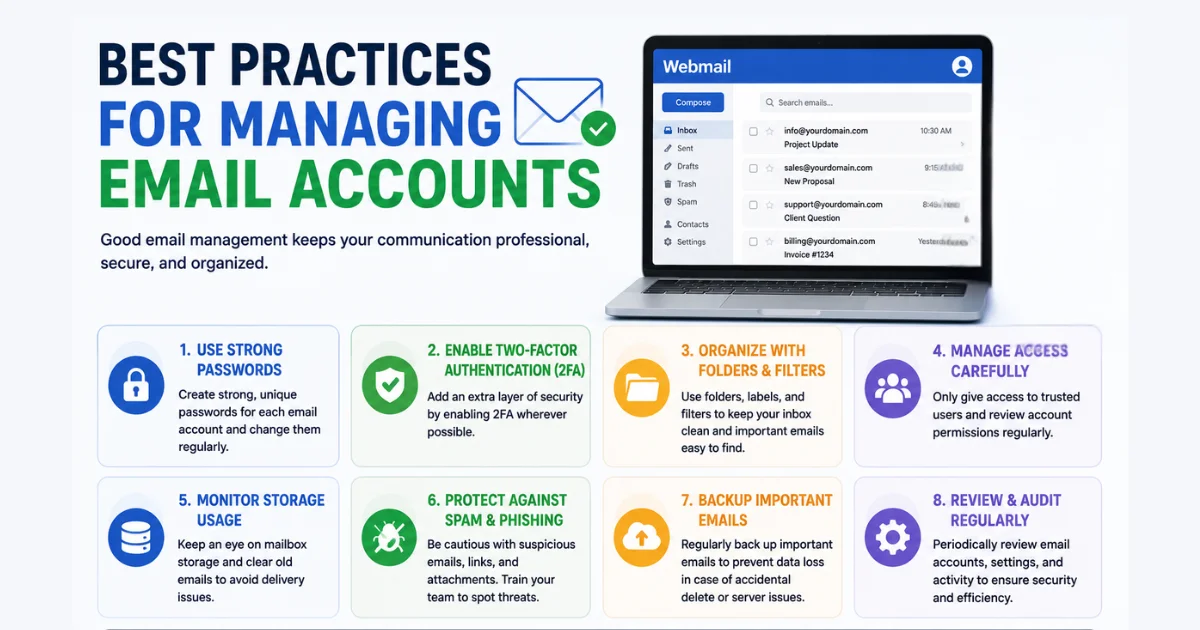
Keep your setup locked down with these habits.
- Use strong passwords on every account, no exceptions.
- Enable two-factor authentication if your host offers it.
- Update passwords regularly to cut down on unauthorized access.
- Watch your mailbox storage so you never miss a message because your inbox is full.
- Guard against spam and phishing by keeping SPF, DKIM, and DMARC active at all times.
- Back up important emails so an accidental delete never becomes a disaster.
Want cPanel hosting that actually makes email management easy? Truehost builds hosting plans specifically for addon domains and business email. Their business email hosting makes setting up a professional address for every domain you run genuinely simple.
FAQs
Can I create an email account for an addon domain in cPanel?
Yes. As long as the addon domain is active and DNS is configured correctly, it works just like setting up email for a primary domain.
Why can’t I create an email account for my addon domain?
Usually it’s one of two things: the addon domain isn’t fully set up yet, or your hosting plan doesn’t allow extra email accounts.
Do addon domains have separate email accounts?
Yes. Every addon domain gets its own independent set of email accounts, completely separate from your primary domain.
How do I access email for an addon domain?
Through webmail, or by connecting it to Outlook, Gmail, Apple Mail, or a mobile app using IMAP or POP3.
Do I need MX records for my addon domain email?
Yes, no way around it. MX records are what make receiving email possible.
Can I create unlimited email accounts in cPanel?
Depends on your hosting plan. Some allow unlimited accounts, others cap you at a set number.
Ready to Set Up Email for Your Addon Domain?
How to create an email account for an addon domain in cPanel really comes down to one thing: getting your DNS right. Nail your MX, SPF, DKIM, and DMARC records, and the rest falls into place.
Do that, and your addon domain’s inbox runs exactly like it should, no dropped messages, no spam folder surprises.
Now’s the time to make it official. Truehost delivers reliable cPanel hosting, simple domain registration, and professional business email, all under one roof. Get started with Truehost today and give every domain you manage the email setup it deserves.