 Domain RegistrationFind and register the perfect domain for your website.
 .COM DomainChoose a widely recognized domain to build global credibility.
 Domain TransferSeamless domain transfers with zero downtime and complete control.
 All TLDsFind and register your perfect domain. Choose from local and global extensions.
 SSL CertificatesKeep your website safe with reliable SSL Certificates that protect customer data and build trust.
 whoisCheck domain ownership details, expiration dates, and registrar information.
 US DomainRegister a .US domain and build trust in the USA.
 Web HostingEverything your website needs to run smoothly
 WordPress HostingWordPress hosting that just works
 Windows HostingReliable hosting for Windows environments
 Reseller HostingTurn hosting into your business
 Email HostingEmail that looks professional and works anywhere
 cPanel HostingFull control of your hosting with cPanel
 Affiliate ProgramJoin as a partner and earn commissions on every referral you send our way.
 Vps HostingScalable virtual servers that expand as you need.
 Dedicated ServersGet complete access and full control over your dedicated physical server.
 Managed vpsNot tech-savvy? We will take care of everything with our fully managed VPS hosting for you.
 AI Website BuilderCreate stunning websites in seconds with AI.
 Online ShopSet up a professional online store. No coding required.
 Web design serviceGet a tailored website designed to match your brand and support your goals.
 BlogFind helpful guides on web hosting, online selling, digital marketing, and more.
 Contact USYou can reach us anytime, day or night, through chat or email.
 SupportBrowse helpful guides and answers for all of our services.
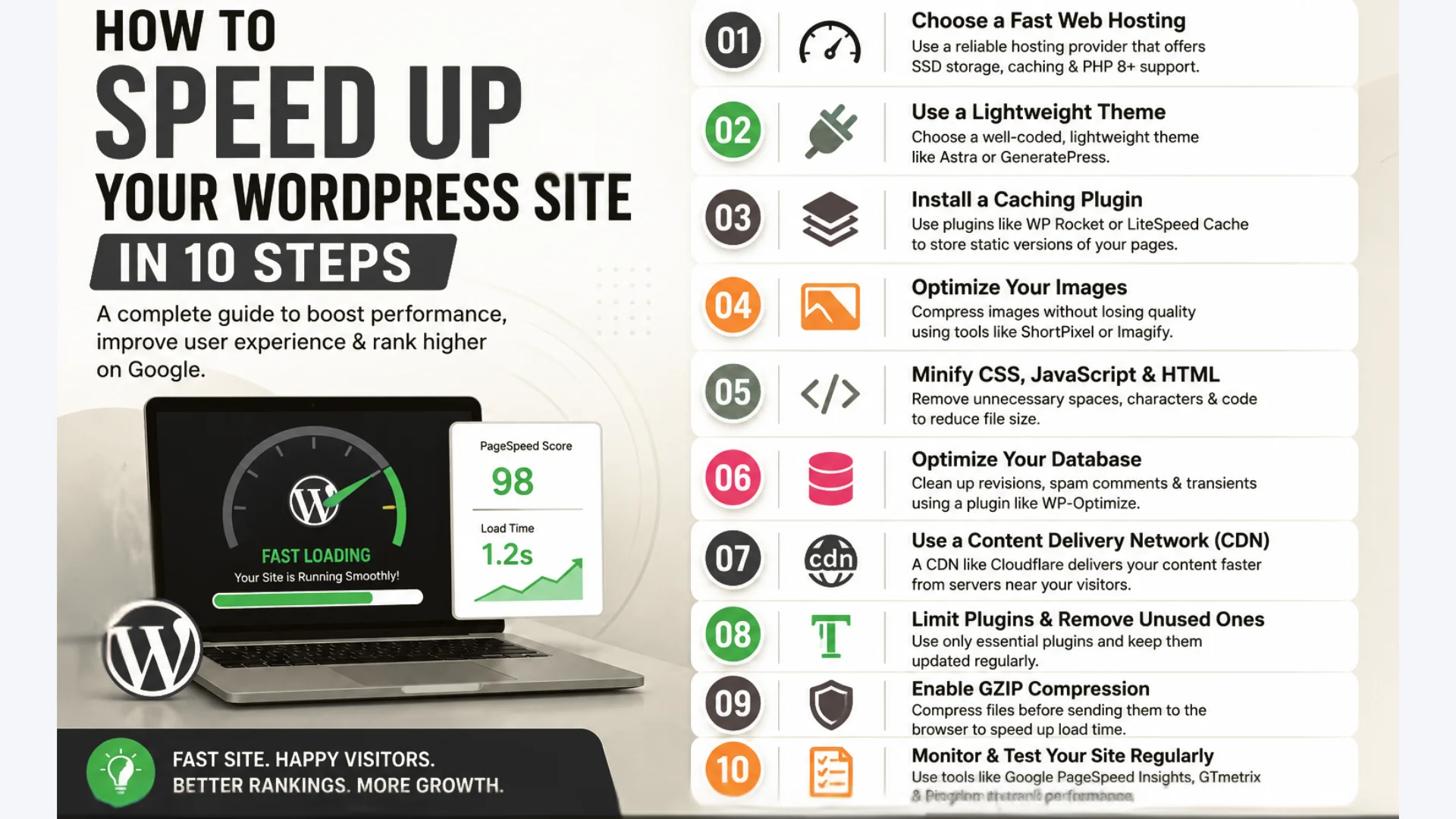
Page speed factors directly into how Google ranks a site, largely because it shapes whether visitors stick around or leave. WordPress happens to give you a lot of built-in levers for controlling that speed. This article walks through how to pull them, in an order that builds from the quickest wins to the more technical fixes.
A quicker-loading site tends to pay off in a few concrete ways:
- Better visibility in search results.
- Fewer visitors leaving before the page even finishes loading.
- More of your existing traffic actually converting.
Below are the 10 steps that make up a complete WordPress speed cleanup. Work through them in order and you will end up with a repeatable routine you can rerun any time performance starts slipping again.
Want the shortcut? Start with a host that is already tuned for speed. Get started with Truehost WordPress Hosting →
Why Website Speed Matters
Speed affects nearly every metric you actually care about.
- Improves user experience. Visitors stay when pages load quickly and leave when they don’t.
- Reduces bounce rates. Every extra second of load time pushes more people back to search results.
- Increases conversion rates. Faster checkouts and forms mean fewer abandoned carts and sign-ups.
- Improves Google rankings. Speed is a confirmed ranking signal, not just a nice-to-have.
- Enhances Core Web Vitals. These metrics directly affect how Google evaluates your site’s experience.
- Supports long-term growth. A fast foundation scales better as your traffic and content grow.
What Slows Down a WordPress Website?
Before fixing anything, it helps to know what’s actually causing the slowdown.
- Low-quality hosting. Overcrowded shared servers struggle under real traffic.
- Large image files. Uncompressed, oversized images are one of the most common culprits.
- Too many plugins. Each one adds code that has to load, whether you’re using it actively or not.
- Heavy WordPress themes. Feature-packed themes often load more than any single page actually needs.
- Unoptimized databases. Years of accumulated revisions and spam comments slow down queries.
- Excessive HTTP requests. Every script, stylesheet, and image is a separate request your server has to handle.
- Render-blocking CSS and JavaScript. These files can delay everything else on the page from displaying.
- No caching. Without it, your server rebuilds every page from scratch on every visit.
- No CDN. Visitors far from your server wait longer for content to travel.
- Outdated WordPress software. Old core files, themes, and plugins often run less efficiently than current versions.
Before You Optimize Your Website
A little prep work now saves you from guessing later.
- Test your current speed using a tool like Google PageSpeed Insights.
- Record your baseline performance so you can measure real improvement later.
- Back up your WordPress website before making any changes.
- Update WordPress core, themes, and plugins to their latest versions first.
Step-by-Step Guide to Speed Up Your WordPress Site

Step 1: Choose Fast and Reliable WordPress Hosting
Hosting is the foundation everything else sits on. No amount of plugin tweaking fixes a server that’s simply overloaded.
- Shared hosting splits server resources across many websites, keeping costs low but performance variable.
- VPS hosting gives you dedicated resources on a virtual server, offering more consistent speed.
- Cloud hosting scales resources automatically, handling traffic spikes without slowing down.
| Hosting Type | Performance | Cost | Best For |
|---|---|---|---|
| Shared Hosting | Variable, depends on server load | Lowest | New or low-traffic sites |
| VPS Hosting | Consistent, dedicated resources | Mid-range | Growing sites needing more control |
| Cloud Hosting | High, auto-scales with demand | Higher | High-traffic or unpredictable traffic sites |
Server location matters too. A server close to your audience reduces latency before any optimization even happens. SSD storage, adequate CPU, and sufficient RAM all play a role in how quickly your site responds.
Truehost WordPress Hosting is built around these fundamentals, with SSD storage and optimized server configurations that give your site a faster starting point than typical budget hosting.
If you’re still on shared hosting and your site has grown considerably since you first signed up, it’s worth revisiting that decision. A site that once loaded fine on a basic plan can slow to a crawl once it’s handling real traffic, more images, and more plugins than it started with.
Step 2: Use a Lightweight WordPress Theme
Your theme loads on every single page, so its weight matters more than it might seem.
- Themes packed with sliders, animations, and built-in page builders often load unnecessary code.
- A lightweight theme loads only what’s needed, keeping pages lean.
- Look for themes with minimal built-in styling and a strong reputation for speed.
Examples of lightweight themes include GeneratePress, Astra, and Neve, all known for fast load times without sacrificing design flexibility.
Step 3: Optimize and Compress Images
Images are often the single biggest contributor to a slow page.
- Resize images to the actual dimensions they’ll display at, not the size straight out of your camera or phone.
- Use modern formats like WebP or AVIF, which compress better than JPEG or PNG.
- Enable lazy loading so images below the fold don’t load until a visitor scrolls to them.
- Compress images before uploading, keeping visible quality intact.
- Run existing images through an optimization tool if you haven’t audited your media library recently.
A single unoptimized 5MB header image can add several seconds to your load time. Compressed properly, that same image often drops under 200KB with no visible difference.
Most modern optimization plugins handle this automatically on upload, compressing new images and converting them to WebP without any manual work on your part. It’s worth running a one-time audit of your existing media library too, since older uploads from before you installed an optimization plugin are often still sitting at full, uncompressed size.
Step 4: Install a Caching Plugin
Caching stores a ready-made version of your pages so your server doesn’t rebuild them from scratch every time.
- Browser caching stores static files locally on a visitor’s device for faster repeat visits.
- Page caching saves a static copy of your rendered pages for quicker delivery.
- Object caching stores database query results, reducing repeated server work.
Popular caching plugins include WP Rocket, LiteSpeed Cache, and W3 Total Cache. WP Rocket works well for beginners wanting a simple setup, while LiteSpeed Cache is ideal if your hosting runs on LiteSpeed servers.
Caching alone is often the single biggest speed win available to a typical WordPress site, since it eliminates most of the repetitive server work that happens behind the scenes on every page load.
Step 5: Minify CSS, JavaScript, and HTML
Minifying strips out unnecessary characters from your code without changing how it functions.
- Remove extra spaces, line breaks, and comments from your files.
- Minify CSS, JavaScript, and HTML to reduce their total file size.
- Combine multiple files where it makes sense, reducing the total number of requests.
- Defer non-critical JavaScript so it loads after the visible content.
- Eliminate render-blocking resources that delay your page from displaying.
Most caching plugins include minification settings, so this often takes just a few toggled switches rather than manual code editing.
Step 6: Remove Unused Plugins and Themes
Every inactive plugin and theme still sitting in your dashboard is dead weight.
- Delete plugins you’re no longer actively using, not just deactivate them.
- Replace resource-heavy plugins with lighter alternatives that do the same job.
- Remove unused themes, keeping only your active one and a default backup theme.
- Audit your plugin list every few months to catch new bloat before it accumulates.
Fewer plugins generally mean fewer database queries, fewer scripts, and fewer opportunities for conflicts that slow things down.
Step 7: Optimize Your WordPress Database
Your database grows quietly in the background, and an unoptimized one drags down every query your site runs.
- Remove old post revisions that pile up with every edit.
- Delete spam and trashed comments sitting in your database.
- Clean out expired transients that never got cleared automatically.
- Optimize your database tables to keep queries running efficiently.
- Schedule regular maintenance instead of waiting until performance visibly suffers.
Trusted plugins like WP-Optimize and Advanced Database Cleaner handle most of this automatically, with scheduling options so you don’t have to remember to run it manually.
A database that hasn’t been cleaned in years can carry thousands of unnecessary revision entries, each one adding tiny overhead to every query your site runs. Individually they’re negligible, but together they add up to real, measurable drag on performance.
Step 8: Use a Content Delivery Network (CDN)
A CDN stores copies of your static files on servers around the world, so visitors load them from a location near them instead of your main server.
- Static assets like images, CSS, and JavaScript get delivered faster.
- Your main server handles less load, since the CDN absorbs a chunk of the traffic.
- Visitors in the US and abroad both benefit, since distance to your server matters less.
If your audience spans multiple regions, a CDN often delivers one of the most noticeable speed improvements you can make.
Setting one up is usually straightforward: most CDNs integrate directly with WordPress through a plugin or a simple DNS change, without requiring you to touch your site’s actual code. Once it’s active, the improvement often shows up immediately in your next speed test, particularly for visitors located far from wherever your server is hosted.
Step 9: Enable GZIP or Brotli Compression
Compression shrinks your files before they’re sent to a visitor’s browser, which then unpacks them on arrival.
- GZIP is widely supported and has been the standard for years.
- Brotli typically compresses slightly better and is supported by all modern browsers.
- Compression happens server-side, so it usually just needs to be enabled once.
- You can verify it’s active using your speed testing tool’s detailed report.
Most quality hosting providers, including Truehost, enable this by default, but it’s worth double-checking if you’re not seeing the improvement you expect.
Step 10: Keep WordPress Updated
Updates aren’t just about new features. They often include real performance and security improvements.
- Update WordPress core as soon as stable releases are available.
- Keep plugins updated to benefit from their latest performance fixes.
- Update your theme regularly, especially if it receives active development.
- Remove outdated software entirely if it’s no longer maintained.
- Monitor your site’s performance after each update to catch any regressions early.
Advanced WordPress Speed Optimization Tips
Once you’ve handled the basics, these techniques squeeze out additional gains.
- Use the latest PHP version. Newer PHP versions process requests noticeably faster than older ones.
- Upgrade to HTTP/2 or HTTP/3. Both handle multiple requests more efficiently than HTTP/1.1.
- Reduce external scripts. Third-party trackers and widgets often load slower than your own resources.
- Optimize fonts. Limit font weights and use font-display swap to avoid render delays.
- Limit redirects. Each redirect adds an extra round trip before the page even starts loading.
- Disable unnecessary WordPress features. Emojis, embeds, and other defaults you don’t use still load code.
- Enable DNS prefetching. This lets browsers resolve domain lookups for external resources earlier.
- Use server-level caching. Server-side caching, like Redis or Memcached, adds another performance layer beyond plugins.
These become worth the effort once you’ve already handled hosting, caching, and image optimization, since they offer smaller but still meaningful gains. Trying to tackle them before the fundamentals are in place is a bit like tuning a car’s suspension before you’ve fixed a flat tire; the bigger wins should come first.
Common Mistakes That Slow Down WordPress
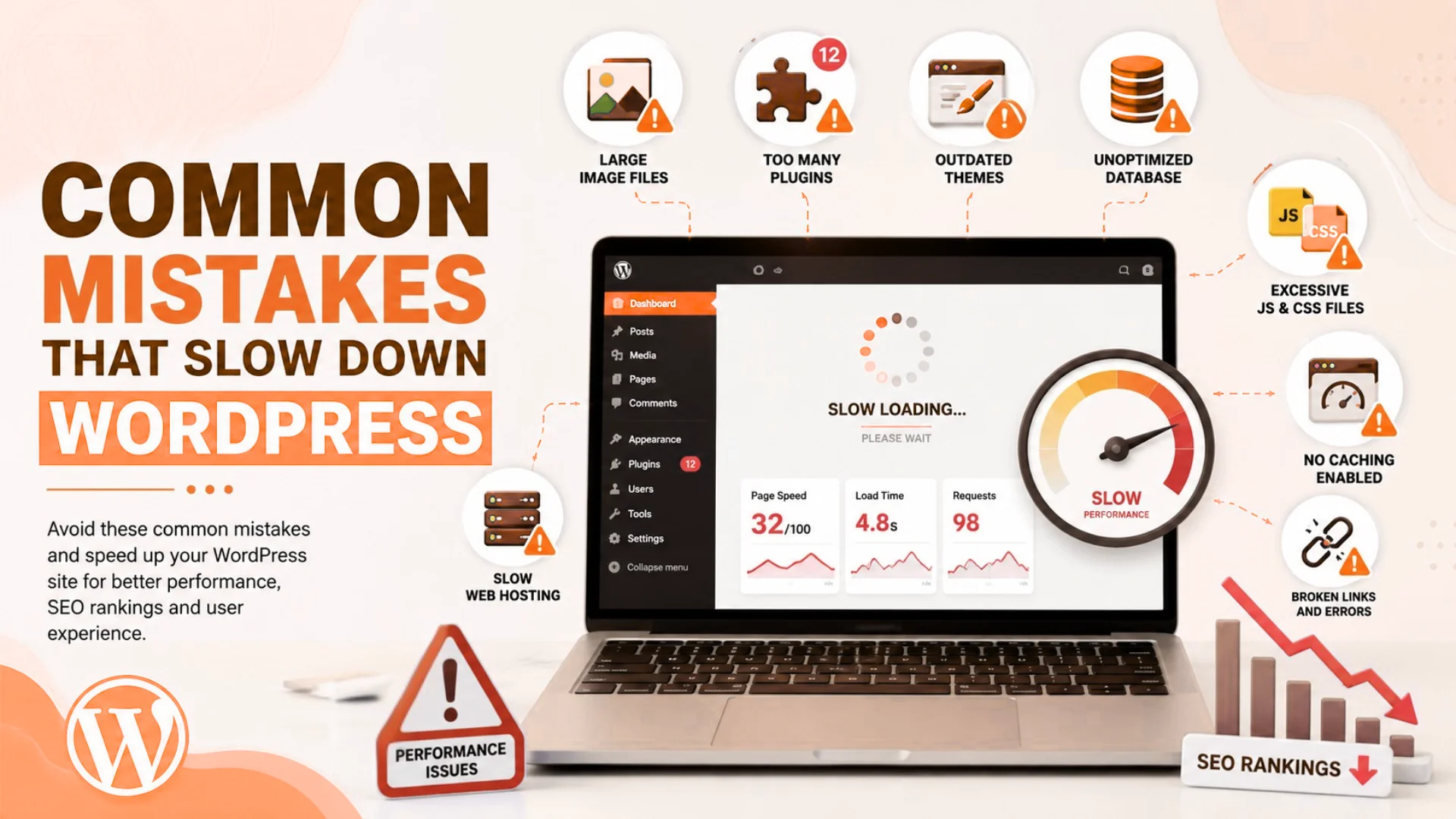
- Uploading oversized images. Always resize and compress before uploading, not after noticing a slowdown.
- Installing too many plugins. Ask whether each one earns its place before installing, and remove it later if it turns out you don’t.
- Choosing cheap or overloaded hosting. The cheapest plan often costs more in lost conversions than it saves in monthly fees.
- Ignoring database maintenance. Schedule it rather than waiting for visible problems to force your hand.
- Not enabling caching. This is one of the easiest wins available, and skipping it leaves real performance on the table for no good reason.
- Using too many third-party scripts. Audit embedded widgets, trackers, and chat tools regularly, since they’re easy to forget once installed.
- Failing to update WordPress. Outdated software is slower, less secure, and increasingly incompatible with modern plugins.
- Using poorly coded themes. A cheap, bloated theme can undo hours of other optimization work no matter how carefully you handle everything else.
Best Tools for WordPress Performance Optimization
Speed testing tools: Google PageSpeed Insights, GTmetrix, Pingdom, WebPageTest, for measuring where you stand and tracking progress.
Image optimization tools: ShortPixel, Imagify, TinyPNG, for compressing images without visible quality loss.
Caching plugins: LiteSpeed Cache, WP Rocket, W3 Total Cache, for reducing server workload on repeat visits.
Database optimization plugins: WP-Optimize, Advanced Database Cleaner, for keeping your database lean and efficient.
How to Measure Your Website Speed Improvements
Track these metrics before and after your optimization work to see real, measurable change.
- Page load time: Aim for under 2-3 seconds for most pages.
- Largest Contentful Paint (LCP): Under 2.5 seconds is considered good.
- Interaction to Next Paint (INP): Under 200 milliseconds is considered good.
- Cumulative Layout Shift (CLS): Under 0.1 is considered good.
- Time to First Byte (TTFB): Under 0.8 seconds is a solid target.
- Google Search Console performance reports show how your Core Web Vitals look across real user data over time.
FAQs
How fast should a WordPress website load?
Aim for under 2-3 seconds. Anything beyond that starts to noticeably increase bounce rates, especially on mobile connections where patience runs even shorter.
Does web hosting affect WordPress speed?
Yes, significantly. Hosting is the foundation your entire site runs on, and no plugin can fully compensate for an overloaded server struggling under too many sites or too little resource allocation.
Can too many plugins slow down WordPress?
Yes. Each plugin adds code that loads on your site, and poorly coded or redundant plugins compound the problem far more than well-built, actively maintained ones.
Do images affect website loading speed?
Absolutely. Unoptimized images are one of the most common reasons WordPress sites load slowly, often accounting for the largest share of a page’s total file size.
Is a CDN necessary for a WordPress website?
It’s not strictly required, but it’s highly recommended if your audience is spread across different regions or countries, since it noticeably reduces load times for visitors far from your main server.
Will improving website speed help my SEO?
Yes. Speed is a confirmed Google ranking factor, and better Core Web Vitals scores can meaningfully improve your search visibility over time, particularly against competitors who haven’t optimized theirs.
Ready to Speed Up Your WordPress Website?
A fast WordPress website creates a better experience for visitors, improves search engine rankings, and increases the likelihood of converting traffic into customers. While techniques like caching, image optimization, and database maintenance make a noticeable difference, choosing reliable hosting provides the strongest foundation for long-term performance.
With Truehost WordPress Hosting, you get fast SSD storage, optimized servers, free SSL certificates, automatic backups, reliable uptime, and scalable hosting designed to keep your WordPress website running at peak performance. Whether you are launching a new website or optimizing an existing one, combining quality hosting with the strategies in this article will help you achieve faster load times and better overall performance.
Ready to get started? Get fast WordPress hosting with Truehost and give your site the speed foundation it deserves.