 Domain RegistrationFind and register the perfect domain for your website.
 .COM DomainChoose a widely recognized domain to build global credibility.
 Domain TransferSeamless domain transfers with zero downtime and complete control.
 All TLDsFind and register your perfect domain. Choose from local and global extensions.
 SSL CertificatesKeep your website safe with reliable SSL Certificates that protect customer data and build trust.
 whoisCheck domain ownership details, expiration dates, and registrar information.
 US DomainRegister a .US domain and build trust in the USA.
 Web HostingEverything your website needs to run smoothly
 WordPress HostingWordPress hosting that just works
 Windows HostingReliable hosting for Windows environments
 Reseller HostingTurn hosting into your business
 Email HostingEmail that looks professional and works anywhere
 cPanel HostingFull control of your hosting with cPanel
 Affiliate ProgramJoin as a partner and earn commissions on every referral you send our way.
 Vps HostingScalable virtual servers that expand as you need.
 Dedicated ServersGet complete access and full control over your dedicated physical server.
 Managed vpsNot tech-savvy? We will take care of everything with our fully managed VPS hosting for you.
 AI Website BuilderCreate stunning websites in seconds with AI.
 Online ShopSet up a professional online store. No coding required.
 Web design serviceGet a tailored website designed to match your brand and support your goals.
 BlogFind helpful guides on web hosting, online selling, digital marketing, and more.
 Contact USYou can reach us anytime, day or night, through chat or email.
 SupportBrowse helpful guides and answers for all of our services.
Have you ever logged into your web hosting account and felt completely lost? Staring at dozens of confusing icons and buttons, not knowing where to start or what anything does?
You’ve paid for hosting, your website files are ready, but the control panel looks like an airplane cockpit. You need to upload files, create an email address, or install a website, but every option seems scary. One wrong click and you worry you’ll break something important.
The confusion gets worse when hosting companies use technical terms without explaining them. What’s an “A record”? Why do you need something called “phpMyAdmin”? And how do you even pronounce “cPanel”? (It’s “see-panel,” by the way.)
Here’s what we’ll cover.
- The best cPanel hosting features and why they help you
- How to manage your website files without complicated software
- Simple ways to set up professional email addresses
- One-click tools that install websites in seconds
- Security features that protect your site from bad actors
- The exciting new features coming in 2026
Let’s explore these tools in terms anyone can grasp.
What cPanel Hosting Gives You

Think of cPanel like the dashboard in your car. Instead of reaching under the hood to check your engine, you look at the dashboard for all the information and controls you need. Similarly, instead of typing complicated computer commands, you click simple buttons in cPanel.
The cPanel hosting features in Truehost plans give you point-and-click control over everything your website needs.
- Upload files by dragging them with your mouse.
- Create email addresses by filling out a simple form.
- Install a complete website with a single click.
All without typing a single line of code.
cPanel currently powers more than 1 million websites worldwide. It’s been around for 30 years, celebrating its anniversary in 2026. This longevity means the developers have had three decades to perfect the interface and add useful tools.
For beginners, this standardisation offers a significant advantage. Learn cPanel once, and you can manage websites at any hosting company that gives it. The buttons and features remain consistent whether you’re at Truehost, another hosting provider, or managing a client’s site elsewhere.
Here are cPanel hosting features that make website management easy.
1) Manage Your Website Files the Easy Way
One of the most powerful cPanel hosting features is the file manager. This tool lets you manage all your website files in your web browser, with no special software required.
Remember when you wanted to change a single word on your website, and someone told you to download FTP software, learn how to use it, connect to your server, navigate folders, and then edit the file? The cPanel file manager eliminates all that hassle.
Click the file manager icon in your cPanel dashboard. You’ll see your folders displayed just like files on your computer.
Want to upload a new image? Drag it from your computer and drop it into the folder. Need to edit a page? Right-click the file and choose “edit.” Changes save instantly.
The file manager also lets you create new folders, rename files, change permissions, and compress multiple files into ZIP archives. Everything happens through simple right-click menus and familiar buttons.
Beyond the visual file manager, you can also create separate access for team members or clients. Set up FTP accounts that grant each person access only to their specific folders.
Your web designer works in the design folder, your content writer accesses the blog folder, and neither one can accidentally delete your entire site.
2) Run Multiple Websites From One Place
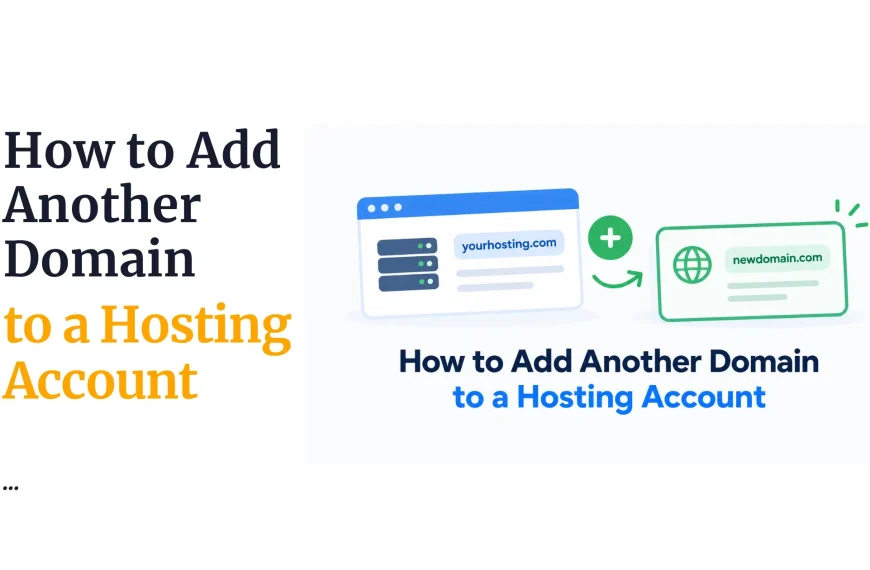
Here’s where cPanel really shines. Most hosting plans let you host multiple websites on one account. The addon domain feature makes this possible.
Say you own BakeryShop.com, and later you start a new business called CateringService.com. Instead of paying for two separate hosting accounts, you add the second domain to your existing cPanel. Each website lives in its own folder, runs independently, and visitors never know they’re on the same server.
This capability is one of the most cost-effective cPanel hosting features available. For small business owners, save an average of 60% on hosting costs by managing multiple sites from a single cPanel account rather than buying separate hosting for each domain.
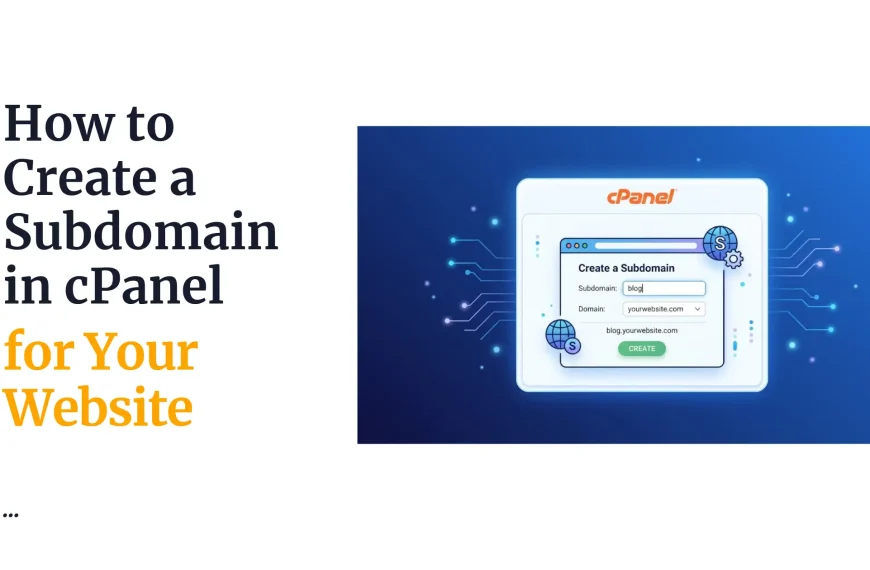
You can also create subdomains, which are extensions of your main domain. For example, create blog.yourdomain.com for your blog section or shop.yourdomain.com for your online store. Each subdomain can have completely different content and design while staying connected to your main domain.
The parked domain feature lets you point multiple domain names to the same website. Own both YourBusiness.com and YourBusiness.net?
Park the .net version so anyone typing either address lands on the same site. This protects your brand and captures visitors who might misremember your exact web address.
3) Create Professional Email Addresses
Nothing says “amateur” quite like using a free email service for your business. Compare “[email protected]” to “[email protected].” The difference in professional credibility is huge.
The email management section in cPanel makes creating business email addresses incredibly simple. Click the email accounts button, enter the address you want (e.g., [email protected]), set a password, and click Create. Done. Your new professional email works immediately.
You get three different ways to check your email right in cPanel. Roundcube looks and works like Gmail with a modern, clean interface. Horde offers more advanced features for power users. SquirrelMail runs fast even on slow internet connections. Try all three and pick your favourite.
Email forwarders solve another common problem.
You may want [email protected] and [email protected], but you don’t want to check five different inboxes all day. Set up forwarders that automatically send all those emails to your main address. You receive everything in one place while still showing different addresses to customers based on their needs.
Auto-responders let you send automatic replies. Going on vacation? Set up a message that tells people you’re away and when you’ll return. The auto-responder sends this message to anyone who emails you during that time.
The mailing list feature helps send updates to groups of people. Create a list, add subscribers, and send a single email to everyone. Much simpler than typing a hundred email addresses every time you want to share news.
4 Install Websites With One Click

Here’s one of the most loved cPanel hosting features: the application installer called Softaculous. This tool contains more than 400 programs you can install with a single click.
Want to start a blog? Click WordPress and then click install. Two minutes later, you have a fully functional blog ready to customize.
Need an online store? Install WooCommerce just as easily. Want a forum where customers can discuss your products? Install phpBB forum software.
Before tools such as Softaculous existed, installing these programs required downloading files, creating databases, editing configuration files, and troubleshooting errors. Hours of work for someone who knew what they were doing. Nearly impossible for beginners.
Now the installer asks you a few simple questions: What domain? What directory? What username and password do you want? Then it handles all the technical details in the background. The installation finishes in under two minutes for most applications.
The installer also handles updates.
When WordPress or your other applications release new versions, you can update them with one click. The system even creates automatic backups before updating, so if something goes wrong, you can restore the previous version instantly.
5) Keep Your Website Secure
Security is crucial, and the cPanel hosting features dedicated to protection provide several layers of defence without requiring security expertise.
The SSL certificate manager is your first stop. SSL certificates encrypt data traveling between your visitors and your website. Without one, browsers display scary warnings that drive visitors away. With one, you get the green padlock in the address bar that signals safety.
The good news? Let’s Encrypt offers free SSL certificates, and cPanel automatically installs them. Click the SSL/TLS Status button, select your domain, and choose “Run AutoSSL.” A few minutes later, your site uses HTTPS and shows that trust-building padlock.
Two-factor authentication adds an extra layer of security to your cPanel login. Even if someone steals your password, they can’t log in without the second factor: a code sent to your phone. Setting this up takes five minutes and dramatically improves your account security.
However, keep your cPanel up to date, as research has identified vulnerabilities in older versions that could allow attackers to bypass two-factor authentication through repeated attempts.
The password protection feature lets you lock specific folders behind a username and password. You may have a clients-only section or private documents. Add password protection, and only people with the credentials can view those pages.
IP blocking helps when specific troublemakers attempt to access your site. Enter their IP address into the blocker, and the server refuses all their connection attempts. This stops harassment, reduces spam, and prevents targeted attacks.
Hotlink protection prevents other websites from stealing your bandwidth. Without this protection, someone could display your images on their website, but they would still load from your server. You pay for their bandwidth usage. Turn on hotlink protection, and this stops immediately.
6) Manage Databases Simply
Databases store all your website’s content, blog posts, product listings, customer information, and more. The database management features of cPanel hosting make handling these critical data stores much easier.
Creating a new database takes three clicks. Name your database, create a user, set a password, and grant that user access to the database. Simple forms guide you through each step.
Most people never touch their databases directly. Your website handles everything automatically. However, sometimes you need to look inside to fix a problem, search for specific content, or back up data.
That’s where phpMyAdmin comes in.
This tool gives you a visual interface for your database. See all your tables listed clearly. Click any table to view its contents in a spreadsheet-like format. Run searches, make changes, export backups, or import data from other sources.
Don’t worry, you can’t accidentally break anything. phpMyAdmin asks you to confirm before making significant changes. Plus, your regular backups mean you can always restore if something goes wrong.
7) Statistics That Show Your Traffic
Who visits your website? The analytics cPanel hosting features track everything without requiring third-party tools.
AWStats generates comprehensive reports about your visitors. See how many people visited today, this week, this month. Discover which pages they viewed most. Learn which search engines send traffic. Find out what countries your visitors come from.
The bandwidth monitor shows exactly how much data you’re transferring. Each hosting plan includes a specific amount of bandwidth per month. This monitor keeps you informed, so you’re never surprised by overages.
Raw access logs provide the complete, unfiltered record of every single request to your server. These detailed logs help troubleshoot problems and analyze traffic patterns that aren’t reflected in simplified statistics.
8) Automate Tasks With Scheduled Jobs
The cron job feature automates repetitive tasks. Think of it as setting an alarm clock for your website to automatically perform specific actions.
You may want to back up your database at midnight every night. Create a cron job that runs the backup script at that exact time. You never have to remember. It just happens.
Or you may need to clear the cache files every morning at 3 AM, when traffic is lowest. Set up a cron job, and it executes the cleanup automatically while you sleep.
E-commerce sites use cron jobs to send abandoned-cart reminders, update inventory from suppliers, and generate sales reports. Blogs use them to publish scheduled posts or clean up spam comments. The possibilities are endless.
Setting up a cron job can look complicated at first, with all those time fields, but cPanel provides a simple form. Choose the minute, hour, day, month, and weekday when the task should run. Enter the command to execute. Save it and forget it.
Exciting CPanel Hosting New Features Coming in 2026
The cPanel continues to evolve, and 2026 brings several game-changing additions powered by artificial intelligence.
The built-in AI support agent will answer your questions directly in cPanel. Instead of opening a support ticket and waiting hours, ask the AI assistant. It provides instant answers based on cPanel’s complete documentation and common solutions. Industry projections suggest this feature could reduce support ticket volume by 40% while solving problems faster.
The AI website generator transforms simple descriptions into complete, functional websites. Tell it “I need a bakery website with a photo gallery and contact form”, and it generates the entire site, design, content, and functionality. Professionals can still customize everything, but beginners get a massive head start.
The AI app builder works similarly, but for custom applications. Describe what you need, and the AI creates the code. This democratizes web development, letting people build tools they previously couldn’t afford to hire developers to develop.
The new cPanel SEO extension provides built-in optimization suggestions. No more paying for separate tools or plugins. cPanel analyzes your site and recommends specific improvements to improve your search rankings.
Performance improvements make the interface faster and more responsive. The development team rebuilt backend systems to meet the demands of modern websites. Pages load quicker, operations complete faster, and the entire experience feels snappier.
Temporary domains let you start building before your domain name is ready. Get assigned a temporary address, create your entire site, then switch to your real domain when ready. Perfect for developers who start projects before clients have registered domains.
Using cPanel at Truehost
Truehost includes comprehensive cPanel hosting features across all plans, backed by local support teams that understand your specific needs.
When you sign up for hosting, you receive cPanel login details via email. Click the link, enter your credentials, and you’ll see your control panel. The interface shows dozens of icons organized by category: files, Databases, Email, Security, and more.
First-time users should start with these essential tasks:
Change your password immediately to a strong, unique one. Don’t use the temporary password they emailed you.
Enable two-factor authentication for extra security. This takes five minutes but protects your entire account.
Install an SSL certificate so your site shows HTTPS. This builds visitor trust and helps search rankings.
Create your first email address using your domain name. Professional emails boost credibility significantly.
If you’re using WordPress or another application, use Softaculous to install it. Have your site up and running in under 5 minutes.
Truehost’s support team is available if you get stuck at any step. They’ve guided thousands of customers through these exact tasks and can walk you through anything confusing.
Smart Ways to Use These Features
Knowing the cPanel hosting features exist is one thing. Using them effectively is another. Here are practical tips from experienced users.
Set up automatic backups immediately.
Don’t wait until you need one to realize you don’t have any. Schedule weekly full backups and store them both on the server and download to your computer.
Create separate email addresses for different purposes.
Use [email protected] for general inquiries, [email protected] for customer service, and [email protected] for your own use. This organization makes managing correspondence much easier.
Use addon domains to test new ideas without buying additional hosting. Launch that side project or experimental site on your existing account. If it takes off, you can always move it to dedicated hosting later.
Enable password protection on your cPanel login page if your hosting allows it. This adds another barrier against unauthorized access attempts.
Monitor your resource usage regularly.
Check your bandwidth and disk space usage monthly. This helps you catch problems early and avoid hitting plan limits unexpectedly.
Keep your installed applications updated.
Those one-click updates in Softaculous patch security vulnerabilities. Delaying updates leaves your site exposed to known threats.
Document any custom configurations.
If you create special redirects, modify DNS records, or set up complex email filters, write down what you did and why. In the future, you will thank the present you for when troubleshooting problems months later.
Getting Started Today
You now know about the powerful cPanel hosting features available at Truehost. These tools transform website management from complicated technical work into simple point-and-click tasks.
File management, email setup, database control, application installation, security features, statistics, and automation—all accessible through one unified interface. No special software to install. No commands to memorize. Just straightforward tools designed for regular people.
The 2026 updates make these features even more powerful. AI assistance helps when you’re stuck. Enhanced performance means faster load times. New integrations seamlessly connect your hosting with other business tools.
Whether you’re launching your first website or managing multiple domains for clients, cPanel provides everything you need. The learning curve is gentle. The interface makes sense. The results are professional.
Stop letting complicated hosting control panels intimidate you. With cPanel at Truehost, you can confidently control your online presence. Upload that file. Create that email address. Install that website. It’s all just a few clicks away.
Your website is waiting. The tools are ready. All you need to do is log in and start exploring.
cPanel Hosting Features FAQs
The developers release new versions regularly throughout the year. Truehost handles these updates on their servers, so you always have the latest features without doing anything.
Yes, cPanel works on mobile devices. The interface adapts to smaller screens, though some complex tasks are more manageable on a computer.
Your settings and configurations don’t automatically transfer. However, you can document your setup and recreate it at the new host. Some migration services help transfer everything, including cPanel configurations.
No, cPanel’s interface is beginner-friendly with intuitive icons and organized sections. Most users become comfortable within a few hours.
Yes, using the Addon Domains feature. The number depends on your hosting plan.
Yes, Truehost offers cPanel with free SSL with Let’s Encrypt.
cPanel is for managing individual hosting accounts. WHM (Web Host Manager) is a server-level management tool used by hosting providers and resellers.
Yes, with one-click WordPress installation via Softaculous and full management capabilities.