 Domain RegistrationFind and register the perfect domain for your website.
 .COM DomainChoose a widely recognized domain to build global credibility.
 Domain TransferSeamless domain transfers with zero downtime and complete control.
 All TLDsFind and register your perfect domain. Choose from local and global extensions.
 SSL CertificatesKeep your website safe with reliable SSL Certificates that protect customer data and build trust.
 whoisCheck domain ownership details, expiration dates, and registrar information.
 US DomainRegister a .US domain and build trust in the USA.
 Web HostingEverything your website needs to run smoothly
 WordPress HostingWordPress hosting that just works
 Windows HostingReliable hosting for Windows environments
 Reseller HostingTurn hosting into your business
 Email HostingEmail that looks professional and works anywhere
 cPanel HostingFull control of your hosting with cPanel
 Affiliate ProgramJoin as a partner and earn commissions on every referral you send our way.
 Vps HostingScalable virtual servers that expand as you need.
 Dedicated ServersGet complete access and full control over your dedicated physical server.
 Managed vpsNot tech-savvy? We will take care of everything with our fully managed VPS hosting for you.
 AI Website BuilderCreate stunning websites in seconds with AI.
 Online ShopSet up a professional online store. No coding required.
 Web design serviceGet a tailored website designed to match your brand and support your goals.
 BlogFind helpful guides on web hosting, online selling, digital marketing, and more.
 Contact USYou can reach us anytime, day or night, through chat or email.
 SupportBrowse helpful guides and answers for all of our services.

Windows Server 2012 R2 reached end of support on October 10, 2023, but the machines running it barely noticed.
Fans spun along, disks kept doing their thing; the calendar just ticked forward.
That gap between still working and actually safe to trust trips a lot of people up.
Servers quietly handle databases, websites, and all those internal tools nobody remembers until something breaks.
Keep them too long, and you’re inviting downtime or security messes. Swap them out too soon, and you’re wasting money that probably has better uses.
Deciding whether to keep, upgrade, or replace a server works best when you use real data, not just a gut feeling.
What a Server Life Really Looks Like?
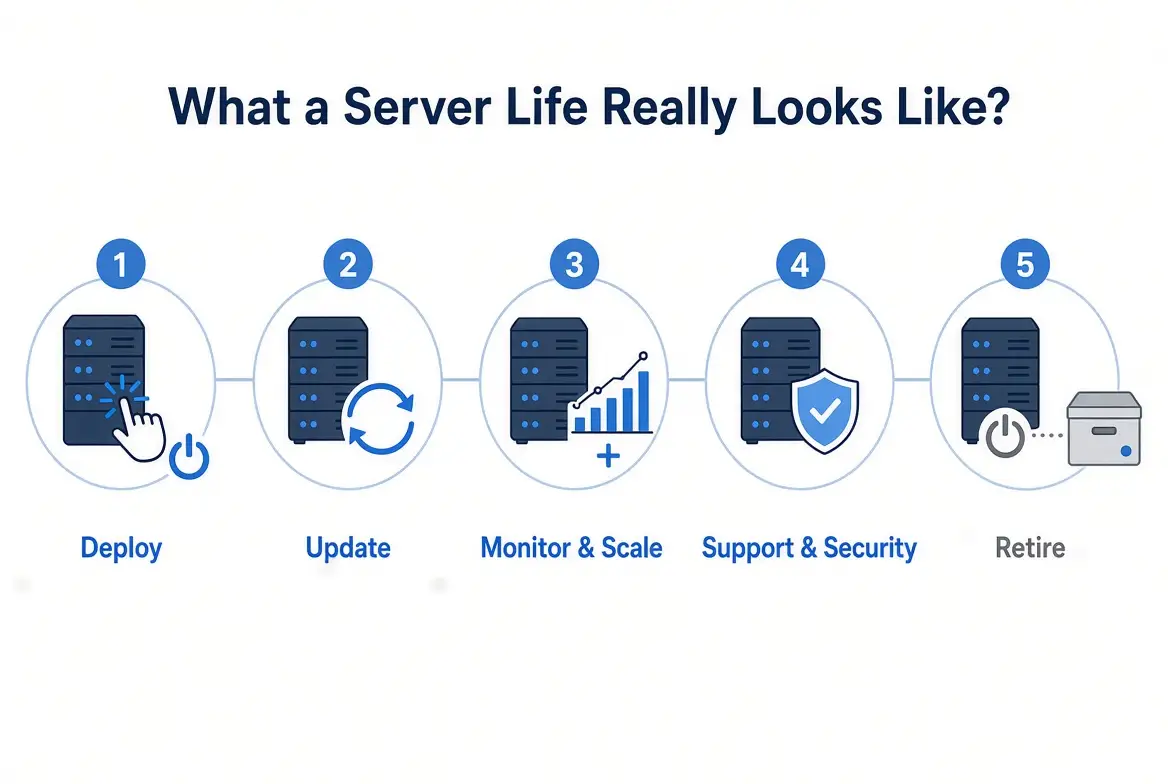
Managing server lifecycles means actually treating hardware like it’s got a beginning, middle, and end.
It breaks down into five parts:
- picking out the machine and putting it to work,
- keeping it up to date,
- watching how it’s performing and adding parts as needed,
- checking support and security status,
- and, finally, retiring it.
Most teams handle the setup and basic maintenance fine. Everything after that? Well… they make it up as they go.
The payoff for doing all this is, honestly, kind of dull. And that’s exactly the goal.
You’ll know your costs ahead of time, and the next time a power supply dies, it won’t ruin your week.
Remember that not all workloads are equal. A server holding old files might be useful a lot longer than one running payments.
Six Signs It’s Time (But Don’t Panic Over Just One)
- Things slow down: Apps lag and resource use hovers at max.
- Stuff keeps breaking: Drives, fans, or power supplies need fixing again and again.
- It’s too small: CPU, RAM, or storage just isn’t enough for what you need now.
- Repairs cost more: Replacement parts get pricier as systems age.
- Compatibility headaches: New operating systems or features don’t run right, or at all.
- Security gets tricky: No more firmware or hardware support, so staying safe is tough.
One of these issues by itself isn’t enough to toss a server. One dead fan? Just a Tuesday.
But combine slowdowns, repeated drive failures, and no more firmware updates, and now you’ve got a trend. Look at the full picture.
Is Just Maintaining It Enough?
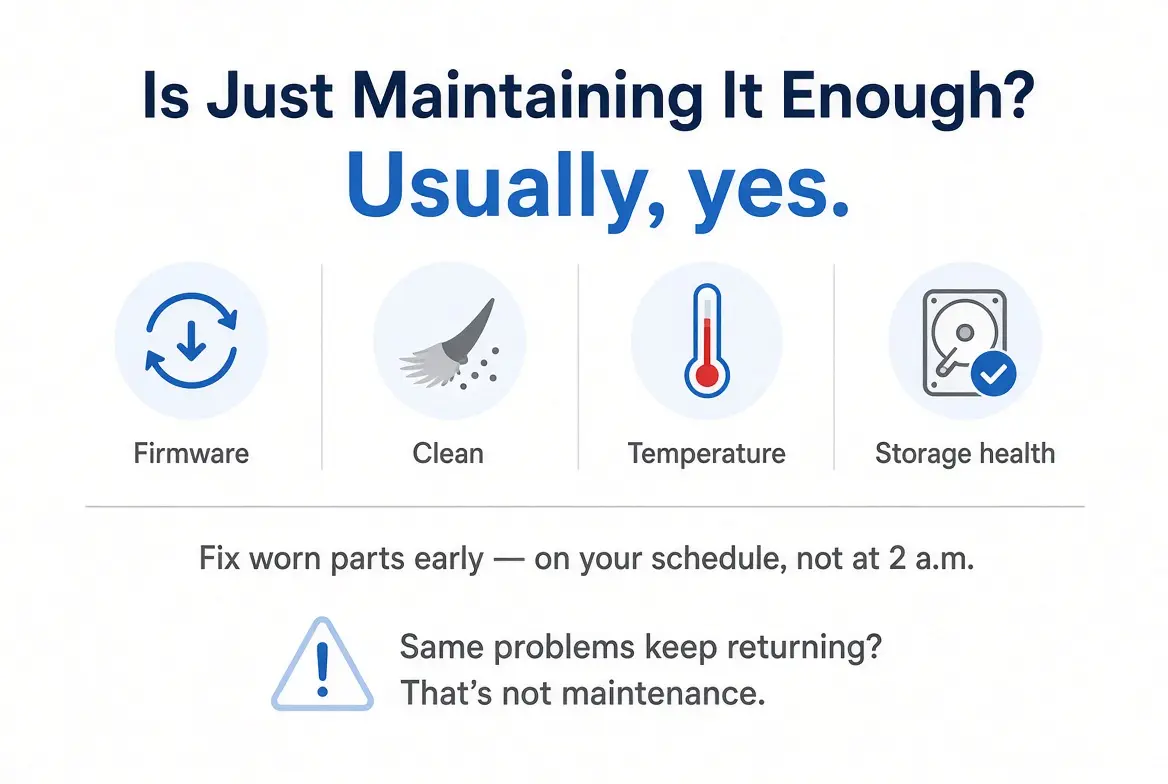
Usually, yeah. If the server handles what you ask of it, parts are available, and you’re not falling behind on security, regular care is still your best move.
That means staying on top of firmware updates, checking things out physically, cleaning off dust, keeping an eye on temperature, and running storage health checks.
Fix or swap out worn parts before they actually fail, and do it when you plan; not at 2 a.m.
Taking care of hardware the right way stretches out its life and cuts down on “surprised by failure” moments.
But don’t fool yourself: if the same annoyances come back after each tune-up, you’re not maintaining anymore; you’re procrastinating.
The Spreadsheet Everyone Dreads
Say you’ve got a five-year-old server that hosts files and printers.
It needs 64 GB more RAM, and you’ve already replaced the power supply twice this past year. RAM doesn’t cost much on paper.
But by the time you add setup time, migration risks, extra energy and cooling, and a support contract that keeps creeping up, those small repairs add up.
Suddenly, the cheap old system costs more than you realize.
This is where total cost of ownership comes in: put every cost for the server’s lifetime together, then compare.
Think of it like a delivery van with a bad transmission; each repair looks cheap until you’re counting all those days it sat in the shop.
An upgrade only makes sense if you really get enough extra performance and extra years to make it worth it.
If lots of parts are running close to the edge, or if upgrading doesn’t fix the core problem, it’s time to move on.
Support Dates Count More Than Age
Age alone doesn’t make or break a server.
A six-year-old machine, if patched and running a still-supported OS, can be safer than a three-year-old one abandoned by its admins.
Check your vendor’s support timeline, look for up-to-date firmware, and make sure the OS is still getting patches before agreeing to keep anything around longer.
For example, Windows Server 2016 support runs out in January 2027; good to know if you’re planning.
When hardware is no longer supported, you can’t always patch holes or respond to incidents fast enough.
If you handle sensitive info or really important applications, lean toward refreshing a little earlier.
Plan for the Workload You’ll Actually Use
I used to think every server just got swapped out after five years. Honestly, that doesn’t work; it ignores growth.
You need to estimate where users, databases, VMs, and storage are headed, then build for that. Not just for what you see today.
New hardware brings updated capabilities and a longer support runway.
The Dell PowerEdge R760, for instance, uses DDR5 memory and PCIe Gen5, which matters if storage or networking demands are likely to climb.
For readers weighing newer enterprise hardware, click here to review a Dell PowerEdge R760 option.
For another example of a newer server platform to evaluate, reference this page.
The key is to compare performance, expandability, compatibility, energy draw, and cost over time.
Funny thing is, the lowest sticker price rarely wins after you count everything up.
Build a Real Plan
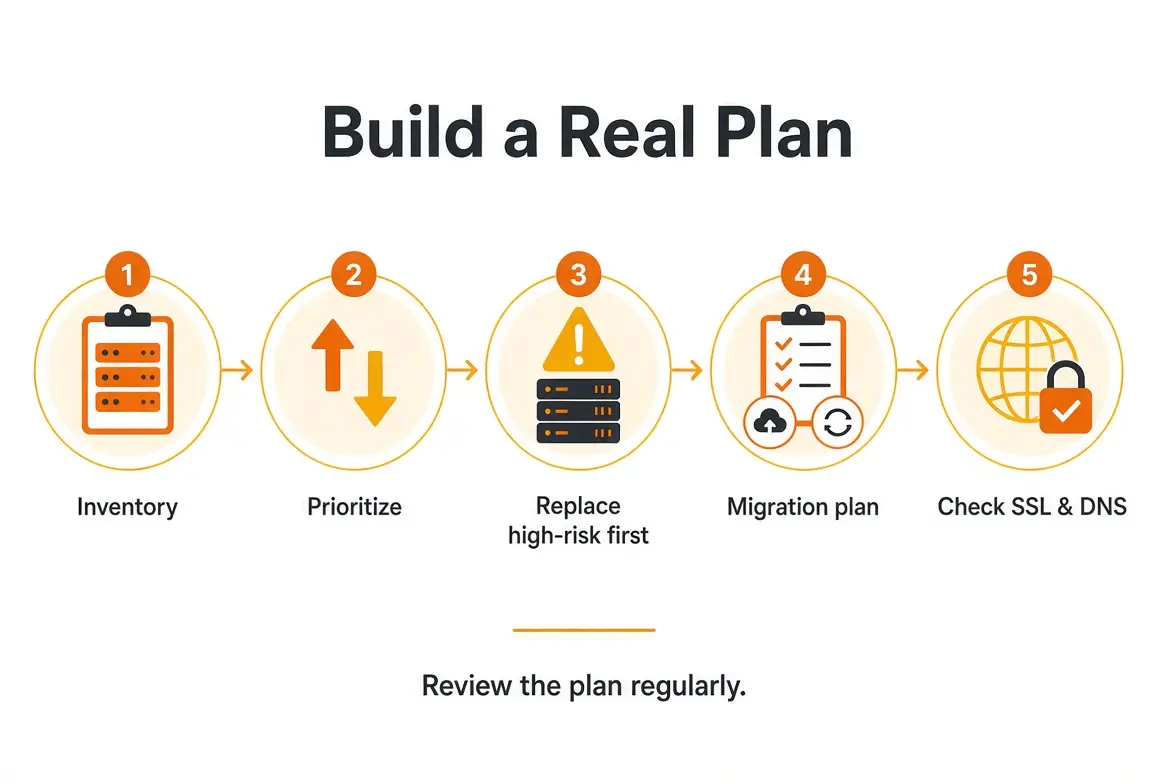
Start by making a list:
- every server,
- when it went live,
- what it does,
- whether it’s still supported,
- and what’s hanging off it: domains, DNS, SSL certificates.
Sort them by how critical they are, how well they perform, how open they are to threats, and how much you risk if they fail.
Replace the riskiest stuff right away, and any machines nearly out of capacity. When you can wait, spread upgrades out so you don’t blow your budget all at once.
Before you move anything, plan migration, testing, backups, and a way to roll things back if it goes sideways.
One thing people forget is the stuff stuck to the old box.
SSL certificates are often tied to the server they were set up on, and DNS records usually point at its IP.
Miss either one and the site throws security warnings right after the move. Check expiry dates before cutover.
Most of the time it’s easier to get a new SSL certificate for the new server than to move the old one over.
Then, check in on your plan now and then, because needs change.
Make Decisions With Real Data
Don’t let age alone decide a server’s fate. The real factors are maintenance costs, performance, support status, and where your workloads are headed.
A written, realistic refresh plan stops you from jumping too early or getting caught by surprise.
Take your oldest box this week, find out when its support ends, and put that date next to its renewal; at least you’ll know what’s coming.
Take your oldest box this week, find out when its support ends, and put that date next to its renewal; at least you’ll know what’s coming.
And before cutover, if that box serves anything public, look at its certificate expiry.
If it’s close, or tied to the old machine, you can get a new SSL certificate from Truehost sorted ahead of time.