 Domain RegistrationFind and register the perfect domain for your website.
 .COM DomainChoose a widely recognized domain to build global credibility.
 Domain TransferSeamless domain transfers with zero downtime and complete control.
 All TLDsFind and register your perfect domain. Choose from local and global extensions.
 SSL CertificatesKeep your website safe with reliable SSL Certificates that protect customer data and build trust.
 whoisCheck domain ownership details, expiration dates, and registrar information.
 US DomainRegister a .US domain and build trust in the USA.
 Web HostingEverything your website needs to run smoothly
 WordPress HostingWordPress hosting that just works
 Windows HostingReliable hosting for Windows environments
 Reseller HostingTurn hosting into your business
 Email HostingEmail that looks professional and works anywhere
 cPanel HostingFull control of your hosting with cPanel
 Affiliate ProgramJoin as a partner and earn commissions on every referral you send our way.
 Vps HostingScalable virtual servers that expand as you need.
 Dedicated ServersGet complete access and full control over your dedicated physical server.
 Managed vpsNot tech-savvy? We will take care of everything with our fully managed VPS hosting for you.
 AI Website BuilderCreate stunning websites in seconds with AI.
 Online ShopSet up a professional online store. No coding required.
 Web design serviceGet a tailored website designed to match your brand and support your goals.
 BlogFind helpful guides on web hosting, online selling, digital marketing, and more.
 Contact USYou can reach us anytime, day or night, through chat or email.
 SupportBrowse helpful guides and answers for all of our services.
If you’re worrying that someone can break into your website and mess everything up, you’re right. Every single day, thousands of websites are targeted by hackers seeking to steal information, disrupt operations, or cause disruption.
It’s scary, right?
Your website is like your digital home. Just like you lock your front door and windows at night, you need to protect your website, too. Without proper security, hackers can steal your visitors’ personal details, delete all your hard work, or even take over your entire site.
Worse? They might use your website to attack other people. That’s a nightmare nobody wants to deal with.
The good news is that keeping your website safe doesn’t require you to be a computer genius. You just need to follow some simple steps that work like security guards for your online space.
Ready to build a fortress around your website?
Let’s jump right in.
Step 1: Install an SSL Certificate
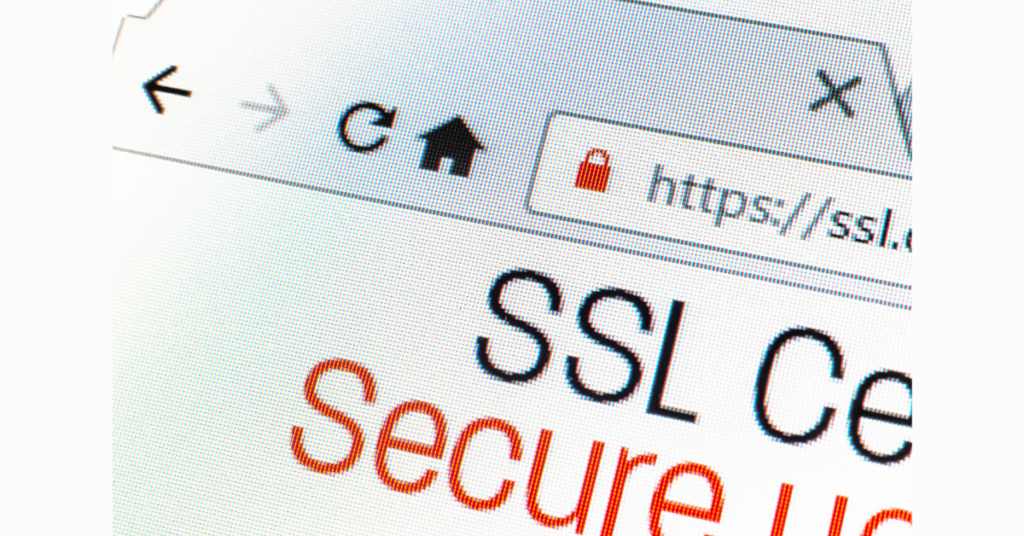
Think of an SSL certificate as a special lock on your website. When someone visits your site, all the information traveling between their computer and your website gets scrambled into a secret code. Hackers watching can’t read it.
You can tell if a website has SSL by looking at the address bar. Websites with SSL start with “https://” instead of just “http://”. See that little padlock icon next to the web address? That means SSL is working.
Why is having an SSL so important?
Google says that 95% of all web traffic is now encrypted with HTTPS. Without it, web browsers show a big, scary warning that says “Not Secure” to your visitors.
Nobody wants to see that!
Plus, Google pushes websites without SSL way down in search results.
Most hosting companies give you SSL for free these days. Companies like Truehost include a free SSL automatically with your hosting plan. You just need to turn it on.
Here’s how to set it up:
Log in to your hosting control panel (cPanel or whatever your host uses). Look for something called “SSL/TLS” or “Let’s Encrypt.”
Click the button to install SSL for your website.
After installation, go to your website settings and turn on the option that forces HTTPS. This makes sure everyone uses the secure version.
The whole process takes about five minutes. Once it’s done, check your website by typing your address with “https://” at the front. You should see that padlock icon appear.
Remember to renew your SSL certificate before it expires. Most free certificates last 90 days, but they usually renew automatically. Set a reminder on your phone to check every three months just to be safe.
Step 2: Keep Everything Up to Date
Imagine leaving your house with all the windows open and a sign that says “Come on in!” That’s basically what happens when you don’t update your website software.
Every time a company finds a security hole in their software, they release an update to fix it.
But here’s the problem.
Hackers also know about these holes. They use special tools to scan thousands of websites looking for ones that aren’t up to date yet. When they find one, boom, they break in.
Research shows that 60% of website breaches happen because of outdated software. That’s more than half!
The crazy part? These attacks could have been prevented with a simple update.
Your website runs on different pieces of software.
- WordPress (or whatever system you use) is the main program.
- Then you have plugins. These are like apps that add extra features.
- You also have themes that control how your site looks. All of these need regular updates.
Here’s your update routine.
Check for updates at least once a week.
Before updating, ensure you have a fresh backup (we’ll discuss backups in a moment). Updates usually go smoothly, but occasionally something breaks. Having a backup means you can roll back if needed.
Set a reminder on your phone for the same day and time. When you log into your website dashboard, you’ll see notifications about available updates. Click the “Update Now” button for each one.
Delete plugins and themes you’re not using.
Even if they’re turned off, hackers can still attack them. Go through your list every month and remove anything collecting dust.
Pay special attention to your PHP version.
PHP is the programming language that runs your website. Older versions have known security problems. Most hosts let you change your PHP version with one click. In 2026, you should be using PHP 8.2 or newer.
Turn on automatic updates if your system allows it.
WordPress can automatically install security updates overnight while you sleep. That’s one less thing to worry about.
Step 3: Use Strong Passwords and Two-Factor Authentication
Let’s talk about passwords.
I hope you’re not among the people who use terrible passwords such as “Password123” or “admin” or their birthday. Hackers love this because they use programs that try thousands of common passwords per second.
Studies reveal that 81% of data breaches involve weak or stolen passwords.
A strong password looks like a random jumble: “mX9$kLp2@vN4rT8&.” Impossible to remember, right? That’s where password managers come in handy.
These programs remember all your passwords for you. You only need to remember one master password. LastPass, 1Password, and Bitwarden are popular choices.
Here’s how to create unbreakable website passwords.
Make them at least 16 characters long.
Mix uppercase letters, lowercase letters, numbers, and symbols. Never use real words, names, or dates. Don’t use the same password twice. Each account needs its own unique password.
Let your password manager generate random passwords for you. They’ll create something impossible to crack.
Two-factor authentication (2FA)
Now let’s add a second layer of protection: two-factor authentication (2FA). Even if someone steals your password, they still can’t get in without the second factor.
Here’s how 2FA works.
After you type your password, the system asks for a special code. This code comes from an app on your phone (like Google Authenticator or Authy). The code changes every 30 seconds, so even if a hacker sees it, it’s useless after half a minute.
Setting up 2FA is easy.
Go to your website’s security settings and look for “Two-Factor Authentication” or “2FA.” Follow the instructions to connect your phone. From now on, you’ll need both your password and your phone to log in.
Also, change your admin username from “admin” to something unique. Hackers try “admin” first because it’s the default. Pick something different.
Finally, limit login attempts.
Install a plugin that locks people out after they type the wrong password five times. This stops those password-guessing programs dead in their tracks.
Step 4: Back Up Your Website Regularly
Imagine spending months building your website, posting articles, and adding products. Then one morning you wake up, and it’s all gone. Everything. Deleted. Destroyed by a hacker.
Without backups, you’d have to start over from scratch. With backups, you can restore everything in minutes. Backups are your safety net, your insurance policy, your way to undo disasters.
Here’s the backup rule.
Create automatic backups every single day. Don’t rely on remembering to do it manually. Set it up once, then let it run on autopilot.
Most good hosting providers include automatic backups. Truehost and similar companies back up your site daily and keep copies for 30 days. Check your hosting plan to see what’s included.
But don’t stop there. Store backup copies in multiple places. Think of it as the “don’t put all your eggs in one basket” rule. Save copies to:
Your hosting server (the automatic backups). Cloud storage like Google Drive or Dropbox. Your own computer (download a copy once a week).
Why three places?
If your hosting server gets hacked, you still have cloud and local copies. Your cloud account gets compromise? You still have the server and local copies. If your computer dies, you still have server and cloud copies. See the pattern?
Use a backup plugin if your host doesn’t provide automatic backups. UpdraftPlus, BackupBuddy, and Jetpack are solid options. They schedule backups automatically and send copies to cloud storage.
Here’s something most people forget.
Test your backups every three months. Download a backup file and try restoring it on a test site. This confirms your backups actually work. Nothing’s worse than discovering your backups are broken when you desperately need them.
Keep different versions of your backups. Don’t just keep today’s backup. Keep:
Daily backups for the past 30 days. Weekly backups for the past 3 months. Monthly backups for the past year.
This way, if a hacker sneaks in undetected and your daily backup includes the hack, you can go back to an older, clean version.
Step 5: Add a Web Application Firewall
A firewall is like a security guard that stands at your website’s entrance. It checks everyone who tries to enter and blocks the suspicious ones.
Web Application Firewalls (WAFs) watch all the traffic coming to your site. When they spot dangerous patterns, like someone trying to inject malicious code or launch an attack, they slam the door in that person’s face.
Security reports indicate that websites with WAFs block an average of 76 million attack attempts per day globally. That’s a lot of bad guys getting stopped!
Think of your firewall as having three main jobs.
First, it blocks common attacks.
Hackers have favorite tricks like SQL injection (sneaking database commands into forms) and cross-site scripting (injecting bad code into pages). Firewalls recognize these patterns and stop them instantly.
Second, it filters out bot traffic.
Not all bots are bad, but many are. Some bots try to steal your content, overwhelm your server, or find weaknesses. Firewalls let good bots (like Google’s search bot) through while blocking malicious ones.
Third, it provides DDoS protection.
DDoS attacks flood your website with so much fake traffic that real visitors can’t get through. Firewalls detect these floods and redirect the bad traffic away.
Popular firewall services include.
Cloudflare offers a free plan that works great for most websites. It sits between visitors and your site, filtering out threats. Sucuri specializes in website security and includes malware removal if you get hacked. Wordfence is a plugin for WordPress that adds firewall protection directly to your site.
Setting up a cloud-based firewall like Cloudflare takes about 15 minutes. You change your domain’s DNS settings to route traffic through Cloudflare first. Their system filters everything, then sends clean traffic to your server.
Modern firewalls in 2026 use artificial intelligence to learn new attack patterns. They don’t just block known threats, they spot brand new attacks by recognizing suspicious behavior. It’s like having a security guard who gets smarter every day.
Configure your firewall to block countries you don’t do business with. If you only serve customers in the USA, there’s no reason to accept traffic from countries known for cyber attacks. This cuts down on threats significantly.
Step 6: Choose Secure Hosting
Your hosting company is the foundation everything else sits on. Cheap, low-quality hosting is like building a house on quicksand. You need solid ground.
Secure hosting providers do half the security work for you.
They:
Scan for malware daily.
Protect against DDoS attacks. Keep server software updated. Isolate your account from other websites. Monitor for suspicious activity. Provide automatic backups.
When picking a host, look for these security features:
- SSL certificates included free.
- Daily malware scanning.
- Server-level firewalls.
- Regular security updates.
- Isolated account environments.
- 24/7 security monitoring.
Companies like Truehost specialize in secure hosting for the worldwide market. We understand local security challenges and provide protection tailored to regional threats.
Here are hosting security settings to configure.
- Disable FTP and use SFTP instead. FTP sends passwords in plain text that hackers can grab. SFTP encrypts everything. Most hosting control panels let you enable SFTP with one click.
- Set proper file permissions. This controls who can read, write, or execute files on your server. Generally:
- Folders should be set to 755. Files should be set to 644. Your configuration file should be 440 (extra secure).
- Your hosting control panel has a file manager where you can change these permissions. Just right-click any file or folder and select “Permissions.”
- Disable unnecessary services. Turn off any features you’re not using. Every active service is a potential entry point for hackers. Check your hosting control panel for services like:
- XML-RPC (turn off if not needed). File execution in upload directories (disable this). Directory browsing (definitely turn off). Dangerous PHP functions (ask your host to disable these).
- Enable IP whitelisting for your admin area if your host supports it. This means only specific IP addresses can access your login page. Even if someone steals your password, they can’t use it from their location.
- Consider managed hosting where experts handle security for you. It costs more, but you get professionals watching your site 24/7.
Step 7: Scan for Malware and Monitor Activity
Sometimes hackers sneak in despite your best defenses. The faster you catch them, the less damage they cause.
Install security plugins that scan your website daily.
They check every file looking for malicious code, suspicious changes, or hidden backdoors hackers use to sneak back in.
Good security scanners include:
MalCare scans daily and can remove malware automatically. Sucuri SiteCheck provides free scanning from their website. Wordfence scans files and monitors traffic in real-time.
Set up these monitoring systems:
Uptime monitoring sends alerts if your site goes down. Services like UptimeRobot check your website every 5 minutes. If it’s unreachable, they immediately email and text you. Downtime could mean an attack is happening.
File integrity monitoring watches your core files. If something changes that shouldn’t, you get notified instantly. Most security plugins include this feature.
Login monitoring tracks who logs in and when. You’ll see if someone from a strange location logs into your account. This helps catch stolen credentials fast.
Review your server logs weekly.
These logs show every visitor and action on your site. Look for:
Failed login attempts (lots of fails might mean someone’s guessing passwords). Requests to files that don’t exist (hackers probing for vulnerabilities). Traffic spikes from single IP addresses. Access from countries you don’t serve.
Most hosting control panels have log viewers built in. Spend 10 minutes each week checking for anything weird.
Set up Google Search Console and check it monthly.
Sometimes Google discovers malware on your site before you do. They’ll send warnings through Search Console. Fix issues immediately to avoid getting blacklisted.
Research shows that the average time to detect a breach is 207 days. That’s almost seven months! Regular monitoring cuts this down to hours or days instead.
Enable email notifications for all security events.
You want instant alerts when:
- Someone logs into your admin account.
- Files get modified. Malware is detected.
- Your site goes down.
- Failed login attempts exceed threshold.
Yes, you’ll get more emails, but catching threats early is worth it.
Step 8: Control User Permissions and Educate Your Team
If multiple people access your website, each person is a potential security risk. Not because they’re bad people, but because humans make mistakes.
WordPress and most website systems have different user roles.
- The administrator has full control (only give this to yourself).
- The editor can publish and manage all content.
- Author can write and publish their own articles.
- A contributor can write but not publish.
- Subscriber can only manage their profile.
Give people the minimum access they need. If someone just writes articles, make them an Author, not an Administrator. This limits damage if their account gets hacked.
Review user accounts quarterly. Remove people who no longer work with you. Hackers often target old, forgotten accounts because nobody’s watching them.
Teach your team basic security habits:
Never share passwords. Log out when finished working. Don’t use public WiFi without a VPN. Be suspicious of phishing emails. Report anything suspicious immediately.
Create a simple security checklist and have everyone review it monthly. Make security part of your team culture, not an afterthought.
Wrapping It All Up
Keeping your website secure isn’t rocket science. You don’t need to be a tech wizard or spend thousands on expensive tools. You just need to follow these eight straightforward steps consistently.
Start with the basics: install an SSL certificate, update regularly, and use strong passwords. These three things alone stop most attacks. Then add layers: backups for insurance, a firewall for active protection, secure hosting for a solid foundation, regular scans to catch problems early, and smart user management to control access.
Security isn’t a one-time task you check off and forget. It’s an ongoing process, like brushing your teeth. A few minutes each week keeps problems away.
The choice is yours: spend a little time now protecting your website, or spend a lot of time later rebuilding it after an attack. Which sounds better?
Begin today. Protect your website right now, go install that SSL certificate, and enable automatic updates. Those two actions alone put you ahead of millions of websites out there.
Then tackle the other steps one by one over the next week.