 Domain RegistrationFind and register the perfect domain for your website.
 .COM DomainChoose a widely recognized domain to build global credibility.
 Domain TransferSeamless domain transfers with zero downtime and complete control.
 All TLDsFind and register your perfect domain. Choose from local and global extensions.
 SSL CertificatesKeep your website safe with reliable SSL Certificates that protect customer data and build trust.
 whoisCheck domain ownership details, expiration dates, and registrar information.
 US DomainRegister a .US domain and build trust in the USA.
 Web HostingEverything your website needs to run smoothly
 WordPress HostingWordPress hosting that just works
 Windows HostingReliable hosting for Windows environments
 Reseller HostingTurn hosting into your business
 Email HostingEmail that looks professional and works anywhere
 cPanel HostingFull control of your hosting with cPanel
 Affiliate ProgramJoin as a partner and earn commissions on every referral you send our way.
 Vps HostingScalable virtual servers that expand as you need.
 Dedicated ServersGet complete access and full control over your dedicated physical server.
 Managed vpsNot tech-savvy? We will take care of everything with our fully managed VPS hosting for you.
 AI Website BuilderCreate stunning websites in seconds with AI.
 Online ShopSet up a professional online store. No coding required.
 Web design serviceGet a tailored website designed to match your brand and support your goals.
 BlogFind helpful guides on web hosting, online selling, digital marketing, and more.
 Contact USYou can reach us anytime, day or night, through chat or email.
 SupportBrowse helpful guides and answers for all of our services.
Want one place that handles your family’s schedules, reminders, and shopping lists?
Using OpenClaw to create a family assistant does that.
You deploy OpenClaw, connect your AI model and family apps, then configure automations for everyday household tasks. That’s the whole process, broken into simple steps.
By the end of this guide, you’ll have an always-on assistant. It coordinates schedules, manages reminders, organizes shopping lists, and handles routine family tasks from one place.
This guide covers:
- Deploying OpenClaw with Truehost OpenClaw Hosting (recommended) or self-hosting
- Connecting your AI provider and messaging apps
- Configuring your assistant’s identity and permissions
- Building your first family automations
- Securing and testing your setup
Before you begin, gather these:
- An AI provider API key (Claude, OpenAI, or Gemini)
- A dedicated messaging account (don’t use your personal WhatsApp or Telegram)
- A shared Google account (optional, but recommended for family calendars)
Got those? Let’s deploy your assistant.
1) Deploy OpenClaw
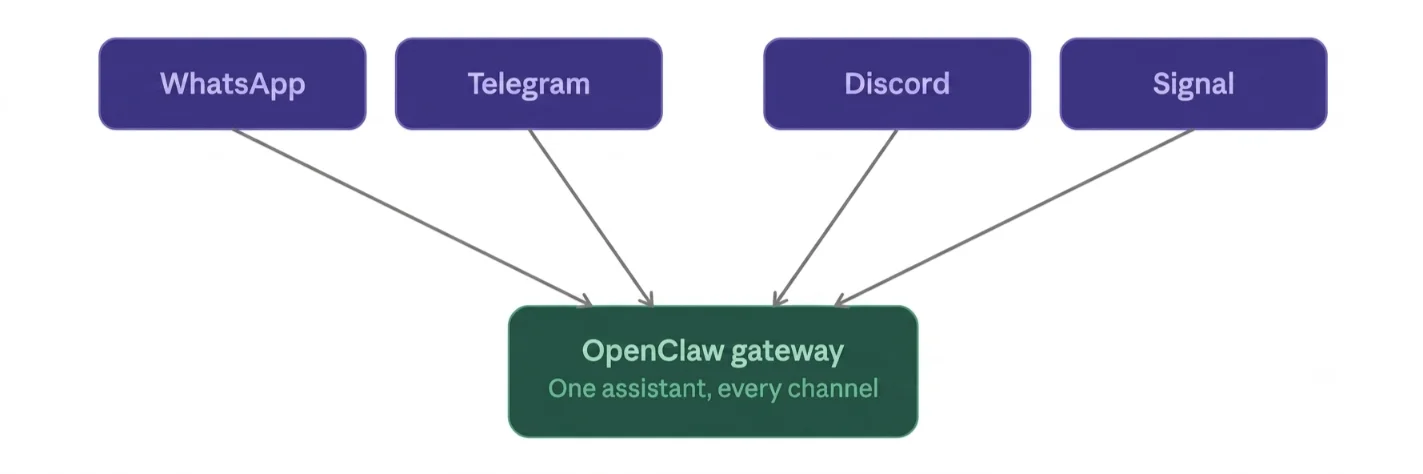
OpenClaw is an open-source gateway. It connects chat apps like WhatsApp, Telegram, Discord, and Signal to an AI agent.
You send it a message and get an agent response, wherever you are.
It has grown fast. The project jumped from roughly 9,000 to over 60,000 GitHub stars in just a few days, and now sits around 68,000 stars.
That kind of growth is a strong signal of active development and a healthy support community; both are important when you’re trusting it with family data.
You have two ways to run it.
Option 1: Deploy with Truehost OpenClaw Hosting (Recommended)
Why choose managed hosting
Self-hosting works. But it means you manage Docker, updates, and uptime yourself.
Managed hosting removes that burden. You get:
- One-click deployment
- A preconfigured OpenClaw environment
- Automatic SSL
- 24/7 availability
We at Truehost built OpenClaw Hosting for this. It’s the fastest way to get started without touching Docker or configuring a VPS by hand.
Choosing the right plan
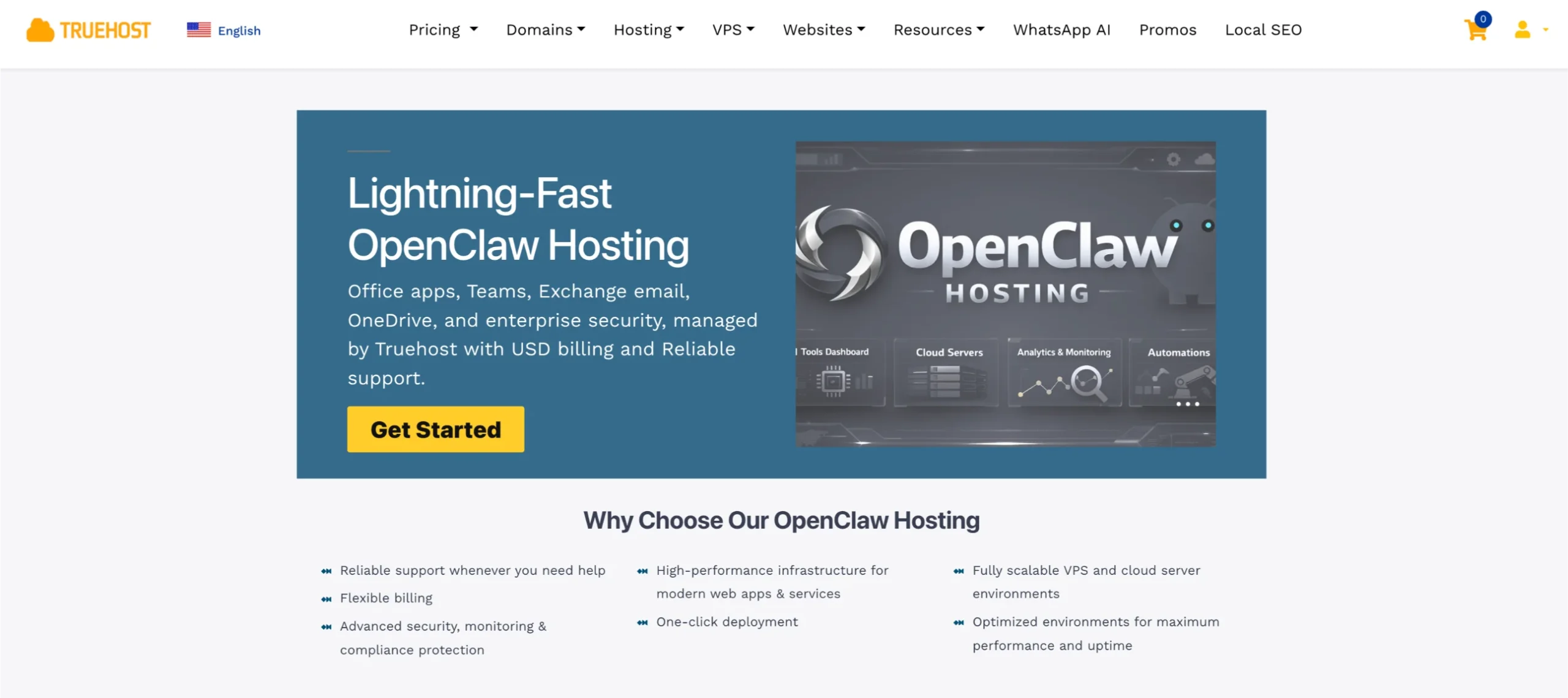
We offer three tiers built for family use:
- OpenClaw Starter: 1 vCPU, 2 GB RAM, 50 GB NVMe storage, 4 TB bandwidth. Good for a single household running 2–3 automations. $13/month.
- OpenClaw Pro: 2 vCPU, 4 GB RAM, 100 GB NVMe storage, 6 TB bandwidth. Better if you have a larger family, multiple messaging channels, or heavier automation. $19/month.
- OpenClaw Business: 4 vCPU, 8 GB RAM, 200 GB NVMe storage, 8 TB bandwidth. Built for households running many concurrent skills, or if you’re managing more than one family assistant. $24.77/month.
All three plans come with a preconfigured OpenClaw environment, a ready-to-use AI workspace, one-click updates, and a free setup fee.
If you already run other Truehost services, our VPS Hosting and Dedicated Servers plans also support OpenClaw, if you’d rather manage your own stack.
Skip the manual setup. Deploy OpenClaw with Truehost and have your gateway running in minutes.
Option 2: Self-Hosting OpenClaw
Self-hosting makes sense if you’re comfortable with a terminal and want full control over your server.
It needs Node.js 22.22.3+, 24.15+, or 25.9+, plus an API key from your AI provider.
You’ll install the Gateway, run onboarding, and set it up as a background service so it stays running.
Keep these in mind:
- Additional setup required. You configure the Gateway daemon, SSL, and channel plugins yourself.
- Ongoing maintenance. You handle updates, backups, and uptime monitoring.
For most families, this is more work than it’s worth. Managed hosting removes all three concerns.
2) Connect to Your OpenClaw Dashboard
Access Your Instance
Once deployed, open your assigned URL. This loads the web Control UI.
- Connect with your Gateway Token; this is your private key; treat it like a password
- Verify the Gateway shows as ‘online’ in the dashboard
If it doesn’t connect, double-check the token before anything else. A mismatched token is the most common first-time error.
Configure Your AI Provider
Your assistant needs a ‘brain.’ Pick one:
- Claude: strong for careful, safety-conscious responses around family data
- OpenAI: wide plugin and tool support
- Gemini: tight integration with Google Calendar and Gmail, useful if your family already runs on Google
Paste your API key into the provider field, then save and test the connection. You should see a short confirmation message from the assistant.
Tip: pick a modern, well-supported model. Older models handle tool permissions less reliably, which is important once your assistant can touch your calendar and messages.
3) Connect Your Family’s Communication Channels
This is where the assistant becomes reachable.
- Pair your assistant from the dashboard
- Scan the QR code with the dedicated WhatsApp account
- Test messaging, send ‘hello’ and confirm a reply
Telegram
Add your bot token from BotFather, then pair it the same way. Telegram tends to be the most stable channel for families, since it has no device-linking limits like WhatsApp.
Discord
Useful if your teens already live in a family Discord server. Add the bot, invite it to your server, and set which channels it can read.
Signal or iMessage (Optional)
Both are supported if privacy is a priority. Signal setup takes a bit more configuration than WhatsApp or Telegram, so budget extra time here.
Configure Message Permissions
Don’t skip this step.
- allowFrom: the list of approved senders who can message your assistant
- requireMention: in group chats, the assistant only replies when tagged (like @assistant)
- Restrict access to family members only, using their phone numbers or usernames
This keeps random contacts, or anyone who finds your family group link, from triggering your assistant.
4) Configure Your Family Assistant
Create Your System Prompt
This is your assistant’s instruction manual. Cover three things:
- Define the assistant’s role: ‘You help our family manage schedules, shopping, and reminders.’
- Set communication style: friendly, brief, no long paragraphs to a 10-year-old’s phone.
- Establish boundaries: what it should never do without asking first.
Keep it short. A clear, five-sentence prompt works better than a long one nobody reads.
Set Tool & Command Permissions
This is different from channel permissions. Channel settings (allowFrom, requireMention) control who can talk to your assistant.
Tool permissions control what it’s allowed to do once someone does.
- denyCommands vs allowFrom/requireMention: one gates access to the chat, the other gates the actions the assistant can take
- Block sensitive actions: camera access, auto-adding calendar events, or sending messages on your behalf, unless you explicitly enable them
- This is more important for kids’ data than channel access alone. A child could be an approved sender but still shouldn’t be able to trigger a command that deletes a calendar or shares a location
Start restrictive. Loosen permissions later, once you trust the setup.
Configure Identity Files
OpenClaw agents run on plain text files inside a workspace folder. These files assemble the agent’s identity, behavior rules, memory, and task schedule on the fly.
The core ones:
- SOUL.md: personality, tone, and boundaries
- IDENTITY.md: name and basic profile
- AGENTS.md: operating rules and priorities
- USER.md: your family’s preferences and context
- HEARTBEAT.md: what the assistant checks on scheduled runs
Fill these in with real details about your household. A blank USER.md means your assistant starts every session knowing nothing about you.
Restart the Gateway to Apply Changes
Not every edit needs a restart, but permission and identity file changes usually do.
- Save your changes in the dashboard or config file
- Run a Gateway restart from the dashboard, or
openclaw gateway restartfrom the terminal - Confirm the change took effect by asking the assistant a question tied to the new setting
Add Family Profiles
Set up a profile for each person:
- Adults: full permissions, calendar access, approval rights
- Children: restricted permissions, no financial or location actions
- Shared household rules: quiet hours, which channels are family-wide versus private
5) Build Your First Family Automations
Start small. Add one automation, test it for a week, then add the next.
Morning Briefing
Set a daily message that includes:
- A calendar summary for the day
- Reminders due that day
- Any important events coming up this week
Shopping List Automation
Let anyone add items by chat. ‘Add milk and eggs’ should land straight on a shared list, organized by category: produce, dairy, household, so grocery runs go faster.
Meal Planning
Ask your assistant to suggest recipes based on what’s already on hand, then generate a shopping list from the missing ingredients automatically.
Calendar Management
Your assistant can detect appointments mentioned in chat (‘dentist Thursday at 4’) and create a reminder without you opening a calendar app.
Home Search Alerts (Optional)
If your family is house hunting, set up monitoring for new listings that match your criteria, and get notified the moment one appears.
6) Secure Your Family Assistant
Lock Down Access
- Use a dedicated messaging account, never your personal one
- Use a dedicated email for the assistant’s accounts
- Restrict approved users to immediate family only
Protect Your Credentials
- Store API keys in the dashboard’s secure fields, never in plain chat
- Keep your Gateway Token private; anyone with it can control your assistant
Run Health Checks
Run openclaw doctor periodically. It checks your configuration and flags problems before they become outages.
Verify integrations again after any change to channels, permissions, or your AI provider.
Troubleshooting
Gateway Won’t Connect
Check your Gateway Token first. A mismatch is the most common cause. Confirm your instance shows ‘online’ in the dashboard.
AI Provider Errors
Usually a billing or key issue. Confirm your API key is active and has available credit with your provider.
Messaging Platform Won’t Pair
Re-scan the QR code (WhatsApp) or re-check your bot token (Telegram). Pairing codes expire after about an hour, so generate a fresh one if it’s been sitting too long.
Calendar Isn’t Syncing
Reconnect your Google account in the dashboard. Permissions sometimes need to be re-granted after a password change.
Assistant Isn’t Responding
Check allowFrom and requireMention settings first. Most ‘silent bot’ issues trace back to a permissions mismatch, not a broken Gateway.
Using OpenClaw to Create a Family Assistant FAQs
Can I use multiple messaging apps?
Yes. One Gateway can run WhatsApp, Telegram, Discord, and more at the same time, each with its own permissions.
Can everyone have different permissions?
Yes. Set individual profiles for adults and children, each with their own allowed actions.
Can I change AI models later?
Yes. Swap between Claude, OpenAI, and Gemini in the dashboard at any time, without losing your automations.
Do I need my computer running all day?
No, not if you host it with us. That’s the main advantage of using OpenClaw to create a family assistant through managed hosting: the Gateway runs on our server, not your laptop, so it stays online even when your device is off.
Can I upgrade my OpenClaw hosting plan?
Yes. Move from Starter to Pro to Business anytime from your dashboard, with no downtime.
Can I use OpenClaw with self-hosted AI models?
Yes, if your provider supports a compatible API endpoint. Most families get simpler, more reliable results with a hosted provider like Claude, OpenAI, or Gemini.
Get Openclaw Hosting with Truehost
You now have a full setup: a deployed Gateway, a connected AI provider, family channels paired, permissions locked down, and your first automations running.
From here, expand slowly. Add one automation at a time: meal planning this month, home search alerts next month.
A well-tuned assistant beats an overloaded one.
If you haven’t deployed yet, don’t fight with Docker and VPS configuration on your own.
Get Truehost OpenClaw Hosting for a preconfigured, always-on environment you can provision in minutes and spend your evening with your family instead of your terminal.