 Domain RegistrationFind and register the perfect domain for your website.
 .COM DomainChoose a widely recognized domain to build global credibility.
 Domain TransferSeamless domain transfers with zero downtime and complete control.
 All TLDsFind and register your perfect domain. Choose from local and global extensions.
 SSL CertificatesKeep your website safe with reliable SSL Certificates that protect customer data and build trust.
 whoisCheck domain ownership details, expiration dates, and registrar information.
 US DomainRegister a .US domain and build trust in the USA.
 Web HostingEverything your website needs to run smoothly
 WordPress HostingWordPress hosting that just works
 Windows HostingReliable hosting for Windows environments
 Reseller HostingTurn hosting into your business
 Email HostingEmail that looks professional and works anywhere
 cPanel HostingFull control of your hosting with cPanel
 Affiliate ProgramJoin as a partner and earn commissions on every referral you send our way.
 Vps HostingScalable virtual servers that expand as you need.
 Dedicated ServersGet complete access and full control over your dedicated physical server.
 Managed vpsNot tech-savvy? We will take care of everything with our fully managed VPS hosting for you.
 AI Website BuilderCreate stunning websites in seconds with AI.
 Online ShopSet up a professional online store. No coding required.
 Web design serviceGet a tailored website designed to match your brand and support your goals.
 BlogFind helpful guides on web hosting, online selling, digital marketing, and more.
 Contact USYou can reach us anytime, day or night, through chat or email.
 SupportBrowse helpful guides and answers for all of our services.
If you have been anywhere near tech Twitter or Discord lately, you have probably seen people raving about a lobster-shaped bot called OpenClaw, and its use is growing so fast. I’ll tell you what: once you look at the full list of OpenClaw AI assistant features, it is easy to see why. OpenClaw lives on your own machine, works across the apps you already use, and can actually get things done for you.
So what makes it different from every other AI tool you have tried? Let’s go through every one of the OpenClaw AI assistant features that you might not know and see exactly why so many people are switching over, and you need not be left out.
1) Multi-Channel Messaging Support
For a first-time user, multi-channel messaging support is one of the biggest OpenClaw AI assistant features with no learning curve. Instead of forcing you into one single app, OpenClaw meets you wherever you already chat. It connects to:
- Telegram
- Discord
- Slack
- Signal
- iMessage
- Microsoft Teams
- Matrix
- Feishu
- LINE
- Mattermost
- Nextcloud Talk
- Nostr
- Synology Chat
- Tlon
- Twitch
- Zalo
- Google Chat
- And its own WebChat window
Most of these channels come ready to go out of the box, including QQ Bot, which ships as a bundled plugin channel. WeChat works a little differently. It is not included by default, so you need to install it as a separate channel plugin before you can connect it.
This means you can message your assistant from your family group chat or your work Slack, and it just answers as a normal contact would.
You do not need a new app. You just message a bot the same way you message a friend.
2) The Skills System
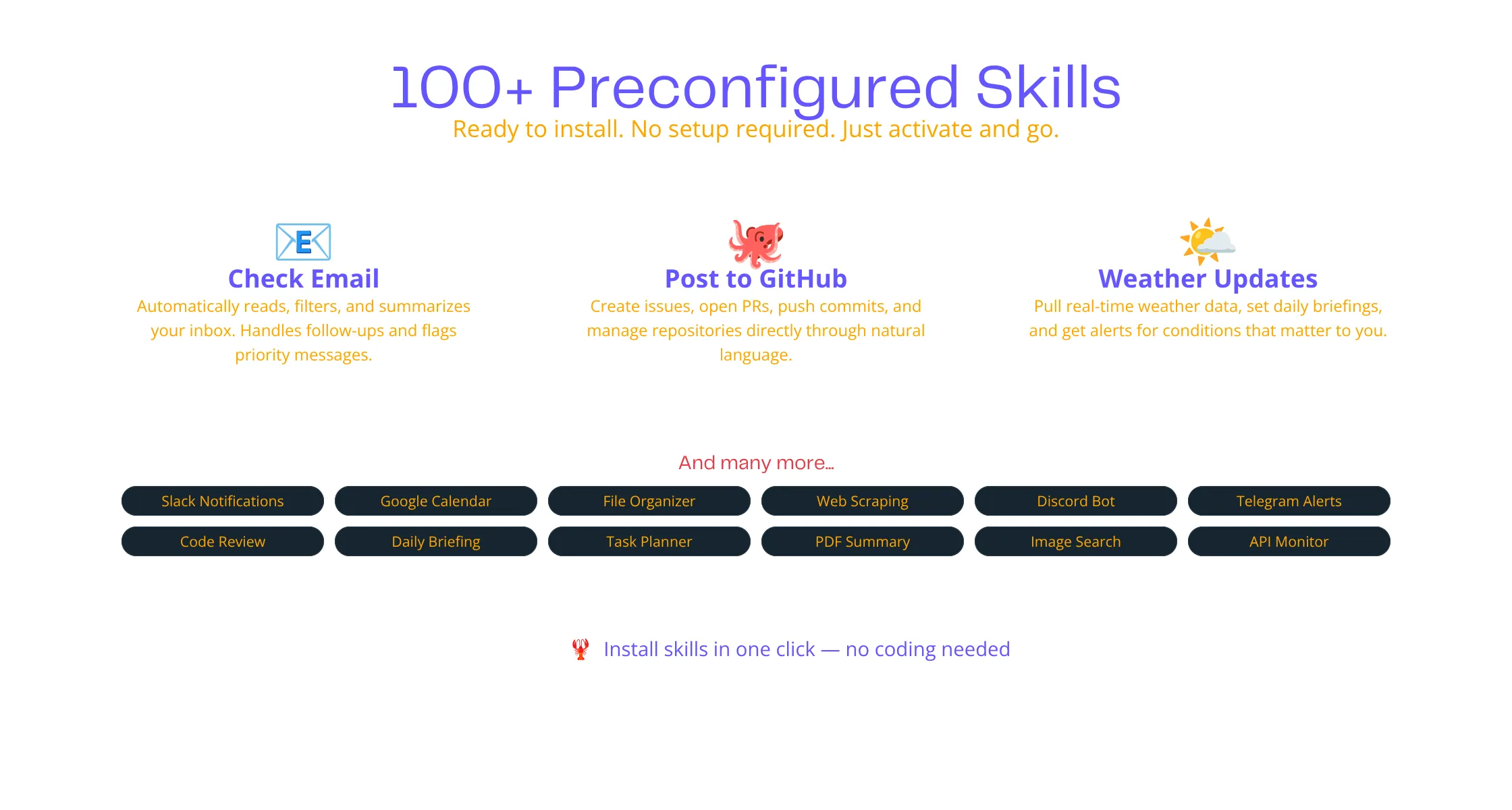
The skills system sits near the top of any list of OpenClaw AI assistant features. Skills are small add-on abilities that give OpenClaw new powers. A skill is a small ability you can switch on, like giving your assistant a new tool for its toolbox. Think of skills like apps on a phone. You start with a few basics, then add more as your work changes.
With OpenClaw, there are already over 100 preconfigured skills ready to install, covering things like checking email, posting to GitHub, or pulling weather updates.
Each skill lives inside its own folder with a file called SKILL.md, which is an instruction sheet that tells the assistant how to use that ability.
If none of the ready-made skills fit what you need, you can build your own from scratch using simple written instructions. This turns OpenClaw from a fixed tool into something that grows alongside your needs.
3) Persistent Memory
Now that your assistant can reach you and has skills to work with, it needs to remember what you told it. Most chatbots forget everything the second you close the window. OpenClaw does not. It holds onto past conversations, your preferences, and the details of projects you are working on, so you are not repeating yourself every single day.
Think of the difference between talking to a new employee every morning and talking to someone who has worked beside you for months. That second person already knows how you like things done.
That kind of continuity is rare, and it is one of the OpenClaw AI assistant features that makes the assistant feel personal rather than robotic. Over time, it picks up on small habits too, like how you like your reminders phrased or which projects deserve priority right now.
4) The Heartbeat (Proactive Behavior)
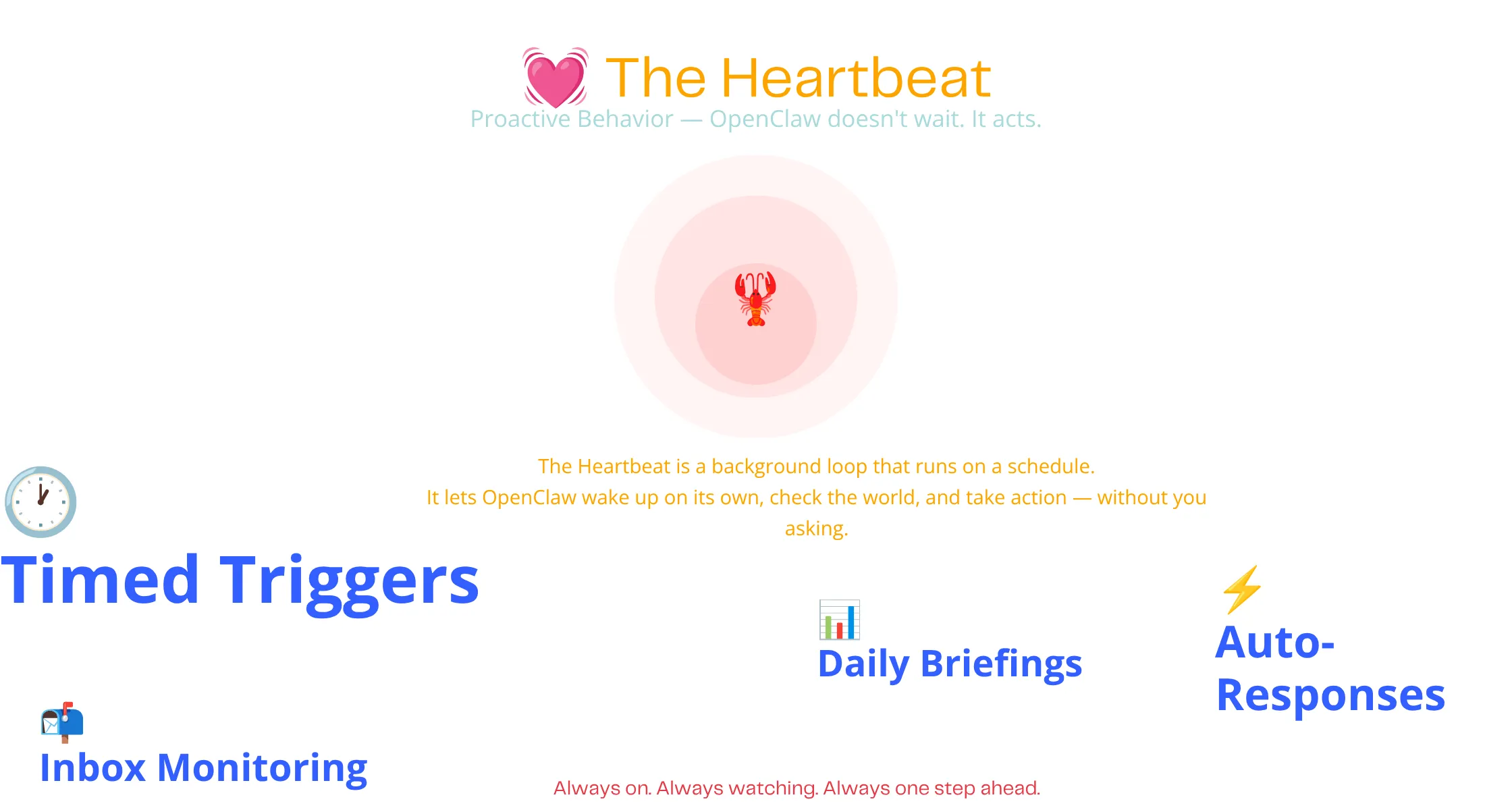
Here is where things get really interesting. Most AI tools only respond when you type something. OpenClaw has a feature its creator calls the heartbeat, which lets it wake up on its own and take action without waiting for you to ask.
Under the hood, the heartbeat is a scheduled agent run that fires every 30 minutes by default. Each time it wakes up, it checks a file in your workspace called HEARTBEAT.md, which is just a plain text file where you can leave notes on what your assistant should watch for or follow up on. This is what powers cron jobs, background monitoring, and reminders that fire automatically, all without you sending a single message.
Take it like having a quiet assistant sitting in the corner of the room, only speaking up when there is something worth saying.
5) Computer and Browser Control
Here is one of the more technical OpenClaw AI assistant features that gives it its rare value. Once the heartbeat spots something worth acting on, OpenClaw needs the hands to actually do something about it.
This feature gives it exactly that. It can run commands on your computer, manage your files, and control a web browser well enough to fill out forms or pull information off a website on your behalf.
This kind of real-world control is what separates true assistants from simple chat tools. A repetitive task that used to eat up your afternoon can quietly finish while you focus on something more important.
6) Model Agnostic Design
Everything you have read so far runs on top of an AI model, the actual brain doing the thinking. OpenClaw does not lock you into just one AI brain. You can connect Claude, GPT, Gemini, DeepSeek, Kimi, Mistral, Llama, and several others, including models that run entirely offline on your own hardware.
This flexibility counts for a lot because different models are better at different jobs. One model might write cleaner code, while another handles conversation more naturally. Being able to swap freely means your setup never gets stuck behind whatever model happened to be popular the day you installed it.
7) Voice Wake and Talk Mode
On supported devices, you can skip typing altogether. OpenClaw offers voice support on macOS, iOS, and Android, though how you actually trigger it varies by platform, and a hands-free wake phrase is not something you should count on everywhere. Check your specific device and app version before you plan around it.
There is also a push-to-talk button for a quick command without saying anything out loud first. If you are cooking, driving, or just tired of typing on a small phone keyboard, this is the feature that saves you the trouble.
Do you find typing on a phone slow or fiddly? This is one of the OpenClaw AI assistant features that makes daily use feel effortless.
8) Self-Hosted and Privacy-Focused
Every feature up to this point runs on your own device or your own server, never on a company’s cloud somewhere else. Now there is something known as API keys. An API key is like a private password that lets one piece of software talk to another, in this case, letting OpenClaw talk to the AI model you chose in feature six. With OpenClaw, that key sits on your machine and stays there. It never gets copied off to a company you have never heard of.
If you have ever worried about where your data goes, this level of control is a huge relief and a major selling point. This is among the OpenClaw AI assistant features that tends to stand out most if you have been burned by other tools sharing your information without asking first.
9) Open Source (MIT License)
The entire OpenClaw project is free to use, inspect, modify, and share under the MIT license. This means anyone can look at the actual code, point out problems, and suggest fixes.
A large and active community keeps improving it every day, adding new skills, and fixing bugs, which means the software keeps getting better without you paying a subscription fee.
10) Companion Apps Across Devices
Beyond the core setup on your computer or Gateway, there are dedicated apps for macOS, iOS, and Android that keep you connected to your assistant everywhere you go
On desktop, a simple menu bar icon shows you the status at a glance. On mobile, the apps pair as remote access points, so your assistant stays reachable from your pocket. If you prefer working from a terminal, you can also manage the whole thing remotely over SSH, which is just a secure way to control a computer from somewhere else.
11) Productivity Tool Integrations
With your assistant reachable from anywhere, it makes sense that it can also touch the tools you already use to stay organized, including:
- Notion
- Obsidian
- Trello
- Apple Notes
- Apple Reminders
- Things 3
You can ask it to add a task, update a note, or check your list, all from a single chat message instead of opening five different apps. For anyone juggling a busy schedule, cutting out that app switching saves real time every single day.
12) Developer and DevOps Integrations
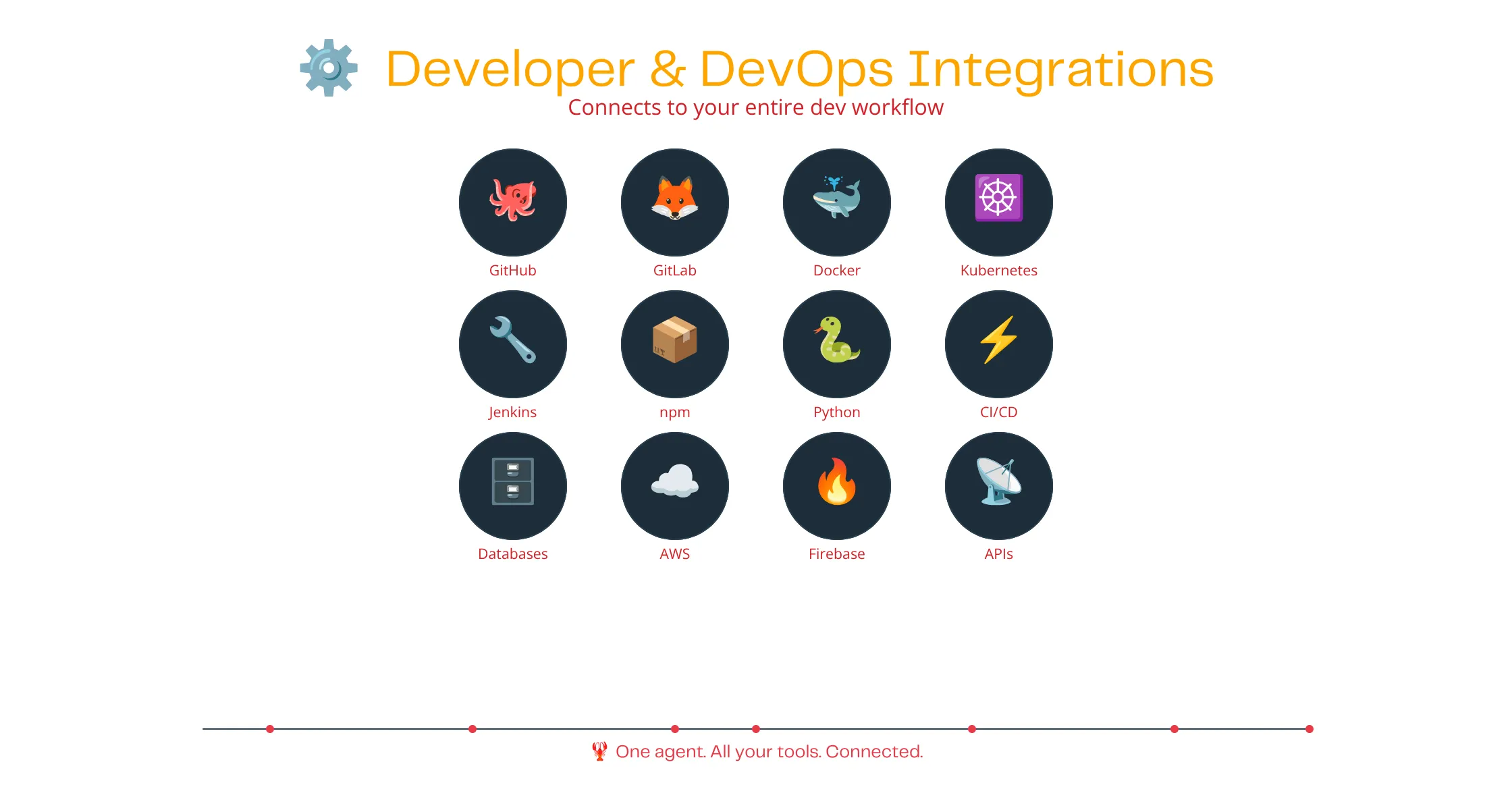
For developers specifically, this is one of the OpenClaw AI assistant features that pays for itself the first week you turn it on. If you write code, OpenClaw connects straight into GitHub, supports webhooks, and it can run scheduled jobs that test or debug your projects automatically while you are away from your desk.
It can catch an error overnight, open a fix, open pull requests, and keep an eye on your codebase. Overnight testing runs and morning summaries mean fewer surprises when you sit down to work.
13) Smart Home and Health Integrations
Your assistant can reach beyond the screen too. It works with Philips Hue lighting, Elgato devices, and Home Assistant setups, so you can control your lights or check your smart home from the same chat window.
It can also pull data from wearables to help track daily health trends, turning raw numbers like sleep, steps, or heart rate into something you can actually read and act on.
14) Web Search and Data Tools
An assistant is only as good as the information it can reach, which is why OpenClaw includes built-in Brave Search for real-time access to current information. It pairs up with a plugin called Firecrawl for deeper research when a quick search is not enough. Instead of guessing at an answer, it can go check first.
15) Gateway Architecture
Everything above runs through one piece you never see directly, called the WebSocket-based Gateway. It is the control center that connects your chat apps, routes messages to the right place, and keeps each workspace isolated so different projects never mix their context together.
You do interact with the Gateway, just not through chat. It runs as a background daemon on your machine, and you are the one who starts it, stops it, and manages it through CLI commands. Day to day, though, you barely notice it is there, since it works quietly behind the scenes once it is running. It is the reason all sixteen OpenClaw AI assistant features work together as one assistant instead of sixteen separate tools bolted together.
Run OpenClaw AI Assistant on a Reliable VPS
Well, there go sixteen OpenClaw AI assistant features that explain why so many people describe it as feeling less like a chatbot and more like a genuine digital coworker.
Before you leave, here is something you need to know: since OpenClaw runs a persistent background loop, called the Heartbeat, to execute cron jobs, web monitoring, and messaging listeners, running it on your personal laptop means the agent dies the moment you close your computer lid. So you must deploy it on a VPS that guarantees your agent stays online every day of the year, uses a dedicated IP address, handles automated data backups, and executes scripts quickly without draining your personal device’s battery.
That’s what a Truehost OpenClaw VPS Plan gives you.
You also get full root SSH access, one-click deployment that finishes in under a minute, and the option to scale your resources up later without any downtime. Your server comes pre-configured with everything OpenClaw needs, so there is no long setup process standing between you and a fully working assistant.
If you are serious about putting these OpenClaw AI assistant features to work around the clock, a dedicated OpenClaw VPS is simply the smarter move. Head over to Truehost and get your OpenClaw environment running today.
OpenClaw AI Assistant FAQs
OpenClaw itself is free and open source under the MIT license, so there is no cost to download or run it. You will still need your own API keys for whichever AI model you connect it to, and those providers usually charge based on usage.
Basic setup can be done by following the onboarding steps without writing any code yourself. That said, getting the most out of advanced skills and custom automations becomes easier if you are comfortable with simple scripting.
Yes, OpenClaw is lightweight enough to run on small hardware like a Raspberry Pi, a Mac Mini, or a cloud VPS. The main requirement is that the device stays powered on so the Heartbeat feature can keep working in the background.
Safety depends heavily on how you configure access and permissions for each connected account. Since it runs locally and keeps your data on your own server, you have full control over what it can see and do, but you should still follow secure setup practices.
A regular chatbot only replies when you type a message and forgets everything once the chat ends. OpenClaw remembers past conversations, acts on its own through the Heartbeat feature, and can control your computer, browser, and connected apps instead of just talking about them.