 Domain RegistrationFind and register the perfect domain for your website.
 .COM DomainChoose a widely recognized domain to build global credibility.
 Domain TransferSeamless domain transfers with zero downtime and complete control.
 All TLDsFind and register your perfect domain. Choose from local and global extensions.
 SSL CertificatesKeep your website safe with reliable SSL Certificates that protect customer data and build trust.
 whoisCheck domain ownership details, expiration dates, and registrar information.
 US DomainRegister a .US domain and build trust in the USA.
 Web HostingEverything your website needs to run smoothly
 WordPress HostingWordPress hosting that just works
 Windows HostingReliable hosting for Windows environments
 Reseller HostingTurn hosting into your business
 Email HostingEmail that looks professional and works anywhere
 cPanel HostingFull control of your hosting with cPanel
 Affiliate ProgramJoin as a partner and earn commissions on every referral you send our way.
 Vps HostingScalable virtual servers that expand as you need.
 Dedicated ServersGet complete access and full control over your dedicated physical server.
 Managed vpsNot tech-savvy? We will take care of everything with our fully managed VPS hosting for you.
 AI Website BuilderCreate stunning websites in seconds with AI.
 Online ShopSet up a professional online store. No coding required.
 Web design serviceGet a tailored website designed to match your brand and support your goals.
 BlogFind helpful guides on web hosting, online selling, digital marketing, and more.
 Contact USYou can reach us anytime, day or night, through chat or email.
 SupportBrowse helpful guides and answers for all of our services.
Your PC feels sluggish, so you open Task Manager and sitting there is something called Nvidia Container. Not one. Sometimes three or four of them, all running quietly in the background like they own the place.
Your first instinct is probably to kill them. That’s exactly what this article is for.
If you have been asking what is Nvidia Container in Task Manager, the quick answer is: it’s a legitimate piece of Nvidia’s software. It’s not a virus, not spyware, and in most cases you don’t need to touch it.
But there are situations where it causes real problems, and when that happens, you need to know what to do. If you are also dealing with GPU-related slowdowns.
What Is Nvidia Container in Task Manager?
Nvidia Container is a background process bundled with Nvidia graphics drivers and software like GeForce Experience. It shows up in Task Manager on virtually any Windows PC running an Nvidia GPU.
Think of it as a host process. It wraps other Nvidia services and runs them inside a contained environment. That’s where the name comes from. You didn’t install it separately, you can’t open it like a normal app, and it doesn’t need your attention most of the time.
What Does Nvidia Container Do?
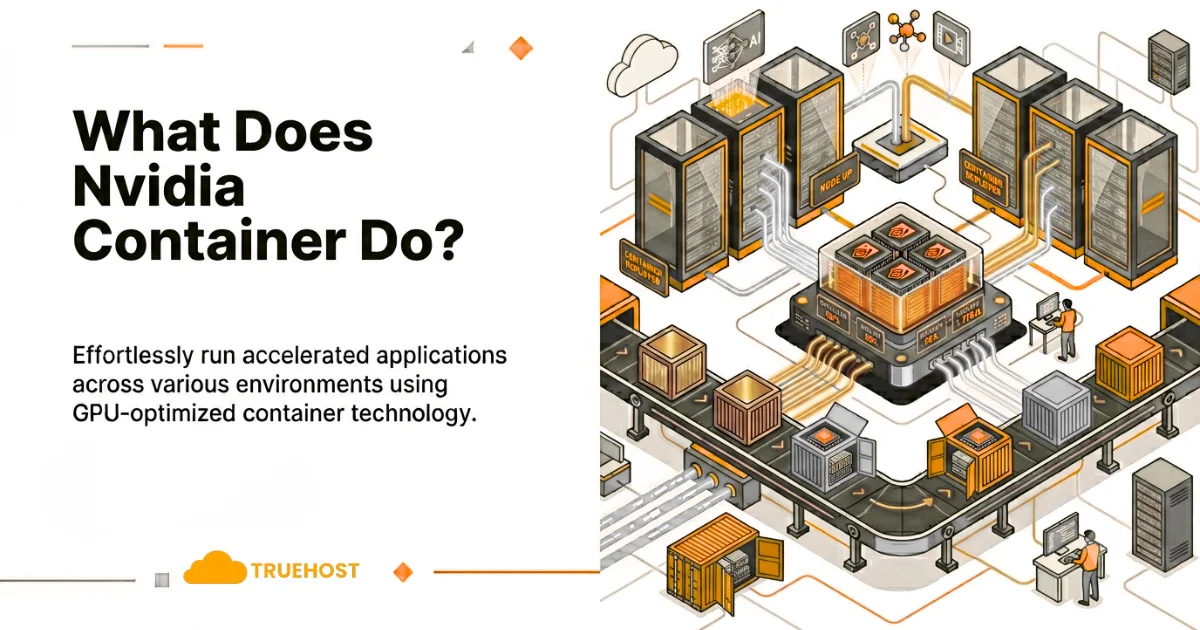
It handles several different jobs depending on what Nvidia software you have installed. Here’s what it’s actually managing under the hood.
1) Background Nvidia Services
Nvidia Container keeps Nvidia’s background services alive, including GPU monitoring, hardware communication, and settings management. Cut these off and parts of Nvidia’s software stop working, sometimes with no error message to tell you why.
2) Driver Functions
A big chunk of what Nvidia Container manages connects directly to your Nvidia driver services, covering how Windows talks to your GPU, handles display output, and manages hardware settings. These aren’t add-ons. They’re core to how your graphics card works. You can learn more about how Windows handles display drivers on Microsoft’s driver documentation page.
3) Nvidia Control Panel Features
The Nvidia Control Panel needs active background services to apply your settings correctly. Nvidia Container keeps that link alive. Without it, the control panel can load slowly or ignore your changes entirely.
4) GeForce Experience Integration
If GeForce Experience is installed, Nvidia Container has more to manage: driver updates, game optimization, ShadowPlay recordings, and the in-game Nvidia Overlay all run through background processes that Nvidia Container keeps alive.
5) Telemetry and Other Nvidia Processes
Some Nvidia Container instances handle telemetry, which is basic usage data Nvidia collects to improve their software. You can disable the telemetry service on its own without touching the core processes your GPU depends on.
Why Are Multiple Nvidia Container Processes Running?
Seeing two or three Nvidia Container entries in Task Manager is completely normal. Each one is a separate service running in its own isolated instance. Nvidia splits the work across multiple processes by design. It’s not one process multiplying out of control.
Nvidia Container High CPU Usage
When Nvidia Container is eating your CPU and not letting up, something is off.
Common Causes
A driver update in the background, GeForce Experience scanning your game library, or a freshly installed driver that hasn’t finished settling are the most common causes. Outdated or partially broken drivers can also trigger random spikes that don’t stop on their own.
How to Troubleshoot It
Wait a few minutes first. If it’s doing background work, it usually calms down. If spikes keep coming, open GeForce Experience and check for active scans or updates, or restart your Nvidia services manually by pressing Win + R and typing services.msc.
When It Becomes a Problem
If Nvidia Container high CPU usage stays stuck above 20 to 30 percent for a long stretch with nothing actively running, something is broken. That usually means a stuck process, a driver conflict, or corrupted Nvidia files. Our [guide to fixing Nvidia driver issues on Windows] walks through the most common causes.
Practical Fixes
Go to Nvidia’s official driver download page and grab the latest driver. Use the custom install option and check the clean install box. That alone fixes most persistent CPU spike problems. Turning off automatic game scanning in GeForce Experience settings also helps a lot.
Nvidia Container High Memory Usage
Normal memory usage for Nvidia Container lands between 50 and 150 MB. If it’s climbing past that and sitting there, an outdated driver or active overlay features are the most likely cause.
Restart the Nvidia Display Container LS service from services.msc and that often releases memory right away. If it fills back up fast, a driver update or clean reinstall is the right call. Microsoft’s Windows performance optimization page also covers general tips for taming memory-hungry background processes.
Can You Disable Nvidia Container?
You can, but here’s what you’re giving up.
What Happens If You Disable It
Turn off the core Nvidia Display Container LS service and the Nvidia Control Panel stops working reliably. GeForce Experience features go with it, including overlays, ShadowPlay, and driver update alerts.
Potential Risks
Disable the wrong service and your resolution may reset, your settings may disappear, or Windows throws errors at boot. Driver updates may re-enable the services automatically anyway.
Features That May Stop Working
ShadowPlay, Nvidia Overlay, GeForce Experience, game optimization, and driver update notifications all need these services active.
When It Might Be Safe to Disable Certain Services
If you manage drivers manually and never use GeForce Experience, disabling its related services is relatively low risk. Leave the core display driver services alone.
What Happens If You End Task Nvidia Container?
Temporary Effects
The process stops and the Nvidia tray icon disappears. GeForce Experience features go offline right away.
Driver Behavior
Your screen stays on since basic display output doesn’t depend on Nvidia Container. Background Nvidia features stop working until the service restarts.
Whether It Will Restart Automatically
Yes, usually within seconds. Nvidia services restart on their own, so ending the task is a temporary pause, not a permanent fix.
Situations Where Ending the Process Makes Sense
If it’s hammering your CPU right before a recording or a tight deadline, ending it buys time. The underlying cause still needs sorting. Our [guide to troubleshooting Windows background processes] covers broader strategies for handling runaway tasks like this one.
How to Fix Nvidia Container Problems
Restarting Nvidia Services
Press Win + R, type services.msc, and restart any Nvidia services listed. This clears most temporary issues fast.
Updating Graphics Drivers
Open GeForce Experience or go to Nvidia’s site. Current drivers prevent most Nvidia Container problems before they start.
Reinstalling Nvidia Software
Uninstall through Programs and Features, then reinstall fresh from Nvidia’s site. This handles corrupt or incomplete installs.
Checking Startup Programs
Go to the Startup tab in Task Manager and disable any Nvidia entries that look duplicated or unnecessary.
Running Windows Updates
Some issues trace back to outdated Windows components. Keep your system updated through Settings > Windows Update.
Performing a Clean Driver Installation
Boot into Safe Mode, run DDU to wipe all Nvidia files, restart, then install the latest driver fresh. This is the strongest fix for stubborn problems and the one most tech forums recommend as the first real troubleshooting step.
Common Myths About Nvidia Container
- Nvidia Container is malware. It’s not. It’s a genuine Nvidia process sitting inside the Nvidia Corporation folder in Program Files. Check the file path in Task Manager if you want to confirm it yourself.
- It should never run in the background. That’s exactly what it’s built to do.
- It always causes high CPU usage. Most of the time it’s barely there. Spikes are usually short and tied to a specific task.
- Deleting it speeds up your PC. No. Removing those files is more likely to break your GPU software than improve performance.
- Disabling it adds FPS in games. Frame rate comes from the driver and hardware. Nvidia Container has no effect on it.
FAQs
What is Nvidia Container in Task Manager?
A background process bundled with Nvidia drivers that keeps GeForce Experience and the Nvidia Control Panel running.
Is it okay to disable Nvidia Container?
Some services can be disabled, but core display services should stay on or Nvidia features will stop working.
Can You Delete Nvidia Container?
Don’t. These files are part of your driver installation, and removing them by hand tends to leave your system in a broken state that’s harder to fix than whatever started the problem. Use Programs and Features or run DDU in Safe Mode if you want a full clean removal.
Why Are Multiple Nvidia Container Processes Running?
Seeing two or three Nvidia Container entries in Task Manager is completely normal. Each one is a separate service running in its own isolated instance. Nvidia splits the work across multiple processes by design. It’s not one process multiplying out of control.
Why is Nvidia Container using so much memory?
Outdated drivers or active overlays are typical causes. Restarting the Nvidia Display Container LS service or updating drivers usually helps.
Can I delete Nvidia Container from Windows?
Don’t delete it manually. Use the official uninstaller or DDU instead.
Is Nvidia Container safe?
Yes. It’s a legitimate Nvidia component that poses no risk under normal conditions.
Still Seeing Nvidia Container Issues? Fix It for Good Today
Nvidia Container is a normal, expected part of running Nvidia software on Windows. Seeing it in Task Manager, even multiple times, is not a red flag.
Most of the time it runs quietly in the background, handling Nvidia driver services and GeForce Experience features without you ever noticing it. If you’ve hit Nvidia Container high CPU usage or Nvidia Container high memory usage, the fix is almost always the same: update your drivers, restart your Nvidia services, or do a clean reinstall using DDU.
Don’t waste time trying to disable or delete it. Instead, grab the latest Nvidia driver right now, run a clean install, and close this tab knowing your GPU is running exactly as it should.
If problems come back, drop your question in the comments below and we’ll help you sort it out.