 Domain RegistrationFind and register the perfect domain for your website.
 .COM DomainChoose a widely recognized domain to build global credibility.
 Domain TransferSeamless domain transfers with zero downtime and complete control.
 All TLDsFind and register your perfect domain. Choose from local and global extensions.
 SSL CertificatesKeep your website safe with reliable SSL Certificates that protect customer data and build trust.
 whoisCheck domain ownership details, expiration dates, and registrar information.
 US DomainRegister a .US domain and build trust in the USA.
 Web HostingEverything your website needs to run smoothly
 WordPress HostingWordPress hosting that just works
 Windows HostingReliable hosting for Windows environments
 Reseller HostingTurn hosting into your business
 Email HostingEmail that looks professional and works anywhere
 cPanel HostingFull control of your hosting with cPanel
 Affiliate ProgramJoin as a partner and earn commissions on every referral you send our way.
 Vps HostingScalable virtual servers that expand as you need.
 Dedicated ServersGet complete access and full control over your dedicated physical server.
 Managed vpsNot tech-savvy? We will take care of everything with our fully managed VPS hosting for you.
 AI Website BuilderCreate stunning websites in seconds with AI.
 Online ShopSet up a professional online store. No coding required.
 Web design serviceGet a tailored website designed to match your brand and support your goals.
 BlogFind helpful guides on web hosting, online selling, digital marketing, and more.
 Contact USYou can reach us anytime, day or night, through chat or email.
 SupportBrowse helpful guides and answers for all of our services.
You are setting up a new website, and your host wants to know if your nameservers are pointing to them. Or maybe your site suddenly stopped loading and you have no idea why.
Knowing how to check domain nameservers is one of those small skills that saves you hours of confusion. Whether you’re connecting a domain to hosting, migrating providers, or troubleshooting a broken site, checking your nameservers is almost always the first move.
This article covers every method, from quick online tools to command-line lookups, so you can confirm exactly where your domain’s DNS is being managed.
Managing your domain’s nameservers? Truehost gives you full control through a simple, no-fuss dashboard.
What Are Domain Nameservers?
Nameservers tell the internet where to find your domain’s DNS records. Every domain has at least two, and they’re the starting point for any DNS lookup, whether it’s resolving your website or routing your email.
Why You Might Need to Check Domain Nameservers
There are a handful of situations where checking nameservers becomes essential.
- Connecting a domain to web hosting. Your host needs your nameservers pointed to their servers before your site can go live.
- Migrating to a new hosting provider. Confirming the old nameservers have been replaced is the first step in verifying a successful move.
- Troubleshooting website or email issues. If your site is down or email isn’t working, checking your nameservers tells you whether DNS is even pointing where it should.
- Verifying DNS changes. After updating any DNS setting, checking your nameservers confirms the change actually took effect.
- Checking a competitor’s hosting setup. Curious who hosts a competitor’s site? Their nameservers often reveal the provider.
- Confirming domain configuration after a transfer. Once a domain transfer completes, checking nameservers confirms everything landed correctly at the new registrar
How to Check Domain Nameservers
There are five reliable ways to do this. Pick whichever fits your comfort level.
1) Using a WHOIS Lookup Tool
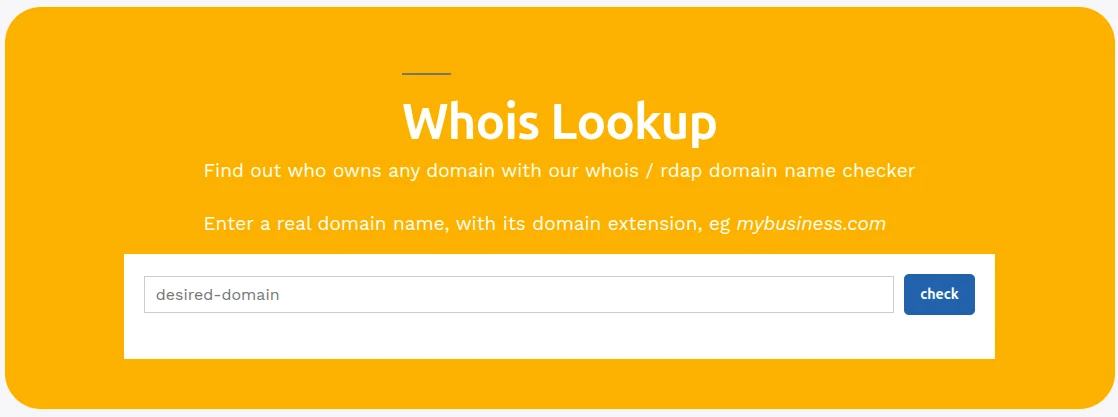
Go to a WHOIS tool, enter the domain, and look for the “Name Server” field in the results.
Truehost WHOIS lookup is a reliable, free option that works for most domain extensions.
2) Using an Online DNS Lookup Tool
Enter your domain into any DNS lookup tool, select “NS” as the record type, and it returns the current nameservers instantly. No technical setup required.
3) Using Command Prompt (Windows)
Open Command Prompt and type:
nslookup -type=NS yourdomain.comThis returns a list of the domain’s nameservers. Each line represents one nameserver responsible for that domain’s DNS.
4) Using Terminal (macOS and Linux)
dig (most detailed)
dig yourdomain.com NSLook for the “ANSWER SECTION” in the output. Each entry listed there is one of your domain’s nameservers.
host (simpler output)
host -t NS yourdomain.comReturns a clean, short list of nameservers with no extra clutter.
nslookup (same as Windows)
nslookup -type=NS yourdomain.comWorks identically to the Windows version.
5) Checking Through Your Domain Registrar
The most direct method. Log in to your domain registrar’s dashboard and navigate to your domain’s management page. Nameserver settings are usually listed clearly under a section called “Nameservers” or “DNS Settings.”
Truehost’s domain dashboard displays your current nameservers front and center, with a simple interface for updating them if needed.
How to Know if Your Nameservers Are Correct
Checking the nameservers is only useful if you know what to compare them against.
- They match what your host provided. Your hosting company gives you specific nameserver addresses, usually two, like ns1.yourhost.com and ns2.yourhost.com. Confirm these match exactly, including any typos.
- DNS changes have propagated. After updating nameservers, it can take a few hours up to 48 hours for the change to be visible everywhere. Don’t panic if it’s not instant.
- No outdated nameservers remain. If you switched providers, make sure the old nameservers aren’t still showing up anywhere in your lookup results.
- Website and email resolve correctly. The real test is functional. If your site loads and your email sends and receives normally, your nameservers are almost certainly correct.
- Results are consistent across multiple checks. Run your lookup from more than one tool or location. If one shows the new nameservers and another still shows the old ones, propagation is still in progress rather than something being wrong.
How to Change Domain Nameservers
If your check reveals the nameservers need updating, here’s how to fix it.
Step 1: Log in to your domain registrar. Access your account through your registrar’s website.
Step 2: Open the domain management page. Find the specific domain you want to update from your domain list.
Step 3: Locate the nameserver settings. Look for a section labeled “Nameservers,” “DNS Settings,” or “Name Server Management.”
Step 4: Replace the existing nameservers. Enter the new nameserver addresses provided by your host or DNS provider, replacing the old ones completely.
Step 5: Save the changes. Confirm the update. Most registrars show a confirmation message once the change is submitted.
Step 6: Wait for DNS propagation. Give it time. Propagation typically completes within a few hours, though it can take up to 48 hours in some cases depending on global DNS caching.
Common Issues When Checking Nameservers
- Nameserver changes not updating. Double-check that you saved the change correctly and that you’re checking the right domain. A typo in the domain name during your lookup is a common culprit.
- DNS propagation delays. This is normal and not a sign anything is broken. Use a propagation checker to monitor progress across different global locations.
- Incorrect nameservers. If the nameservers shown don’t match what your host provided, go back into your registrar dashboard and correct them. Even a single character typo will break everything.
- Website not loading after changes. This usually means propagation simply hasn’t finished yet. Wait a few hours before assuming something is wrong.
- Email services stopping unexpectedly. If you changed nameservers and email stopped working, your new DNS provider likely needs MX records added. Nameservers control where DNS is managed, but the actual MX records still need to be configured correctly at the new location.
Best Online Tools to Check Domain Nameservers
| Tool | Best For |
|---|---|
| ICANN WHOIS | Quick, official WHOIS-based nameserver lookups |
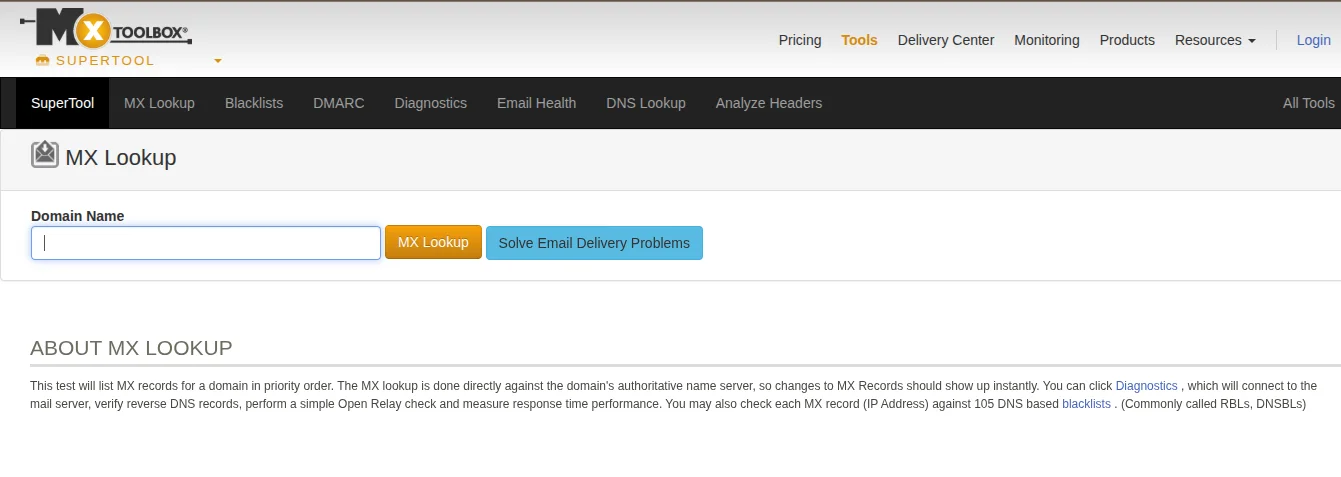
| MXToolbox | Checking nameservers alongside email and MX record health |
| WhatsMyDNS | Monitoring nameserver propagation from multiple global locations |
| DNSChecker | Fast nameserver and DNS record lookups with a clean interface |
MXToolbox is particularly useful if you’re troubleshooting both nameservers and email delivery at the same time.
FAQs
How do I find my domain nameserver?
Use a WHOIS lookup tool, an online DNS checker, or log in to your domain registrar’s dashboard. All three methods display your current nameservers clearly.
How do I find the DNS server of a domain?
The same methods used to find nameservers work here. A WHOIS lookup or a command like nslookup -type=NS yourdomain.com will show you the authoritative DNS servers for any domain.
How to check DNS name by IP?
Use a reverse DNS lookup tool, or run the command nslookup [IP address] in Command Prompt or Terminal. This returns the domain name associated with that IP address, if one exists.
How do I know the domain name of a server?
Run a reverse DNS lookup on the server’s IP address using a tool like WhatsMyDNS or the nslookup command. This works only if a PTR record has been configured for that IP.
Can I change my domain nameservers anytime?
Yes, as long as your domain isn’t locked for a recent transfer or other administrative hold. You can update nameservers as often as needed through your registrar’s dashboard.
Get Your Nameservers Right the First Time
Knowing how to check domain nameservers takes the guesswork out of hosting migrations, DNS troubleshooting, and domain verification. It’s a five-minute check that can save you hours of frustration when something isn’t working.
Whether you’re using a WHOIS tool, a command-line lookup, or your registrar’s dashboard, confirming your nameservers is always the right place to start.
Take full control of your domain’s DNS. Register your domain and manage nameservers with Truehost, then pair it with reliable hosting and business email for a setup that just works from day one.