 Domain RegistrationFind and register the perfect domain for your website.
 .COM DomainChoose a widely recognized domain to build global credibility.
 Domain TransferSeamless domain transfers with zero downtime and complete control.
 All TLDsFind and register your perfect domain. Choose from local and global extensions.
 SSL CertificatesKeep your website safe with reliable SSL Certificates that protect customer data and build trust.
 whoisCheck domain ownership details, expiration dates, and registrar information.
 US DomainRegister a .US domain and build trust in the USA.
 Web HostingEverything your website needs to run smoothly
 WordPress HostingWordPress hosting that just works
 Windows HostingReliable hosting for Windows environments
 Reseller HostingTurn hosting into your business
 Email HostingEmail that looks professional and works anywhere
 cPanel HostingFull control of your hosting with cPanel
 Affiliate ProgramJoin as a partner and earn commissions on every referral you send our way.
 Vps HostingScalable virtual servers that expand as you need.
 Dedicated ServersGet complete access and full control over your dedicated physical server.
 Managed vpsNot tech-savvy? We will take care of everything with our fully managed VPS hosting for you.
 AI Website BuilderCreate stunning websites in seconds with AI.
 Online ShopSet up a professional online store. No coding required.
 Web design serviceGet a tailored website designed to match your brand and support your goals.
 BlogFind helpful guides on web hosting, online selling, digital marketing, and more.
 Contact USYou can reach us anytime, day or night, through chat or email.
 SupportBrowse helpful guides and answers for all of our services.
One industry roundup counts more than 6,000 WooCommerce plugins in the WordPress directory. Another 1,400 or so sit on CodeCanyon. You don’t need most of them.
Ten plugins cover the jobs a US store must get right. Those jobs are payments, shipping, tax, search ranking, speed, security, backups, email, cart recovery, and analytics.
This guide is for US store owners who already run WooCommerce. Each pick below maps to one job.
We chose them for active maintenance, WooCommerce compatibility, US relevance, and a free tier when available. When a pick has a strong rival, we name that too.
Prices and features change, so confirm details on each plugin page before you buy.
Quick comparison
| Job | Plugin | Cost model |
|---|---|---|
| Payments | WooPayments or Stripe, plus PayPal | Free plugins, per-transaction fees |
| Shipping | WooCommerce Shipping | Free plugin, carrier rates apply |
| Sales tax | WooCommerce automated tax or a tax-service plugin | Varies by tool |
| SEO | Yoast SEO or All in One SEO | Free tier, paid add-ons |
| Speed | WP Rocket | Paid license |
| Security | Wordfence | Free tier, paid tier |
| Backups | WPvivid or UpdraftPlus | Free tier, paid tier |
| Mailchimp for WooCommerce or Omnisend | Free plan, paid tiers | |
| Cart recovery | WooCommerce Cart Abandonment Recovery | Free plugin, paid step-ups |
| Analytics | Google for WooCommerce and GA4 | Free plugins, ad spend extra |
1) Payments: WooPayments or Stripe, plus PayPal
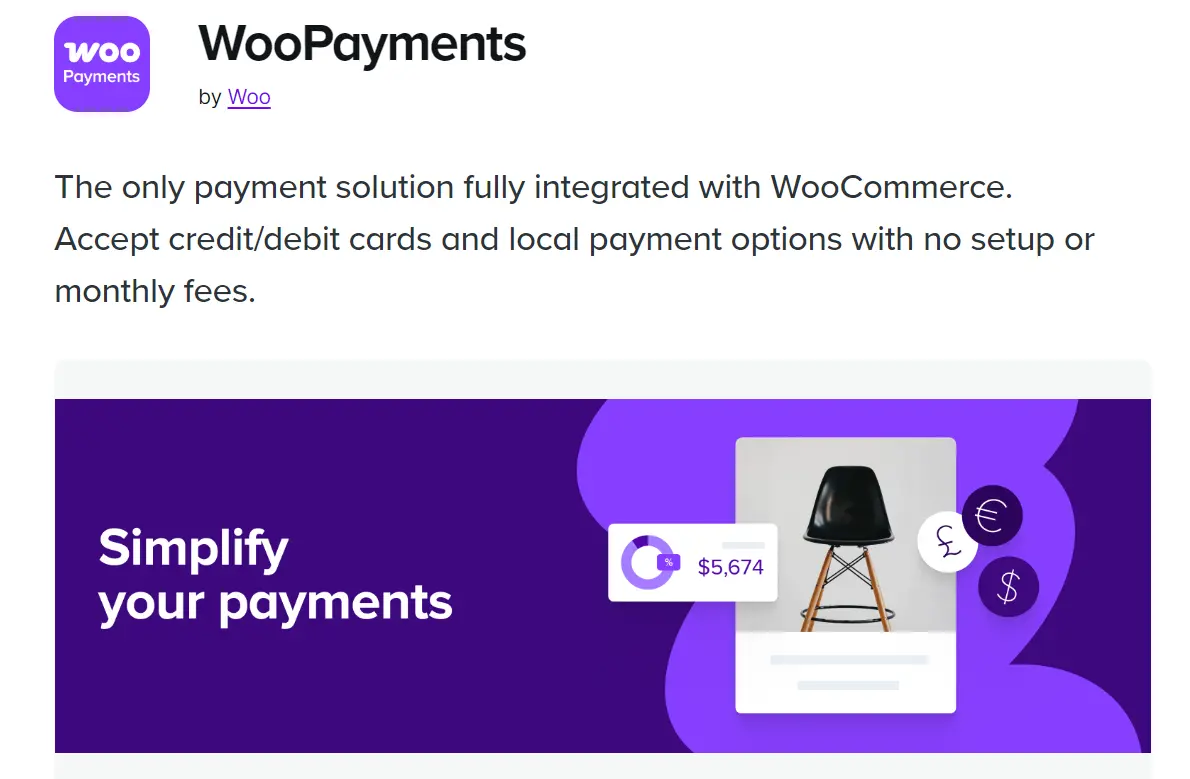
Shoppers abandon checkout when their preferred payment method is missing. So payments come first.
WooPayments is the official WooCommerce gateway. It accepts cards and wallets such as Apple Pay and Google Pay. Payouts appear inside your WooCommerce dashboard, which keeps your bookkeeping in one place.
Stripe is the other main route. The official WooCommerce Stripe gateway also handles cards and wallets. A third-party plugin called Payment Plugins for Stripe WooCommerce is another pick.
Choose WooPayments if you want one dashboard and fewer moving parts. Choose Stripe if you already have an account or want its extra tools. Fees vary by plan and volume, so check current rates first.
Then add PayPal as a second method. Many US shoppers look for it at checkout. The official PayPal Payments plugin adds PayPal buttons without custom work.
Finally, plan for chargebacks. Keep tracking numbers and delivery proof ready for your gateway’s dispute tool.
2) Shipping: WooCommerce Shipping for USPS and UPS Labels
Shipping eats hours when you handle it by hand. WooCommerce Shipping lets you buy and print labels from the order screen. It pulls live USPS and UPS rates, so you can compare services without leaving WordPress.
You also need to pick a rate model. Flat rates are easy to explain to shoppers. Calculated rates match what carriers actually charge.
Use flat rates for light, uniform products. Use calculated rates when weight and distance vary widely.
Next, set a free-shipping threshold. It nudges shoppers to add one more item. Start slightly above your average order value, then adjust after a few weeks of data.
However, the built-in tool may not cover every carrier. If you ship with FedEx, look for a separate extension.
3) Sales Tax: Automated US Tax Calculation
US sales tax is messy. Rates change by state, county, and sometimes city. Since the 2018 South Dakota v. Wayfair ruling, states can require out-of-state sellers to collect tax. So a store with customers in many states may owe tax in several of them.
WooCommerce lets you enter tax rates by hand. That works for a store selling in one state. It becomes tedious once you ship nationwide.
Automated tools solve that. WooCommerce offers automated tax calculation for US stores, and third-party tax services also offer plugins.
Check which one your account supports today. Then compare rate accuracy, filing help, monthly cost, and order limits.
This is not legal or tax advice. Talk to an accountant about where you must collect.
4) SEO: Yoast SEO or All in One SEO
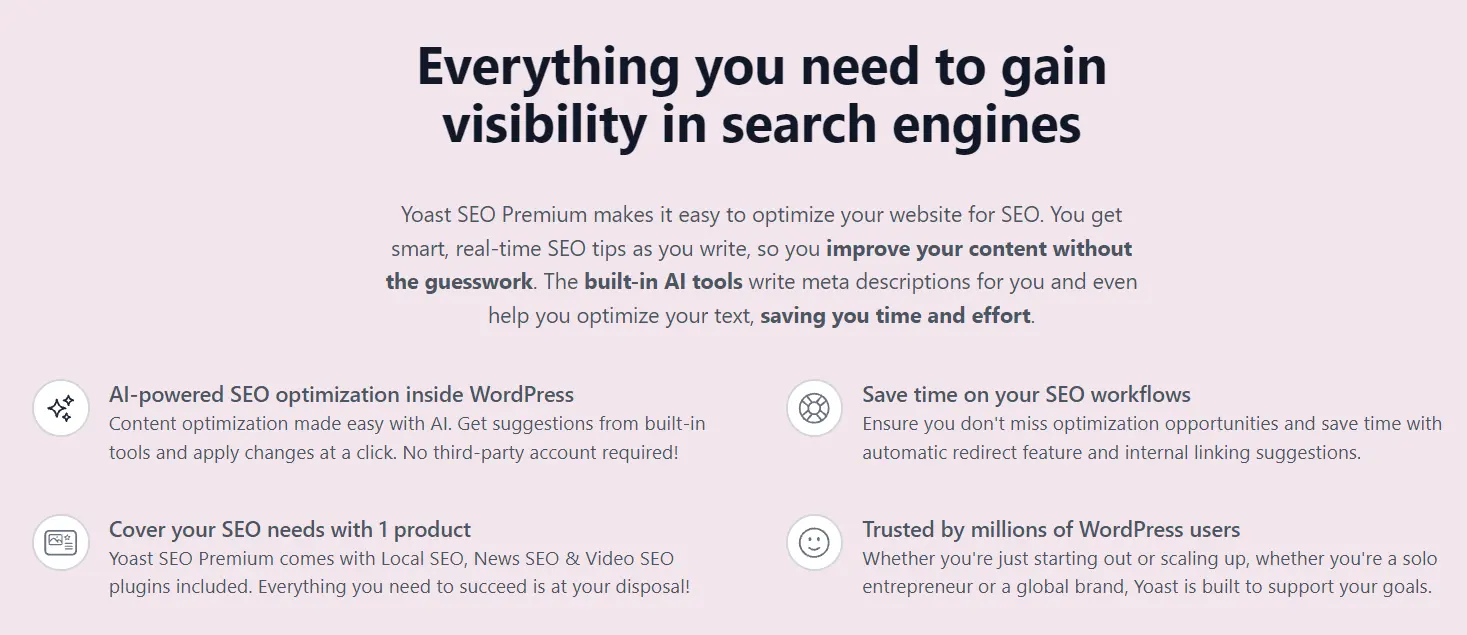
Search ranking brings free traffic, and product pages need it. Both plugins handle titles, meta descriptions, XML sitemaps, and structured data.
Yoast is the more common pick. All-in-One SEO is a credible rival. Check which WooCommerce features sit in the free version of each.
WooCommerce stores hit a few repeat problems. Tag and category archives create duplicate or thin pages.
Filtered URLs multiply with every filter combination. So set low-value tag archives to noindex and set canonical URLs on filtered pages.
Also, write unique product descriptions. The manufacturer’s copy appears on dozens of other sites, and it rarely ranks.
Install one SEO plugin, never two. They conflict, and your pages end up with duplicate tags.
5) Speed: WP Rocket for Caching
Slow pages cost sales, since shoppers leave before they buy. Caching saves ready-made copies of your pages. The server then does less work on each visit.
WP Rocket is a paid plugin with sensible defaults. It handles caching, file minification, lazy loading, and preloading. Most stores see a difference right after setup.
However, never cache the cart, checkout, or My Account pages. Most caching plugins exclude them by default. Verify that after setup anyway.
Free tools exist. LiteSpeed Cache works well on LiteSpeed servers. W3 Total Cache works on most hosts. Run Google PageSpeed Insights before and after you install any of them.
Also, caching can’t rescue an overloaded server. Your hosting sets the speed ceiling.
6) Security: Wordfence

Stores handle payments and customer data, making them targets for attackers. A security plugin adds a web application firewall, malware scanning, and login protection.
Wordfence covers all three in its free tier. The paid tier delivers new firewall rules sooner.
Turn on two-factor login for every admin account. Also, limit login attempts. Keep WordPress, WooCommerce, and every plugin updated, since old versions are the usual way in.
Solid Security and Sucuri are credible rivals. Pick one and stick with it. Running two firewalls at once causes conflicts.
7) Backups: WPvivid or UpdraftPlus
Orders arrive every hour, so that a weekly backup can erase days of sales. Schedule daily database backups at a minimum. Busy stores need them more often.
Store copies off your server, such as in cloud storage. A backup on the same machine disappears when the machine does. Both WPvivid and UpdraftPlus offer free tiers for this job.
Pick one, then test a restore on a staging site. Many owners skip that test. They find out too late that a backup failed.
8) Email: Mailchimp for WooCommerce or Omnisend

Email brings back the buyers you already paid to attract. Mailchimp for WooCommerce is the official integration.
It syncs customers, orders, and products into your Mailchimp account. The plugin is free, and Mailchimp offers a free plan with limits.
Omnisend is a strong rival. It adds SMS and ready-made automation workflows. Compare the free plan’s limits on contacts and monthly sends before you commit.
Start with three emails. Send a welcome message, a post-purchase thank-you, and a review request. That small set covers most of the value.
US law also applies here. The CAN-SPAM Act requires that marketing emails include an unsubscribe link and a physical mailing address. You must also honor opt-outs within 10 business days.
9) Cart Recovery: WooCommerce Cart Abandonment Recovery
Many shoppers add products and then leave. A reminder email brings some of them back. WooCommerce Cart Abandonment Recovery is a free plugin that sends those reminders.
FunnelKit is the step up. It adds funnels, checkout templates, and automation in one place. Choose it if you plan to build upsells and follow-up flows.
Time your emails with care. Send the first within a few hours. Send a second the next day. Save any discount for the last message, so you don’t train shoppers to wait for coupons.
Also, tell shoppers you collect their email at checkout. That keeps you on the right side of privacy rules.
Finally, fix the checkout itself. Turn on guest checkout and cut fields you don’t need. Show shipping costs before the final step.
10) Analytics: Google for WooCommerce and GA4
Without data, you guess. Google for WooCommerce is the official plugin from Google and WooCommerce. It syncs your product feed to Google Merchant Center. That unlocks free product listings and Google Ads campaigns.
Connect Google Analytics 4 as well. A GA4 plugin or Google Site Kit can handle the setup. Track three events: add to cart, begin checkout, and purchase.
Then watch the three numbers first. Look at the conversion rate, average order value, and the drop between cart and checkout. You don’t need an analyst for that.
FAQs
Do too many plugins slow down a WooCommerce store?
Count counts for less than quality. One heavy plugin can hurt more than five light ones. To audit your store, deactivate plugins one at a time on a staging site. Measure each change with PageSpeed Insights or Query Monitor.
Remove overlap, such as two SEO plugins. Delete unused plugins instead of leaving them deactivated. Your hosting also plays a part, so test on a decent server.
Are the must-have WooCommerce plugins free or paid?
Most have a free tier, and paid versions add features. The table near the top shows each cost model. Start free where a free tier covers the job. Then pay for caching and email growth when your store needs them.
Remember that transaction fees and carrier rates sit outside plugin pricing. Budget for those separately.
Which of these plugins should you install first?
Follow this order. Start with payments, shipping, tax, backups, and security. Those keep your store able to sell and safe to run. Then add speed, SEO, email, cart recovery, and analytics to grow it.
Give Your Plugins a Server That Keeps Up
Plugins only do their job when the server behind them responds quickly. Caching reduces load, but a crowded hosting plan still slows checkout. Your store also needs room for backups, security scans, and sale-day traffic spikes.
Truehost offers WordPress and WooCommerce hosting for US stores. Pick a plan, install the ten plugins in the order above, and test checkout from start to finish before launch.
Explore Truehost managed cloud hosting.