 Domain RegistrationFind and register the perfect domain for your website.
 .COM DomainChoose a widely recognized domain to build global credibility.
 Domain TransferSeamless domain transfers with zero downtime and complete control.
 All TLDsFind and register your perfect domain. Choose from local and global extensions.
 SSL CertificatesKeep your website safe with reliable SSL Certificates that protect customer data and build trust.
 whoisCheck domain ownership details, expiration dates, and registrar information.
 US DomainRegister a .US domain and build trust in the USA.
 Web HostingEverything your website needs to run smoothly
 WordPress HostingWordPress hosting that just works
 Windows HostingReliable hosting for Windows environments
 Reseller HostingTurn hosting into your business
 Email HostingEmail that looks professional and works anywhere
 cPanel HostingFull control of your hosting with cPanel
 Affiliate ProgramJoin as a partner and earn commissions on every referral you send our way.
 Vps HostingScalable virtual servers that expand as you need.
 Dedicated ServersGet complete access and full control over your dedicated physical server.
 Managed vpsNot tech-savvy? We will take care of everything with our fully managed VPS hosting for you.
 AI Website BuilderCreate stunning websites in seconds with AI.
 Online ShopSet up a professional online store. No coding required.
 Web design serviceGet a tailored website designed to match your brand and support your goals.
 BlogFind helpful guides on web hosting, online selling, digital marketing, and more.
 Contact USYou can reach us anytime, day or night, through chat or email.
 SupportBrowse helpful guides and answers for all of our services.
More people are choosing to host their own AI agents because when you use AI tools from other companies, you have to send your business data, questions, and files to their servers.
OpenClaw solves this problem. It is an open-source tool that lets you run AI agents on your own setup. Meaning, you retain full control over your information and how your automations work.
When hosting OpenClaw on a VPS, you get your own dedicated resources, so your agents run smoothly without slowdowns from other users on the same machine.
You also get full access to the system, which lets you install what you need, adjust settings, and connect other tools.
And, costs depend on what you plan to do. A basic plan with 1 vCPU and 2 GB RAM handles simple tasks well.
If you want to run multiple agents simultaneously or build complex workflows, you will need more memory and processing power.
Truehost has OpenClaw-specific plans starting at $12.00 per month when you pay annually.
What You Need Before You Self-Host
| What you need | Why you need it |
| A VPS plan | OpenClaw requires dedicated resources and full root access. Shared hosting restricts background processes and lacks the CPU isolation needed for AI workloads. |
| An AI model API key | OpenClaw needs to connect to a language model provider such as OpenAI or Anthropic, or to a local model via Ollama. The API key authenticates your requests. |
| Messaging platform credentials | If you plan to use Telegram, WhatsApp, or Discord, you need bot tokens and properly configured channels. |
| SSH client | You will use this to connect to your VPS and run deployment commands. |
7 Steps to Self-Host AI Agents with OpenClaw VPS
1) Choose and order your OpenClaw VPS plan from Truehost.
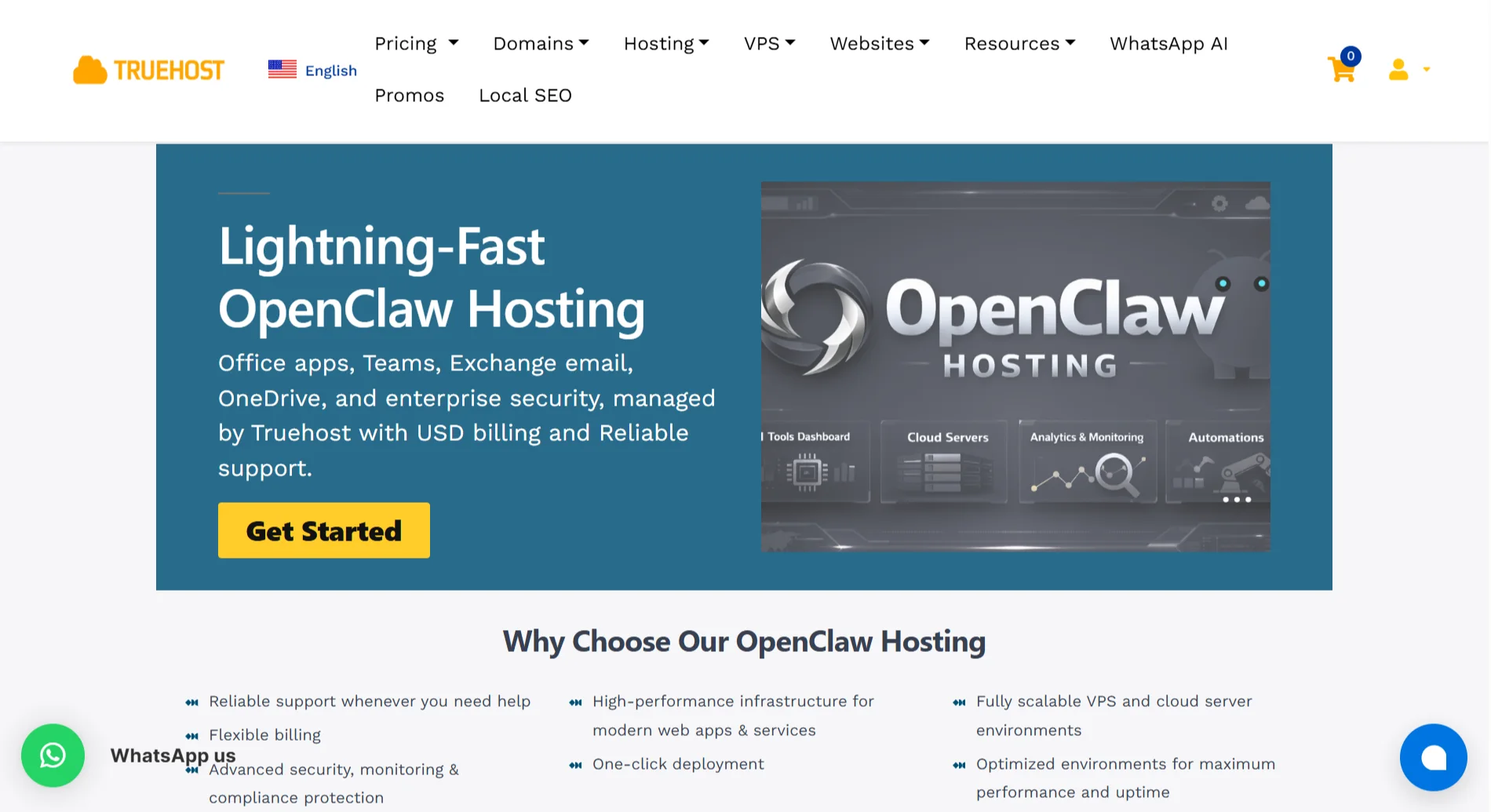
Truehost offers pre-configured OpenClaw plans built specifically for AI workloads.
Our plans include Ubuntu environments, Playwright browser frameworks, Python runtimes, and the OpenClaw orchestration engine, all of which are already installed.
Why Truehost’s OpenClaw hosting stands out:
- High-performance AMD virtualization instances – custom-configured for headless web interaction and automation tasks, with deployment in under 45 seconds.
- Isolated VPS resources – secure dedicated vCPU time and guaranteed physical memory.
- Built for high-execution AI workloads – dedicated virtual core configurations prevent headless browser slowness and script interruptions.
- Secure infrastructure – customizable software firewalls, DDoS threshold filters, and daily SSD snapshots.
We have a variety of packages you can pick:
| Package | Price | Specs |
| OpenClaw Starter | $12.00 | 1 vCPU, 2 GB RAM, 50 GB NVMe, 4 TB bandwidth |
| OpenClaw Pro | $18.00 | 2 vCPU, 4 GB RAM, 100 GB NVMe, 6 TB bandwidth |
| OpenClaw Business | $23.53 | 4 vCPU, 8 GB RAM, 200 GB NVMe, 8 TB bandwidth |
How do you deploy?
- Select your plan – choose the virtual AMD processor cores and memory for your workloads.
- Automated deployment – Truehost’s hypervisors install prebuilt node packages and script extensions in under 45 seconds.
- Connect your plan – access your console remotely via root SSH, paste deployment keys, and activate your worker loops.
2) Retrieve credentials from your welcome email (dashboard URL and gateway token)
After ordering, Truehost sends a welcome email containing your dashboard URL and gateway token.
These credentials are your entry point. Save them in a secure location.
You will need the dashboard URL to access the OpenClaw web interface and the gateway token to authenticate your connection.
3) Access the Dashboard and Configure the Interface
Open the dashboard URL from your welcome email in a browser. Log in using the provided credentials.
The dashboard gives you a central view of your OpenClaw instance, gateway status, installed skills, and configuration options.
Check that the gateway status shows “running”. If it shows “unknown” or “stopped”, wait a few minutes and refresh.
If it remains stuck, you can restart the gateway using the dashboard or via command line with openclaw gateway restart.
4) Connect an AI model by Entering Your API Key
Without a working API key, your agents cannot generate responses.
Navigate to the model configuration section in the dashboard. Enter your API key from your chosen provider (OpenAI, Anthropic, or others). Save the configuration.
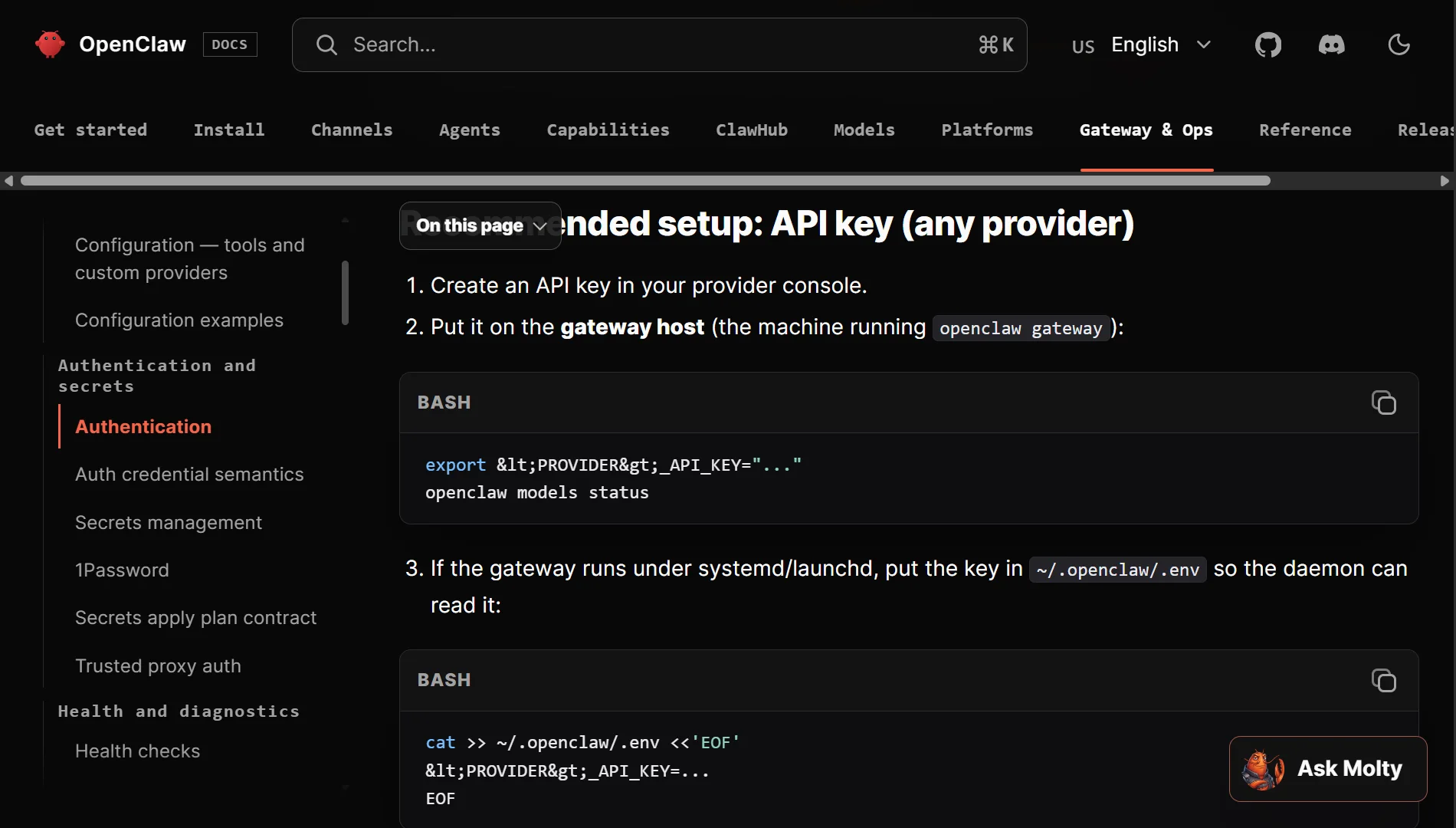
Common points to check:
- Ensure the key is copied correctly with no extra spaces or missing characters.
- Verify that the key has not expired and that you have sufficient credits.
- Restart the gateway after saving to apply the change.
You can test if the connection works by sending a simple prompt through the dashboard. If the model responds, you are good to go.
5) Connect Messaging Channels
OpenClaw supports Telegram, Discord, and WhatsApp.
To get started with Telegram:
- Create a bot using BotFather on Telegram.
- Copy the bot token.
- In the OpenClaw dashboard, go to channel settings and paste the token.
- Save and restart the gateway.
And for WhatsApp:
WhatsApp integration requires Meta’s Business API. The QR code method is common; scan the code in the dashboard to link your WhatsApp account. If the QR code expires, you can regenerate it.
Discord:
- Create a bot in Discord’s developer portal
- Get the token
- Add it to OpenClaw’s channel settings
After connecting a channel, send a test message to verify that the bot responds.
6) Add Skills as Needed
Skills extend OpenClaw’s capabilities. They allow your agents to perform specific tasks, such as searching the web, sending emails, or interacting with external tools.
You can add skills in a few ways:
- Via dashboard – look for the skill configuration section and install from available options.
- Via command line – use
openclaw skills listto see available skills andclawhub install [skill-name]to install them. - Via chat – in some configurations, you can ask the bot what skills are available.
If a skill installation fails, it may be due to network timeouts or ClawHub community rate limiting.
Try installing skills during off-peak times or use a ClawHub token to bypass rate limits.
7) Test one simple workflow
Set up a basic workflow like:
- The bot listens for a command like
/summarize [text]. - It sends the text to the connected AI model.
- The model returns a summary.
- The bot posts the summary back to the chat.
This confirms everything is working – the messaging channel receives input, the AI model processes it, and the response is delivered.
Once this works, you can build more complex multi-step workflows that chain API calls and interact with multiple systems.
Common Issues to Troubleshoot
| Issue | Fix |
| Gateway won’t start or shows “Runtime: stopped” | Check the XDG_RUNTIME_DIR is set: export XDG_RUNTIME_DIR=/run/user/$(id -u). Verify systemd user instance is running: systemctl --user status. Check port conflicts with ss -tlnp | grep 3000 |
| API key errors (invalid, expired, or insufficient credits) | Copy the key again, ensuring no spaces. Check your provider dashboard for expiry and credits. Restart the gateway after saving the key. Test the key independently with a direct API call. |
| Telegram bot not responding | Verify the webhook URL is accessible from the internet. Check if the bot token is correct. If you regenerated it on BotFather, you need to update it in OpenClaw. Ensure the SSL certificate is valid |
| WhatsApp QR code expired or “not linked” | Regenerate the QR code from the dashboard. If it keeps expiring, check if the server time is correctly synced. |
| High memory usage or slow performance | Check memory with free -h. If usage is above 80%, consider upgrading your VPS plan or uninstalling unused skills. Reduce conversation history length and simplify prompts for better performance |
| Cron jobs not firing | Ensure the service is enabled for startup: systemctl enable openclaw. Verify your cron expression format is correct. Check logs for cron execution records |
How to Self-Host AI Agents with OpenClaw VPS FAQs
Can I host my own AI agent?
Yes. OpenClaw is designed for self-hosting on infrastructure you control. You get full data ownership and can run AI agents without depending on third-party platforms.
How expensive is it to host your own AI?
Costs depend on your VPS plan and the AI model you use. Entry-level VPS plans start around $11 per month. API calls to external models add additional costs based on token usage. Running local models can reduce ongoing API costs but requires more powerful hardware.
Which VPS should I use for OpenClaw?
Truehost offers dedicated OpenClaw plans with pre-configured environments, AMD virtualization, and NVMe storage specifically optimized for AI workloads.
Where can I host OpenClaw for free?
Free tiers from cloud providers generally lack sufficient resources for OpenClaw. The minimum requirement is 2 GB of RAM, and free plans usually offer less. A paid VPS is the practical option.
What is the recommended VPS size for OpenClaw?
For basic automations, start with 2 GB RAM and 1 vCPU. For multi-step reasoning and moderate concurrent tasks, go with 4 GB RAM and 2 vCPUs. Heavy workflows with multiple parallel agents need 8 GB RAM or more.
Which free VPS hosting provider is recommended for OpenClaw?
None. Free providers lack dedicated resources and root access, both necessary for OpenClaw to run reliably. Use a paid VPS for a stable experience.
Ready to Self-Host OpenClaw?
Truehost makes OpenClaw deployment simple. Our plans come pre-configured with the orchestration engine, Python stack, and Playwright frameworks already installed.
You get stable Ubuntu environments built for high-execution AI workloads, so you can focus on building agents, not wrestling with server setup.
We offer flexible billing in USD, reliable support when you need help, and a fully scalable VPS environment that grows with your needs. AMD virtualization instances are provisioned in under 45 seconds, and your resources are isolated.
Choose from OpenClaw Starter $12.00/month, Pro $18.00/month, or Business $23.53/month – all backed by advanced security, DDoS protection, and daily SSD snapshots.