 Domain RegistrationFind and register the perfect domain for your website.
 .COM DomainChoose a widely recognized domain to build global credibility.
 Domain TransferSeamless domain transfers with zero downtime and complete control.
 All TLDsFind and register your perfect domain. Choose from local and global extensions.
 SSL CertificatesKeep your website safe with reliable SSL Certificates that protect customer data and build trust.
 whoisCheck domain ownership details, expiration dates, and registrar information.
 US DomainRegister a .US domain and build trust in the USA.
 Web HostingEverything your website needs to run smoothly
 WordPress HostingWordPress hosting that just works
 Windows HostingReliable hosting for Windows environments
 Reseller HostingTurn hosting into your business
 Email HostingEmail that looks professional and works anywhere
 cPanel HostingFull control of your hosting with cPanel
 Affiliate ProgramJoin as a partner and earn commissions on every referral you send our way.
 Vps HostingScalable virtual servers that expand as you need.
 Dedicated ServersGet complete access and full control over your dedicated physical server.
 Managed vpsNot tech-savvy? We will take care of everything with our fully managed VPS hosting for you.
 AI Website BuilderCreate stunning websites in seconds with AI.
 Online ShopSet up a professional online store. No coding required.
 Web design serviceGet a tailored website designed to match your brand and support your goals.
 BlogFind helpful guides on web hosting, online selling, digital marketing, and more.
 Contact USYou can reach us anytime, day or night, through chat or email.
 SupportBrowse helpful guides and answers for all of our services.
You hit send on an important email, and it never gets a reply. Not because the recipient ignored it, but because it never reached their inbox at all.
Emails landing in spam folders quietly damage open rates, customer trust, and business communication. Whether you’re sending newsletters, invoices, transactional emails, or marketing campaigns, improving deliverability isn’t optional; it’s essential.
This article covers how to stop emails from going to spam with 20+ practical tips to help your messages consistently reach inboxes across Gmail, Outlook, Yahoo, and beyond. If your current setup is holding you back, Truehost Business Email offers the infrastructure and authentication support to fix that from the ground up.
Why Do Emails Go to Spam?
Spam filters exist because inboxes would be unusable without them, but that means legitimate email sometimes gets caught in the crossfire.
- Spam filters work by scoring signals. Authentication, content, sending patterns, and recipient behavior all factor into whether a message lands in the inbox or spam folder.
- Providers flag emails that look suspicious. Missing authentication, spammy formatting, or unusual sending volume all raise red flags.
- Sender reputation matters enormously. Providers track how recipients interact with your past emails and use that history to judge new ones.
- Spam folders cost businesses real money. A missed invoice email or an unseen marketing campaign is lost revenue, not just an inconvenience.
Think of spam filtering less like a single gate and more like an ongoing conversation between your domain and every major provider. Every email you send either builds or erodes that relationship, which is why a single bad campaign rarely tanks your reputation overnight, but a pattern of bad campaigns absolutely will.
What Causes Emails to Go to Spam?
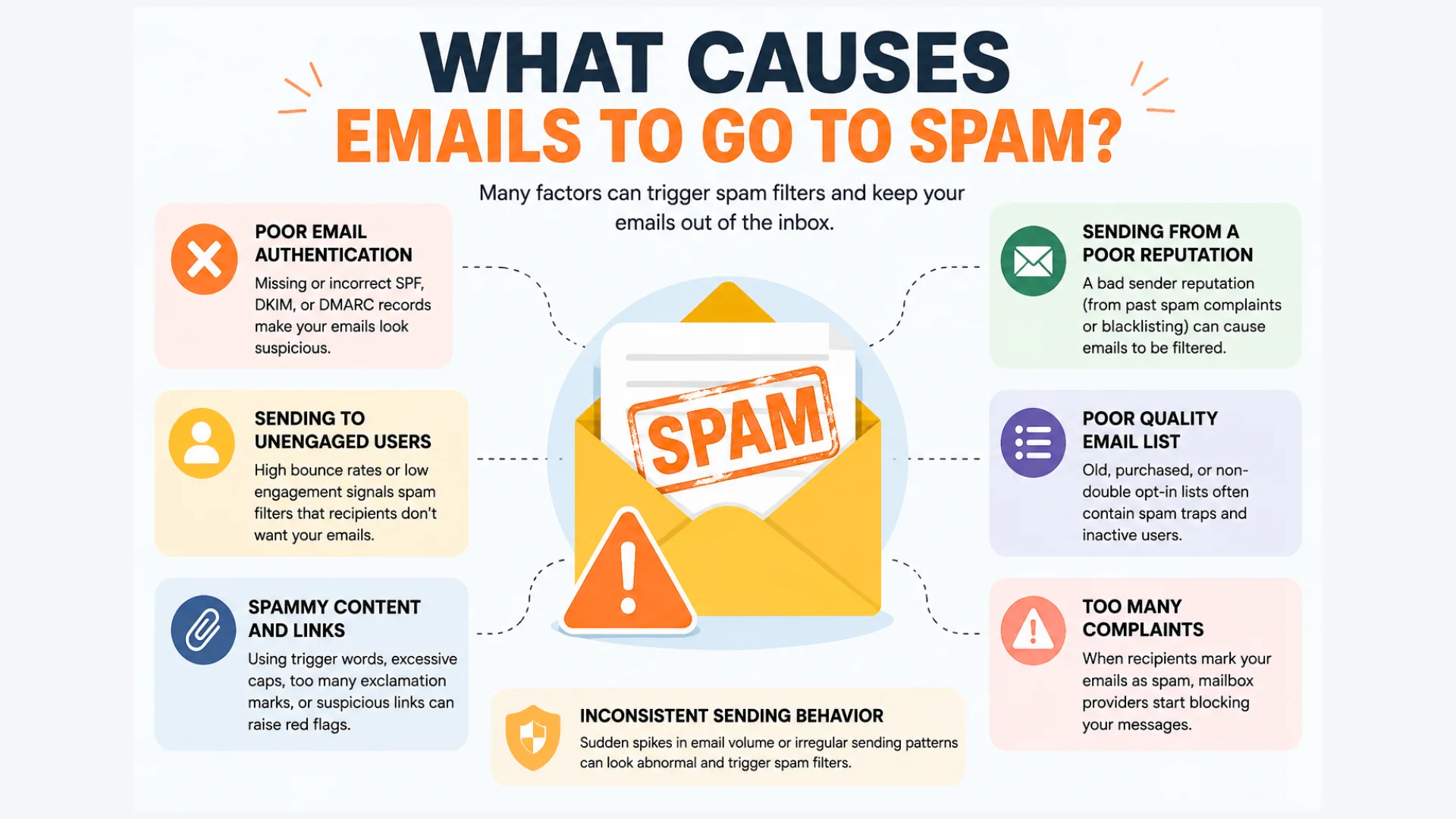
Most deliverability problems trace back to a short list of common causes.
- Missing SPF records let anyone potentially spoof your domain, which providers treat as a red flag.
- Missing DKIM signatures mean there’s no way to verify your message wasn’t altered in transit.
- No DMARC policy leaves your domain without instructions for handling failed authentication.
- Poor sender reputation built up over time makes every future email more likely to get filtered.
- Blacklisted domains or IPs get filtered automatically by providers checking against known spam sources.
- Spam-triggering words and formatting like excessive caps, exclamation points, or “FREE MONEY” still get flagged.
- Low recipient engagement signals to providers that people don’t want your emails.
- High bounce rates suggest a poorly maintained list, which damages your sending reputation.
- Sending too many emails at once from a new domain looks like spam behavior to filters.
- Poor-quality email lists filled with invalid or uninterested addresses drag down every metric that matters.
Check These Before Troubleshooting
Before diving into fixes, confirm the basics are actually in place.
- Verify your email hosting is actir current setup is holding you back, Truehost Business Email offersve and functioning correctly.
- Confirm your DNS records are configured without typos or conflicts.
- Test email delivery across Gmail, Outlook, and Yahoo specifically.
- Check whether your domain or IP address appears on any blacklists.
- Ensure your mailbox has enough available storage to send and receive normally.
20+ Tips to Stop Emails from Going to Spam

Tip 1: Use a Professional Business Email Address
A custom domain email like [email protected] carries far more trust than a free Gmail or Yahoo address. Providers and recipients both associate free addresses more frequently with spam and low-effort senders, which puts you at a disadvantage before you’ve even sent your first message.
Tip 2: Set Up SPF Correctly
SPF (Sender Policy Framework) tells receiving servers which mail servers are allowed to send email for your domain. Add an SPF TXT record listing your authorized sending sources, then verify it’s working using an SPF checker tool.
Think of SPF as a guest list for your domain. If a mail server isn’t on that list, receiving providers know something’s off, whether it’s a misconfiguration on your end or someone actively trying to impersonate you.
Tip 3: Enable DKIM
DKIM (DomainKeys Identified Mail) adds a digital signature to your outgoing emails, proving they weren’t altered in transit. Publish your DKIM record in DNS, then verify signatures are passing using your email header details.
Unlike SPF, which checks the sending server, DKIM verifies the message content itself. That distinction matters, since a message can pass SPF and still fail DKIM if something along the way tampered with the actual email.
Tip 4: Configure DMARC
DMARC (Domain-based Message Authentication, Reporting, and Conformance) tells receiving servers what to do when SPF or DKIM checks fail. Start with a monitoring-only policy, review the reports you receive, then tighten enforcement once you’re confident everything’s authenticating correctly.
DMARC reports can look intimidating at first, since they arrive as raw XML data rather than a friendly dashboard. A DMARC reporting tool translates that data into something readable, so you can actually act on what you’re seeing instead of ignoring it.
Tip 5: Keep Your DNS Records Updated
Outdated or conflicting DNS records quietly break authentication without any obvious warning. Review your records periodically, especially after switching email providers or hosting, to make sure nothing’s left over from a previous setup.
Tip 6: Build and Protect Your Sender Reputation
Sender reputation builds slowly and can be damaged quickly. Send consistently, keep complaint rates low, and maintain a steady, predictable sending history rather than sporadic bursts.
Providers pay close attention to consistency. A domain that sends a handful of emails a week, then suddenly blasts out ten thousand, looks statistically similar to a compromised account or a spammer, even if the sender has entirely legitimate reasons.
Tip 7: Warm Up New Domains Before Sending Large Volumes
A brand-new domain sending thousands of emails immediately looks exactly like spam behavior to providers. Start with small batches to engaged recipients, then gradually increase volume over several weeks as your domain builds a track record.
A typical warm-up schedule might start with a few dozen emails a day to your most engaged contacts, doubling roughly every few days as open rates stay healthy. Rushing this process is one of the fastest ways to sabotage a brand-new domain before it ever gets a fair chance.
Tip 8: Never Buy Email Lists
Purchased lists are full of invalid addresses, spam traps, and uninterested recipients who are far more likely to mark you as spam. The short-term reach isn’t worth the long-term reputation damage.
Spam traps deserve special mention here. These are addresses specifically planted by providers and blacklist operators to catch senders using low-quality lists, and hitting even one can trigger serious deliverability consequences that take months to recover from.
Tip 9: Use Double Opt-In
Double opt-in requires subscribers to confirm their email address before joining your list. It filters out fake addresses and typos automatically, and everyone left on your list genuinely wants to hear from you.
Tip 10: Remove Invalid Email Addresses Regularly
Bounced addresses drag down your sender reputation every time you send to them again. Run your list through an email validation tool periodically and remove anything that consistently bounces.
Tip 11: Remove Inactive Subscribers
Recipients who haven’t opened anything in six months or more are quietly hurting your engagement metrics. Run a re-engagement campaign first, then remove anyone who still doesn’t respond.
Tip 12: Avoid Spam Trigger Words
Certain words and phrases still get flagged by spam filters, even when used innocently. Skip aggressive sales language like “act now,” “risk-free,” or excessive dollar signs, and write the way you’d actually talk to a colleague.
Tip 13: Write Clear and Relevant Subject Lines
Your subject line should accurately reflect your email content, not trick people into opening it. Misleading subject lines drive complaints, and complaints directly damage your sender reputation.
Tip 14: Balance Text and Images
Image-only emails are a common spam filter trigger, since spammers historically used images to hide text from filters. Keep a healthy mix of real text alongside any visuals you include.
Tip 15: Include a Plain-Text Version
Every HTML email should include a plain-text alternative. Some email clients still prefer or require it, and its absence can itself be treated as a minor spam signal.
Tip 16: Add a Professional Email Signature
A complete signature builds legitimacy and trust. Include your business name, contact information, website link, and relevant social media links, all pointing to consistent branding.
Tip 17: Monitor Your Bounce Rate
Hard bounces mean the address doesn’t exist; soft bounces mean a temporary delivery issue. Keep your bounce rate under 2%, and investigate immediately if it climbs meaningfully higher.
Tip 18: Monitor Spam Complaint Rates
Every spam complaint chips away at your sender reputation, even from recipients who technically opted in. Encourage recipients to whitelist your address, and make unsubscribing easy so people opt out instead of hitting “report spam.”
Tip 19: Test Emails Before Sending
Send test emails to yourself and colleagues before every campaign. Check formatting across devices, click every link, and confirm attachments open correctly before your list ever sees the message.
Tip 20: Check Whether Your Domain or IP Is Blacklisted
Blacklisting can happen even to careful senders, often through no fault of their own. Check your status regularly using a blacklist lookup tool, and follow the specific removal process if you ever find yourself listed.
Tip 21: Use Reliable Business Email Hosting
Your hosting infrastructure affects deliverability more than most people realize. Reliable hosting provides stable sending infrastructure, strong uptime, proper authentication support, and better overall inbox placement than budget or overcrowded shared servers.
Truehost Business Email is built with this in mind, offering the infrastructure and authentication support that makes consistent inbox placement realistic rather than a constant struggle.
Essential Email Authentication Records
Understanding what each authentication method actually does makes troubleshooting far less confusing.
| Method | Purpose |
|---|---|
| SPF | Confirms which servers are authorized to send email for your domain |
| DKIM | Adds a digital signature verifying your message wasn’t altered in transit |
| DMARC | Tells receiving servers how to handle messages that fail SPF or DKIM |
| Reverse DNS (PTR) | Confirms your sending IP address matches your domain name |
| BIMI | Displays your verified brand logo next to authenticated emails in supported inboxes |
Together, these records build a layered trust system. SPF and DKIM verify legitimacy, DMARC enforces consequences for failures, PTR confirms your server identity, and BIMI rewards fully authenticated senders with visible brand recognition.
How to Check If Your Emails Are Going to Spam
A few practical checks tell you exactly where you stand.
- Send test emails to accounts across Gmail, Outlook, and Yahoo to see where they actually land.
- Check email headers for authentication results, confirming SPF, DKIM, and DMARC are all passing.
- Use email testing tools that score your message and flag specific deliverability issues.
- Monitor Google Postmaster Tools for domain reputation and spam rate data specific to Gmail.
- Check Microsoft SNDS for reputation data related to Outlook and Hotmail delivery.
If test emails consistently land in spam despite passing authentication, the issue is more likely engagement or content-related than technical.
Common Email Delivery Problems and Their Fixes
- Emails going to Gmail spam: Check Google Postmaster Tools for specific reputation and authentication issues.
- Outlook sending emails to Junk: Verify SPF and DKIM, and check Microsoft SNDS for reputation data.
- Yahoo blocking emails: Confirm authentication is fully configured, since Yahoo enforces strict requirements for bulk senders.
- Authentication failures: Re-check your DNS records for typos, missing entries, or conflicting configurations.
- High bounce rates: Clean your list immediately and investigate whether specific segments are driving the problem.
- Blacklisted domains or IPs: Identify the specific blacklist, follow its removal process, and address the underlying cause first. MXToolbox is a reliable starting point for checking your status.
- Poor sender reputation: Slow down sending volume, focus on engaged recipients, and rebuild trust gradually over time.
Best Tools to Test Email Performance
- Google Postmaster Tools shows domain reputation, spam rate, and authentication data specific to Gmail.
- MXToolbox checks DNS records, blacklist status, and mail server configuration in one place.
- Mail-Tester scores a single test email and flags specific issues holding back your deliverability.
- GlockApps tests inbox placement across multiple providers simultaneously.
- DMARC Analyzer helps interpret DMARC reports without manually parsing raw XML data.
- EasyDMARC simplifies DMARC setup and ongoing monitoring for less technical users.
Common Mistakes That Cause Emails to Go to Spam
- Sending emails without permission. Cold outreach at scale, without consent, is one of the fastest ways to damage sender reputation.
- Ignoring SPF, DKIM, and DMARC. Skipping authentication leaves you vulnerable to spoofing and filtering alike.
- Using misleading subject lines. Clickbait tactics drive complaints, which hurt far more than a lower open rate would.
- Sending too many promotional emails. Overwhelming your list drives unsubscribes and spam reports in equal measure.
- Including suspicious links or attachments. These are heavily scrutinized by spam filters, even when completely legitimate.
- Overusing URL shorteners. Shortened links are frequently associated with spam and phishing, triggering filters unnecessarily.
- Failing to clean email lists. Stale, invalid addresses quietly erode every deliverability metric you track.
- Sending from multiple unauthenticated domains. Each unverified
FAQs
Why do my emails keep going to spam instead of the inbox?
Usually it’s a combination of missing authentication (SPF, DKIM, DMARC), poor sender reputation, or content that trips spam filters. Check all three before assuming it’s just one issue, since fixing only one often isn’t enough to see real improvement.
How can I stop Gmail from marking my emails as spam?
Set up proper authentication, monitor Google Postmaster Tools, and focus on sending to genuinely engaged recipients rather than broad, unfiltered lists. Gmail in particular weighs recipient engagement heavily, so a smaller, responsive list often outperforms a larger, passive one.
How do I know if my domain has been blacklisted?
Use a blacklist lookup tool like MXToolbox to check your domain and IP against major blacklist databases. Most blacklists also explain their specific removal process, which usually involves fixing the underlying issue first and then formally requesting delisting.
Can shared hosting affect email delivery?
Yes. Shared IP addresses on overcrowded hosting can inherit a poor reputation from other users on the same server, hurting your deliverability through no fault of your own. This is one of the more frustrating deliverability issues, since it can happen even when everything on your end is configured correctly.
How long does it take to improve my sender reputation?
Reputation typically improves over several weeks to a few months of consistent, well-authenticated sending. There’s no instant fix, but steady improvement compounds over time, and providers do notice sustained good behavior.
Can changing my email hosting provider improve email delivery?
Yes, especially if your current host has poor infrastructure, shared IP reputation issues, or weak authentication support. Reliable hosting often resolves deliverability problems that no amount of content tweaking can fix on its own.
Ready to Keep Your Emails Out of Spam?
Getting your emails into the inbox starts with a strong foundation. By properly configuring email authentication, maintaining a positive sender reputation, and following email best practices, you can significantly improve deliverability and build trust with both recipients and email providers.
With Truehost Business Email, you get secure email hosting, built-in support for SPF, DKIM, and DMARC, reliable infrastructure, and expert support to help your business emails consistently reach the inbox. Whether you’re sending business correspondence, newsletters, or marketing campaigns, choosing a reliable email hosting provider can make a measurable difference in your email performance.
Ready to improve your deliverability? Get professional business email with Truehost and give every message the best possible chance of reaching the inbox.