 Domain RegistrationFind and register the perfect domain for your website.
 .COM DomainChoose a widely recognized domain to build global credibility.
 Domain TransferSeamless domain transfers with zero downtime and complete control.
 All TLDsFind and register your perfect domain. Choose from local and global extensions.
 SSL CertificatesKeep your website safe with reliable SSL Certificates that protect customer data and build trust.
 whoisCheck domain ownership details, expiration dates, and registrar information.
 US DomainRegister a .US domain and build trust in the USA.
 Web HostingEverything your website needs to run smoothly
 WordPress HostingWordPress hosting that just works
 Windows HostingReliable hosting for Windows environments
 Reseller HostingTurn hosting into your business
 Email HostingEmail that looks professional and works anywhere
 cPanel HostingFull control of your hosting with cPanel
 Affiliate ProgramJoin as a partner and earn commissions on every referral you send our way.
 Vps HostingScalable virtual servers that expand as you need.
 Dedicated ServersGet complete access and full control over your dedicated physical server.
 Managed vpsNot tech-savvy? We will take care of everything with our fully managed VPS hosting for you.
 AI Website BuilderCreate stunning websites in seconds with AI.
 Online ShopSet up a professional online store. No coding required.
 Web design serviceGet a tailored website designed to match your brand and support your goals.
 BlogFind helpful guides on web hosting, online selling, digital marketing, and more.
 Contact USYou can reach us anytime, day or night, through chat or email.
 SupportBrowse helpful guides and answers for all of our services.
An IMAP server error in Outlook can stop you from sending, receiving, or syncing emails at the worst possible moment. It’s frustrating, but it’s rarely serious.
Most IMAP errors come down to a handful of common causes: wrong settings, an expired password, or a temporary connection issue. This article walks you through how to fix an IMAP server error in Outlook, from the quick checks to the deeper fixes.
If unreliable email hosting keeps causing these headaches, Truehost Business Email offers secure IMAP connections, strong uptime, and support that actually helps when something breaks.
What Does an IMAP Server Error Mean in Outlook?
An IMAP server error means Outlook can’t properly connect to your mailbox. IMAP is the protocol that keeps your inbox synced across devices, so when the connection fails, mail stops flowing.
You might see messages like “Outlook cannot connect to the server,” “IMAP server closed the connection,” or “Authentication failed.” Each points to a slightly different problem, but they all share the same root cause: something is blocking the line between Outlook and your mail server.
This can happen because of incorrect settings, expired credentials, a firewall blocking the connection, or the mail server itself being temporarily unavailable.
Common Causes of Outlook IMAP Server Errors
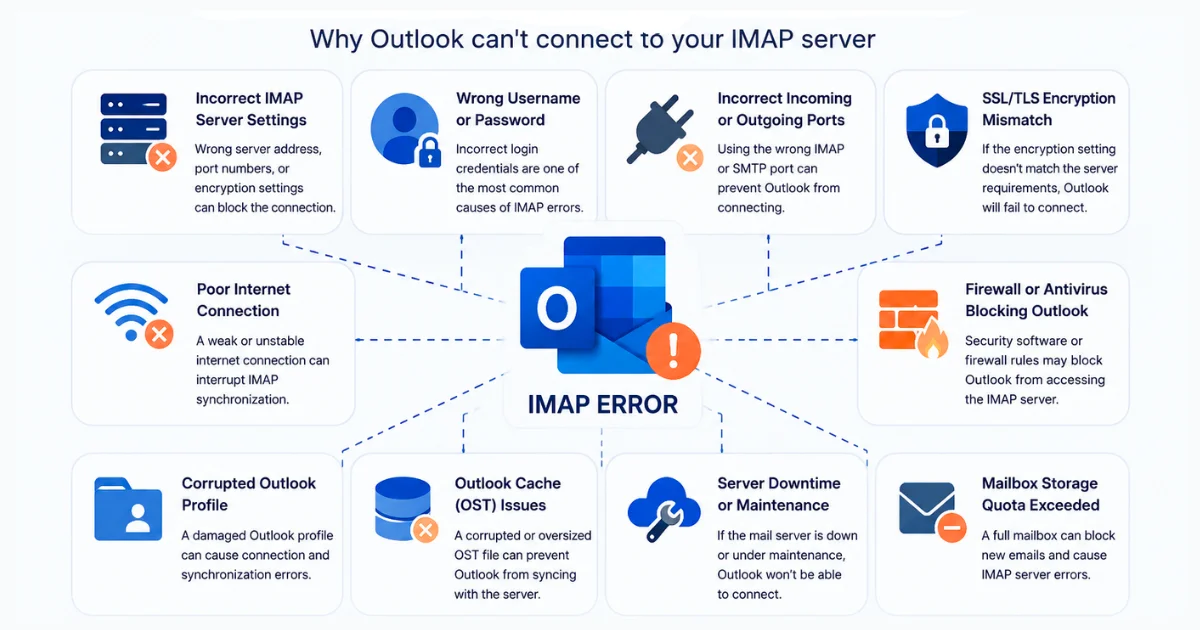
Before troubleshooting, it helps to know what usually causes this.
- Incorrect IMAP server settings entered manually or during setup
- Wrong username or password, often after a recent password change
- Incorrect incoming or outgoing mail ports
- SSL/TLS encryption mismatches between Outlook and the server
- Firewall or antivirus software blocking Outlook’s connection
- Corrupted Outlook profile built up over time
- Outlook cache (OST) issues from an interrupted sync
- Mail server downtime or maintenance on the hosting side
- Mailbox storage quota exceeded, blocking new mail
Check These Before Troubleshooting
A few quick checks can save you from unnecessary advanced fixes.
- Confirm your internet connection is actually working
- Verify your email address and password are correct
- Check whether your mail server is online
- Confirm your email hosting account is active and in good standing
- Restart Outlook, then restart your computer
If everything checks out here and the error persists, move on to the full troubleshooting steps below.
Step-by-Step Guide to Fix an IMAP Server Error in Outlook
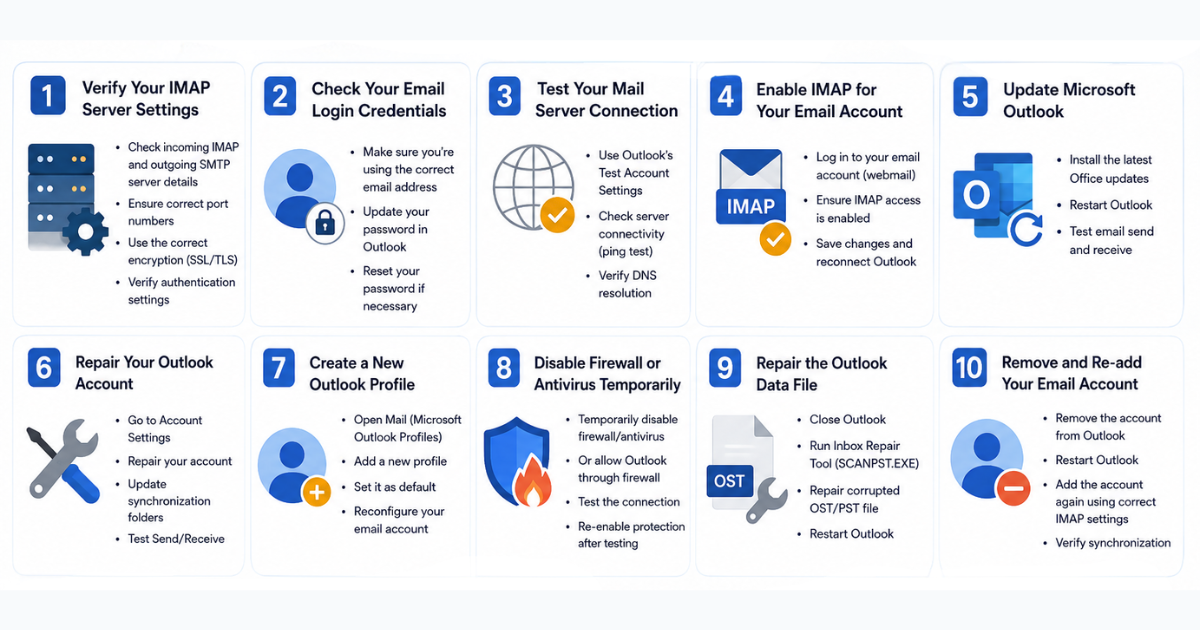
Step 1: Verify Your IMAP Server Settings
Incorrect settings are the most common cause of Outlook IMAP server errors. Check these fields carefully:
- Incoming IMAP server address
- Outgoing SMTP server address
- Port numbers for both
- SSL/TLS encryption setting
- Authentication method
Truehost Outlook IMAP Settings
| Setting | Value |
|---|---|
| Incoming server (IMAP) | mail.yourdomain.com |
| IMAP port | 993 |
| Outgoing server (SMTP) | mail.yourdomain.com |
| SMTP port | 465 (SSL) or 587 (STARTTLS) |
| Encryption | SSL/TLS required |
| Username | Full email address |
Replace “yourdomain.com” with your actual domain name.
Step 2: Check Your Email Login Credentials
Double-check that your email address is typed correctly, with no extra spaces.
Re-enter your password directly in Outlook, especially if you changed it recently elsewhere. If you’re not sure it’s correct, reset it through your email hosting control panel and update it in Outlook right after.
Step 3: Test Your Mail Server Connection
Outlook has a built-in account troubleshooting tool that catches most configuration problems.
- Go to File > Account Settings > Account Settings.
- Select your account and click Change.
- Click Test Account Settings.
If the test fails, note which part failed (send or receive) since that tells you where the problem sits. You can also confirm DNS is resolving correctly by pinging your mail server domain from a command prompt.
Step 4: Enable IMAP for Your Email Account
Some hosting providers require IMAP to be turned on manually in your mailbox settings.
- Log in to your email hosting control panel.
- Confirm IMAP access is enabled for the account.
- Reconnect the account in Outlook once confirmed.
Step 5: Update Microsoft Outlook
An outdated Outlook version can misbehave with modern server security requirements.
- Go to File > Office Account > Update Options > Update Now.
- Restart Outlook once the update finishes.
- Send a test email to confirm sync is working again.
Step 6: Repair Your Outlook Account
Outlook includes a built-in repair tool for account-level issues.
- Go to File > Account Settings > Account Settings.
- Select your account and click Repair.
- Follow the prompts, then run a manual Send/Receive to confirm it worked.
Step 7: Create a New Outlook Profile
A corrupted profile can cause persistent IMAP errors that settings changes alone won’t fix.
- Open Control Panel > Mail > Show Profiles.
- Remove the problematic profile.
- Create a new profile and reconfigure your email account from scratch.
Step 8: Temporarily Disable Firewall or Antivirus Software
Security software sometimes blocks Outlook’s connection to the mail server without any clear warning.
- Temporarily disable your firewall or antivirus.
- Check whether Outlook connects successfully.
- Re-enable your security software immediately after testing.
If disabling it fixes the issue, add Outlook as an allowed app instead of leaving your firewall off.
Step 9: Repair the Outlook Data File
Corrupted PST or OST files can trigger sync and connection errors.
- Locate the Inbox Repair Tool (SCANPST.EXE) or the Microsoft Support and Recovery Assistant.
- Run a scan on your data file and repair any errors found.
- Restart Outlook and let it rebuild the cache if needed.
Step 10: Remove and Re-add Your Email Account
If nothing else has worked, starting fresh often clears the error completely.
- Go to File > Account Settings and remove the account.
- Add it again using the correct IMAP and SMTP settings.
- Confirm mail syncs correctly in both directions.
How to Tell Whether the Problem Is Outlook or Your Email Server
Isolating the source of the problem saves time.
- Log in through webmail to see if your mailbox works outside Outlook
- Test the account on another device, like your phone
- Try another email client, such as Thunderbird or the built-in Mail app
- Check for server downtime with your hosting provider’s status page
If webmail and other devices work fine, the issue is local to your Outlook installation. If nothing connects anywhere, the problem is likely on the server side.
Common Outlook IMAP Error Messages and How to Fix Them
| Error Message | Likely Cause | Fix |
|---|---|---|
| Outlook cannot connect to the IMAP server | Wrong server address or port | Re-check server settings against Step 1 |
| IMAP server closed the connection | Timeout or server-side issue | Restart Outlook, check server status |
| Authentication failed | Wrong password or username | Reset password, re-enter credentials |
| Send/Receive Error 0x800CCC0E | Outgoing server connection blocked | Check SMTP port and firewall settings |
| Send/Receive Error 0x800CCC92 | Incorrect password for the account | Update the password in Outlook |
| Synchronization errors | Corrupted OST file | Repair the data file (Step 9) |
| Connection timed out | Network or firewall interference | Check internet connection and firewall rules |
| SSL certificate errors | Encryption mismatch or expired certificate | Confirm SSL/TLS settings match your provider |
How to Prevent IMAP Errors in Outlook
A few habits go a long way toward avoiding repeat errors.
- Keep Outlook updated to the latest version
- Use strong, unique passwords for your email account
- Enable automatic updates for Office
- Monitor your mailbox storage before it fills up
- Back up Outlook data regularly
- Avoid changing mail server settings unless something’s actually wrong
When to Contact Your Email Hosting Provider
Some issues sit outside what Outlook troubleshooting can fix. Reach out to your provider if you notice:
- Mail server outages affecting multiple accounts
- DNS configuration issues
- A suspended or restricted email account
- SSL certificate problems on the server side
- Authentication failures that continue after resetting your password
- Sync issues that persist after completing every step above
Why Choose Truehost Business Email for Outlook?
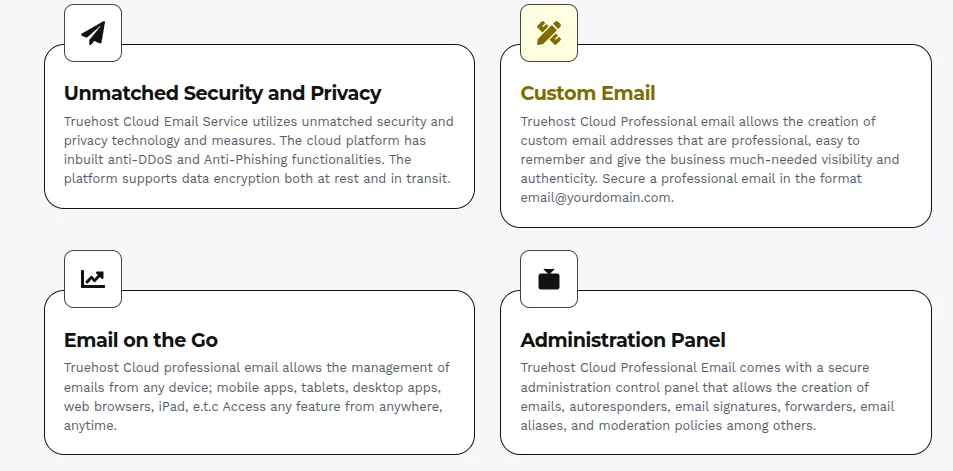
If Outlook errors keep tracing back to your current host, it might be time to switch. Truehost Business Email is built for reliable Outlook compatibility, including:
- Full Outlook IMAP and SMTP compatibility
- Secure SSL/TLS email connections
- Reliable uptime, so your mail server is there when you need it
- Spam and malware protection built in
- Expert technical support when something goes wrong
- Easy migration from your current provider
Tired of chasing IMAP errors? Switch to Truehost Business Email and get an email setup that just works with Outlook, backed by support that picks up.
FAQs
What is the correct IMAP server for Outlook?
It depends on your provider. For Truehost, the incoming server is mail.yourdomain.com on port 993 with SSL/TLS enabled.
Why do I keep getting an IMAP server error in Outlook?
Recurring errors usually point to incorrect settings, an outdated Outlook version, a corrupted profile, or an unreliable mail server.
How do I fix my IMAP password in Outlook?
Go to Account Settings, select your account, and re-enter your password. If you’re unsure it’s correct, reset it through your hosting control panel first.
Can antivirus or firewall software block IMAP connections?
Yes. Security software sometimes blocks the ports Outlook needs, which triggers connection or timeout errors.
How do I know if my email server is down?
Try logging in through webmail or checking your hosting provider’s status page. If webmail also fails, the server is likely the issue.
Will I lose my emails if I remove and re-add my Outlook account?
No, as long as your emails are stored on the IMAP server rather than only locally. Removing and re-adding the account simply re-syncs your existing mailbox.
Fix Your Outlook IMAP Errors with Confidence
Most Outlook IMAP server errors come down to a short list of fixable causes: incorrect settings, outdated software, a corrupted profile, or authentication problems. Working through the steps in this guide resolves the vast majority of cases.
If the real problem is unreliable email hosting, no amount of Outlook troubleshooting will fix that long-term. Switching to a more dependable provider often solves the issue for good.
Ready for email hosting that doesn’t fight with Outlook? Choose Truehost Business Email for secure IMAP support, reliable uptime, advanced spam protection, and expert technical assistance whenever you need it.