 Domain RegistrationFind and register the perfect domain for your website.
 .COM DomainChoose a widely recognized domain to build global credibility.
 Domain TransferSeamless domain transfers with zero downtime and complete control.
 All TLDsFind and register your perfect domain. Choose from local and global extensions.
 SSL CertificatesKeep your website safe with reliable SSL Certificates that protect customer data and build trust.
 whoisCheck domain ownership details, expiration dates, and registrar information.
 US DomainRegister a .US domain and build trust in the USA.
 Web HostingEverything your website needs to run smoothly
 WordPress HostingWordPress hosting that just works
 Windows HostingReliable hosting for Windows environments
 Reseller HostingTurn hosting into your business
 Email HostingEmail that looks professional and works anywhere
 cPanel HostingFull control of your hosting with cPanel
 Affiliate ProgramJoin as a partner and earn commissions on every referral you send our way.
 Vps HostingScalable virtual servers that expand as you need.
 Dedicated ServersGet complete access and full control over your dedicated physical server.
 Managed vpsNot tech-savvy? We will take care of everything with our fully managed VPS hosting for you.
 AI Website BuilderCreate stunning websites in seconds with AI.
 Online ShopSet up a professional online store. No coding required.
 Web design serviceGet a tailored website designed to match your brand and support your goals.
 BlogFind helpful guides on web hosting, online selling, digital marketing, and more.
 Contact USYou can reach us anytime, day or night, through chat or email.
 SupportBrowse helpful guides and answers for all of our services.
Your website is down. Your emails aren’t delivering. A developer is asking you to “check your DNS records” and you’re not sure where to start.
Knowing how to check domain DNS records is one of the most practical skills a website owner can have. It helps you diagnose problems fast, verify configurations, and hand off accurate information to your hosting or email provider. This guide walks you through everything, from what DNS records actually are to how to read and fix them.
Managing a domain? Truehost gives you full DNS control through a clean, easy-to-use dashboard.
What Are DNS Records?
DNS stands for Domain Name System. It’s the internet’s address book, the system that translates a domain name like “yourbusiness.com” into an IP address that servers can understand and route traffic to.
What DNS Records Do
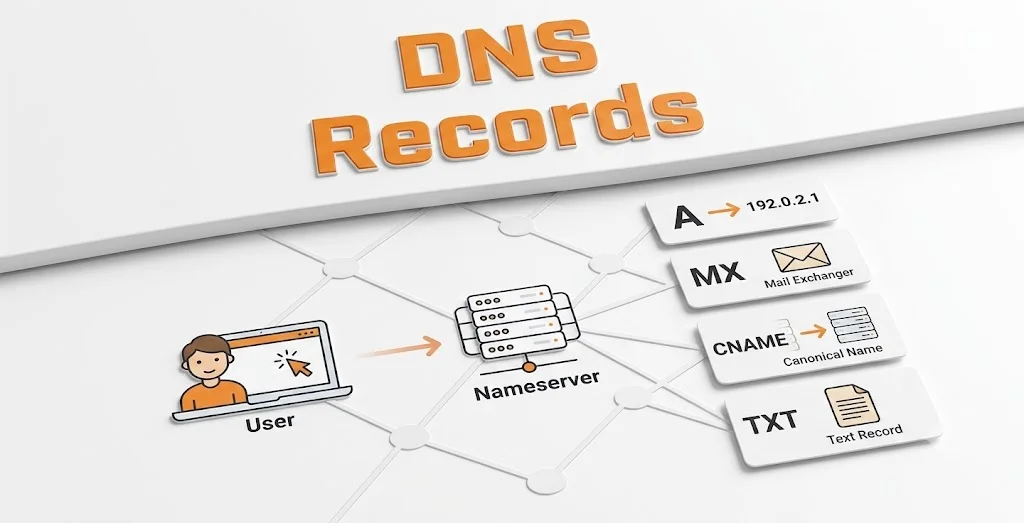
DNS records are instructions stored in your domain’s zone file. They tell the internet where your website is hosted, where to send your emails, and how to verify your domain with third-party services.
How DNS Works
When someone types your domain into a browser, their device queries a DNS server. That server reads your DNS records and routes the request to the right destination. The whole process takes milliseconds.
Why DNS Records Matter
Incorrect or missing DNS records are behind most website outages, email delivery failures, and domain verification problems. Checking your DNS settings is always the right first step when something isn’t working.
Common Types of DNS Records
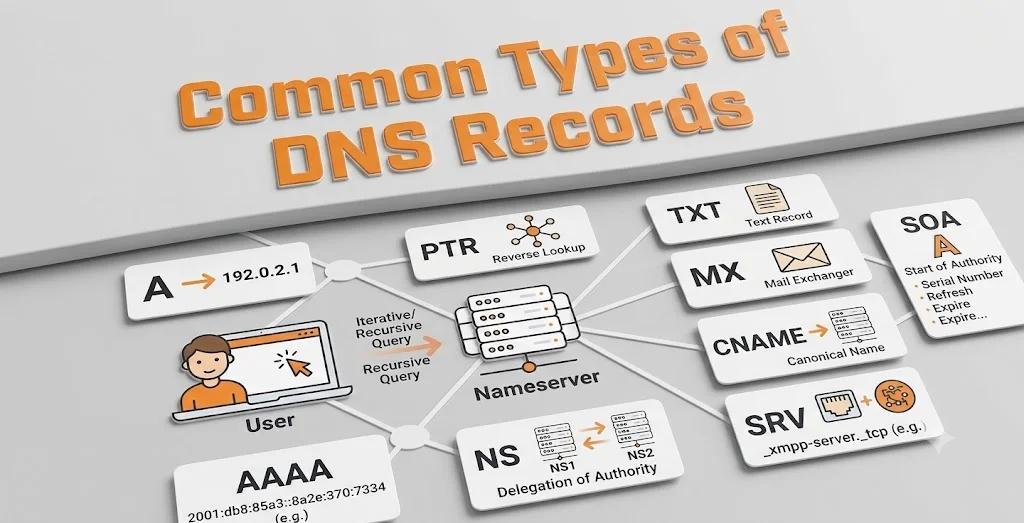
| Record Type | What It Does |
|---|---|
| A Record | Points your domain to an IPv4 address (your web server) |
| AAAA Record | Same as A record but for IPv6 addresses |
| CNAME Record | Creates an alias pointing one domain to another |
| MX Record | Directs email to your mail server |
| TXT Record | Stores text data used for SPF, DKIM, and domain verification |
| NS Record | Identifies the nameservers managing your DNS |
| SRV Record | Specifies a server for specific services like VoIP |
| PTR Record | Reverse DNS, maps an IP address back to a domain name |
Why You May Need to Check DNS Records
You don’t need to be a developer to check DNS records. Here are the most common situations where it becomes necessary.
- Connecting a domain to web hosting. After registering a domain, you need to point it to your host’s server using the correct A record or nameservers.
- Setting up business email. Email services like Google Workspace or Microsoft 365 require specific MX and TXT records to function correctly.
- Troubleshooting website issues. If your site is down or loading incorrectly, checking your A record and nameservers is the fastest way to identify the problem.
- Verifying domain ownership. Many platforms ask you to add a TXT record to prove you control the domain before activating a service.
- Configuring SSL certificates. Some SSL providers require DNS verification via a CNAME or TXT record.
- Migrating a website. Moving to a new host means updating your A record and potentially your nameservers to point to the new server.
How to Check Domain DNS Records
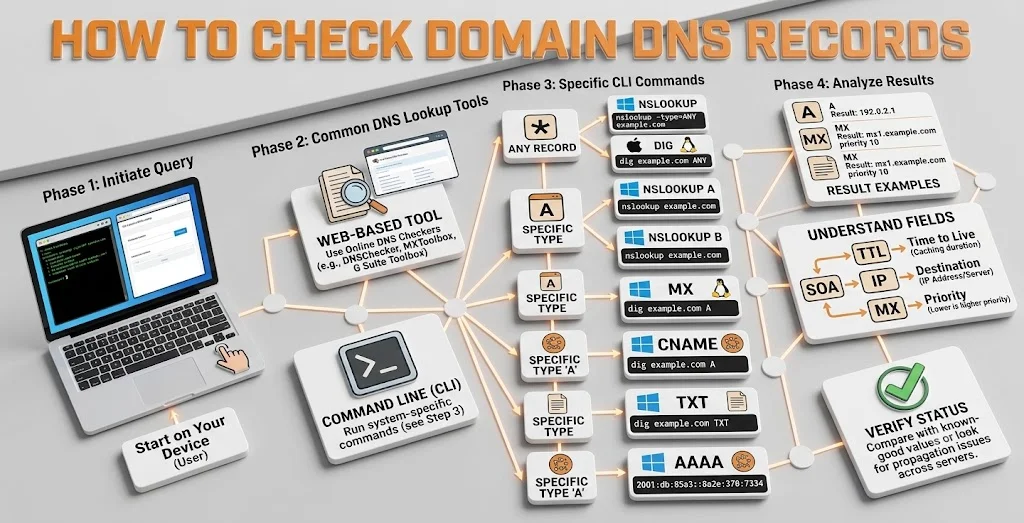
There are four main ways to check your DNS records. Each one works slightly differently and gives you different levels of detail.
1) Use an Online DNS Lookup Tool
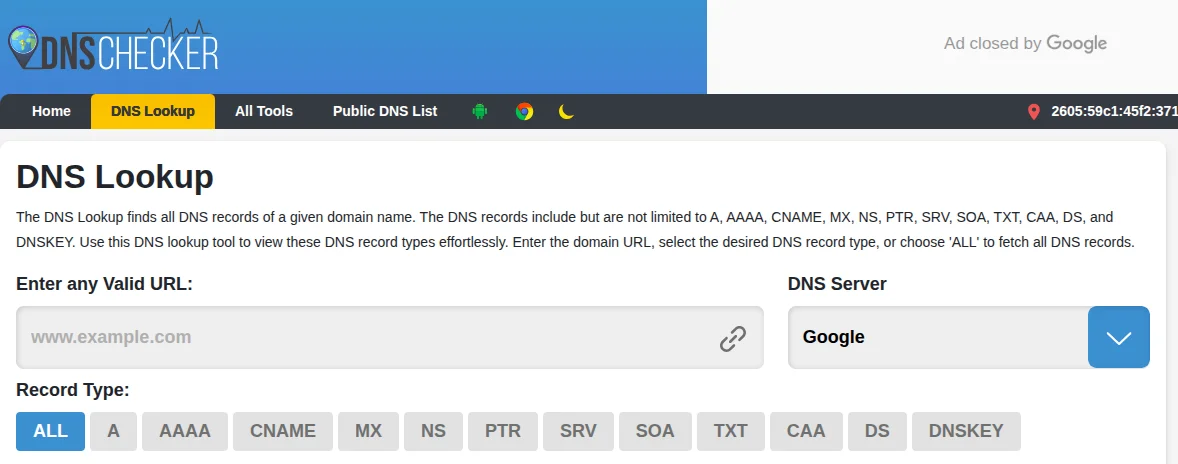
The easiest method for most people. Go to a DNS lookup tool, enter your domain name, select the record type you want to check, and hit search. You’ll see all the current records returned instantly.
DNSChecker.org is one of the most popular options. It shows your DNS records from multiple locations around the world simultaneously, which is useful for checking DNS propagation after a recent change.
2) Use the Command Prompt (Windows)
If you prefer working from the command line, Windows has built-in tools.
nslookup Open Command Prompt and type:
nslookup yourdomain.comThis returns the A record by default. To check a specific record type:
nslookup -type=MX yourdomain.comReplace MX with any record type: A, CNAME, TXT, NS.
ping
ping yourdomain.comThis shows the IP address your domain currently resolves to. It’s a quick check to confirm your A record is pointing to the right server.
3) Use Terminal (macOS and Linux)
Mac and Linux users have more powerful command-line tools available.
dig (most detailed output)
dig yourdomain.com AReplace A with any record type. To see all records at once:
dig yourdomain.com ANYhost (simpler output)
host yourdomain.comReturns the A record, MX records, and basic information in a clean, readable format.
nslookup (also available on Mac/Linux)
nslookup yourdomain.comWorks the same way as on Windows.
4) Check DNS Records from Your Domain Registrar
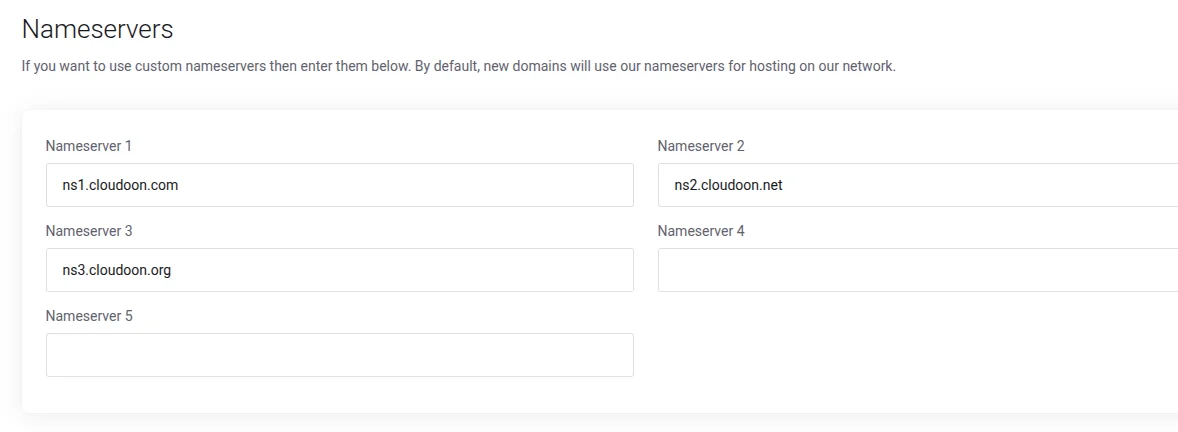
Log into your domain registrar or hosting control panel. Navigate to the DNS settings or DNS Zone Editor for your domain. This shows all your current DNS records in one place and lets you edit them directly.
Truehost’s DNS management panel makes it easy to view, add, edit, and delete DNS records without needing command-line tools. This is the most beginner-friendly option for managing your DNS settings.
Here’s what to look for when reviewing each record type.
A Record Shows the IP address your domain points to. Example:
yourdomain.com A 192.168.1.1If this IP doesn’t match your web host’s server IP, your site won’t load correctly.
CNAME Record Points one subdomain to another domain. Example:
www.yourdomain.com CNAME yourdomain.comThis ensures visitors reach your site whether they type “www” or not.
MX Record Directs email to your mail server. Example:
yourdomain.com MX 10 mail.yourdomain.comThe number (10) is the priority. Lower numbers are tried first. Missing or incorrect MX records mean no email delivery.
TXT Record Contains text data used for verification and email authentication. Example:
yourdomain.com TXT "v=spf1 include:_spf.google.com ~all"This is an SPF record telling email servers which servers are allowed to send email on your behalf.
Nameservers (NS Records) These tell the internet which servers are authoritative for your domain’s DNS. Example:
yourdomain.com    NS    ns1.truehost.com
yourdomain.com    NS    ns2.truehost.com
If your nameservers are pointing to the wrong provider, none of your other DNS records will take effect.
Common DNS Problems and How to Fix Them
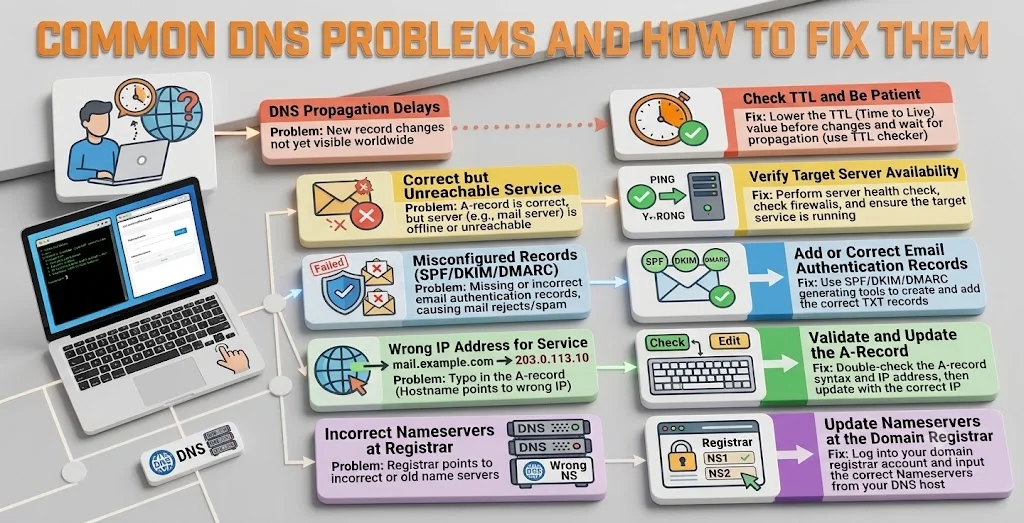
- Incorrect A record. Your domain is pointing to the wrong IP address. Fix it by updating the A record in your DNS settings to your host’s current server IP.
- Wrong nameservers. If you’ve moved to a new host but haven’t updated your nameservers, your DNS records won’t be read from the right place. Update your nameservers through your domain registrar to point to your current host.
- Missing MX records. No MX records means no email delivery. Add the correct MX records provided by your email hosting provider.
- DNS propagation delays. After any DNS change, it can take between a few minutes and 48 hours for the update to spread across all DNS servers worldwide. This is normal. Use WhatsMyDNS.net to monitor propagation progress in real time.
- Incorrect CNAME records. A misconfigured CNAME often causes broken subdomains or failed SSL verification. Double-check that the CNAME value exactly matches what your service provider requires.
- Email delivery problems. Usually caused by missing or incorrect SPF, DKIM, or DMARC TXT records. Verify these with your email provider and add any missing records to your DNS zone.
Best Free DNS Lookup Tools
| Tool | Best For |
|---|---|
| Google Admin Toolbox Dig | Quick lookups directly from Google’s servers |
| DNSChecker | Checking propagation from multiple global locations |
| MXToolbox | Diagnosing email delivery and MX record issues |
| WhatsMyDNS | Monitoring DNS changes as they propagate worldwide |
| IntoDNS | Full DNS health check with recommendations |
DNS FAQs
How do I check my domain DNS records?
Use an online tool like DNSChecker or MXToolbox, use nslookup or dig from your command line, or log into your domain registrar’s DNS management panel to view all records directly.
How can I check if my DNS records are correct?
Compare your current DNS records against the values provided by your hosting or email provider. Any mismatch between what’s in your DNS and what your provider requires will cause an issue.
What is the fastest way to check DNS records?
An online DNS lookup tool is the fastest. Type your domain into DNSChecker or Google Admin Toolbox Dig and results appear in seconds without any technical setup.
How long do DNS record changes take to update?
Most changes propagate within a few minutes to a few hours. In rare cases it can take up to 48 hours. Use WhatsMyDNS to monitor how your change is spreading globally.
What happens if my DNS records are incorrect?
Incorrect A records take your website offline. Wrong MX records stop email delivery. Misconfigured TXT records fail domain verification for services like Google Workspace. Every record type has a direct consequence when it’s wrong.
Which DNS lookup tool is the best?
For general lookups, Google Admin Toolbox Dig is reliable and fast. For email issues, MXToolbox is the most focused tool. For checking propagation globally, WhatsMyDNS gives the clearest picture.
Ready to Take Control of Your DNS?
Knowing how to check domain DNS records saves you time, prevents outages, and makes troubleshooting far less stressful. It’s one of the most practical things you can learn as a website owner.
Check your records regularly, back up your settings before making changes, and always allow time for propagation before assuming something is broken.
Get your DNS in order: Register your domain and manage DNS settings with Truehost. Pair it with Truehost web hosting and business email for a complete setup that just works.