 Domain RegistrationFind and register the perfect domain for your website.
 .COM DomainChoose a widely recognized domain to build global credibility.
 Domain TransferSeamless domain transfers with zero downtime and complete control.
 All TLDsFind and register your perfect domain. Choose from local and global extensions.
 SSL CertificatesKeep your website safe with reliable SSL Certificates that protect customer data and build trust.
 whoisCheck domain ownership details, expiration dates, and registrar information.
 US DomainRegister a .US domain and build trust in the USA.
 Web HostingEverything your website needs to run smoothly
 WordPress HostingWordPress hosting that just works
 Windows HostingReliable hosting for Windows environments
 Reseller HostingTurn hosting into your business
 Email HostingEmail that looks professional and works anywhere
 cPanel HostingFull control of your hosting with cPanel
 Affiliate ProgramJoin as a partner and earn commissions on every referral you send our way.
 Vps HostingScalable virtual servers that expand as you need.
 Dedicated ServersGet complete access and full control over your dedicated physical server.
 Managed vpsNot tech-savvy? We will take care of everything with our fully managed VPS hosting for you.
 AI Website BuilderCreate stunning websites in seconds with AI.
 Online ShopSet up a professional online store. No coding required.
 Web design serviceGet a tailored website designed to match your brand and support your goals.
 BlogFind helpful guides on web hosting, online selling, digital marketing, and more.
 Contact USYou can reach us anytime, day or night, through chat or email.
 SupportBrowse helpful guides and answers for all of our services.
You’re setting up a website. Your hosting provider tells you to update your nameservers, while your email provider asks you to add a DNS record. Are they the same thing? Do you need to do both?
Nameservers and DNS records work together, but they serve different purposes. Knowing the difference can help you avoid configuration mistakes and keep your website, email, and other online services running smoothly.
In this article, you will learn what each one does, how they work together, and when you should change nameservers or update DNS records.
Managing your domain? Truehost gives you full DNS and nameserver control in one easy dashboard.
What Are Nameservers?
Nameservers are the starting point of every DNS lookup on the internet. They tell the world which server is responsible for managing your domain’s DNS records.
How Nameservers Work
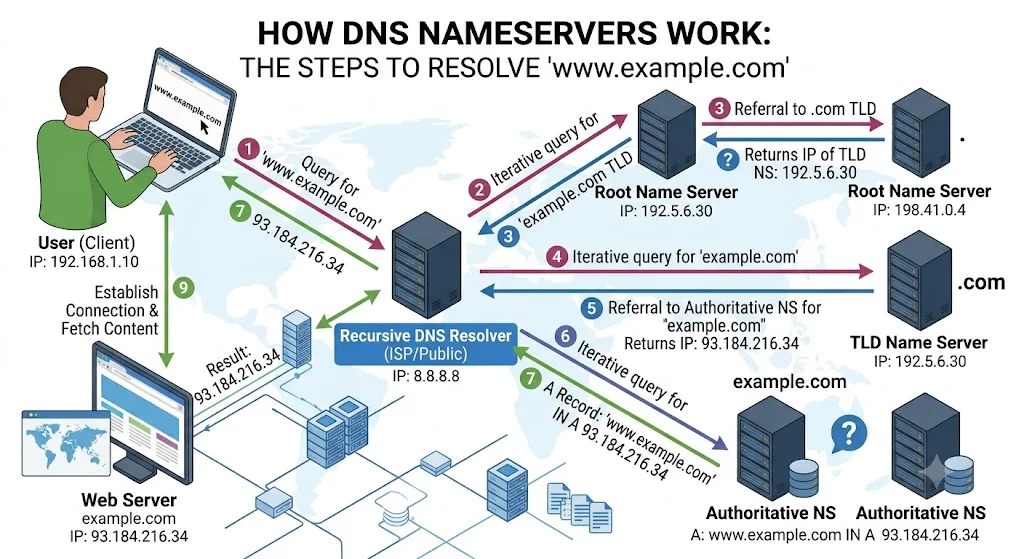
When someone looks up your domain, their device first asks the internet: “Who manages the DNS for this domain?” The answer points to your nameservers. From there, the nameservers provide the specific DNS records needed to complete the request.
Why Every Domain Needs Nameservers
Without nameservers, your domain has no way to direct traffic anywhere. They are the authoritative source for all your DNS settings. Change your nameservers and you effectively hand DNS control to a different provider.
What Is DNS?
DNS stands for Domain Name System. It’s the internet’s address book — the system that translates human-readable domain names into the IP addresses that servers actually use to communicate.
How DNS Works
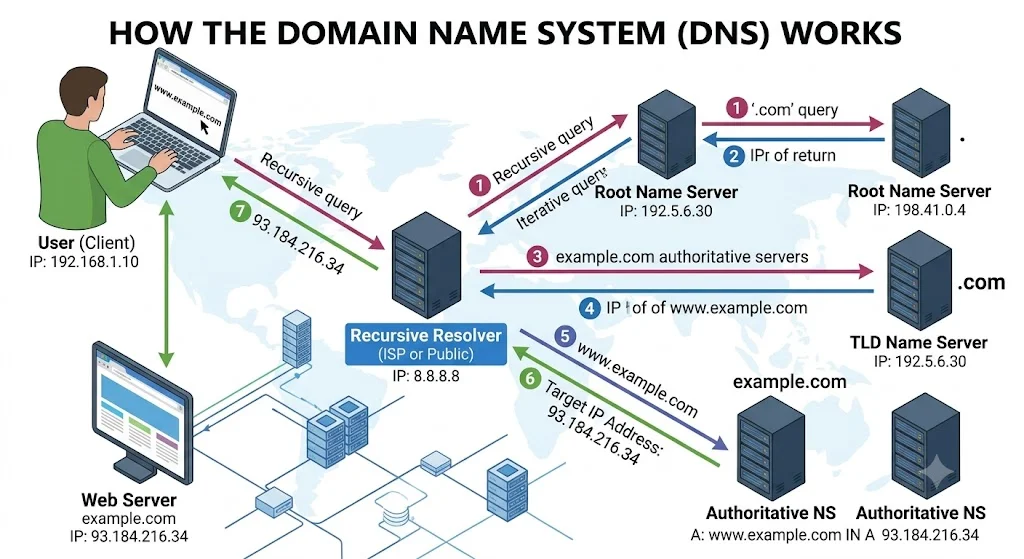
When you type a domain into your browser, your device queries a DNS resolver. That resolver follows a chain of lookups, starting with the root DNS servers, then the nameservers for your domain, until it finds the specific record it needs.
Why DNS Is Essential
DNS is what makes the internet usable for humans. Without it, every website address would be a string of numbers. It also controls where your emails go, how subdomains work, and how services like Google Workspace verify your domain.
Nameservers vs DNS: What’s the Difference?
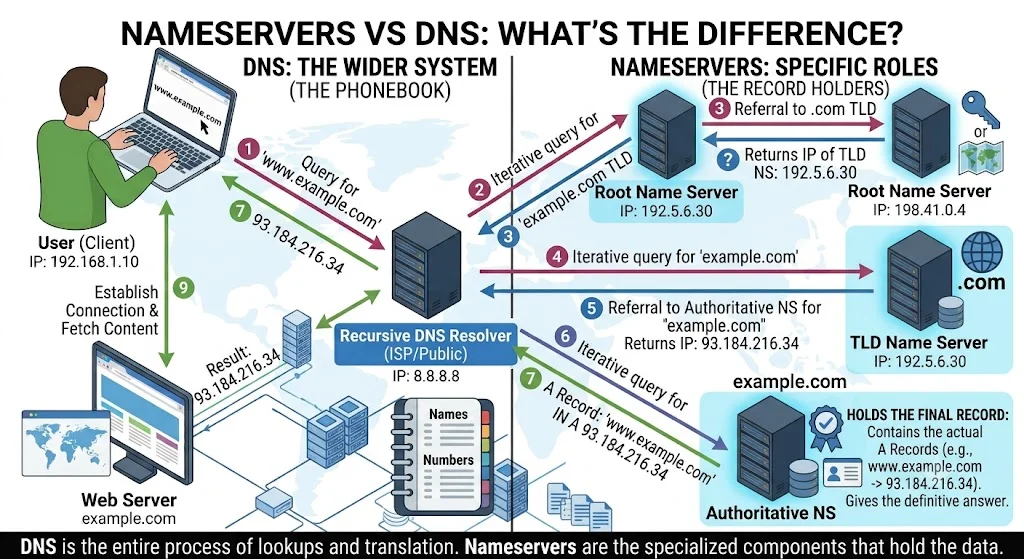
This is where most people get confused. Nameservers and DNS are closely related but they serve different roles.
Think of it this way. DNS is the filing cabinet full of records. Nameservers are the address of the building where that filing cabinet lives. You need to know the building address before you can access the files inside.
Key Differences
| Factor | Nameservers | DNS Records |
|---|---|---|
| What it is | Servers that host your DNS zone | Individual instructions within that zone |
| Purpose | Tells the internet where your DNS is managed | Tells browsers and email servers where to connect |
| Who sets it | Set at your domain registrar | Managed through your DNS provider or host |
| Examples | ns1.truehost.com, ns2.truehost.com | A record, MX record, CNAME record |
| When to change | When switching DNS providers or hosts | When adding/editing a specific service |
| Impact of change | Redirects all DNS lookups to a new provider | Updates one specific routing instruction |
Why People Often Confuse Them
Both nameservers and DNS records affect how your domain works, so it’s easy to conflate them. The confusion usually comes up when someone changes their nameservers and expects individual DNS records to change automatically, or tries to edit DNS records when they should be updating nameservers instead.
How Nameservers and DNS Work Together
Here’s how the full process plays out every time someone visits a website.
Step-by-Step: What Happens When You Enter a Domain
- You type yourbusiness.com into your browser.
- Your device asks a DNS resolver: “What’s the IP for yourbusiness.com?”
- The resolver checks the root DNS servers to find who manages the .com zone.
- The .com zone points to the nameservers registered for yourbusiness.com.
- The nameservers return the A record for yourbusiness.com — the IP address of the web server.
- Your browser connects to that IP and loads the website.
The whole process takes milliseconds. Nameservers handle step 4. DNS records handle step 5. Both are essential.
A Real-World Example
Imagine you move your website to a new hosting provider. Your new host gives you two nameservers: ns1.newhost.com and ns2.newhost.com. You update these at your domain registrar. Now all DNS queries for your domain are directed to your new host’s DNS servers, where your updated A record points to your new server’s IP address.
If you had only changed the A record at your old nameservers, the traffic would still go to your old host because the nameservers hadn’t changed.
The NS record is the one that ties everything together. It’s stored in the parent DNS zone (for example, the .com zone) and tells the internet which nameservers to query for all other records.You can learn more about DNS record types in ICANN’s DNS explainer. For a quick visual check of any domain’s DNS records, MXToolbox is a free and reliable tool.
When Should You Change Nameservers?
Change your nameservers when you want to move DNS management to a different provider entirely.
- Switching web hosting providers. Most hosting companies ask you to point your nameservers to their servers so they can manage your DNS centrally. This is the most common reason for a nameserver change.
- Using a CDN like Cloudflare. Services like Cloudflare require you to update your nameservers to theirs so they can proxy and optimize your traffic at the DNS level.
- Moving DNS management to a third-party service. Some businesses prefer to manage DNS through a dedicated service rather than through their registrar or host. Changing nameservers hands that control over.
What Happens After Changing Nameservers
Nameserver changes can take anywhere from a few minutes to 48 hours to propagate globally. During this window, some visitors may reach your old server and some may reach your new one. Plan nameserver changes during low-traffic periods where possible.
When Should You Edit DNS Records Instead?
Edit individual DNS records when you need to configure a specific service without moving your entire DNS management.
- Connecting a website. Update the A record to point your domain to your web server’s IP address.
- Setting up business email. Add MX records provided by your email provider, such as Google Workspace or Microsoft 365, to route email correctly.
- Verifying domain ownership. Many services ask you to add a TXT record to prove you control the domain before activating their service.
- Configuring subdomains. Add A or CNAME records to direct subdomains like blog.yourdomain.com or shop.yourdomain.com to the right destination.
- Installing SSL certificates. Some certificate providers require a CNAME or TXT record for DNS-based domain validation before issuing your certificate.
Truehost’s hosting plans include DNS management tools that make adding and editing these records straightforward, no technical background needed.
FAQs
What is the difference between nameservers and DNS?
Nameservers tell the internet which servers manage your domain’s DNS. DNS records are the actual instructions inside those servers that route traffic to your website, email, and other services.
Should I change my nameservers or my DNS records?
Change your nameservers when you’re switching your DNS provider or moving to a new host. Edit DNS records when you’re configuring a specific service like email, subdomains, or domain verification without changing where your DNS is managed.
Can I use custom nameservers with any domain?
Yes, as long as your domain registrar supports custom nameserver settings, which almost all do. You can point your domain to any valid nameserver, your host’s, a CDN’s, or a third-party DNS provider’s.
How long does it take for nameserver changes to update?
Nameserver changes typically propagate within 1 to 48 hours. Most updates complete within a few hours. DNS record changes within the same nameserver zone usually take effect much faster, often within minutes.
Do nameservers affect website speed?
Indirectly, yes. Faster nameservers reduce DNS lookup time, which is one small component of overall page load speed. Using a CDN as your nameserver provider, like Cloudflare, can improve both DNS speed and content delivery performance.
Can I manage DNS without changing nameservers?
Yes. If your current nameservers are already set correctly, you can add, edit, and delete individual DNS records through your registrar or hosting control panel without changing the nameservers at all. Find more DNS management tips on the Truehost blog.
Ready to Take Control of Your Domain DNS?
Knowing the difference between nameservers and DNS records makes managing your domain much easier. Nameservers tell the internet where your DNS records are stored, while DNS records direct browsers, email services, and other applications to the right destination. When both are configured correctly, your website, email, and other online services work as expected.
Set up your domain the right way: Register your domain with Truehost, manage your DNS records through a clean dashboard, and pair it with reliable hosting and business email for a complete setup that just works.