Have you ever updated a plugin or theme and suddenly watched your pages crawl or crash?
As a website owner, you can make small, unintentional maintenance mistakes that slowly eat away at your website’s performance until visitors start leaving.
A slow site isn’t just annoying, it’s expensive.
Studies show that even a 1-second delay in page load can cut conversions by 7%, while 53% of mobile users abandon sites taking more than 3 seconds to load. Speed affects SEO, user trust, and your bottom line.
In this guide, we’ll explore the main maintenance and update mistakes that hurt your website speed and how to fix them fast.
Here’s what we’ll cover:
- Outdated plugins that slow everything down
- Bloated themes and unused design features
- Ignoring regular maintenance schedules
- Not backing up before updates
- Skipping database optimization
- Failing to monitor performance after updates
- Overusing third-party scripts
- Neglecting image and media compression
- Forgetting to update the hosting or PHP
- Failing to clear the cache after updates
- Skipping security updates
Let’s dig in and make your site run like new again.
1) Outdated Plugins That Slow Everything Down
Your plugins can be both your best friend and your worst enemy.
When you ignore updates, plugins fall behind your CMS version, PHP version, or theme setup, and that’s when things start breaking.
In fact, many website speed issues come from outdated plugins or code conflicts.
When two or more old plugins don’t “speak” the same language, your site wastes time processing unnecessary code.
If your website feels slower right after an update, it could be an old plugin causing trouble.
Plugins that haven’t been updated in over six months should raise a red flag.
What to do:
- Audit your plugins monthly. Remove ones you no longer use.
- Keep only lightweight, well-reviewed tools.
- Test plugin updates in a staging site before going live.
When you keep your plugin library clean, you reduce loading time and server strain, making your website up to 25% faster instantly.
2) Bloated Themes and Unused Design Features
A beautiful theme can still kill your website’s speed. Many modern themes come with massive code libraries, heavy animations, and fancy layouts that aren’t even used.
Large CSS and JS files are the silent killers here.
If your homepage takes more than 4 seconds to appear, your theme is too heavy.
How to fix it:
- Delete unused widgets, sliders, and demo images.
- Minify and combine CSS and JS files.
- Use a lightweight theme or page builder.
You’ll instantly feel the difference.
3) Ignoring Regular Website Maintenance Schedules
Just like cars, websites need maintenance. Skipping it is one of the biggest mistakes that hurt your website speed.
As a site owner, you may wait until something breaks before checking plugin versions, backups, or hosting usage.
That’s reactive, not preventive.
A good rule: run a full site audit once a week. Tools like Google PageSpeed Insights, GTmetrix, or ManageWP make this easy.
Here’s what you should track regularly:
- Broken links
- Cache health
- Plugin and theme versions
- Database size
A regular maintenance schedule keeps your website stable, safe, and fast.
You don’t need technical skills, just consistency. Set reminders or automate updates through your hosting dashboard.
4) Not Backing Up Before Updates
Not backing up your site before an update is one mistake that can ruin everything. Imagine updating your site only for it to crash, with no backup in sight.
Without backups, every failed update can corrupt files, delete configurations, or break layout structures. When that happens, restoring your website becomes painful and costly.
Backups are your safety net. They don’t just save content, they also save time. With automated daily backups, you can roll back to a working version within minutes.
Best practices:
- Use off-site backups (like Google Drive or CloudPap).
- Keep at least 7 days of backup history.
- Always back up before updating plugins, themes, or core files.
5) Ignoring Database Optimization
Every website stores logs, revisions, and temporary data. Over time, these build up like digital dust. Without cleaning, your database becomes bloated, slowing every query your site makes.
A typical WordPress database grows by 15–20 MB a month just from revisions and transients. That may sound small, but after a year, it can delay load times by over a second.
Use tools like WP-Optimize or phpMyAdmin to clean post revisions, spam comments, and expired transients. You can also schedule automatic cleanups weekly.
Extra tip
If you notice your site freezing during searches or edits, your database needs optimization immediately. It’s a quick win for your website speed.
6) Failing to Monitor Performance After Updates
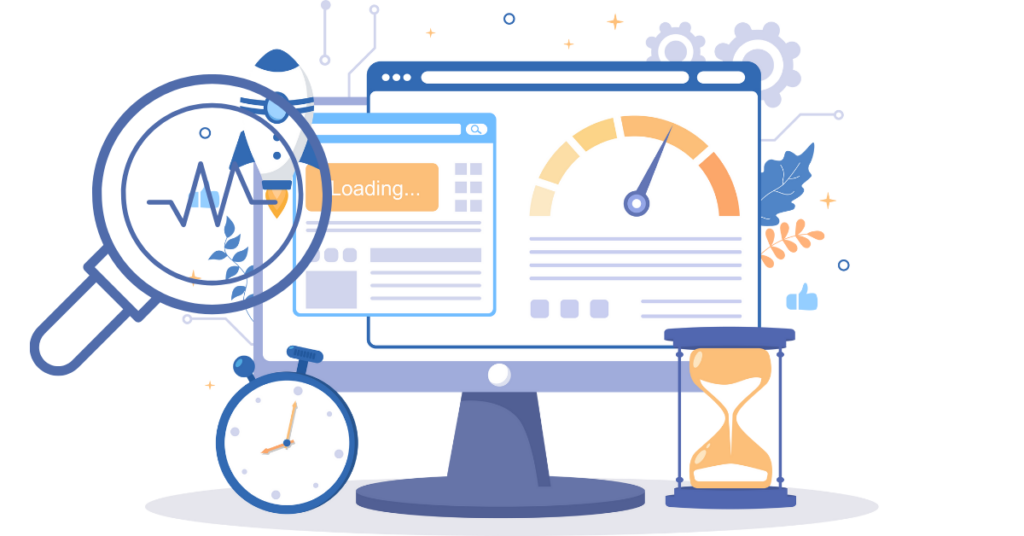
Here’s something many website owners forget: updates don’t always improve speed; sometimes, they break it.
After any major update, you need to check your website’s metrics. Watch for sudden jumps in page size, slower load times, or rising bounce rates.
Always recheck speed after updates. Don’t assume everything’s fine. That’s risky.
Run a test on PageSpeed Insights or GTmetrix to compare performance before and after updates.
Look closely at Core Web Vitals:
- Largest Contentful Paint (LCP)
- First Input Delay (FID)
- Cumulative Layout Shift (CLS)
These metrics show how real users experience your site. Even small fixes, like deferring render-blocking JS, can cut load time by half.
Keep a simple spreadsheet to log your results monthly. It helps catch slowdowns before they hurt SEO.
7) Using Too Many Third-Party Scripts
Every external script, analytics, chatbots, ads, or social widgets adds loading time. One script may take milliseconds, but ten together can cost several seconds.
You don’t need to remove all of them: just the unnecessary ones.
Quick fixes:
- Limit external widgets and trackers.
- Use async or defer attributes for scripts.
- Host key scripts locally where possible.
You’ll not only improve performance but also strengthen privacy compliance (a bonus if you serve U.S. or EU users).
8) Neglecting Image and Media Compression
Images are often the heaviest part of your page—uncompressed photos slow rendering, especially on mobile networks.
If you’ve ever uploaded a high-resolution banner straight from your camera, it’s likely eating bandwidth.
Use image compressors or CDNs that resize files automatically. Plugins like ShortPixel, Imagify, or TinyPNG are perfect for this.
Also, turn on lazy loading so images only appear when users scroll, saving bandwidth and improving perceived speed.
You’ll see instant results: faster loads, lower bounce rates, and happier visitors.
9) Not Updating Hosting or PHP Version
Your hosting setup is the foundation of your website speed. Even with perfect plugins and clean code, a slow or outdated server can drag everything down.
When was the last time you checked your PHP version? If you’re running on PHP 7.4 or older, you’re missing out. PHP 8 is almost twice as fast in processing dynamic pages.
Old PHP versions don’t just hurt performance; they also pose security risks.
The same goes for cheap shared hosting that overloads servers with hundreds of other sites.
Fix this now:
- Upgrade to PHP 8.1 or higher.
- Choose SSD or NVMe-based hosting.
- Pick a plan that guarantees CPU and RAM resources.
10) Failing to Clear Cache After Updates
Caching is great, until it isn’t. If you update plugins, themes, or CSS but don’t clear the cache, your visitors might keep seeing old, broken versions of your site.
That’s because the cache stores static copies of your pages for speed. When files change but the cache stays stale, browsers load mismatched versions.
Around 27% of reported “update errors” come from simple cache conflicts, not real bugs. It’s a small but costly mistake.
Make it a habit:
- Purge your site and CDN cache after every major change.
- Use plugins like WP Rocket or LiteSpeed Cache that auto-refresh after updates.
- Remind users to clear browser cache if layouts appear broken.
Fresh cache ensures new code and designs load correctly. It’s a small step that keeps your site looking and running its best.
11) Skipping Security Updates
This mistake is sneakier than it sounds. Security issues don’t just risk hacks — they also slow your site.
Malware, spam scripts, and unauthorized logins can eat server resources silently. A 2024 Sucuri study found that one infected file can increase page load time by up to 3 seconds because of hidden redirects or injected code.
That’s why skipping security updates is one of the most dangerous mistakes that hurt your website speed. Outdated plugins and themes often contain vulnerabilities that hackers exploit.
Stay safe and fast:
- Enable automatic updates for minor releases.
- Use a malware scanner like Wordfence or Sucuri.
- Delete any unused or abandoned plugins immediately.
Securing your site doesn’t just protect data — it keeps performance stable. A clean, safe website always runs faster.
Conclusion
Let’s wrap this up. The biggest mistakes that hurt your website speed happen when updates, plugins, and cleanups are ignored.
Your website is like a living system; it needs care to stay fast and reliable.
You don’t need fancy tools or coding skills to make these fixes. You need awareness, habit, and a bit of time each week.
So, start today. Run your first audit. Fix one small thing. Then another. Soon, you’ll see your pages load in a blink, and your visitors will stay longer, browse more, and trust you more.
Your speed is your reputation online. Protect it.
Maintain it.
If you’re tired of fixing the same speed issues over and over, it’s time for a real solution.
Truehost gives you everything you need to keep your website running fast.
- Optimized web hosting
- Free SSL
- Daily backups
- Automatic updates
These prevent those small maintenance mistakes from slowing you down.
Switch to Truehost today and see how fast your website can really be.
Visit Truehost and choose the plan that fits your site and start speeding up your website right now.
Mistakes That Hurt Your Website Speed FAQs
Update your website at least once a month. That includes plugin updates, CMS patches, and security fixes. Delaying updates can lead to broken features and slower speeds over time.
Yes, updating too many plugins or themes at once can cause conflicts and increase load time. Always back up your site first, test updates in small batches, and remove anything outdated or unused.
Every time you update your site, cached data can conflict with new files. Clearing your cache helps your visitors see the latest version of your site instantly. It’s one of the easiest ways to fix sudden website speed drops.
Broken links force browsers to spend extra time searching for missing pages or files. Even a few of these can delay loading. Use free tools like Google Search Console or BrokenLinkCheck to scan and fix them regularly.
Yes, definitely. Large backup files and inactive plugins take up server space. Over time, they can slow down requests and hurt page load times. Keep one or two clean backups and remove the rest.
Tools like GTmetrix, PageSpeed Insights, or Truehost’s built-in monitoring dashboard show your speed scores and bottlenecks. Regular checks help you catch mistakes early before they affect user experience or SEO rankings.
