 Domain RegistrationFind and register the perfect domain for your website.
 .COM DomainChoose a widely recognized domain to build global credibility.
 Domain TransferSeamless domain transfers with zero downtime and complete control.
 All TLDsFind and register your perfect domain. Choose from local and global extensions.
 SSL CertificatesKeep your website safe with reliable SSL Certificates that protect customer data and build trust.
 whoisCheck domain ownership details, expiration dates, and registrar information.
 US DomainRegister a .US domain and build trust in the USA.
 Web HostingEverything your website needs to run smoothly
 WordPress HostingWordPress hosting that just works
 Windows HostingReliable hosting for Windows environments
 Reseller HostingTurn hosting into your business
 Email HostingEmail that looks professional and works anywhere
 cPanel HostingFull control of your hosting with cPanel
 Affiliate ProgramJoin as a partner and earn commissions on every referral you send our way.
 Vps HostingScalable virtual servers that expand as you need.
 Dedicated ServersGet complete access and full control over your dedicated physical server.
 Managed vpsNot tech-savvy? We will take care of everything with our fully managed VPS hosting for you.
 AI Website BuilderCreate stunning websites in seconds with AI.
 Online ShopSet up a professional online store. No coding required.
 Web design serviceGet a tailored website designed to match your brand and support your goals.
 BlogFind helpful guides on web hosting, online selling, digital marketing, and more.
 Contact USYou can reach us anytime, day or night, through chat or email.
 SupportBrowse helpful guides and answers for all of our services.
Your internet connection is active. The Wi-Fi icon shows full bars. But every website you try to open fails to load, and when you run a browser diagnostic you see the same message: DNS server not responding.
The DNS server not responding error means your device cannot reach the server responsible for translating website names like truehost.com into IP addresses your browser can use. Without that translation, nothing loads even though your connection is technically up.
The solutions range from simple one-click fixes to more targeted troubleshooting. Here is what you can do:
- Try a different web browser
- Troubleshoot your network connection
- Disable unused network connections
- Restart your router
- Flush your DNS cache
- Change your DNS server address
- Disable IPv6
- Restart in safe mode
- Turn off antivirus or firewall temporarily
- Update your network adapter driver
Work through these from the top and move to the next if the issue persists. The cause can sit on either the device side or the network side, so it is worth trying each one in order.
What Causes the DNS Server Not Responding Error
The error appears when your device sends a DNS lookup request and receives no response. The most common reasons include:
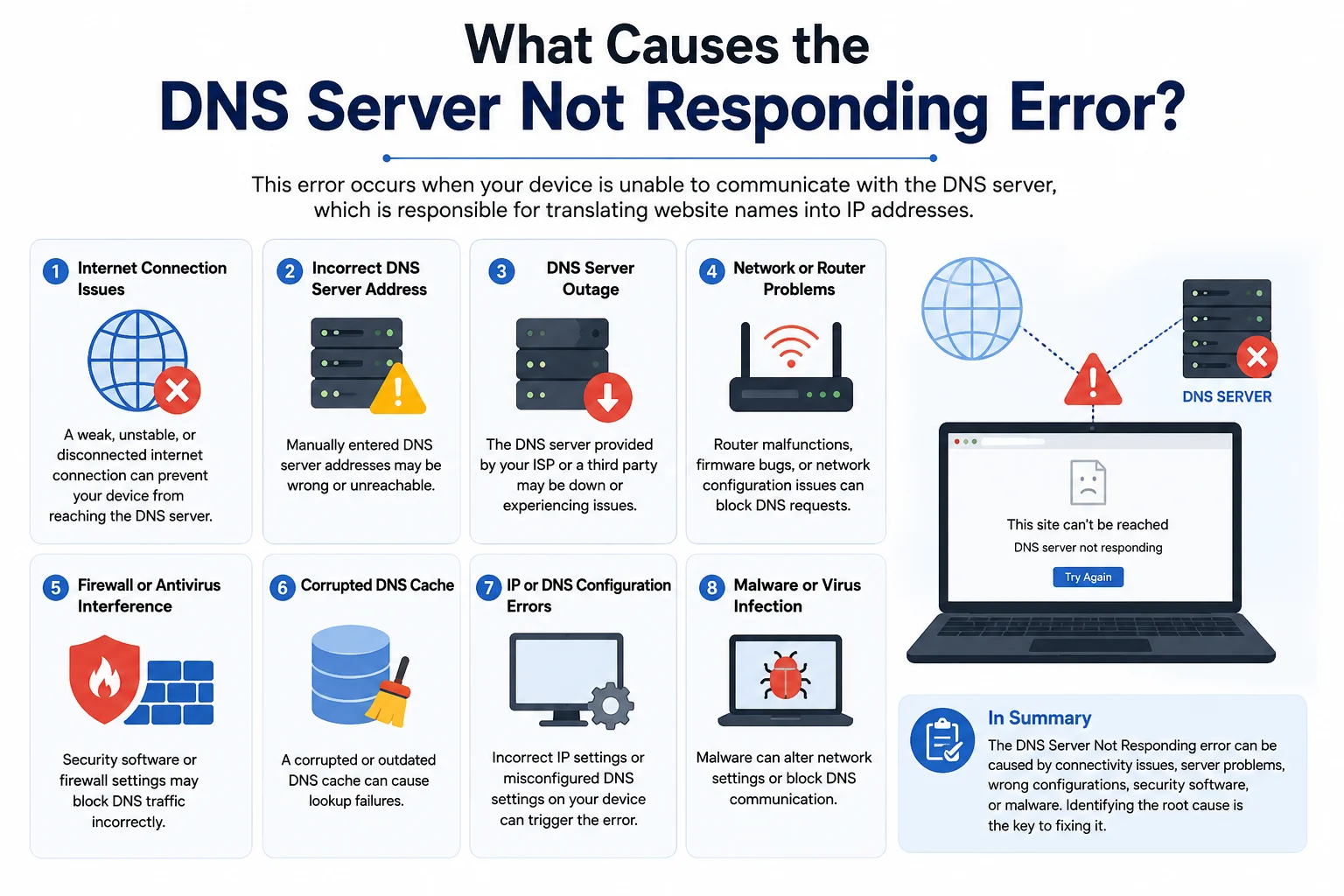
- Hardware and software issues. A frozen router, incorrect network settings, outdated adapter drivers, or overzealous firewall software can all block DNS traffic.
- Outdated or corrupted DNS cache. Your device stores DNS records locally to speed up browsing. When those records become stale or corrupted, your browser cannot find the correct IP address.
- DNS server unavailable. Your ISP’s DNS service can go down due to traffic overload or a server outage, leaving your device with nowhere to send lookup requests.
How to Fix DNS Server Not Responding on Windows and Linux
1) Try a Different Web Browser
The quickest first step is opening the same website in a different browser. If you normally use Chrome, try Firefox or Edge.
If the page loads in a different browser, the problem is with your default browser, not with DNS. Clearing the browser cache and updating to the latest version usually resolves it.
If the error appears across every browser you try, move on to the next step.
2) Troubleshoot Your Network Connection
Switching between networks helps identify whether the problem is tied to a specific connection. If you are on Wi-Fi and the error appears, try using mobile data or a different network. If the page loads, the problem is with your original connection.
On Windows:
- Make sure you are connected to the affected network.
- Go to Control Panel → Network and Internet → Network and Sharing Center.
- Click Troubleshoot problems.
- Select Internet Connections and click Run the troubleshooter.
- Follow the instructions if any issues are detected.
On Linux:
- Open a terminal and run:
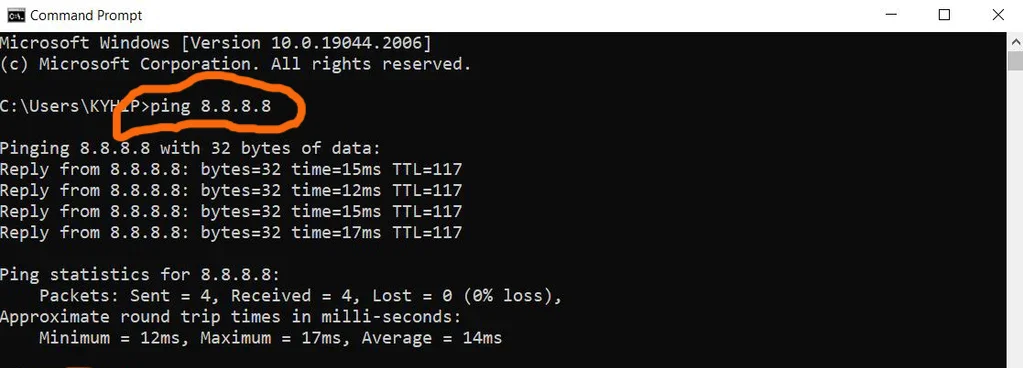
ping 8.8.8.8- If this succeeds but websites do not load, the connection works and DNS specifically is the problem.
- Run the Network Manager troubleshooter from your desktop environment’s network settings, or restart networking from the terminal:
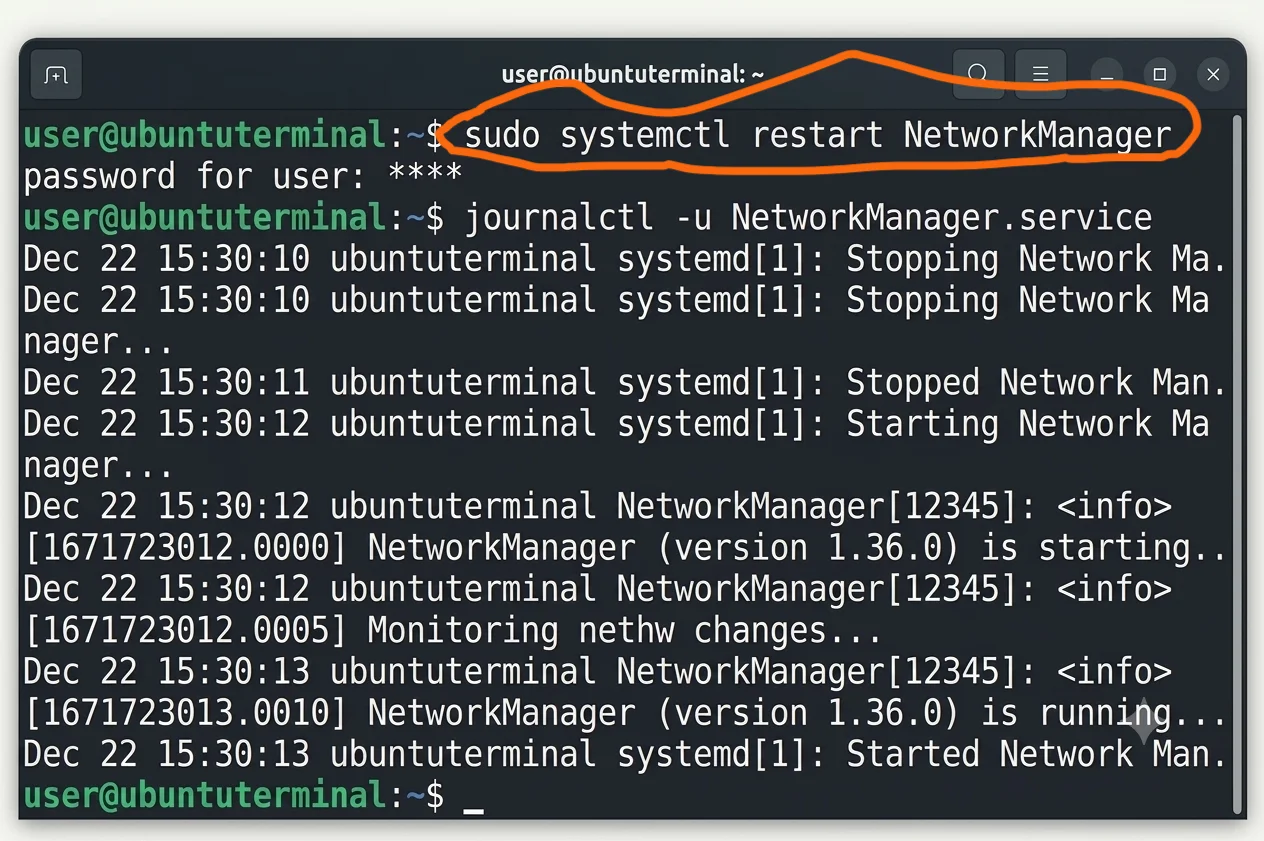
sudo systemctl restart NetworkManager3) Disable Unused Network Connections
Multiple active network connections can conflict and cause DNS errors. Disabling connections you are not using, such as a VPN adapter or an unused Ethernet interface, removes that conflict.
On Windows:
- Go to Control Panel → Network and Internet → Network Connections.
- Right-click each secondary connection and select Disable.
- Reload the page and check whether the error clears.
On Linux:
- Open Network Settings from your desktop environment.
- Toggle off any connections you are not actively using.
- Alternatively, bring down an interface from the terminal:

sudo ip link set eth0 downReplace eth0 with the name of the unused interface shown in ip link.
4) Restart Your Router
A frozen or misconfigured router is one of the most common causes of DNS errors. Restarting it clears the router’s DNS cache and resets its connection to your ISP.
Turn off the power button and unplug the power cable. Wait at least 30 seconds, then plug it back in and power it on. Once the connection indicator lights stabilise, test the website again.
If restarting does not help, check your router’s admin panel for a firmware update or try resetting it to factory defaults using the instructions in its manual.
5) Flush Your DNS Cache
Your device stores DNS lookup results locally to speed up future visits. When those records become outdated or corrupted, they can cause DNS errors even when the server itself is working fine.
Flushing the cache forces your device to fetch fresh DNS records on the next lookup.
On Windows:
- Open Command Prompt as administrator.
- Run:
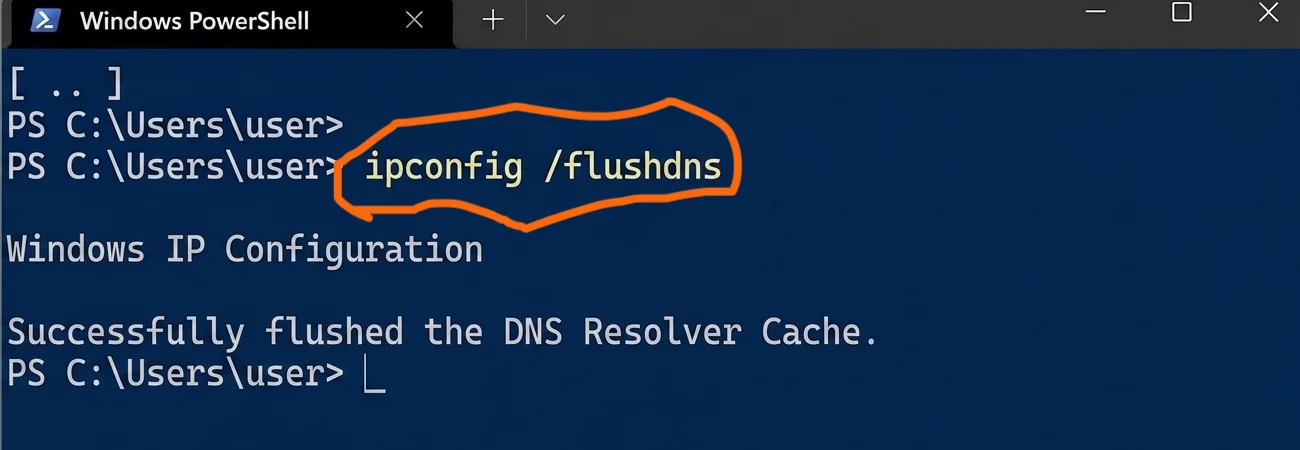
ipconfig /flushdns- A confirmation message will appear when the cache is cleared.
On Linux (systemd-resolved):
sudo systemd-resolve --flush-cachesOn Linux (nscd):
sudo service nscd restartAfter flushing, test the website again.
6) Change Your DNS Server Address
By default, your device uses your ISP’s DNS servers. If those servers are slow or down, switching to a public DNS provider is one of the fastest fixes.
Reliable public DNS options include:
- Google: 8.8.8.8 (primary), 8.8.4.4 (secondary)
- Cloudflare: 1.1.1.1 (primary), 1.0.0.1 (secondary)
- OpenDNS: 208.67.222.222 (primary), 208.67.220.220 (secondary)
On Windows:
- Type
ncpa.cplin the search bar to open Network Connections. - Right-click your active connection and select Properties.
- Select Internet Protocol Version 4 (TCP/IPv4) and click Properties.
- Choose Use the following DNS server addresses and enter your preferred addresses.
- Check Validate settings upon exit and click OK.
On Linux:
- Open the terminal and edit the resolved configuration:
sudo nano /etc/systemd/resolved.conf- Find the DNS line, uncomment it, and add your preferred address:
DNS=8.8.8.8
FallbackDNS=1.1.1.1- Save and restart the service:
sudo systemctl restart systemd-resolvedAfter changing DNS settings, restart your browser and test again.
Learn more about public DNS options at Google Public DNS and Cloudflare 1.1.1.1.
7) Disable IPv6
Some websites and DNS configurations do not fully support IPv6, which can cause resolution failures. Disabling IPv6 forces your system to use IPv4 and can resolve the error.
On Windows:
- Open Network Connections via
ncpa.cpl. - Right-click your active connection and select Properties.
- Uncheck Internet Protocol Version 6 (TCP/IPv6).
- Click OK.
On Linux:
To disable IPv6 temporarily, run:
sudo sysctl -w net.ipv6.conf.all.disable_ipv6=1
sudo sysctl -w net.ipv6.conf.default.disable_ipv6=1
To make the change permanent, add those lines to /etc/sysctl.conf and run sudo sysctl -p.
8) Restart in Safe Mode
If the error only appears in normal mode and not in safe mode, a third-party application is likely interfering with DNS. Safe mode loads only essential system components, stripping out software that could be blocking DNS traffic.
On Windows:
- Hold Shift and click Start → Power → Restart.
- Select Troubleshoot → Advanced options → Startup Settings → Restart.
- Press F5 to boot into Safe Mode with Networking.
Test the website in safe mode. If it loads, a third-party application, most likely your antivirus or firewall, is causing the DNS error.
On Linux:
Boot into recovery mode from the GRUB menu by holding Shift at startup and selecting the recovery option. From the recovery menu, enable networking and test DNS resolution.
9) Turn Off Antivirus or Firewall Temporarily
Security software can intercept or block DNS traffic, especially after an update changes how it monitors network requests.
On Windows:
- Go to Settings → Update & Security → Windows Security → Firewall & network protection.
- Open each network profile (domain, private, public) and toggle off Microsoft Defender Firewall.
- For third-party antivirus, open the app and disable protection temporarily.
On Linux:
If using UFW, temporarily disable the firewall:
sudo ufw disableTest the website. If the error clears, re-enable the firewall and add an exception for DNS traffic (port 53) rather than leaving protection off permanently.
Important: Always re-enable your security software after testing. Do not leave it disabled as a permanent fix.
10) Update Your Network Adapter Driver (Windows)
Outdated or corrupted network adapter drivers can cause DNS failures and general connectivity instability. Updating the driver ensures your adapter is using the latest, most stable settings.
- Open Device Manager from the Start menu search.
- Expand Network Adapters.
- Right-click your active adapter and select Update Driver.
- Choose Search automatically for drivers.
If the driver is already up to date but the error persists, try uninstalling the driver and reinstalling it. Your system will reinstall a clean version automatically after a restart.
On Linux, driver updates are typically handled through system package updates:
sudo apt update && sudo apt upgradeBest Public DNS Servers
If your ISP’s DNS servers are unreliable, switching to a public option is the most consistent long-term fix.
| Provider | Primary DNS | Secondary DNS |
|---|---|---|
8.8.8.8 | 8.8.4.4 | |
| Cloudflare | 1.1.1.1 | 1.0.0.1 |
| OpenDNS | 208.67.222.222 | 208.67.220.220 |
Google DNS is fast, globally distributed, and a reliable default for most users.
Cloudflare DNS prioritises speed and privacy. It does not log query data for advertising and consistently benchmarks as one of the fastest resolvers worldwide.
OpenDNS includes optional content filtering and phishing protection, making it a good choice for households or offices that want an extra layer of security at the DNS level. See OpenDNS for setup details.
How to Check Whether DNS Is Actually the Problem
Before applying fixes, confirm DNS is the issue and not something else.
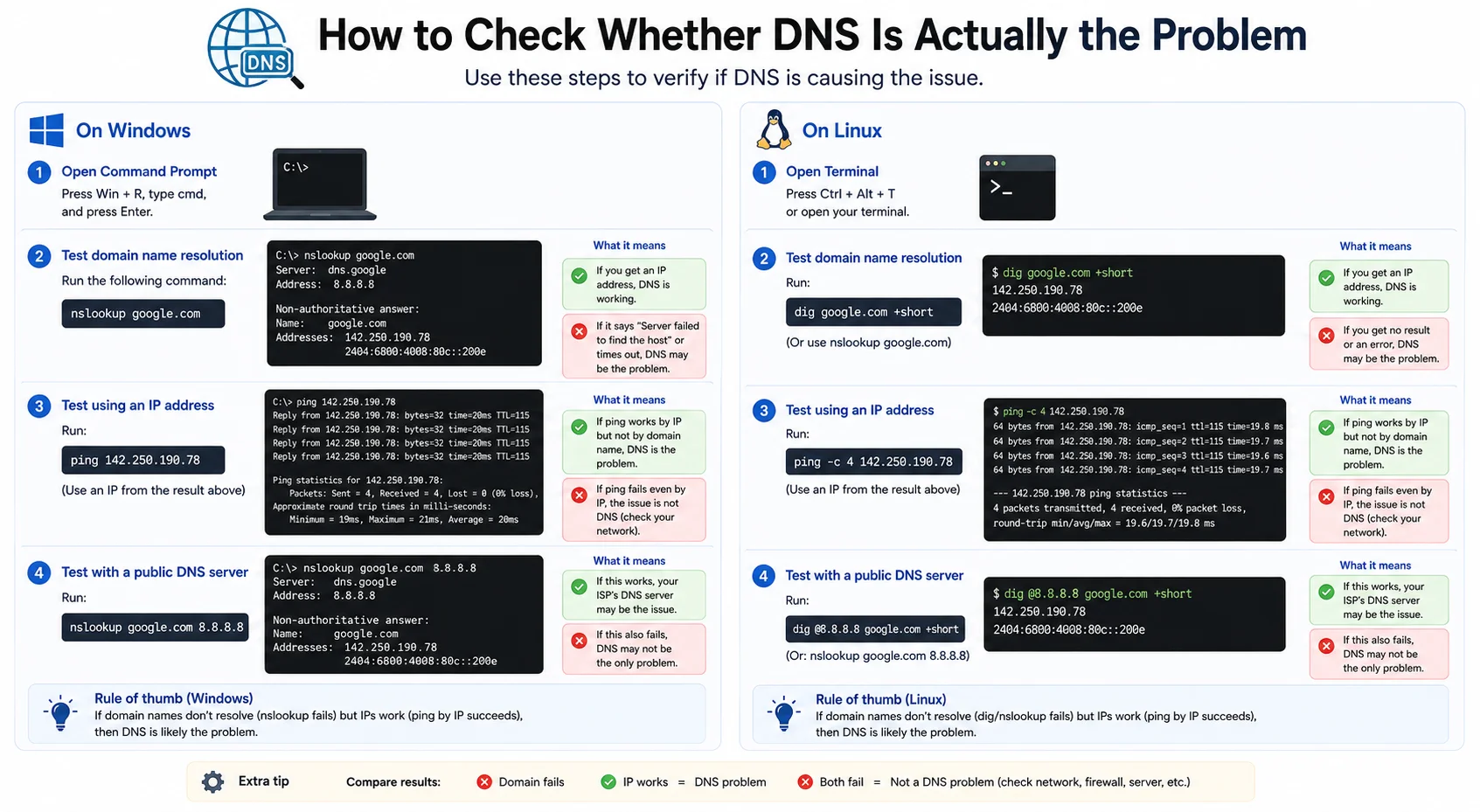
Test with an IP address directly
Type a known IP address into your browser’s address bar instead of a domain name. If the page loads, your connection works but DNS is failing.
Use ping to isolate the issue
ping 8.8.8.8If this works but ping google.com fails, DNS resolution is broken while the connection itself is fine.
Check DNS resolution directly
On Windows:
nslookup google.comOn Linux:
dig google.comIf these time out or return errors, DNS resolution is confirmed as the cause.
DNS Server Not Responding but Internet Works
This is a confusing version of the error because streaming apps and other IP-based services may still work while websites fail to load.
- DNS cache corruption is the most common cause. Flushing the cache as described above often resolves this immediately.
- ISP DNS outage is another likely cause. Switching to Google or Cloudflare DNS bypasses the problem instantly.
- Browser DNS cache can also be the culprit. Clear your browser’s cache and cookies, or test in a different browser to rule this out.
Common Mistakes to Avoid
- Changing multiple settings at once. Make one change, test, then move to the next. If you change everything simultaneously, you will not know what actually fixed it.
- Forgetting to restart network services. DNS changes often do not apply until the adapter or service is restarted.
- Using incorrect DNS addresses. A single wrong digit causes total DNS failure. Double-check every address before saving.
- Leaving security software disabled. Test with it off, then re-enable and configure an exception. Do not leave antivirus or firewall permanently disabled.
- Blaming the ISP first. Local causes like a frozen router or corrupted cache are far more common than ISP outages. Eliminate local causes first.
FAQs
What does DNS server not responding mean?
Your device sent a DNS lookup request and received no response. Without that response, your browser cannot translate a website name into an IP address and the page cannot load.
Why does my computer say DNS server not responding?
The most common causes are a frozen router, corrupted local DNS cache, incorrect DNS settings, or an outage on your ISP’s DNS servers.
How do I fix DNS server not responding on Windows?
Start by restarting your router. Then flush the DNS cache using ipconfig /flushdns in Command Prompt. If the problem persists, change your DNS server to Google (8.8.8.8) or Cloudflare (1.1.1.1).
How do I fix DNS server not responding on Linux?
Restart NetworkManager with sudo systemctl restart NetworkManager, flush the DNS cache, and if needed edit /etc/systemd/resolved.conf to point to a public DNS server.
Can antivirus software cause DNS problems?
Yes. Security software can block DNS traffic after an update. Temporarily disabling it and testing confirms whether it is the cause.
What to Do If the Error Keeps Coming Back
If none of the steps above resolve the DNS server not responding error permanently, consider these additional checks:
- Test on a different device connected to the same network. If other devices work fine, the problem is specific to your machine rather than the network.
- Check with your network administrator if you are on a workplace or school network. Organisational DNS configurations sometimes override device settings and cause conflicts.
- If the error only affects one specific website, the problem may be on that site’s end, typically a misconfigured domain or expired DNS records. In that case, there is nothing to fix on your device.
If you manage your own domain and are seeing DNS errors related to your website, register and manage your domain through Truehost and configure your DNS records directly from your Truehost dashboard.