 Domain RegistrationFind and register the perfect domain for your website.
 .COM DomainChoose a widely recognized domain to build global credibility.
 Domain TransferSeamless domain transfers with zero downtime and complete control.
 All TLDsFind and register your perfect domain. Choose from local and global extensions.
 SSL CertificatesKeep your website safe with reliable SSL Certificates that protect customer data and build trust.
 whoisCheck domain ownership details, expiration dates, and registrar information.
 US DomainRegister a .US domain and build trust in the USA.
 Web HostingEverything your website needs to run smoothly
 WordPress HostingWordPress hosting that just works
 Windows HostingReliable hosting for Windows environments
 Reseller HostingTurn hosting into your business
 Email HostingEmail that looks professional and works anywhere
 cPanel HostingFull control of your hosting with cPanel
 Affiliate ProgramJoin as a partner and earn commissions on every referral you send our way.
 Vps HostingScalable virtual servers that expand as you need.
 Dedicated ServersGet complete access and full control over your dedicated physical server.
 Managed vpsNot tech-savvy? We will take care of everything with our fully managed VPS hosting for you.
 AI Website BuilderCreate stunning websites in seconds with AI.
 Online ShopSet up a professional online store. No coding required.
 Web design serviceGet a tailored website designed to match your brand and support your goals.
 BlogFind helpful guides on web hosting, online selling, digital marketing, and more.
 Contact USYou can reach us anytime, day or night, through chat or email.
 SupportBrowse helpful guides and answers for all of our services.
You open your DNS management panel to connect a domain and find yourself staring at record types you were not expecting. A Record. CNAME. MX. TXT. And no obvious sign of which one you actually need.
DNS records are instructions that tell the internet where to send visitors when they type your address into a browser.
An A record maps your domain directly to an IP address, like handing someone your exact street address.
A CNAME maps your domain to another domain name instead, more like saying “go to wherever my colleague lives.” Both get traffic to the right place, but they suit different situations, and choosing the wrong one can cause downtime or broken email delivery.
This article walks you through exactly when to use each one, what they look like in practice, and the mistakes worth avoiding.
Already have a domain and need to manage DNS? Log into your Truehost account and update your records directly from the dashboard.
Get started here
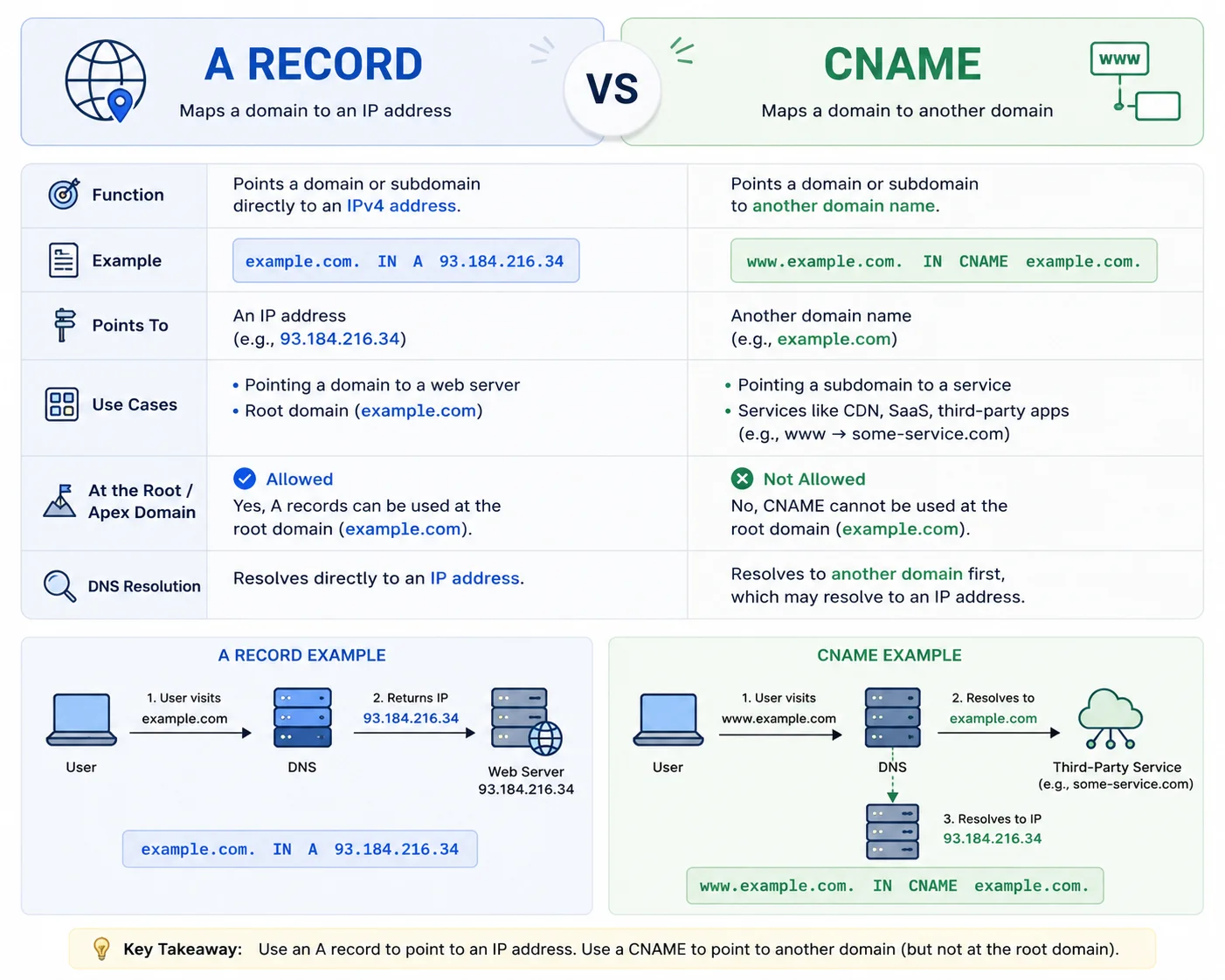
What Is an A Record?
An A record, short for Address record, maps your domain name straight to an IPv4 address with no middleman involved.
Here is what makes A records worth understanding:
- They only point to IP addresses, not other domain names
- You can have multiple A records for the same domain, useful for load balancing across servers
- They resolve in a single DNS lookup, making them the fastest record type
- Root domains almost always require an A record since most DNS providers do not support CNAMEs at the apex level
A typical A record looks like this:
yourbrand.com. IN A 192.0.2.1Breaking that down: yourbrand.com is your domain, IN stands for internet, A identifies the record type, and 192.0.2.1 is the IPv4 address your domain points to.
Even when you use CNAMEs for subdomains, your root domain usually still needs an A record. It is the foundation most DNS setups are built around.
What Is a CNAME Record?
A CNAME record, short for Canonical Name record, maps one domain name to another domain name rather than to an IP address.
Here is what makes CNAME records useful:
- They point to other domain names, not IP addresses
- They follow the target automatically, so if the destination’s IP changes, your CNAME stays correct without manual updates
- They are ideal for subdomains and connecting to cloud platforms and SaaS services
- They simplify management when multiple subdomains all point to the same service
A typical CNAME record looks like this:
blog.yourbrand.com. IN CNAME yourbrand.netlify.app.Breaking that down: blog.yourbrand.com is the subdomain, CNAME identifies the record type, and yourbrand.netlify.app is the target domain it points to.
One key limitation: you cannot use a CNAME at your root domain if you also have MX records there for email. This is called the CNAME at apex problem, and it is one of the main reasons understanding each record type matters.
A Record vs CNAME: Key Differences
| Feature | A Record | CNAME Record |
|---|---|---|
| Points to | IP address (e.g. 192.0.2.1) | Another domain name |
| DNS lookups | Single lookup | At least two lookups |
| Root domain use | Yes | Not with MX records present |
| IP address changes | Requires manual update | Updates automatically |
| Email (MX records) | Compatible | Can cause conflicts |
| Best for | Dedicated servers, root domains | Subdomains, cloud services |
Speed: A records resolve in one lookup. CNAMEs need at least two, first to the CNAME target, then to its IP. The difference is negligible for most sites.
Flexibility: CNAMEs track a target domain automatically. If the destination’s IP changes, your CNAME still works. An A record requires a manual update.
Root domain limitation: A CNAME at the root level conflicts with MX and other records on most DNS providers. Some registrars support CNAME flattening to work around this, but check before assuming it is available.
When Should You Use an A Record?
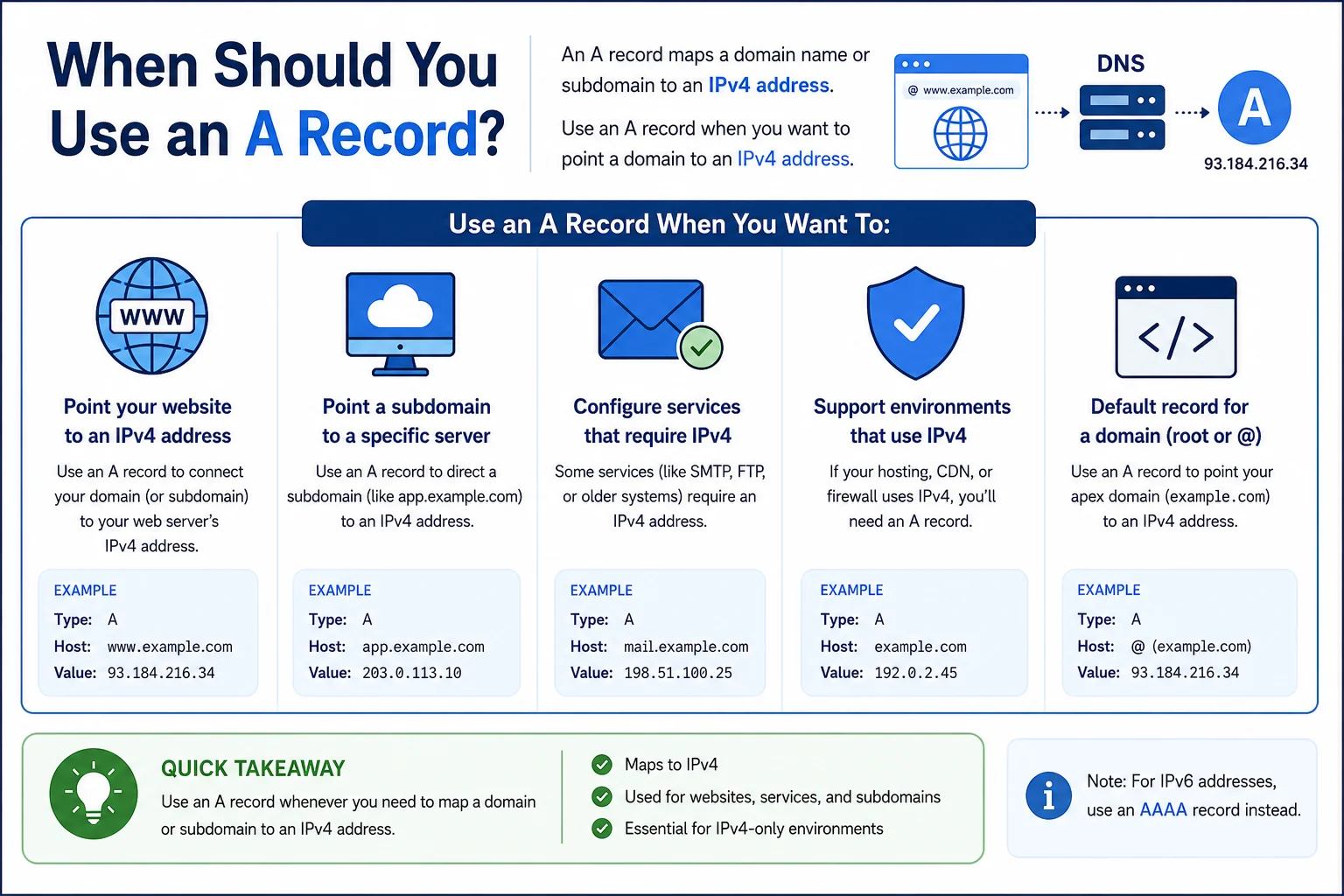
Use an A record when:
- You are setting up a root domain. Most DNS providers do not support CNAMEs at the apex, so yourbrand.com needs an A record.
- You need MX records for email on the same domain. A records and MX records coexist without conflicts.
- You have a static IP address that rarely changes, such as a VPS, dedicated server, or on-premise application.
- You need load balancing. Multiple A records pointing to different IPs distribute traffic across servers cleanly.
When Should You Use a CNAME Record
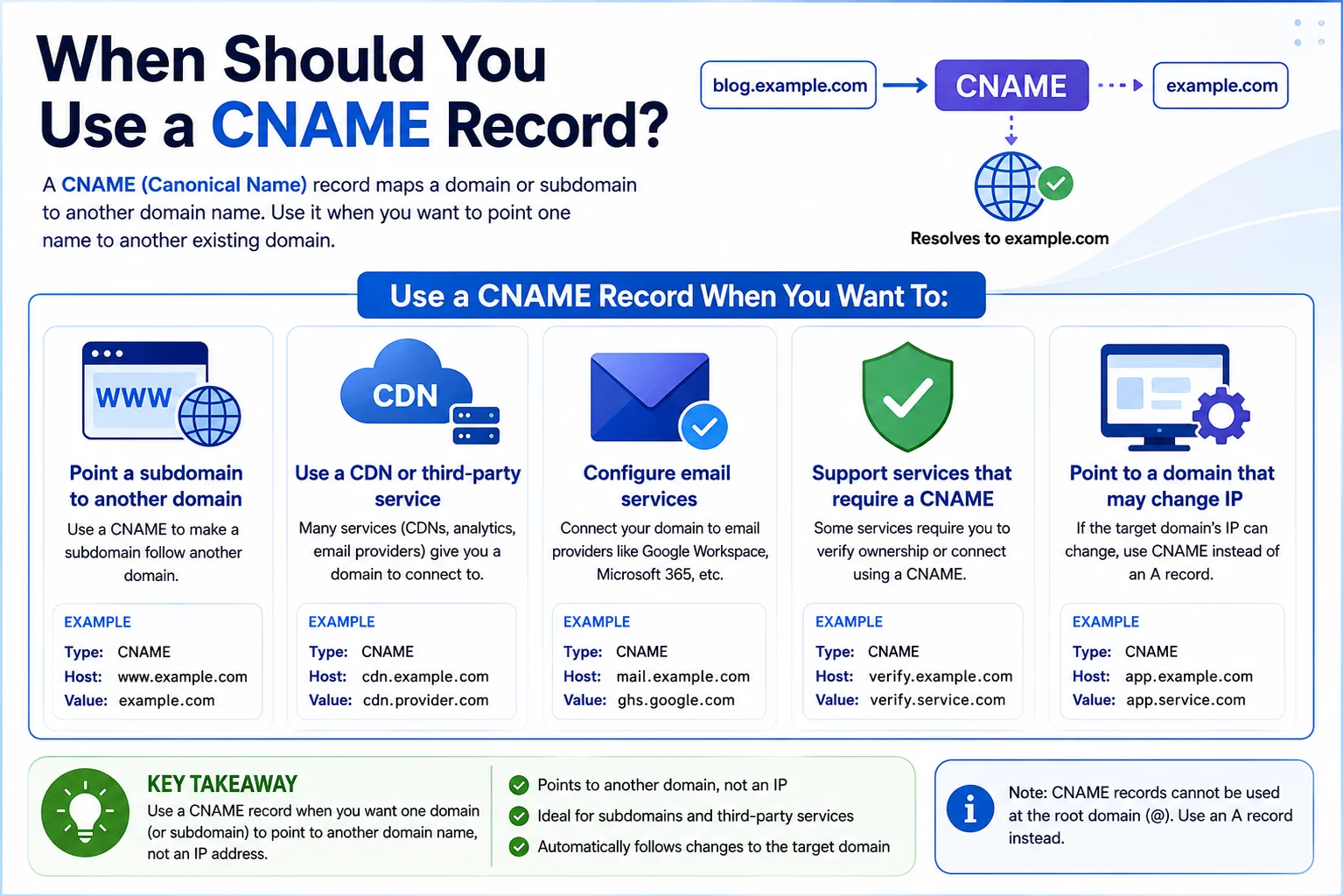
Use a CNAME when:
- You are connecting to a cloud platform. Services like Vercel, Netlify, Render, and Shopify provide a target domain rather than an IP, and they expect a CNAME.
- You are setting up subdomains. blog.yourbrand.com, app.yourbrand.com, and shop.yourbrand.com are all natural fits for CNAME records.
- The destination IP might change. Cloud services and CDNs update their infrastructure regularly. A CNAME follows automatically; an A record would need updating.
- You want simpler long-term management. If multiple subdomains point to the same service, a CNAME means the service can update its IP without any action needed on your end.
Can You Use Both?
Yes, and most production setups do.
A typical configuration uses an A record for the root domain and a CNAME for the www version. Additional CNAMEs can then be added for other subdomains, each pointing to a different platform independently.
A real-world setup might look like this:
yourbrand.com       A        104.21.45.67
www.yourbrand.com   CNAME    yourbrand.com
app.yourbrand.com   CNAME    your-app.vercel.app
blog.yourbrand.com  CNAME    yourbrand.ghost.io
What to avoid: Do not create both a CNAME and an A record for the same hostname. This creates a DNS conflict and produces unpredictable results. Also avoid chaining CNAMEs through multiple hops, as each one adds an extra lookup.
How to Add an A Record
Step 1: Get your server’s IP address from your hosting dashboard or welcome email.
Step 2: Log into your registrar’s DNS panel. If your domain is with Truehost, manage DNS directly from your account dashboard.
Step 3: Add a new record, select A as the type, enter @ in the name field for the root domain, and paste in the IP address. Leave the TTL at the default.
Step 4: Save and wait for propagation. Use MXToolbox to confirm your A record is resolving correctly.
How to Add a CNAME Record
Step 1: Get the target domain from your platform. It usually looks something like your-app.vercel.app or custom.shopify.com. Copy it exactly.
Step 2: Log into your registrar’s DNS panel. For domains managed through Truehost, this is available directly from the dashboard.
Step 3: Add a new record, select CNAME as the type, enter the subdomain in the name field (such as www, app, or blog), and paste the target domain into the value field. No http:// or trailing slash.
Step 4: Save and wait for propagation. Use DNS Checker to monitor how your CNAME is spreading across global servers.
DNS Propagation
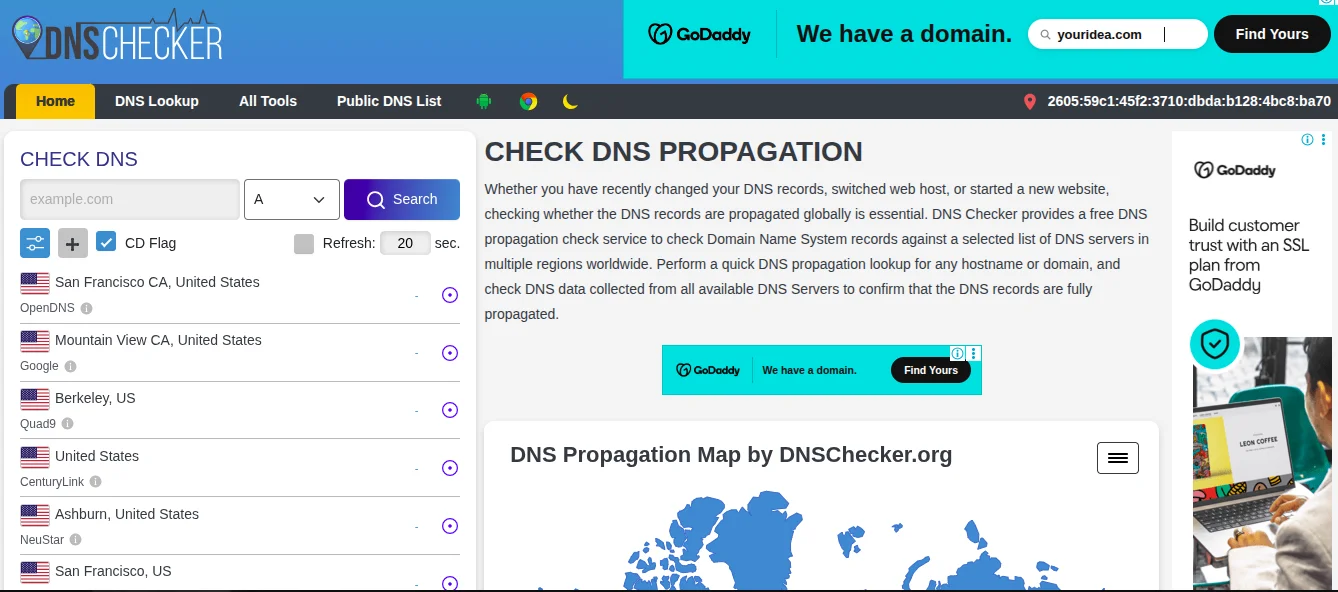
When you update a DNS record, the change does not apply everywhere at once. DNS servers cache records based on the TTL value, and until that cache expires, they keep serving the old information.
Most changes propagate within minutes to a few hours. The 48-hour figure often quoted is the maximum, not the average.
To check progress, use DNS Checker. Enter your domain and select the record type to see which regions have picked up the new record and which are still showing old data.
Common Mistakes to Avoid
- Wrong record values. Copy the IP address or target domain exactly as provided. A single wrong character breaks the connection.
- Conflicting records. Do not create both a CNAME and an A record for the same hostname. Remove the old one before adding the new.
- CNAME at the root without flattening support. Most DNS providers do not allow this. Check your registrar’s documentation before trying.
- Panicking during propagation. Changes take time. Waiting and rechecking after an hour is more productive than refreshing every two minutes.
- Leaving old records when migrating. Always clean up records from your previous host to avoid routing conflicts.
A Record vs CNAME Popular Use Cases
| Use Case | Recommended Setup |
|---|---|
| Business website | A record for root, CNAME for www |
| Blog on a subdomain | CNAME pointing to blog platform |
| Online store (Shopify) | A record for root, CNAME for www |
| Web app on Vercel/Netlify | CNAME for subdomain, A for root |
| SaaS with custom domains | CNAME to platform’s target domain |
FAQs
What is the difference between an A Record and a CNAME?
An A record maps a domain to an IP address. A CNAME maps a domain to another domain name. A records are more direct; CNAMEs are more flexible.
Should I use an A Record or a CNAME?
Use an A record for your root domain or when your host gives you a static IP. Use a CNAME for subdomains and third-party platforms that provide a target domain.
Which is faster, A Record or CNAME?
An A record resolves in one DNS lookup. A CNAME needs at least two. The difference is real but negligible for most websites.
Can I have both an A Record and a CNAME?
Yes, but not for the same hostname. Use an A record for the root and CNAMEs for subdomains.
Why is my DNS change not working?
Most likely it is still propagating. Wait a few hours and check using DNS Checker. If it still fails, look for typos in your record values or conflicting records.
What does DNS propagation mean?
It is the time it takes for updated DNS records to spread to servers worldwide. Changes are not instant because DNS servers cache records based on TTL.
Do website builders use A Records or CNAMEs?
Most expect a CNAME for custom domain connections, sometimes alongside an A record for the root. Check the documentation for your specific platform.
How do I know which DNS record to use?
Follow your hosting provider’s or platform’s instructions. They will tell you exactly which type and value to use. When in doubt, a CNAME is the safer default for subdomains and third-party connections.
Ready to Manage Your DNS Settings?
The A Record vs CNAME choice depends on what you are connecting and how your hosting is set up. For root domains and dedicated servers, use an A record. For subdomains and third-party platforms, use a CNAME. In most real setups, you will use both.
Register and manage your domain with Truehost and handle your full DNS configuration in one place.